
What are search types?
Search types in Sapera are an essential part of the product catalog setup, used to categorize and structure the ways products can be searched and filtered in the system. The feature enables the creation and management of different search types that act as categories for organizing products based on specific parameters or properties.
These search types are particularly useful in connection with product display in web shops or POS modules, where they help create a more user-friendly experience for customers or employees. Examples of search types could be "Web shop brands" or "Web shop categories," which make it possible to filter and present products based on brand or category.
How do I access search types?
1. From Financial, go to "Setup".
2. Navigate to "Product catalog setup" -> "Search types".
3. You are now on the "Search types" tab, where an overview of your search types in Sapera is visible.
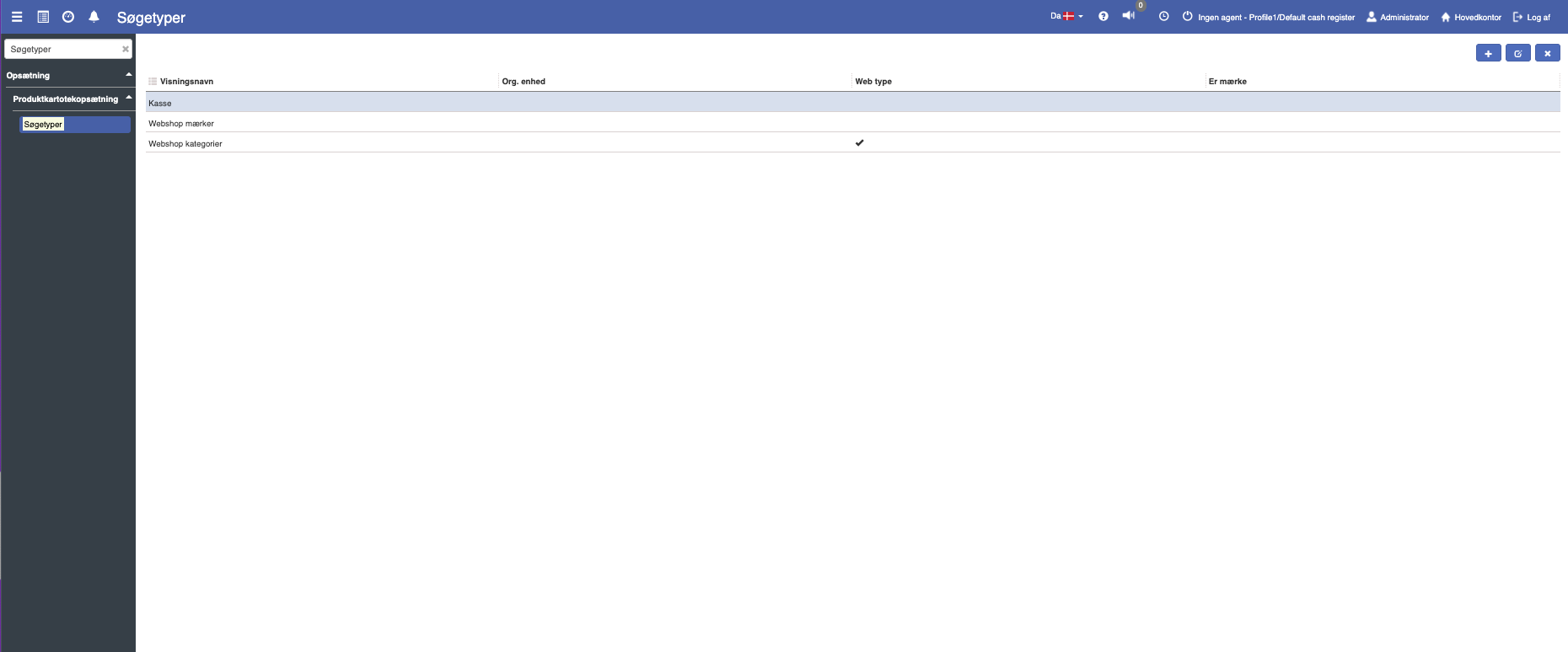
How do I create a new search type?
If you want to create a new search type, this can easily be done by clicking the blue "+" icon in the top right.
The following menu will now open, where you have the option to create a new search type:

Fill in the fields and finish with "Save".
Field descriptions
Name:
This field is used to specify the name of the search type. The name should be descriptive and clear, so it clearly indicates the purpose of the search type. For example, it could be "Web shop brands" or "Pos."
Inventory org. unit:
Here you select which inventory organization or organizational unit the search type should be linked to. This ensures that the search type is relevant and only available for the specific organizational unit.
Is brand:
This checkbox is used to indicate whether the search type should be treated as a brand. If this field is checked, the search type will be categorized as a product brand, which can be useful in web shops where brands are often used as a filtering option.
Want to know more?
Read more in these related articles:
Search tags
This article explains how to create and use search tags to improve search and product filtering in Sapera
Create search tags
Create search tags