Order types in Sapera are a feature that allows businesses to define and categorize different types of sales orders based on specific workflows and business rules. Each order type can be configured to meet unique needs, such as preventing certain actions, customizing email communication or linking to specific printouts and task types.
Overall, order types act as a framework for ensuring that sales orders are processed correctly and in accordance with the company's internal processes. For example, a standard order type can be used for ordinary transactions, while a specific "Rejected" order type can block further processing. Each order type can be customized with parameters such as sort order, default task type and customer-specific requirements, making it possible to tailor the workflows.
Order types help create structure and efficiency in the sales process by standardizing procedures and ensuring that the right rules are applied to the right orders. This makes it easy for your business to manage both simple and complex orders with precision and flexibility.
1. From Financial, access "Setup".
2. Navigate to "Order types".
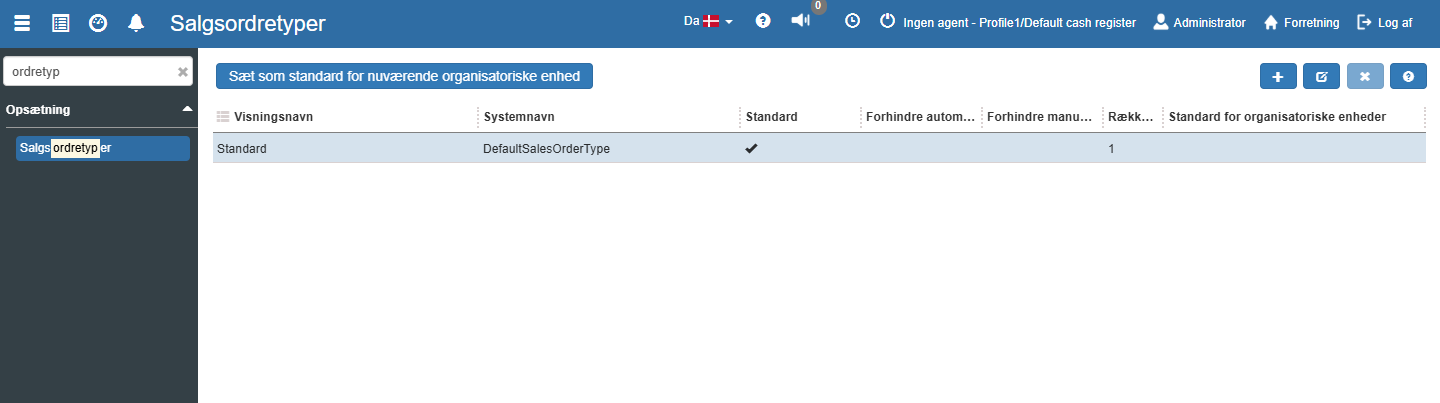
3. You are now on the "Order types" tab, where an overview of your order types in Sapera is visible.
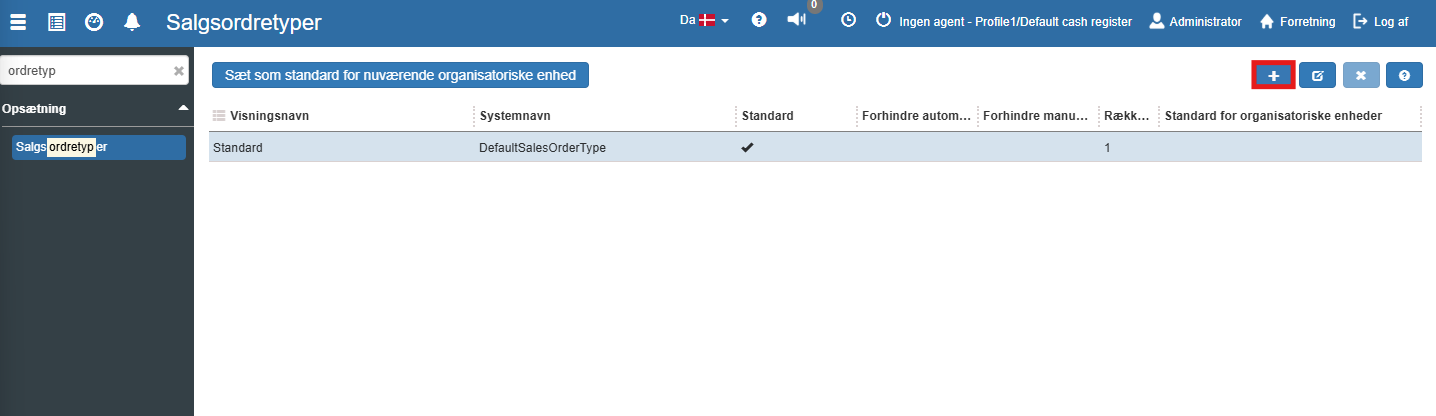
If you want to create a new order type, this is easily done by clicking the blue "+" icon in the top right:
The following menu will now open, where you have the option to create a new order type:
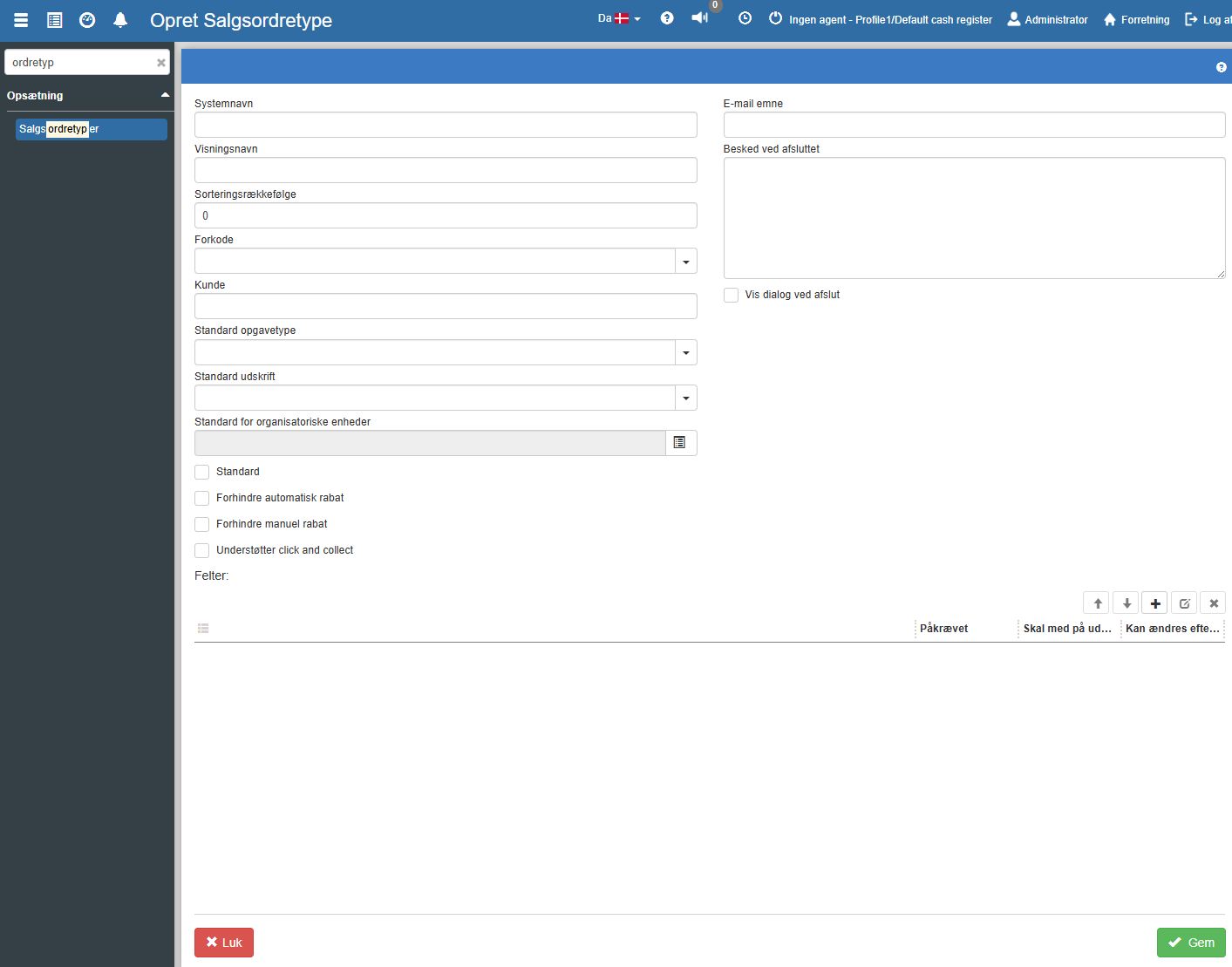

Fill in the fields and finish with "Save".
System name:
Start by specifying a unique system name for the sales order type. This name is used internally in the system and must not contain spaces or special characters.
Display name:
Enter a user-friendly display name, which is shown in the system's interface. This should be clear and understandable for users, such as "Standard order" or "Rejected".
Sort order:
Define the sort order for how this order type should be shown in lists. Lower numbers are shown at the top, so if this order type should have high priority, you can set the value to 1.
Prefix code:
Add a prefix code if it is needed to identify specific orders related to this type. The prefix code can be an alphanumeric code that helps with quick recognition.
Customer:
Select a default customer if this order type should always be related to a specific customer. This can be useful for recurring orders from the same customer.
Default task type:
Select a task type from the list to be used as default for this sales order type. This ensures that all orders of this type follow a predefined process.
Default printout:
Associate a default printout that is automatically generated for this order type, such as invoices or delivery notes.
Additional settings
Check the field "Default"" if this type should be the default for new sales orders.
Select "Prevent automatic discount" or "Prevent manual discount", if discounts should not be applied to this order type.
Check "Supports click and collect", if the order type should support in-store pickup.
Fields
At the bottom you can add additional fields to be included in this order type. Click "+" to add a field, and specify whether the field should be "Contact person" or "Requisitioner" and whether it should be required, included in printouts, or whether it can be changed.

Want to know more?
Read more in these related articles:
Sales order types
Learn how to create and configure sales order types in Sapera. A sales order type controls fields, discount rules, default values, completion messages and layout for sales orders and quotes.
Settings for sales orders
Overview of all settings under Setup → Settings → Financial → Sales Order in Financial. Controls the invoicing flow, stock locations, employee selection, automation, digital signature and much more.
