
How do I generate a specification of my suppliers?
1. From Financial, go to "Actor library" -> "Suppliers".
2. From the Suppliers page, you can click the printer icon in the top right corner.
3. Select the printout "Specification"
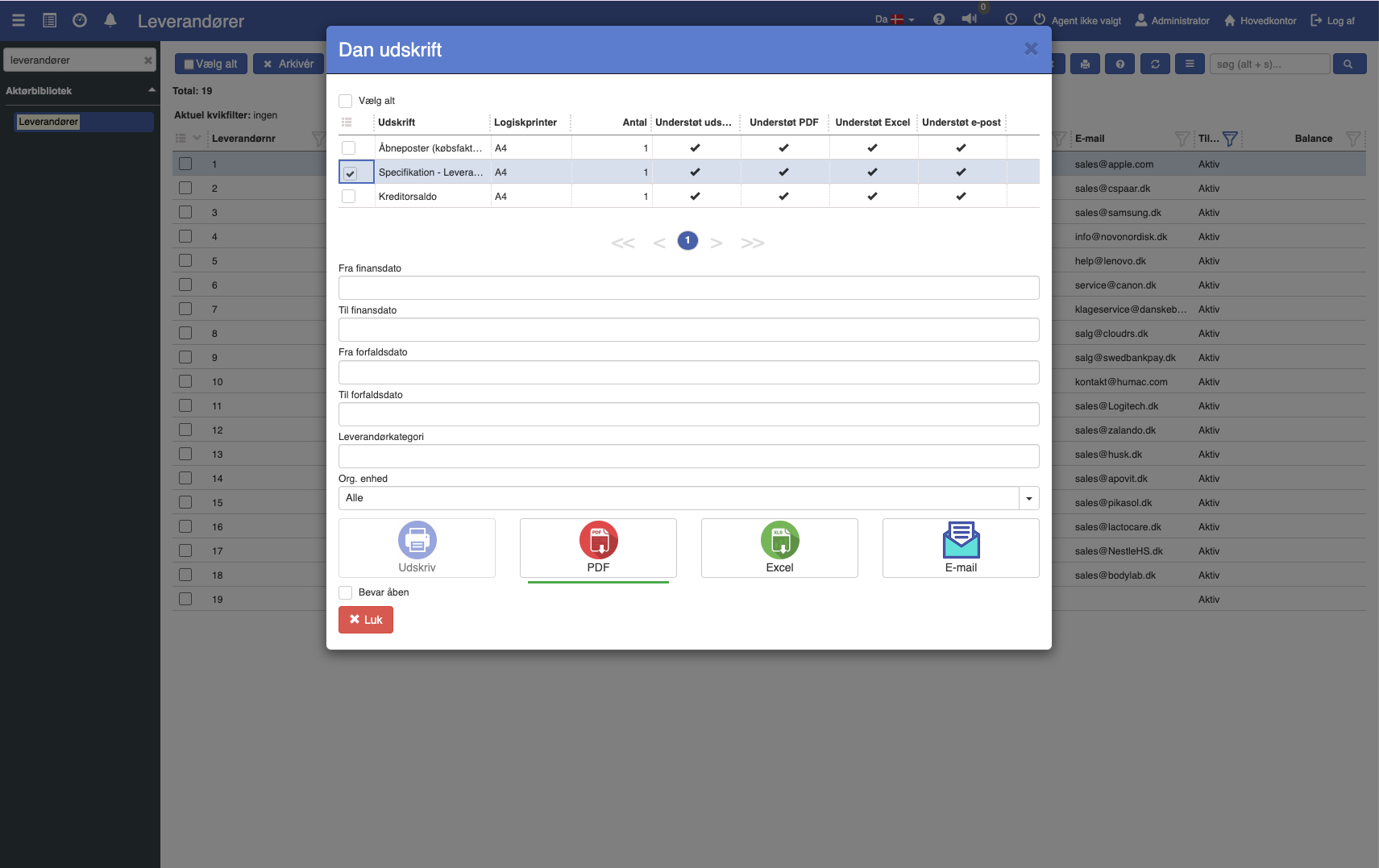
4. Fill in the fields (the fields are described below)
5. Click the print format you want to print in.
Description of the criteria
Options:
From / to finance date: Select the date range that the printout should base its data on.
From / to due date: Specify the due-date range that the printout should base its data on.
Supplier category: If a supplier category is specified on the printout, the printout will show specifications for all suppliers within the specified category.
Want to know more?
Read more in these related articles:
Customer specification
This article explains how to create a customer specification printout in Sapera
Specification
Stock specification per stock date for the selected products, with inbound, outbound, and reservations. Printed from the product via the printer icon.
Specification - Customers
Accounts receivable statement across customers with entries and a running balance per customer in a selected period.