If a transaction has been placed on the wrong customer or the customer simply wants to return an item, it is possible to make a return sale. See our video on how to do it here.
NOTE: It is also possible to add a "Return" button to your Pos layout. This way, you simply click the button and the selected line is automatically returned.
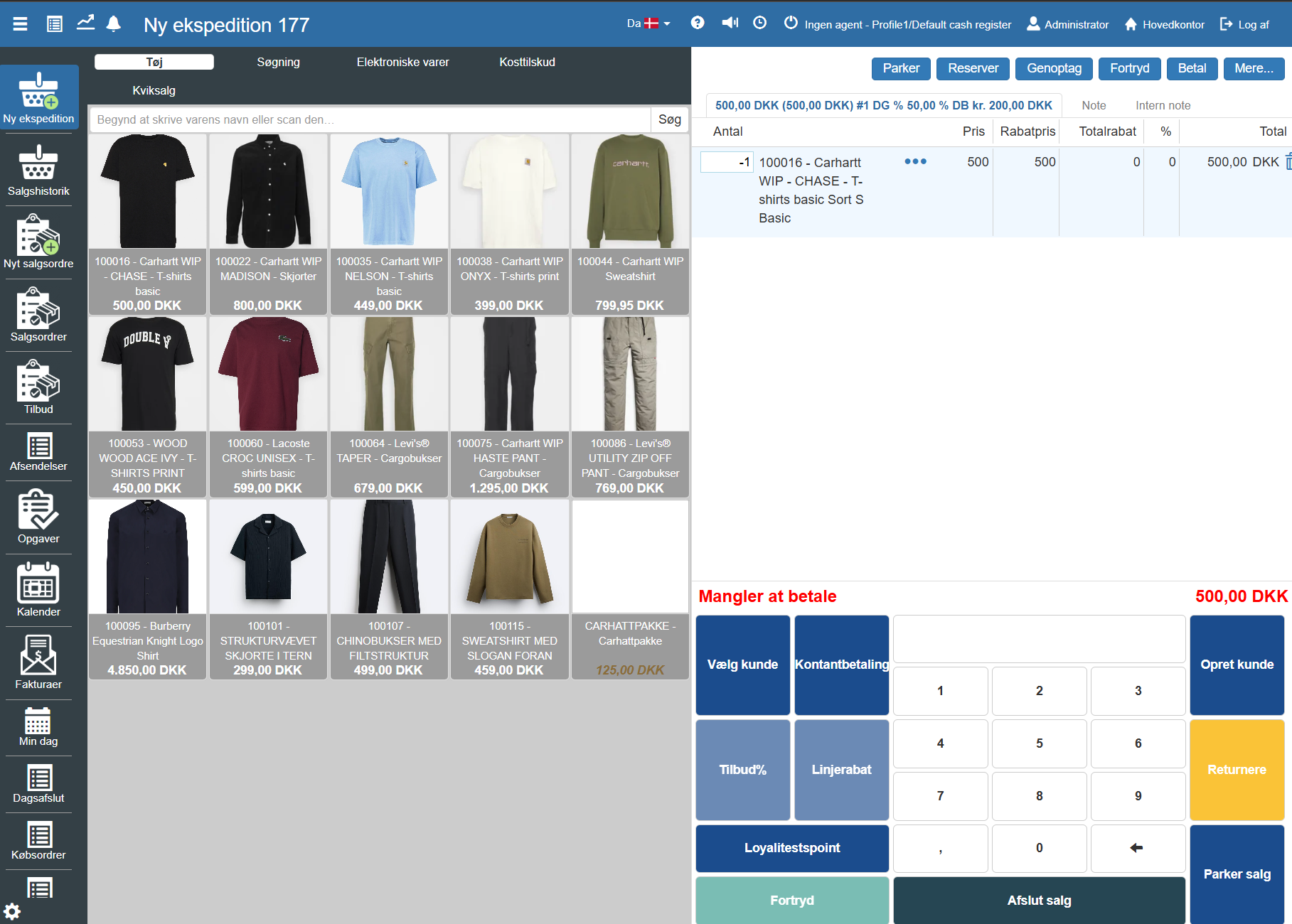
When you are in Pos and create a new transaction, you can make a return sale by entering "-1" in the quantity of the item you want to return.
Above, the item 'Carhartt T-shirt' is shown, which is to be returned. We enter -1 as the quantity:
The product field is now updated to show the discount price:
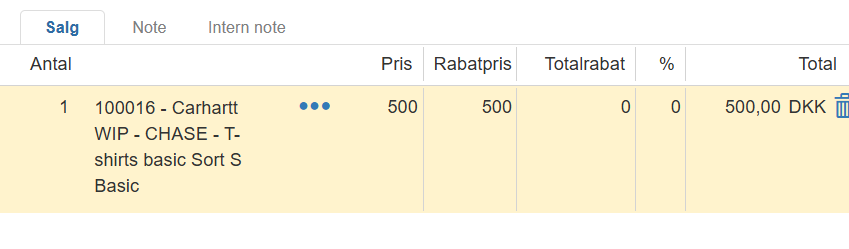
For this, the customer will get DKK 500 back.
Once you have added an item in Pos, you can click the three dots for the item line and select 'Return'."
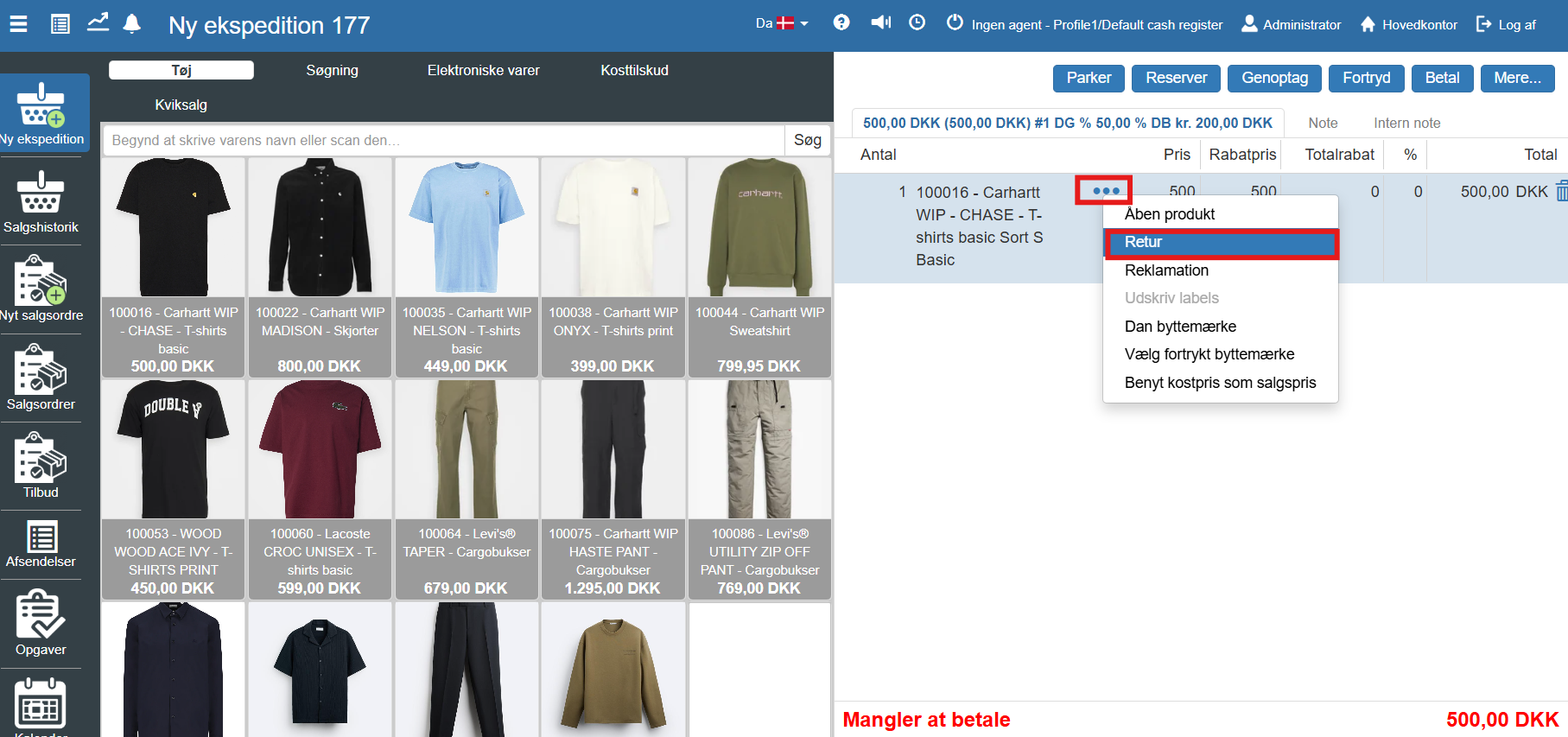
The item has now been returned
Access the "More…" button. A menu will now open where you can click on return of sale (Alt + U):
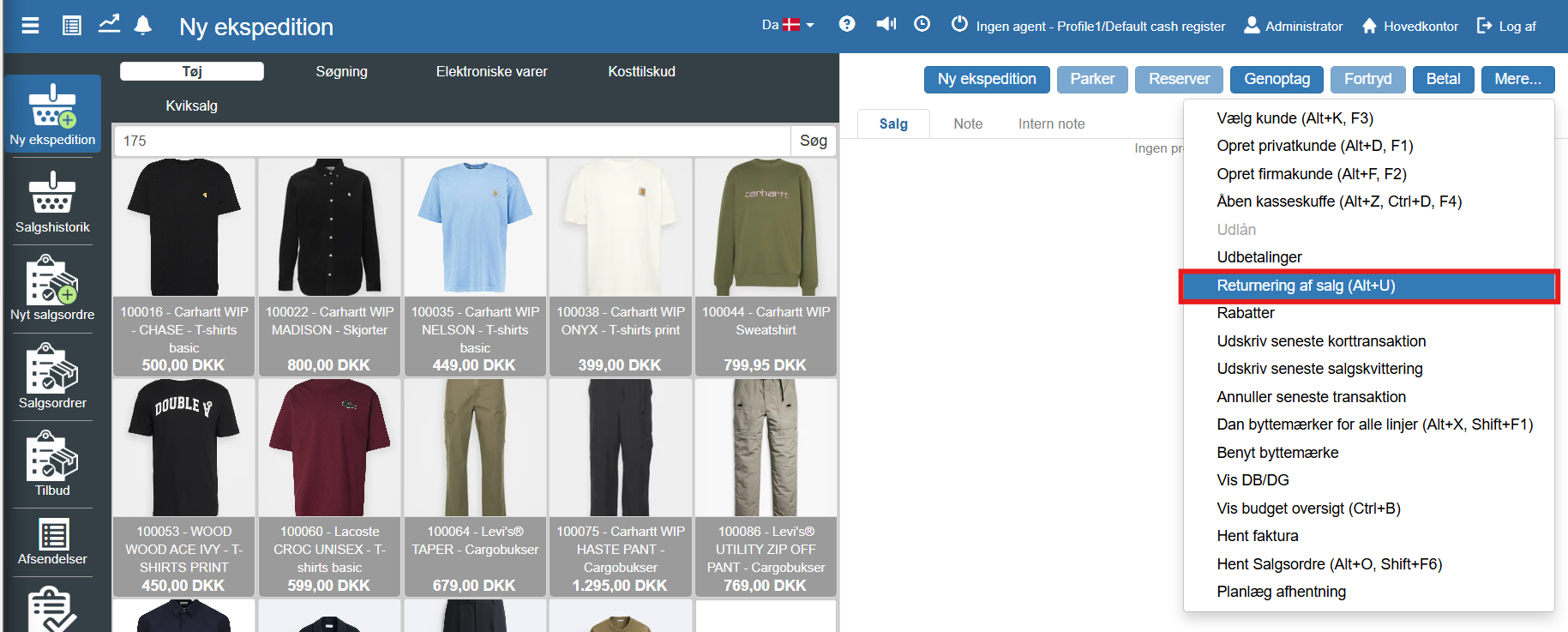
You can now search for the receipt the return concerns:
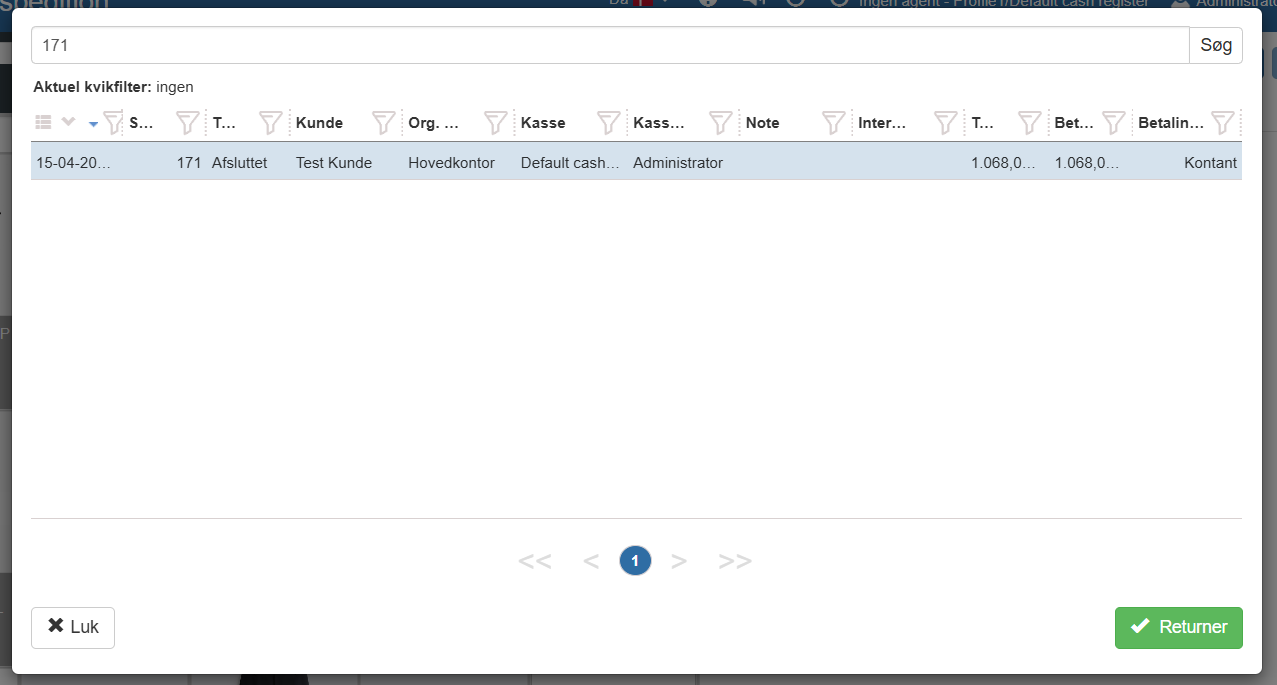
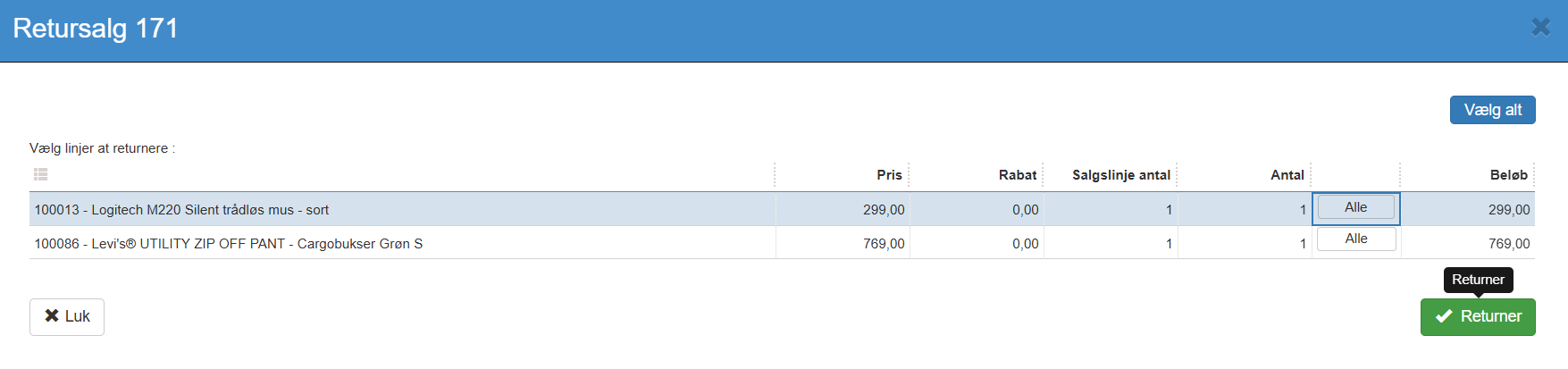
A new tab now opens where you can specify exactly which, and how many, items from the sale are to be returned:
The items will now be entered and you can choose yourself whether you want to pay out cash:
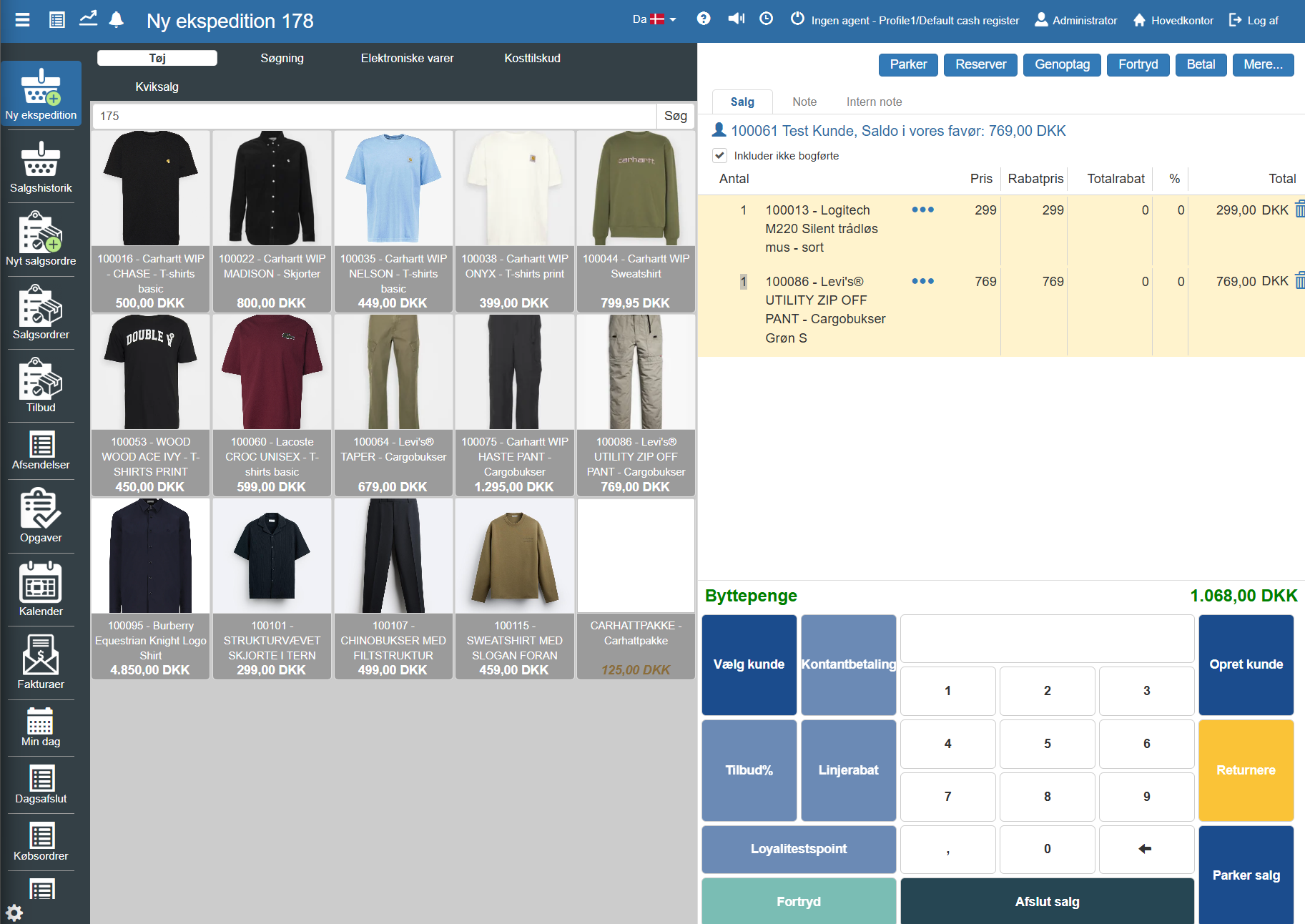
At this point, you have found the actual receipt that belonged to the customer's purchase. Since it has now been returned, the system will have detected this, and therefore the customer cannot use the receipt to have the item returned again, as it has already been returned. We recommend this form of return.
Want to know more?
Read more in these related articles:
Return an order
Return an order
Return of sale
This article describes the procedure for manually returning items using the return function in Pos.
Returned items to customer
Returned items to customer
