
Go to the "Pos" module
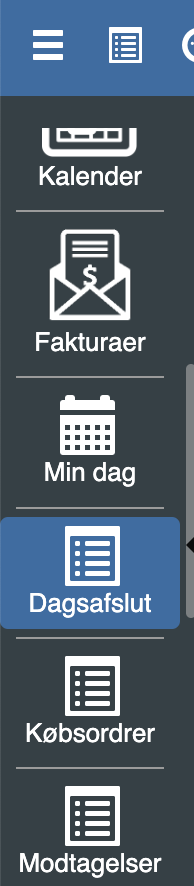
Click "Day-end closing" in the Pos module
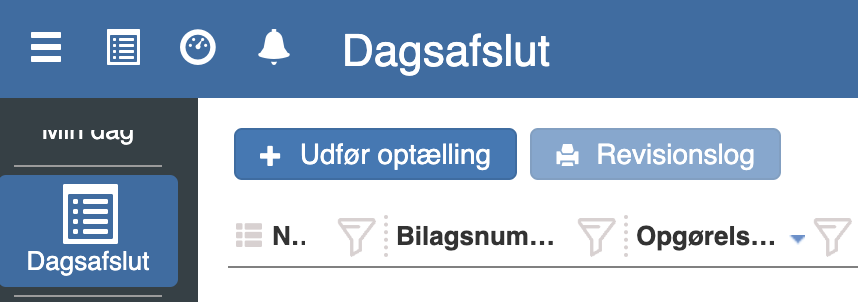
Click "Perform count"
In the "Cash at day opening" field, the cash balance at day opening will be shown - NOTE: it shows 0 if you are newly started.
Other payment options are filled in under "Other payment types"
In the "Transfer to bank" field, enter the amount transferred to the bank.
Under "Finance journal", select the finance journal to be used.
Check "Print settlement report" if a statement should be printed, and if you want all of the day's receipts as a printout, you must also check "Audit log"
NOTE: if there are unfinished sales, cash register reconciliation cannot be performed.
Click "Review failed sales" to correct this.
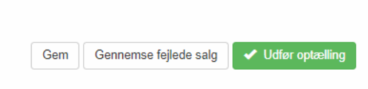
Here the unfinished sales are shown. Click "review" to correct.

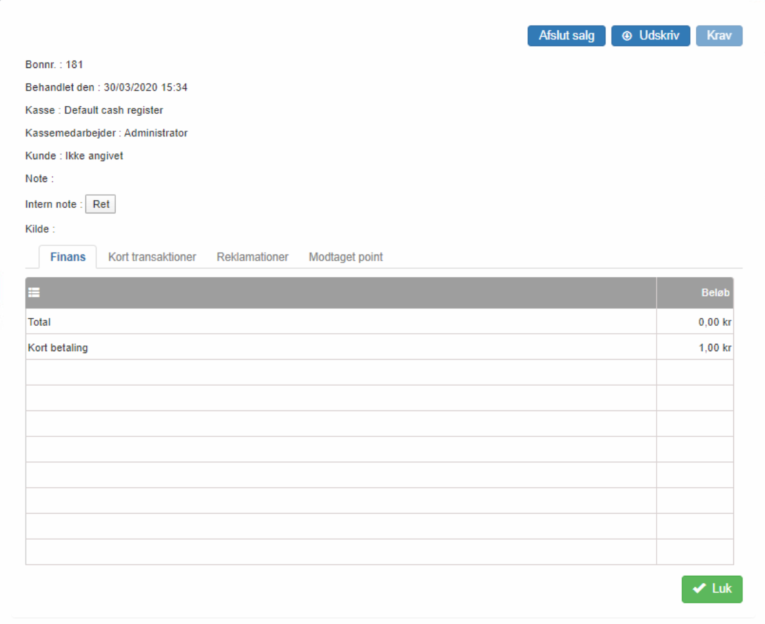
Click "Finish sale" and click "Close"
Finish by clicking "Perform count". If there are unfinished sales, a message about this will appear.
If you have checked "Print settlement report", a cash register statement will now be printed on your connected printer.
Want to know more?
Read more in these related articles:
Settlement (cash count)
Settings for cash register settlement: opening amount, counting method, cash difference control, settlement report and posting.
Day-end closing
In this guide we will go through how to perform a day-end closing at the POS.
Day-end closing
Walkthrough of the day-end closing's list view and edit view in the Pos app: columns, actions, fields, states, error scenarios and permission requirements.