
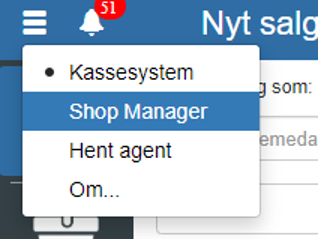
Start by opening "Financial" in the menu in the upper left corner.
Then click "Setup" and select "Finance periods"
You can also find "Finance periods" by clicking the search field in the upper left corner.
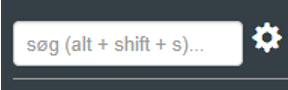
NOTE: if you cannot find "Finance periods", it is because you have not been granted permission for it. In that case, you can contact support to get access.
Click "+"
Enter "Name" and select "Start date" and "End date"
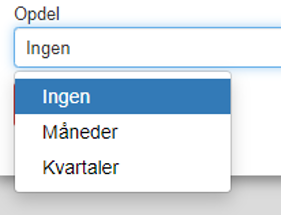
If you want to subdivide the finance period, you can do so in the dropdown under "End date"
REMEMBER to finish by clicking "Save"
If you want the newly created finance period to be the current period, select it and then click "Mark as current"
NOTE: changing the finance period will also "Reset the chart of accounts"
Want to know more?
Read more in these related articles:
Accounting - Open/Close finance periods
This article explains how to open and close finance periods (year, quarter or month) in Sapera
Finance periods (financial years)
Create, edit and manage your finance periods (financial years) in Sapera. Learn about subdivision into sub-periods, marking the current period and validating dates.
Open/close finance periods
Learn how to open and close finance periods in Sapera. The article describes the screen's columns, the button's function and the permissions required to use the function.