
How do I create a printout of open entries (invoice)?
1. From Financial, go to "Actor library" -> "Suppliers".
2. From the Suppliers page, you can click the printer icon in the top right corner.
3. Select the "Open entries (purchase invoice)" printout
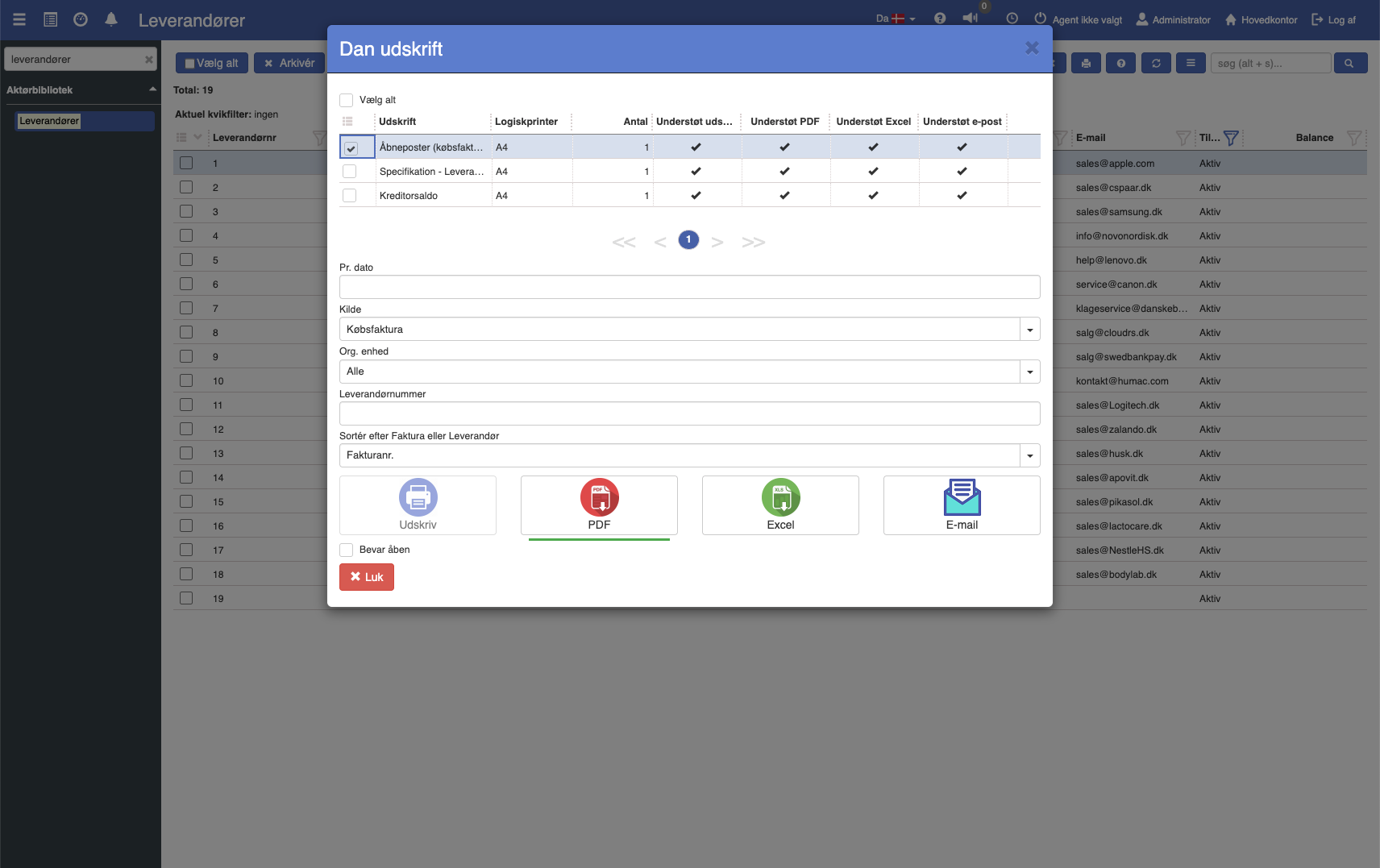
4. Fill in the fields (the fields are described below)
5. Click the print format you want to print in.
Description of the criteria
The printout supports the following criteria:
Org. unit: You can choose to only show data from one or more of your org. units (store / department etc.)
Per date: Specifies the end date for the printout based on the postings' financial date.
Supplier number: If the extract is wanted for a specific supplier, the supplier number can be entered.
Source: You can choose between "All", "Invoice", "Purchase invoice" and "Not specified".
Want to know more?
Read more in these related articles:
Open entries (invoice)
This article explains how to quickly create a printout of open invoices in Sapera
Open entries (purchase invoice)
The report shows your open (unpaid) purchase invoices as of a selected date with amount and remaining amount, so you can follow up on what remains to be paid to your suppliers.
Purchase invoices
Complete guide to Purchase invoices in Financial: list view, creation, the document editor with all header fields, line grid, toolbar actions, the Lines/Attachments/Supplier history tabs and the state flow from draft to paid.