
Start by opening “Financial” in the menu in the top left corner.
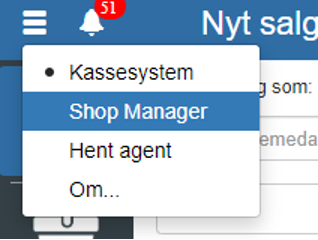
Then click “Accounting” → “Chart of accounts”
You can also search for “Chart of accounts” by clicking the search field in the top left corner.
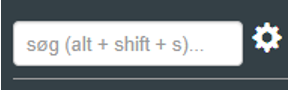
If you cannot find “Chart of accounts”, it is due to missing permissions for it. In that case you can contact support to gain access.
Then select the account(s) the accounting voucher should be uploaded to, or search for them by clicking the search field in the top right corner.
Click “Show entries” and then on the voucher number.
Click “Files”

Click “Add” and enter a title and select the file (accounting voucher) to upload.
REMEMBER to click “Save”
Want to know more?
Read more in these related articles:
Automatic reading of supplier invoices
Automatic reading of supplier invoices
Notes
This article explains how to create, edit and manage notes in Sapera, including linking dates, subjects, users and organizational units.
Attachments
Attach one or more files to a record in Sapera (voucher, customer, supplier, product, etc.) — and view the automatically attached PDFs