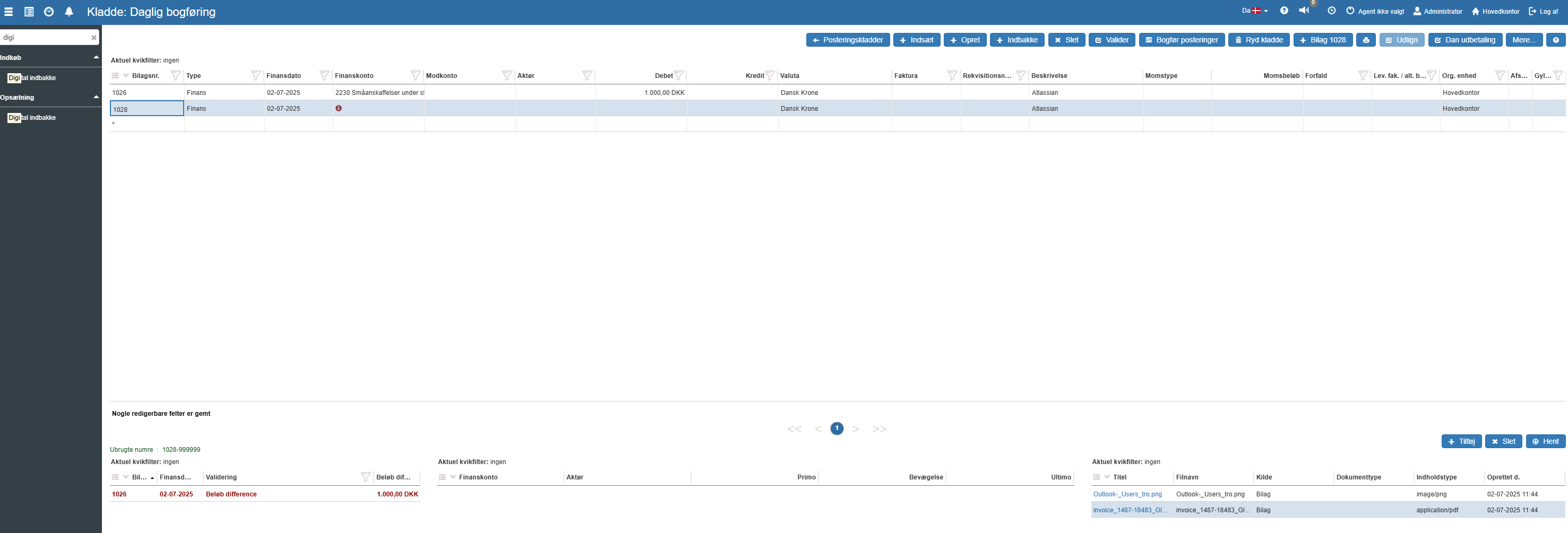
It is now possible to attach vouchers from the digital inbox - directly from the posting journal
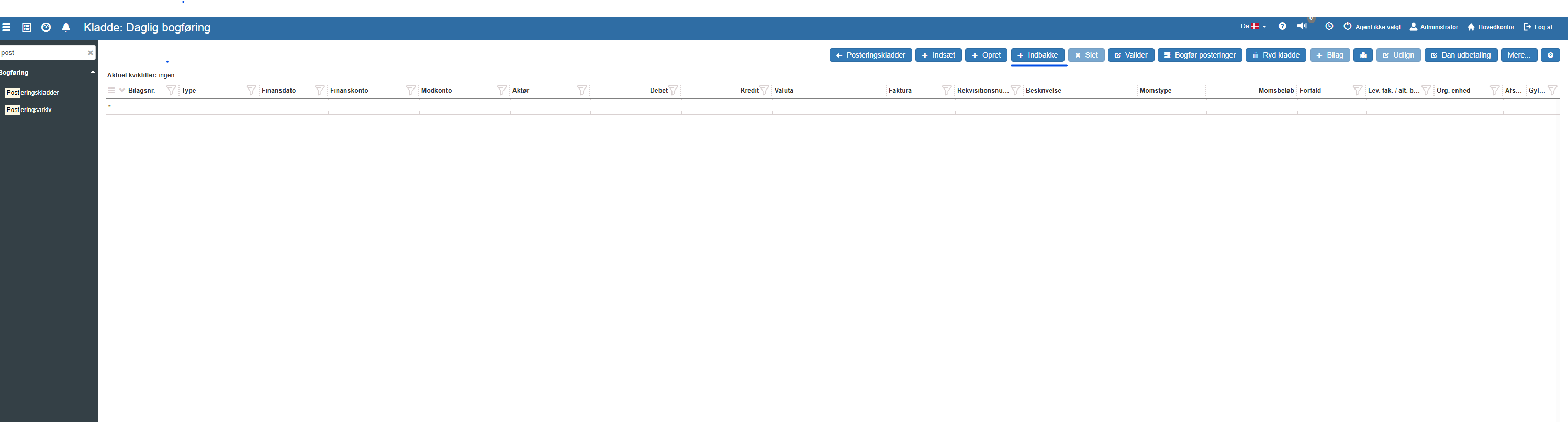
Step 1. Press “+ Inbox”
The following dialog from the digital inbox is then shown.
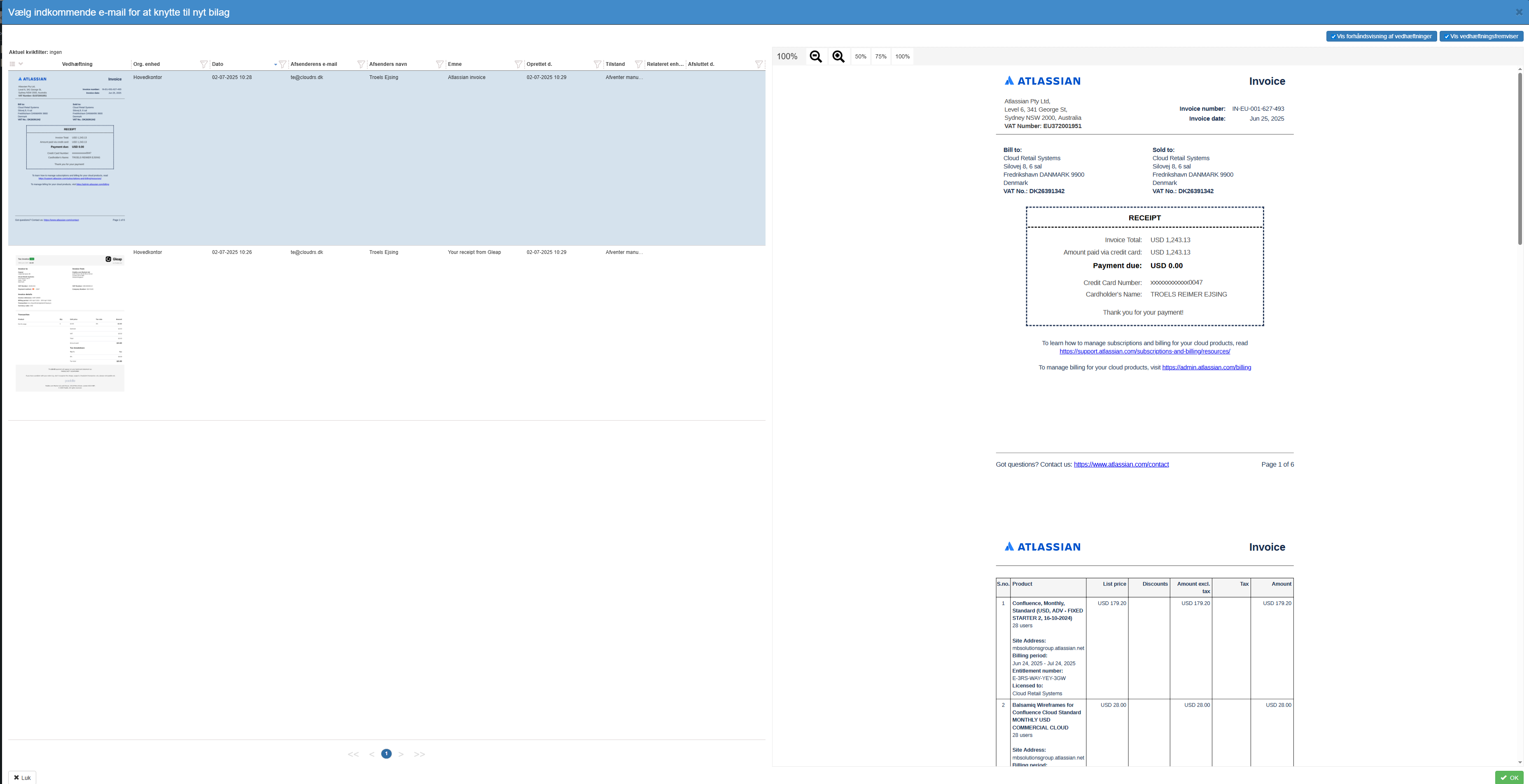
Note: There are 2 options in the top right corner.
“Show preview of file attachments”
This determines whether a small preview of the file is shown in the table on the left.
“Show attachment viewer”
This determines whether the PDF is shown on the right side.
This improvement also applies directly in the Digital inbox.
Default values for these options can be changed in “Settings”

Step 2. Select the correct invoice and press OK.
This will attach the voucher to the current voucher number in the posting journal.

You can now also create an entry directly from the digital inbox.
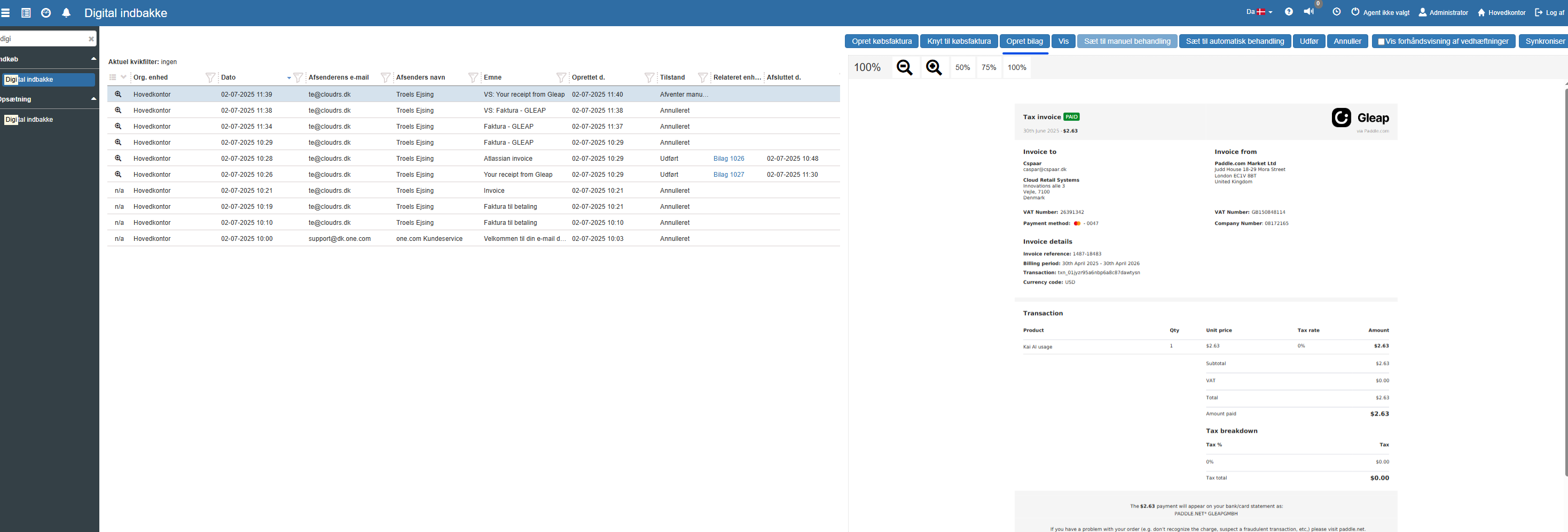
Step 1. Press “Create voucher” from the inbox
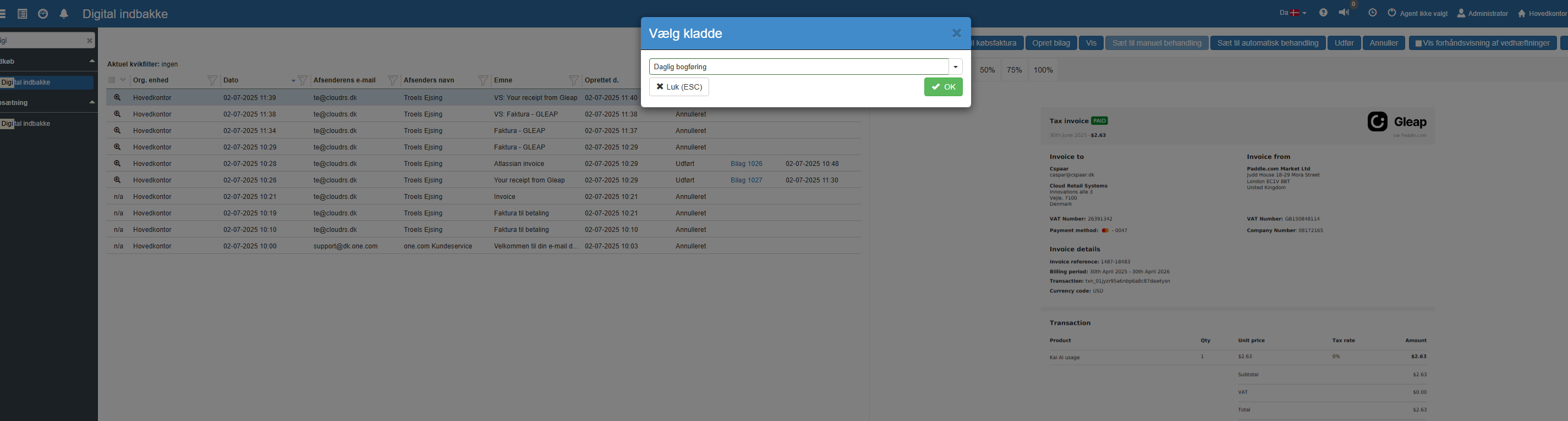
Step 2. Select the posting journal
The entry and the voucher are then created in the posting journal.


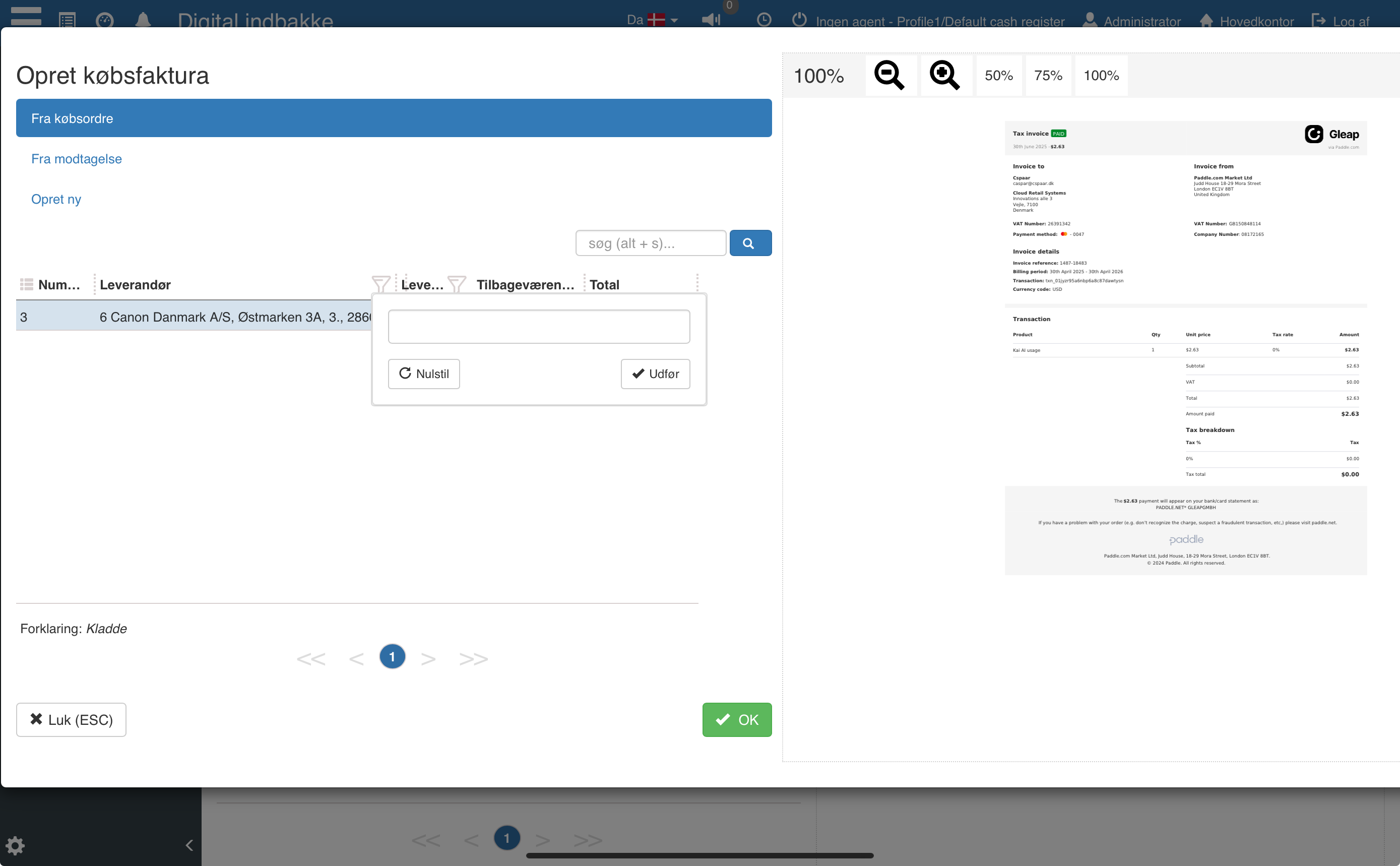
When creating a purchase invoice from a receipt / purchase order, it is now possible to filter by supplier. This way you can use the digital inbox to send all vouchers manually to the inbox and filter during creation to find the receipt / order from the relevant supplier.
On the “edit serial number item” screen it is now possible to hide the cost price (and CM/CR).
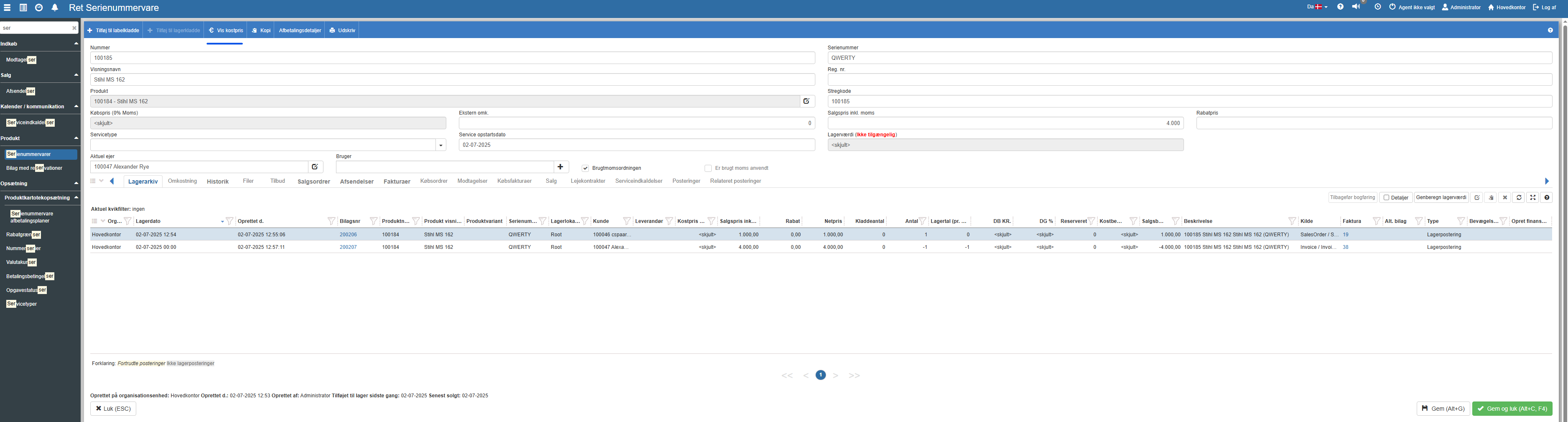
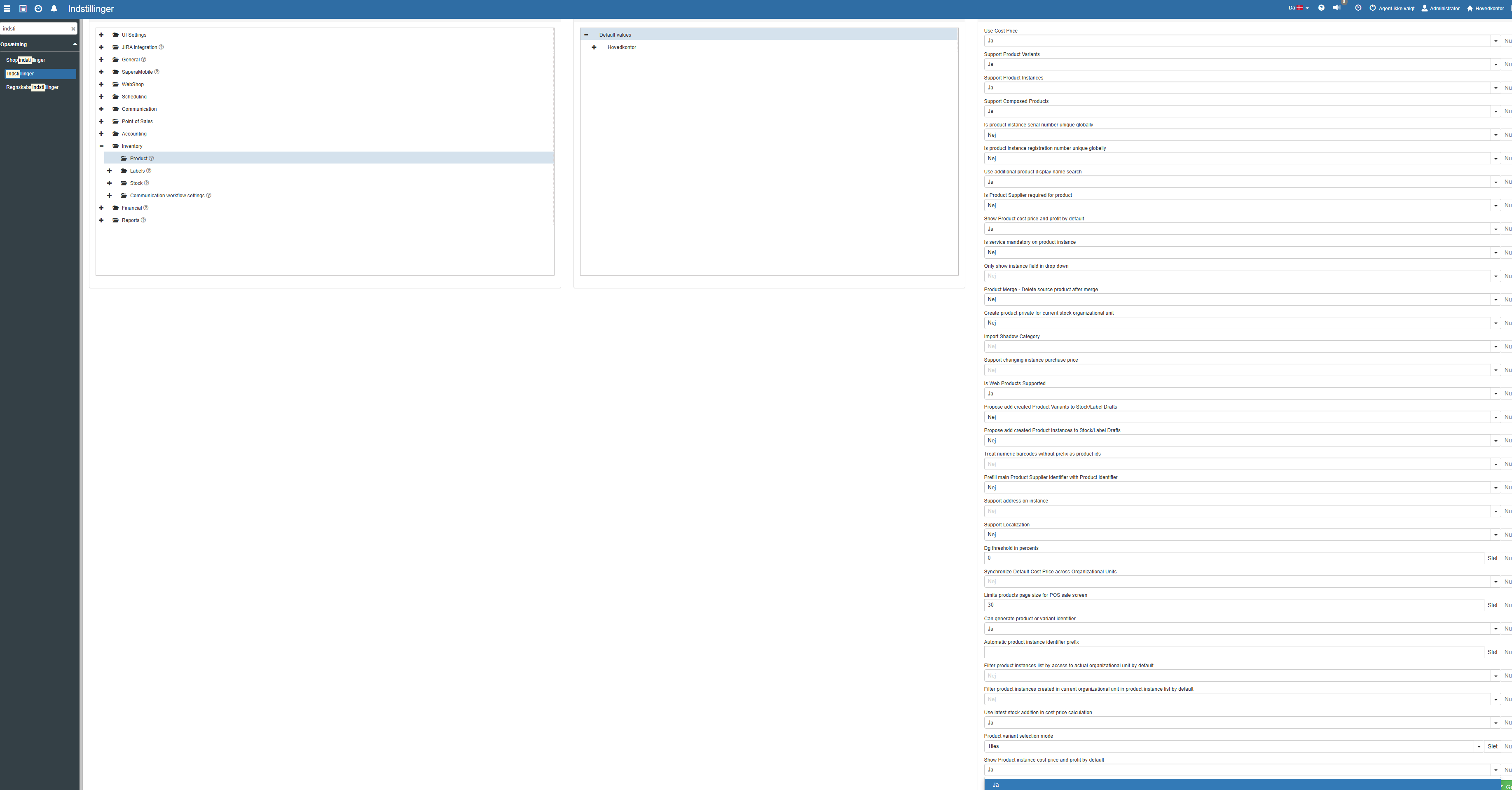
The default value for this can be changed in “Settings”.
The serial number item now supports a serial item being used - WITHOUT using the used-goods VAT scheme. The used-goods VAT scheme is optional and can now be turned off entirely.
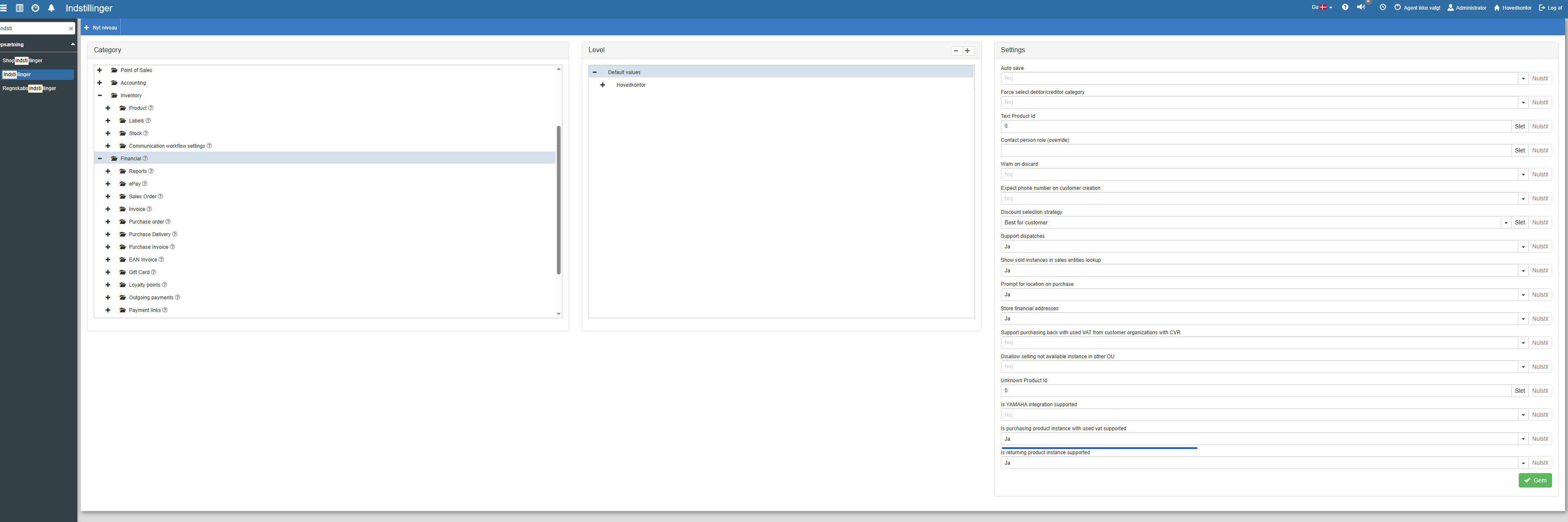
Therefore there are now 2 fields on the serial number item card. “Is used” and “Used-goods VAT scheme”.
Counting a serial number item covered by the used-goods VAT scheme could incorrectly switch to not being covered by the used-goods VAT scheme.
Fixed cases where the ‘Purchase invoice’ tab was empty, in the serial number items menu item,
even though the serial item had been purchased on a purchase invoice.
There is now a new setting that determines whether serial items without stock can be transferred internally.
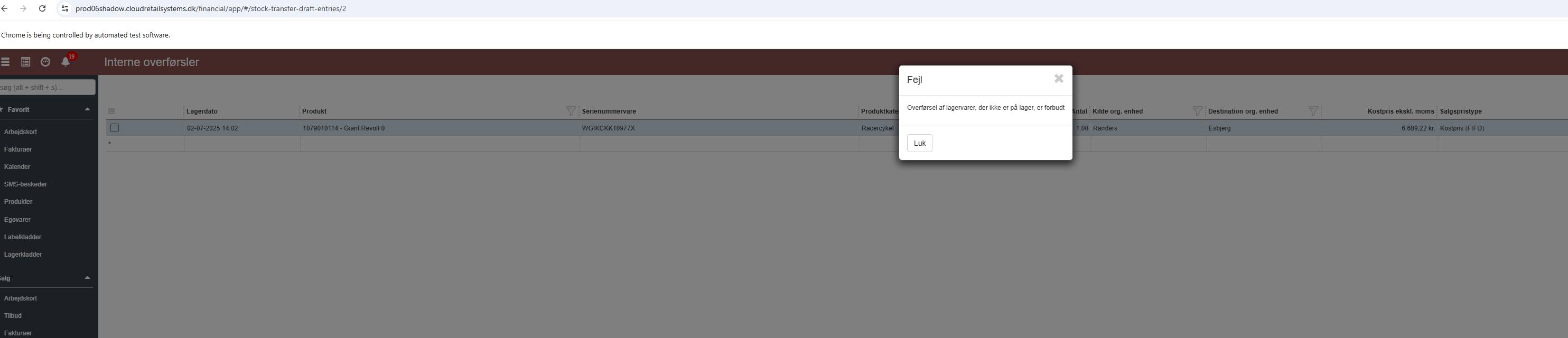
The setting can either prevent or warn.
The following setting has been introduced
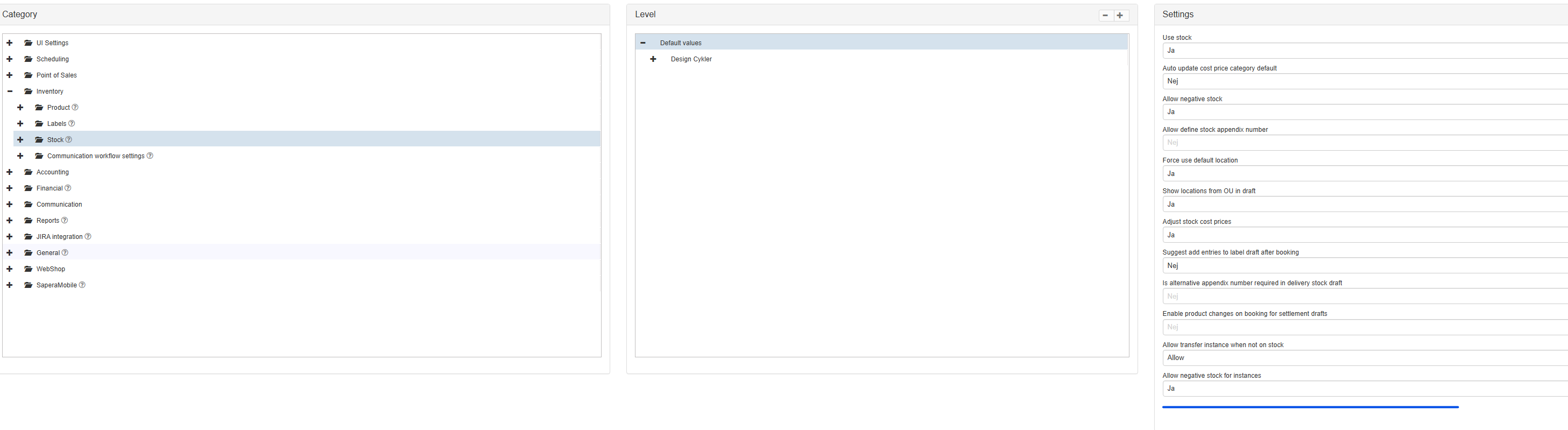
It is now possible to be reminded at each login that you need to request approval of logged time (My Day).
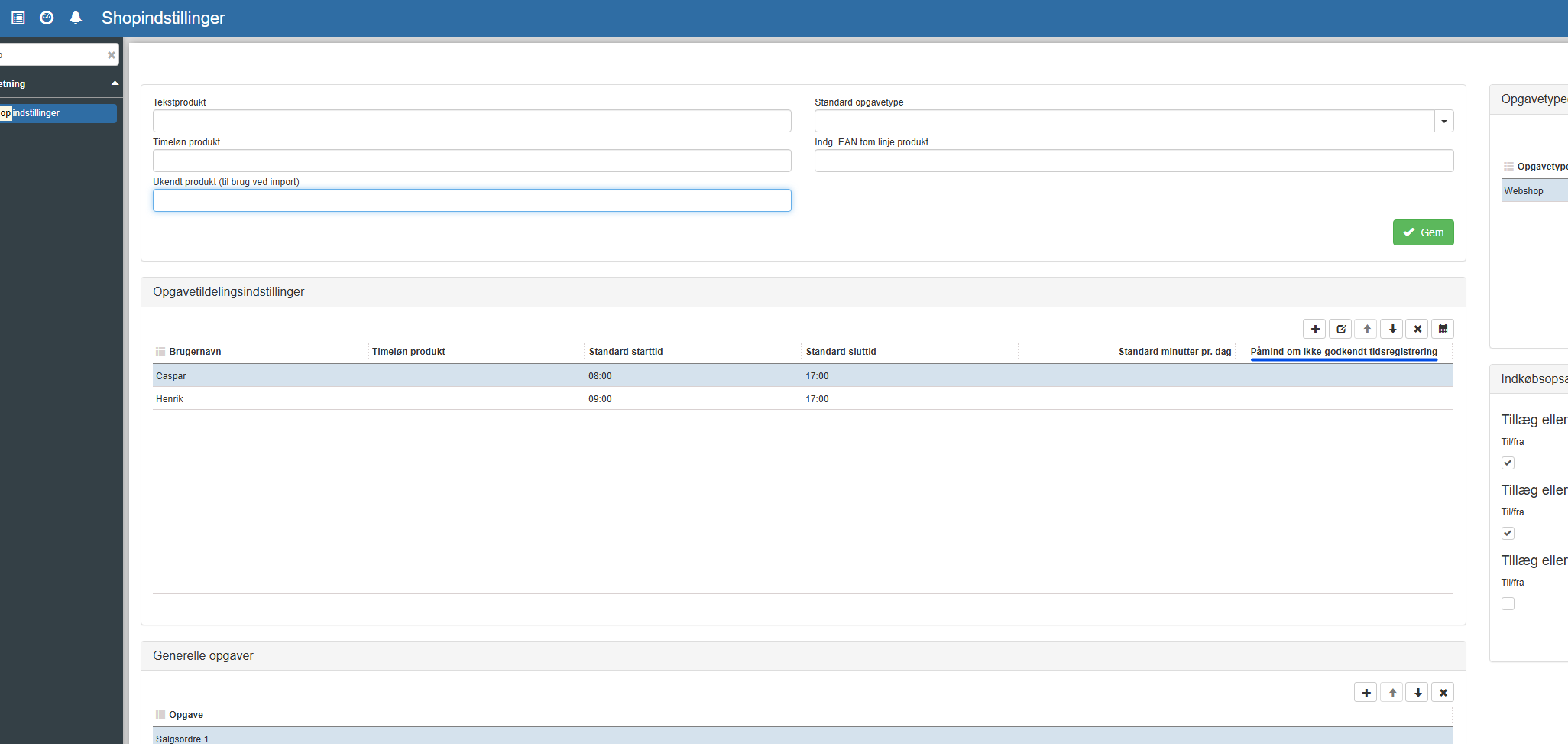
With this setting set to “Yes”, the first login will trigger the following dialog - if a request for approval of hours has not been submitted.
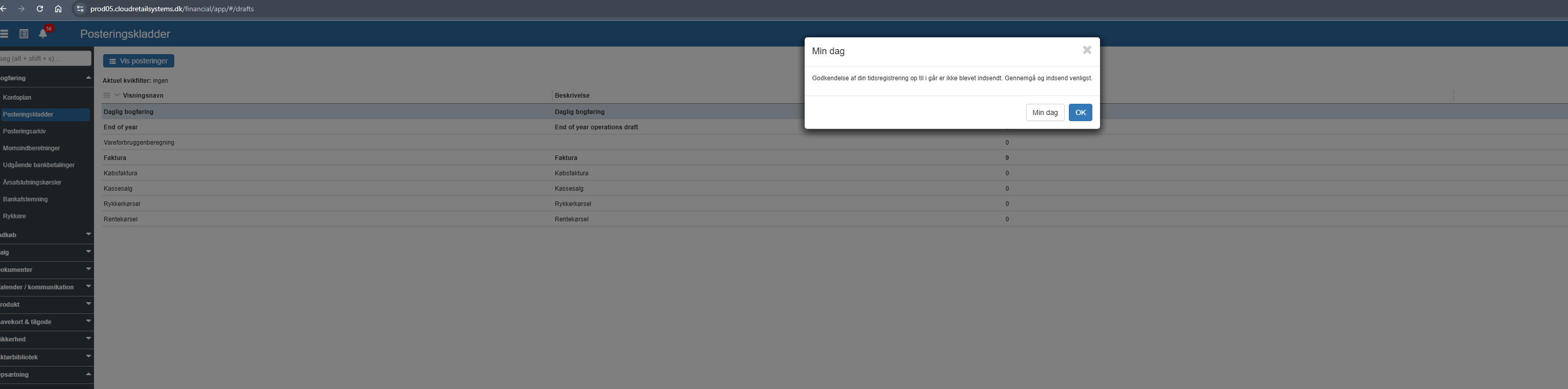
By pressing “My day” the user is taken to the My day screen - where the request can be submitted from.
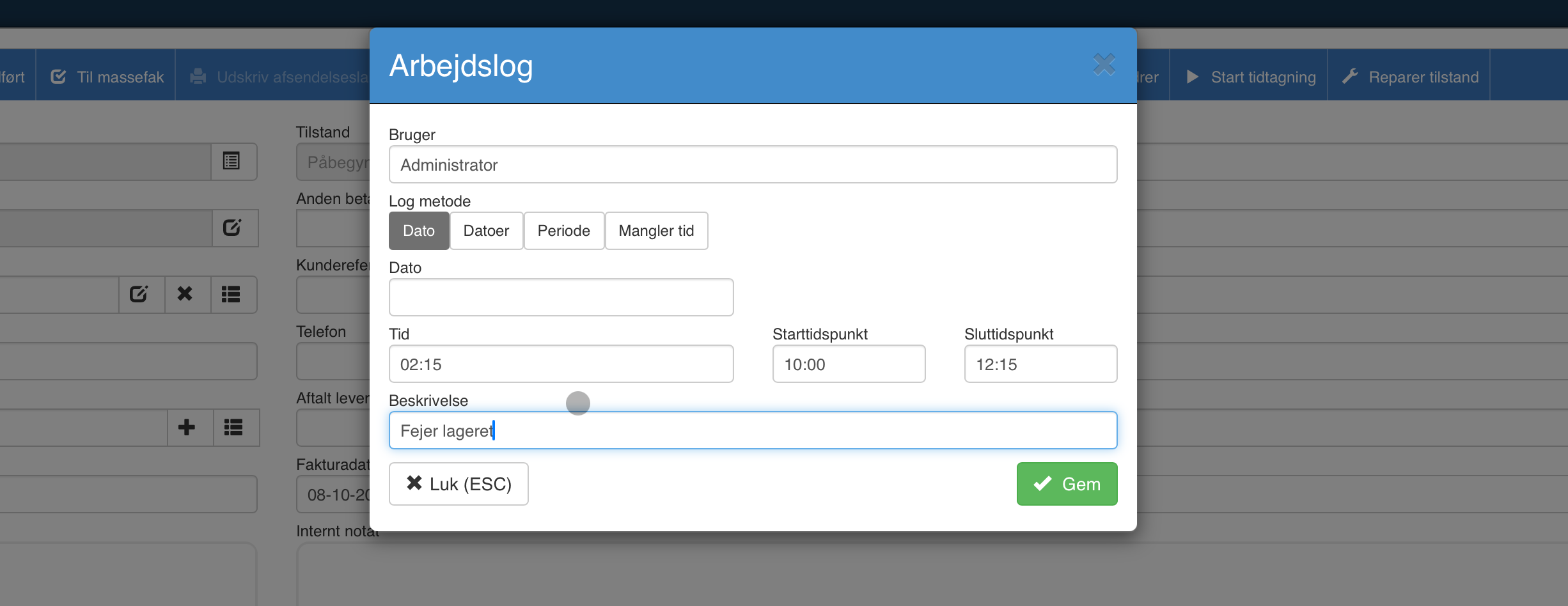
It is now possible to enter a start and end time - after which the time spent is calculated automatically.
It is likewise possible to enter a description.
When the user uses the invoice field to find an invoice or purchase invoice in order to register a payment, a VAT code must never be applied, regardless of whether “Prevent VAT on contra account” is set on the contra account.
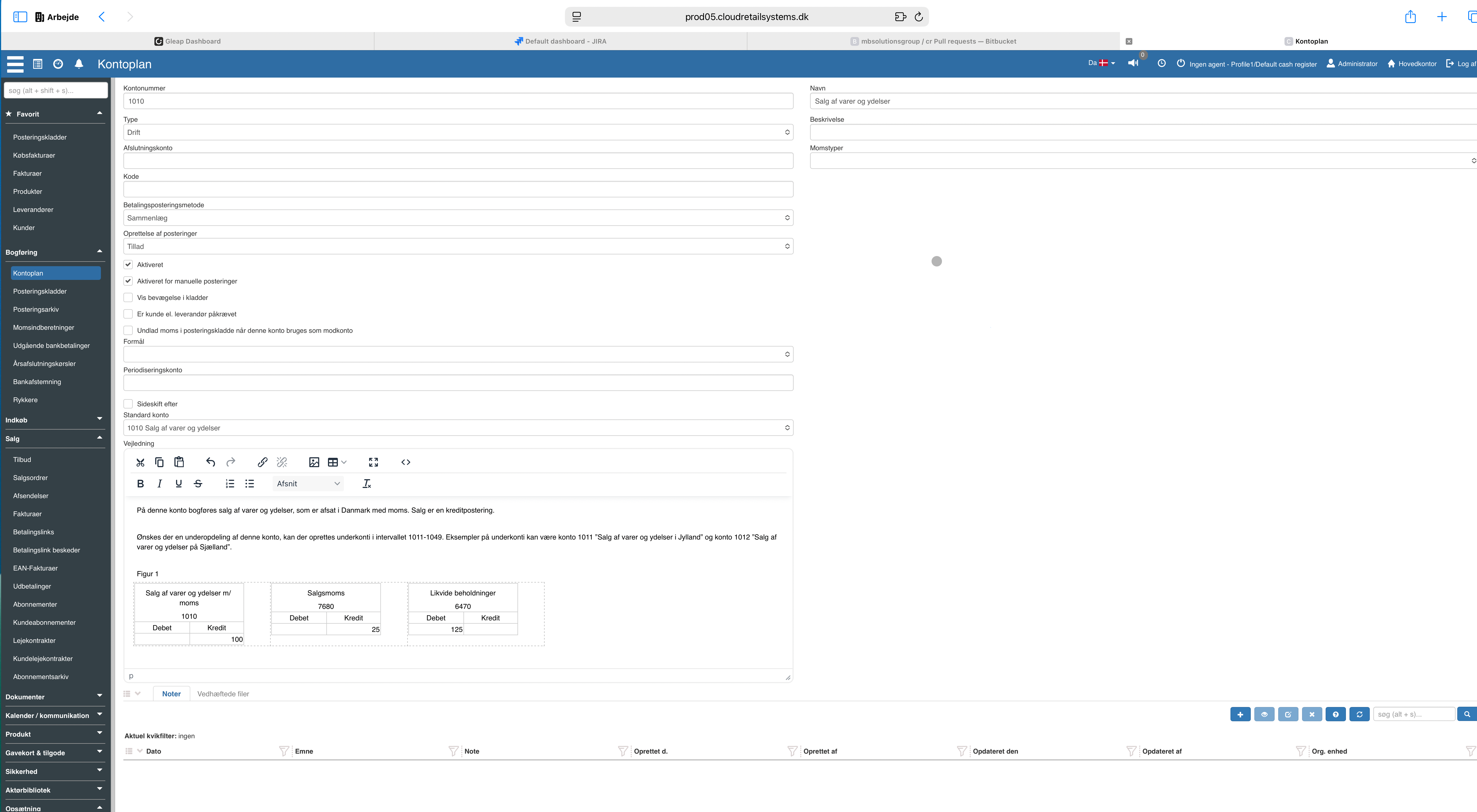
You can now add files and notes under “edit/create account”.
If you were on page 8 and pressed post current voucher (F8), the page switched back to page 1 - instead of staying on the current page. This is now fixed.
Reconciliation did not handle credit notes (opposing entries) correctly. It would not offset the amount and would carry the amount over into the posting journal. This is now fixed.
The remaining amount is now updated immediately after closing the reconciliation window.
Select the reconciled row and press “Show reconciliations”.
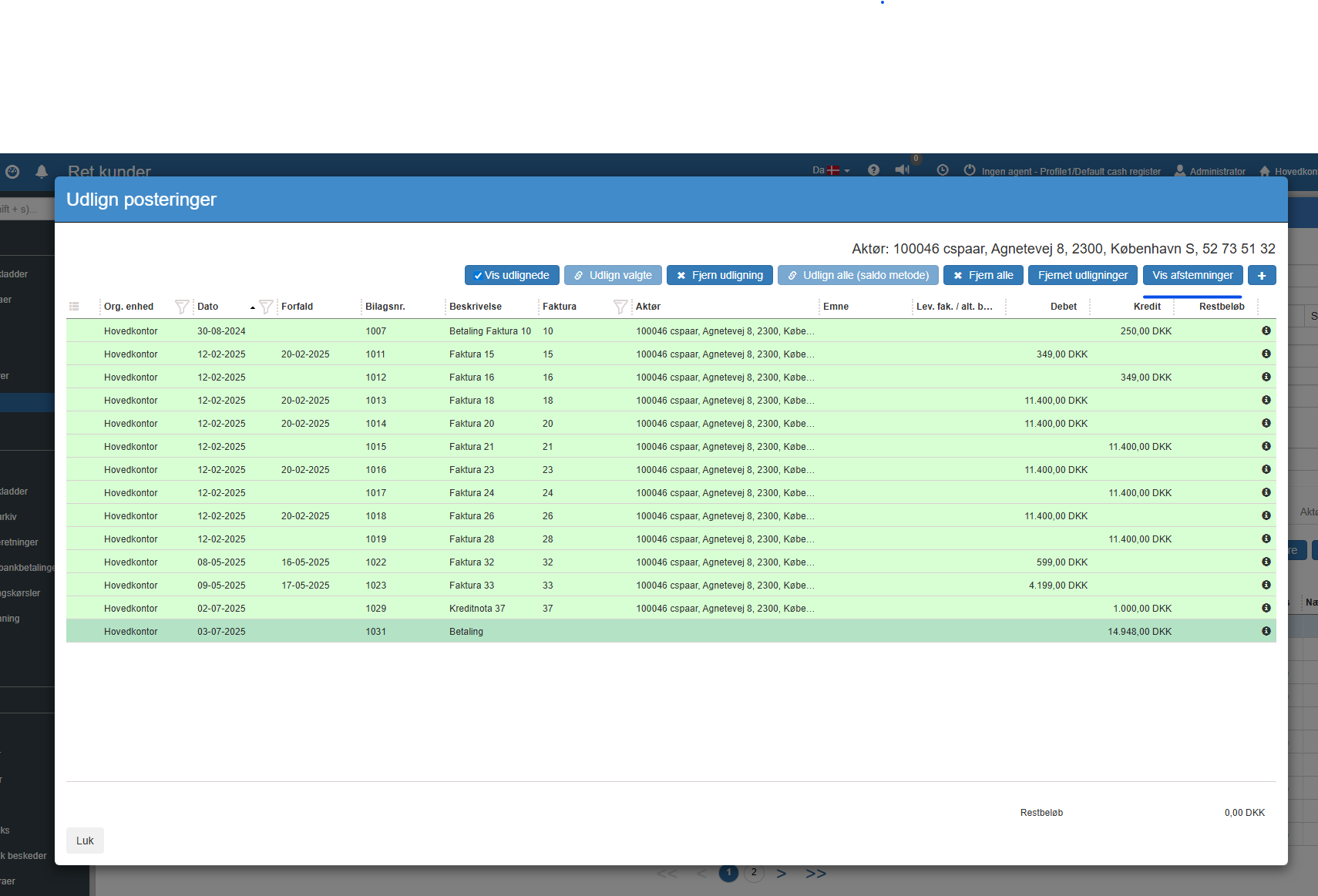
The following is then shown
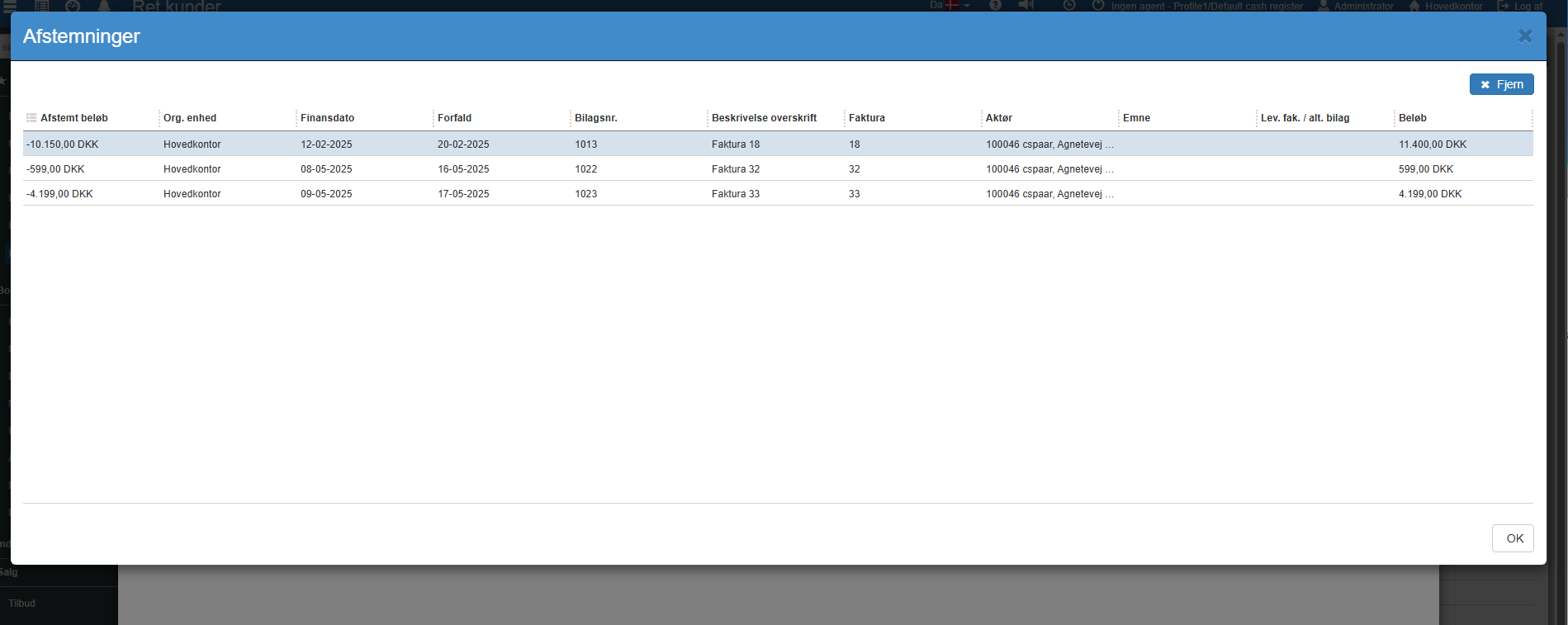
From here it is possible to save the table contents as CSV, or remove a reconciliation.
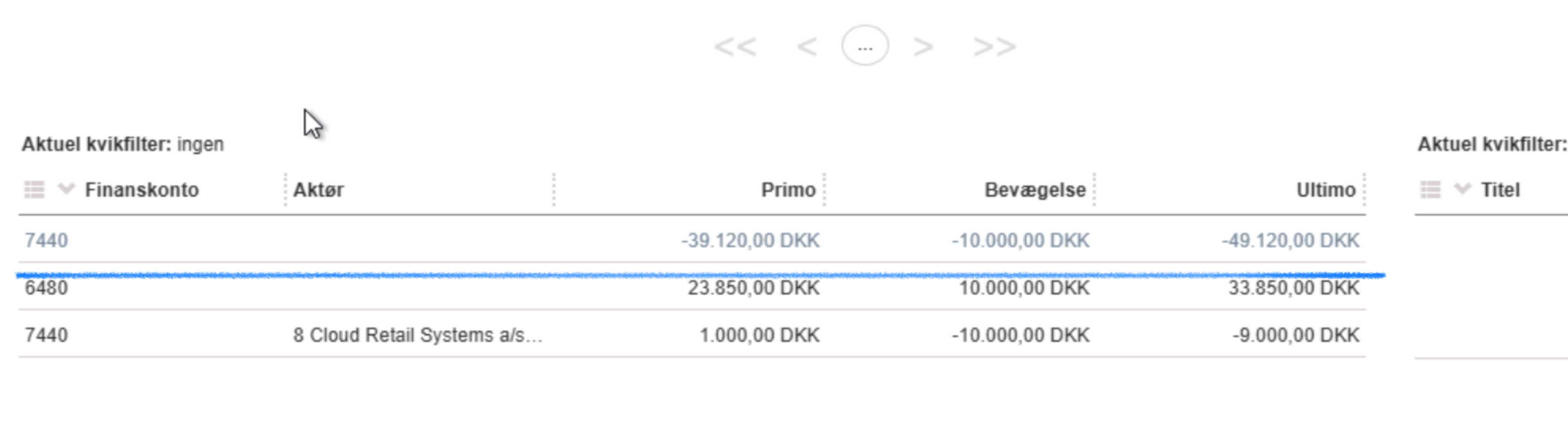
If you choose to view entries grouped per actor, the actual entry is shown in normal text, and movements without an actor are shown in grey text. This means it is possible to see the total movements on, (in this case) account 7440, even if there were several entries for different actors.
If you move to the next line in the posting journal, Sapera will normally balance the voucher itself by suggesting an amount on the next line. This only worked if no special quick filters and/or sorting were set up in the journal. Now it also works with quick filters and/or sorting in the journal.
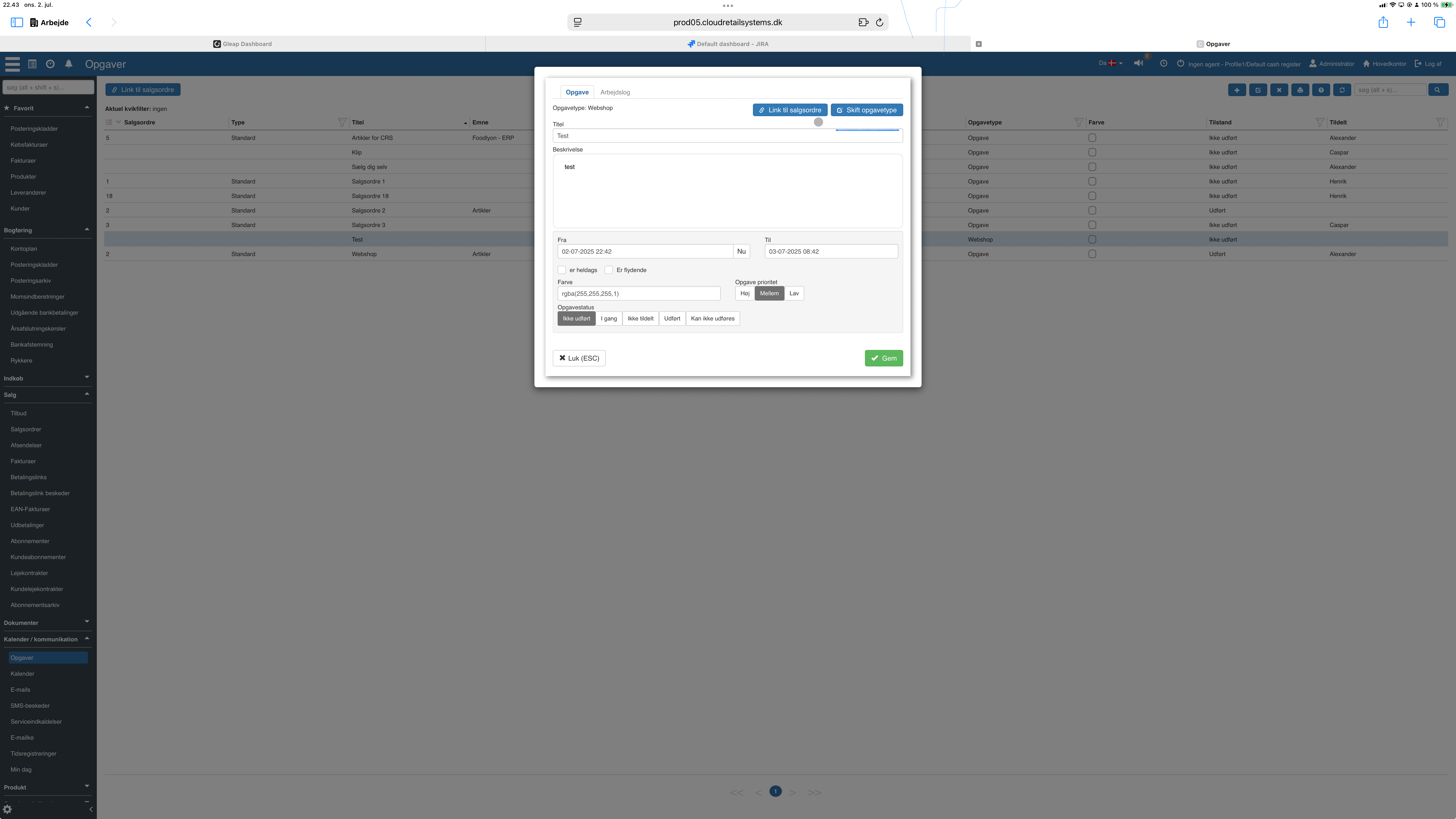
When changing the sales order type on a sales order, it did not automatically update the associated task type on the task. This is fixed.
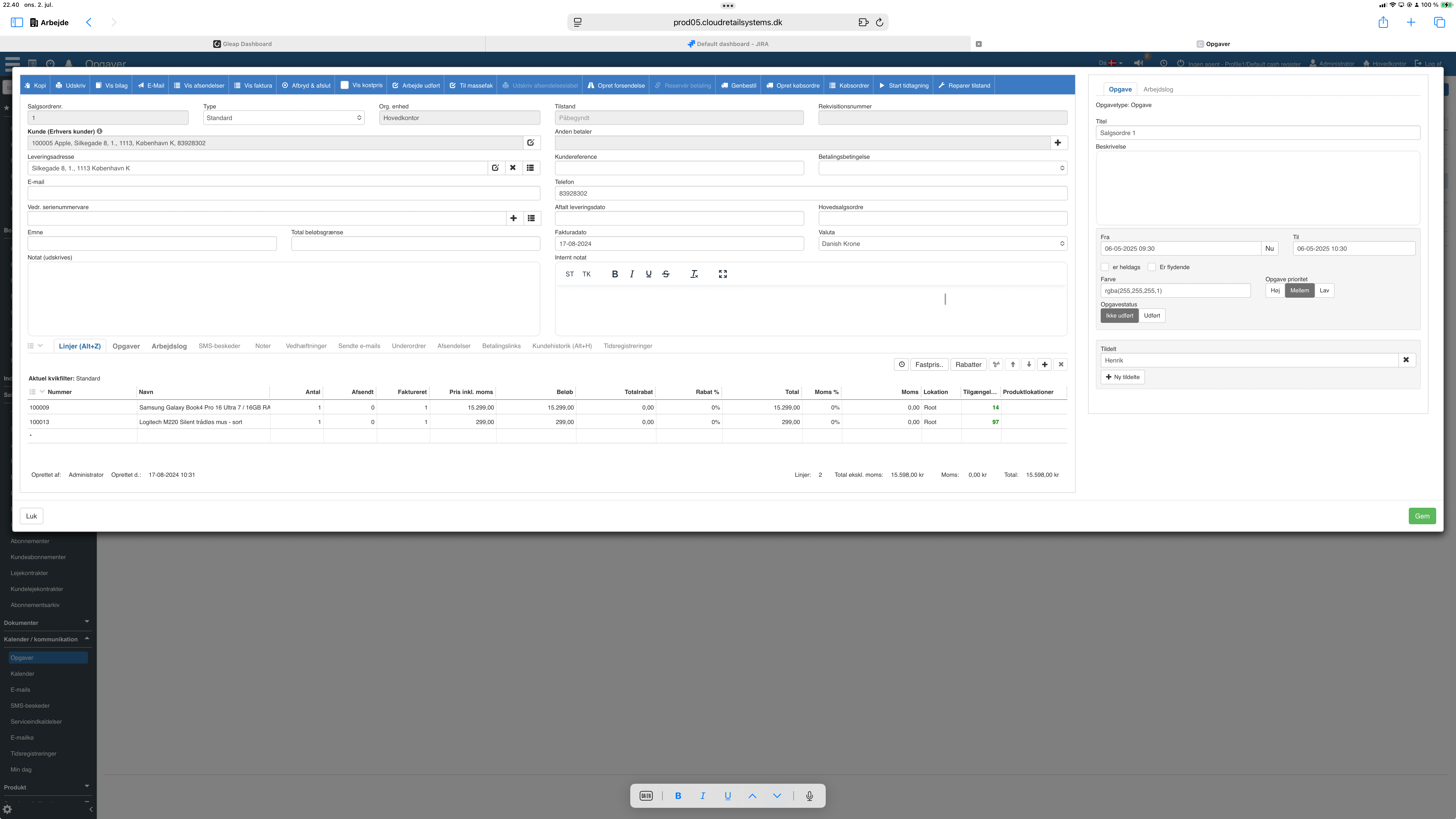
The task is now shown to the right of the sales order - and the task is clearer.
The sales order dialog when adding a serial number item that is not in stock has been changed so that ‘Purchase (Used-goods VAT)’ is not an option if the setting is turned off.
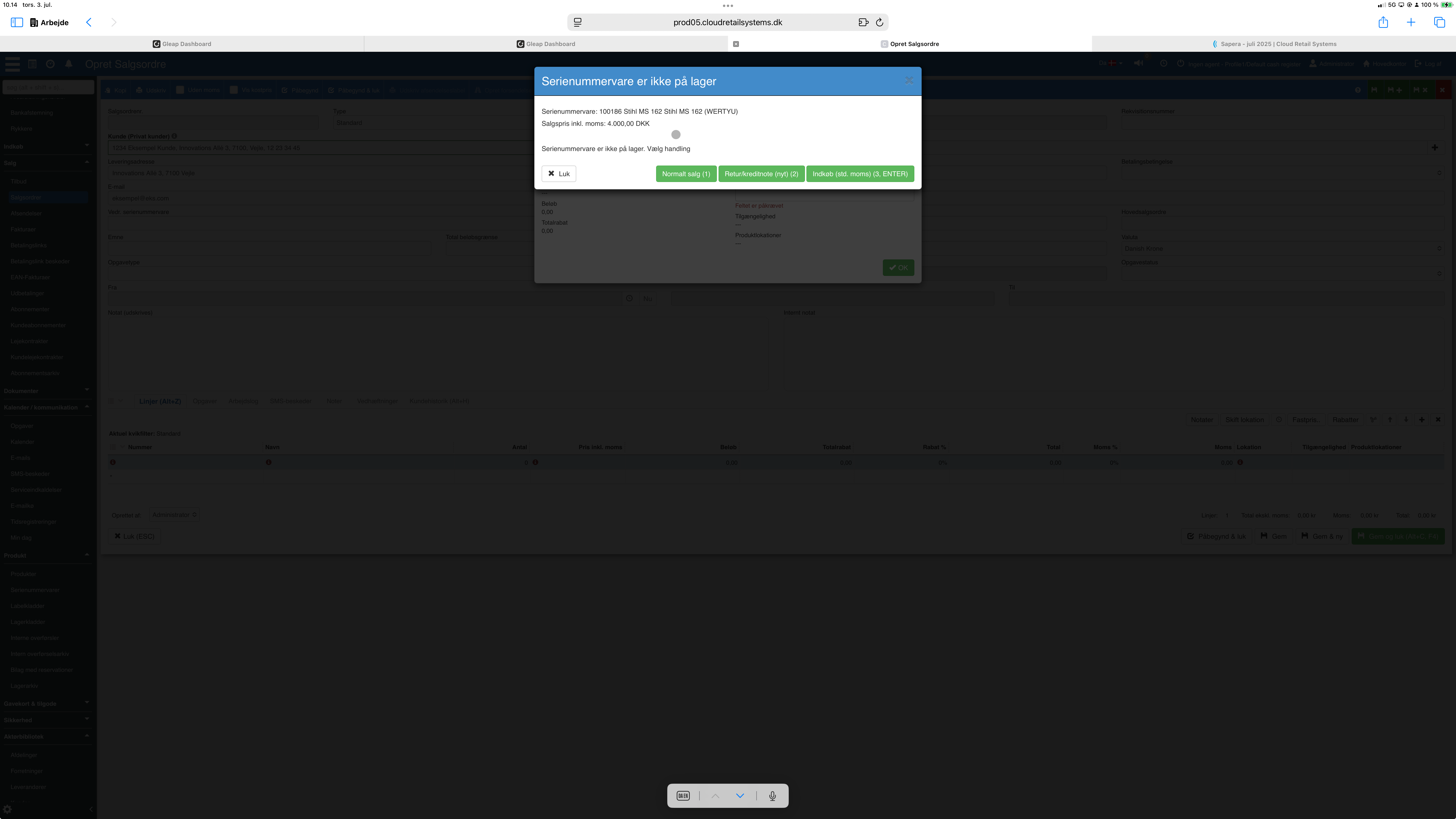
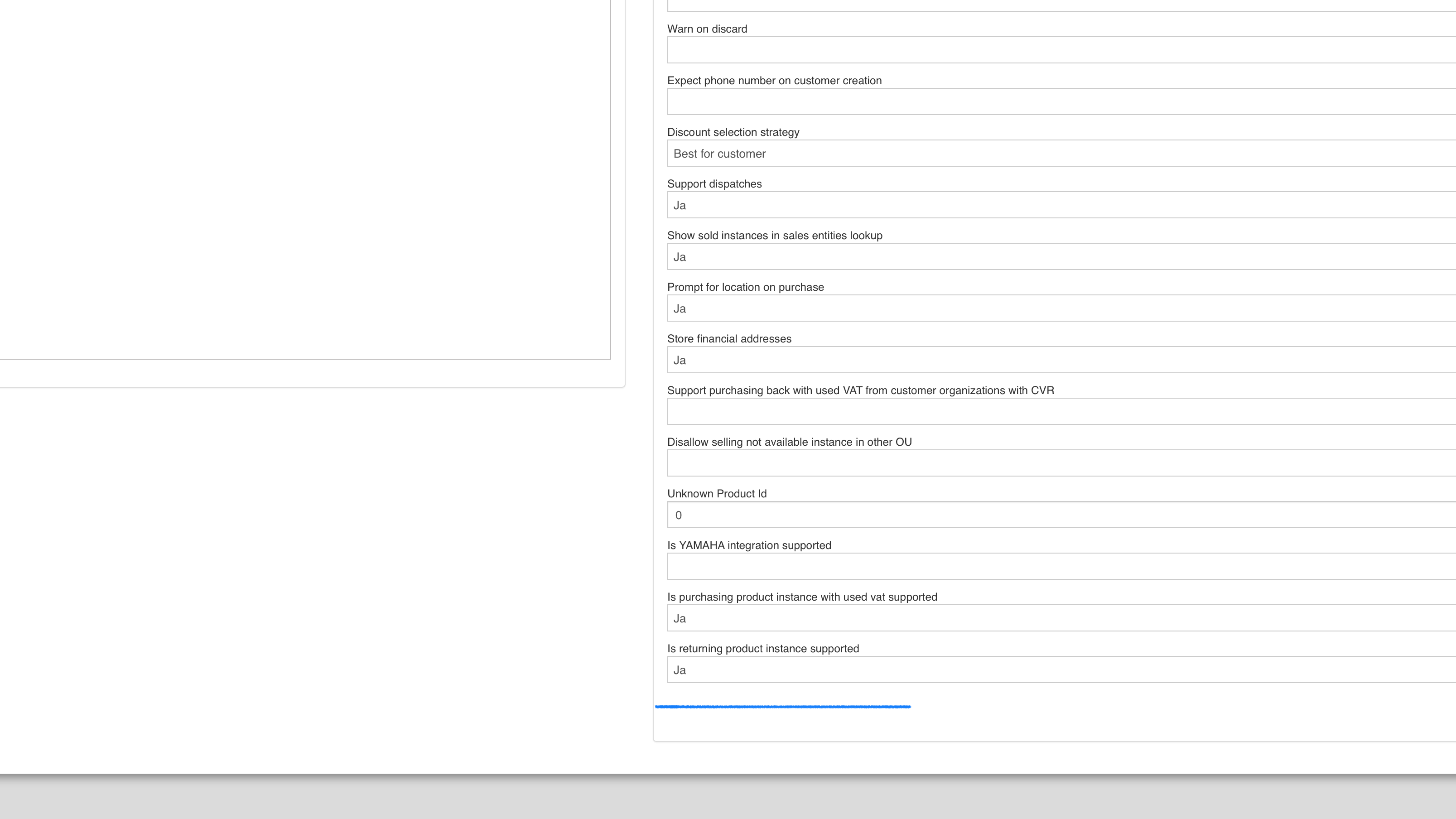
If the setting is turned off, purchase with the used-goods VAT scheme is not offered. Even when selecting a business customer.
A setting has likewise been introduced for whether the “Return” (credit note) function should be turned off in the sales order.
It often causes confusion whether to use the ‘Return/credit note’ function or simply the ‘Purchase’ function.
Return affects sales accounts - purchase does not.
Even if you turn off return as an option in “Sales orders”, you can still create a normal credit note in the “Invoice” menu item.
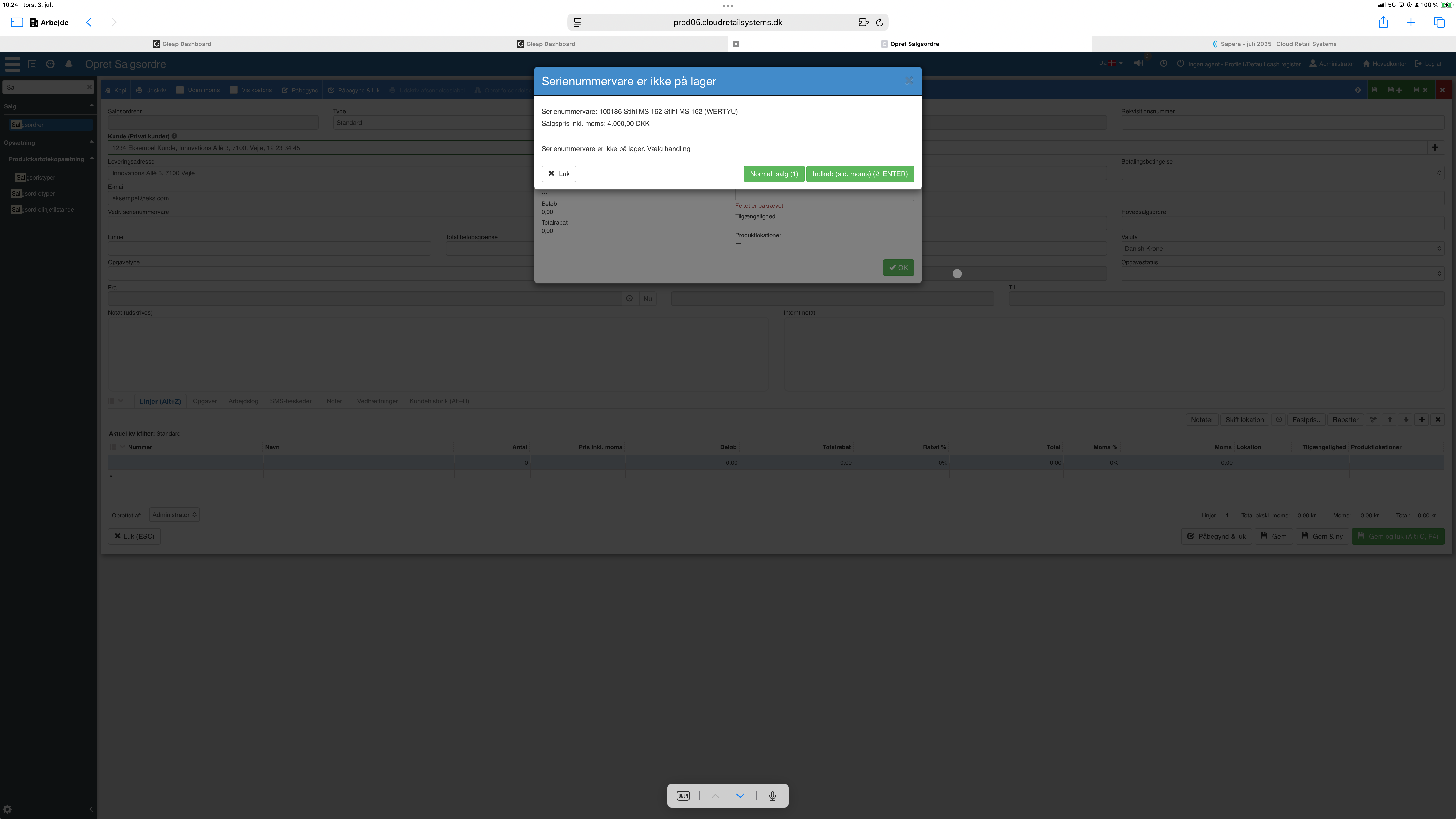
If the setting is turned off, the dialog from the sales order will look like this.

The location the item is to be sold from - can now be selected directly from the line. Locations must be linked to the same warehouse but not necessarily the same Organizational unit.
Attempting to process a purchase invoice – where a line is linked to a receipt in journal state gave a red error message. The message is now improved.
The other payment contact person is now added to the EAN invoice when ‘Other payer’ is selected.
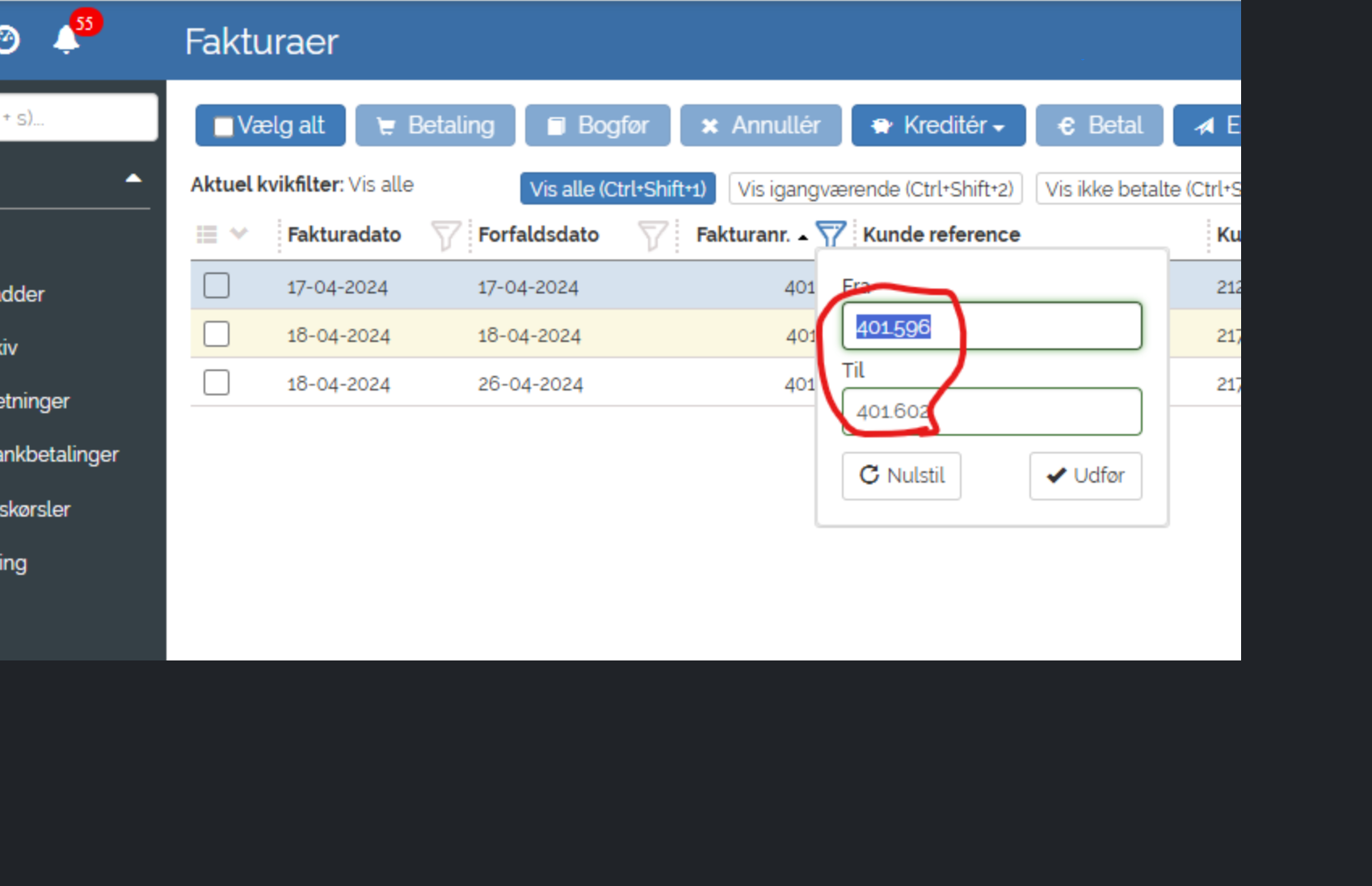
Sorting of the ‘Customer number’ column is now faster.
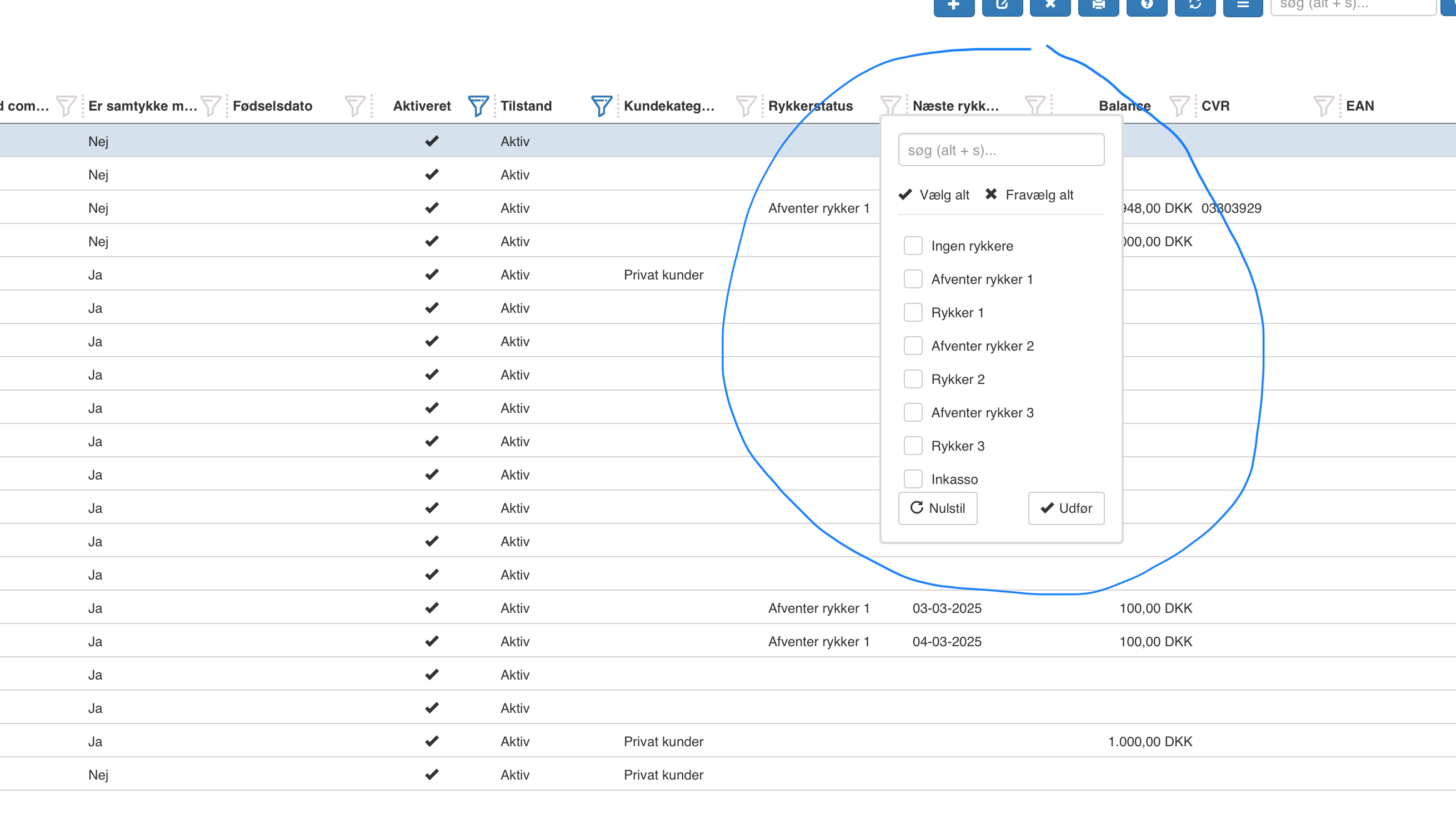
A Debt collection status has now been added after reminder 3. Sapera does not itself send the customer to debt collection, but the state means that you can/should send the customer to debt collection.
It is now possible to simplify the maintenance of debtor and creditor categories as well as customer and supplier settings by limiting it to maintaining per financial year - instead of per organizational unit.

Without this setting

With this setting

No tree structure - as the categories that are set up will apply to all Org. units in the current financial year.
When debtor/supplier category and settings are maintained per Org. unit, it is set up so that only the Org. units the user has access to are shown.
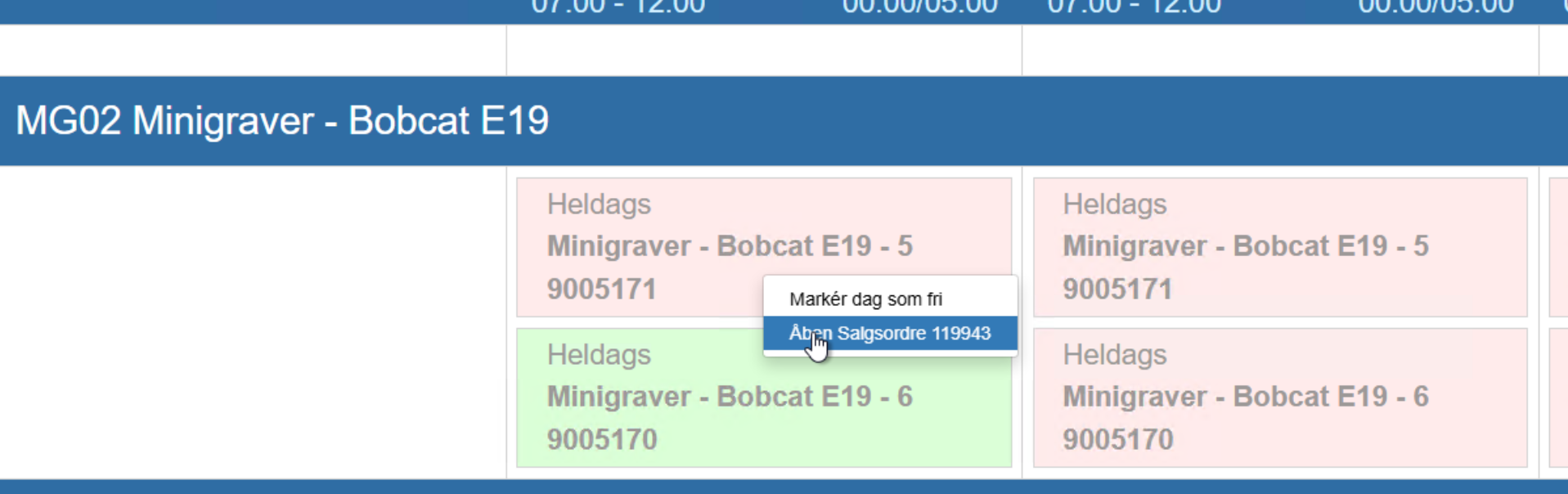
It is now possible to open the sales order where the rental was made directly from the calendar.
If a rental is set up to create sales orders in journal state, the sales order was nevertheless started if you used the setting “Automatically start on save”.
Now the setting set on the rental is respected.
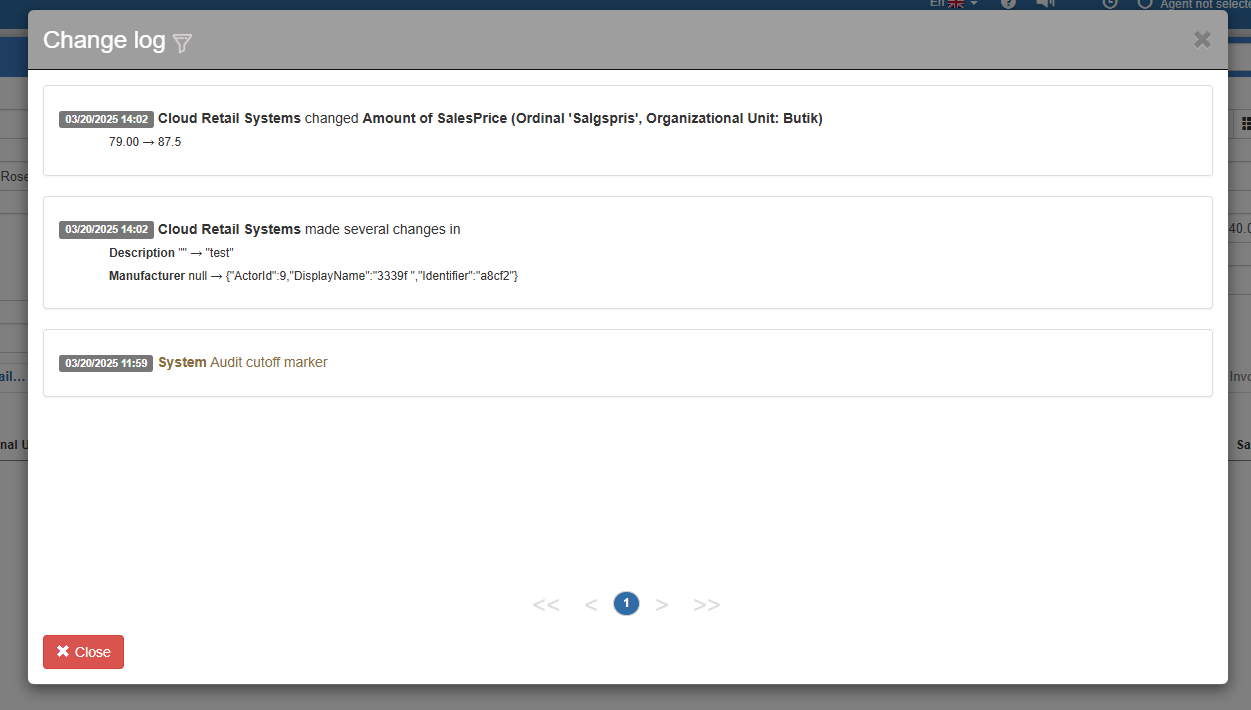
We do not keep changes forever. It depends on the volume of changes (e.g. a job that edits products daily will result in the change log being deleted quickly).
When we delete old changes from the change log, we add a new message about this in the change log.
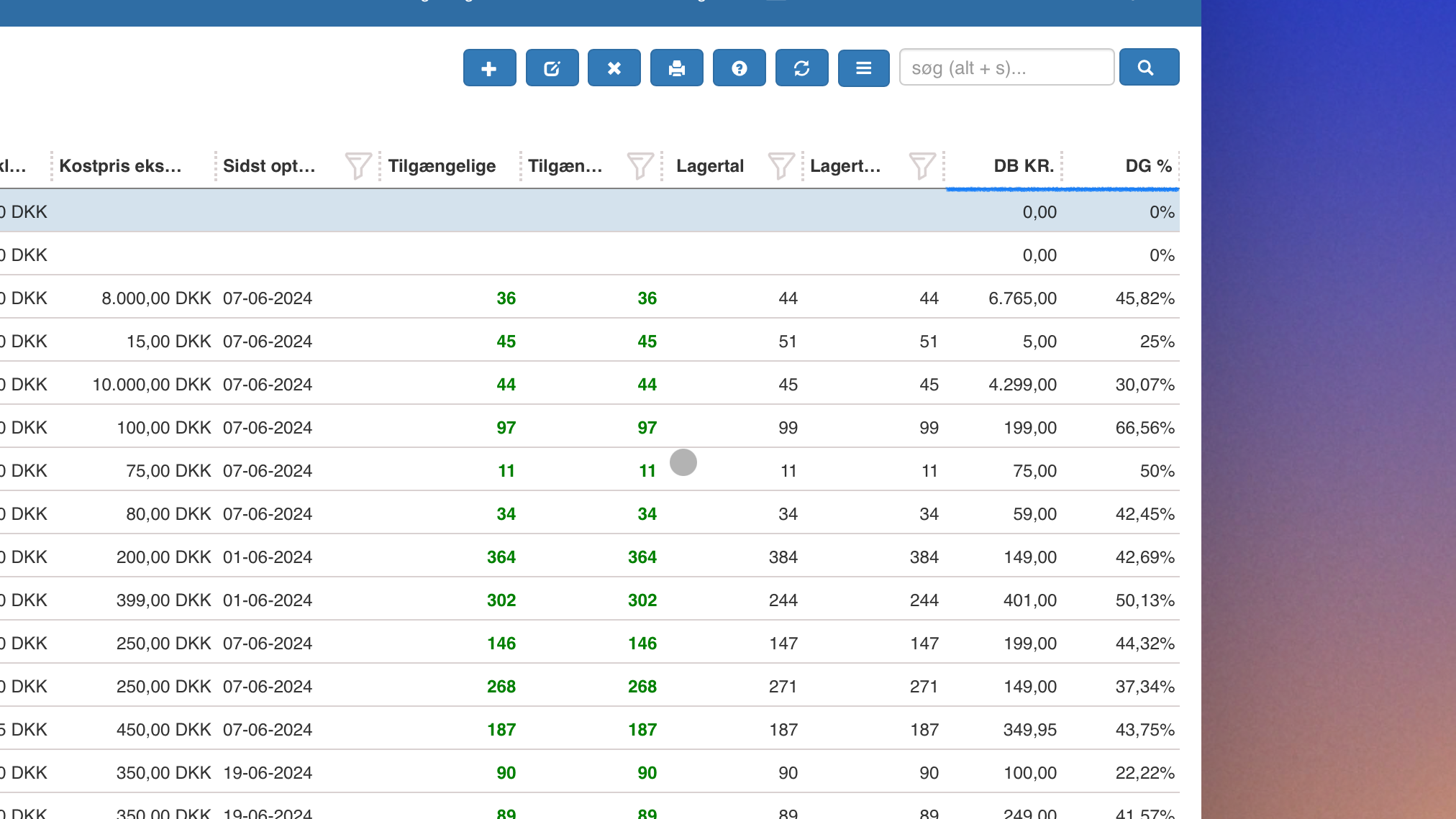
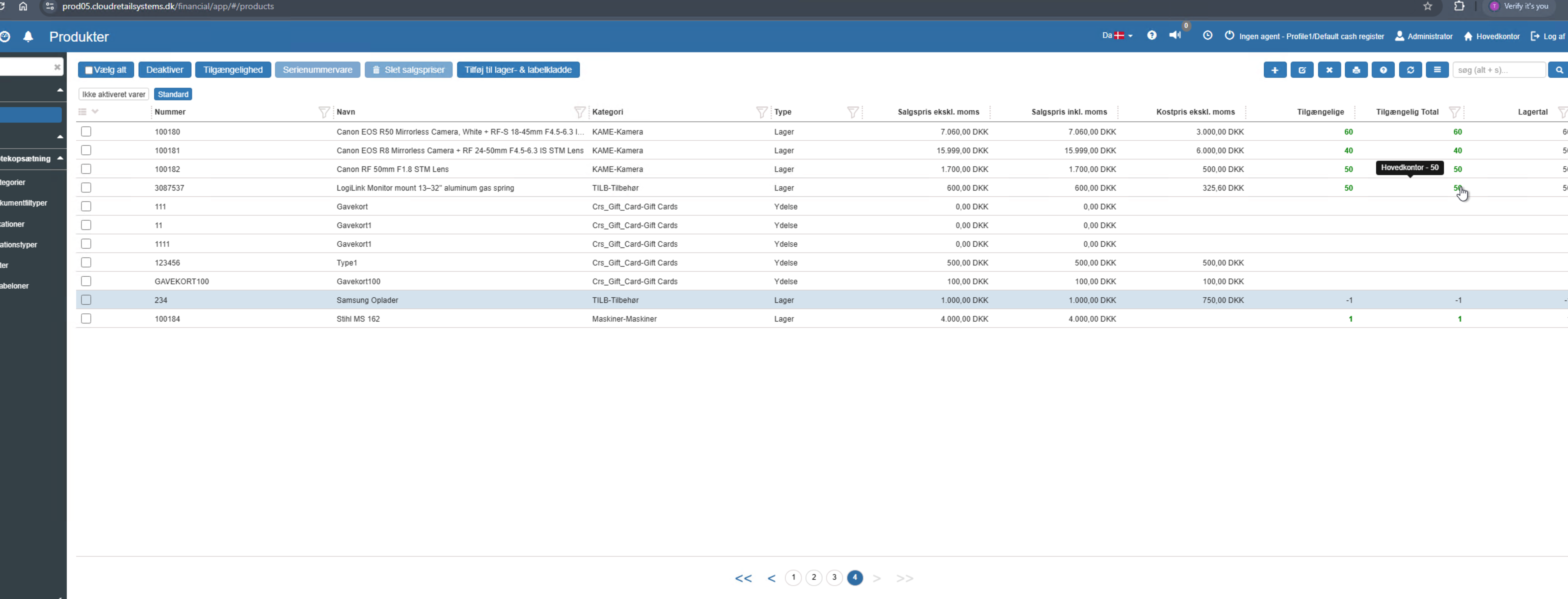
The product overview now supports improved keyboard shortcuts.
E.g. alt+s to activate the search field. Followed by searching, opening a product, ESC to close the product, arrow down to the next match etc. without having to use the mouse.
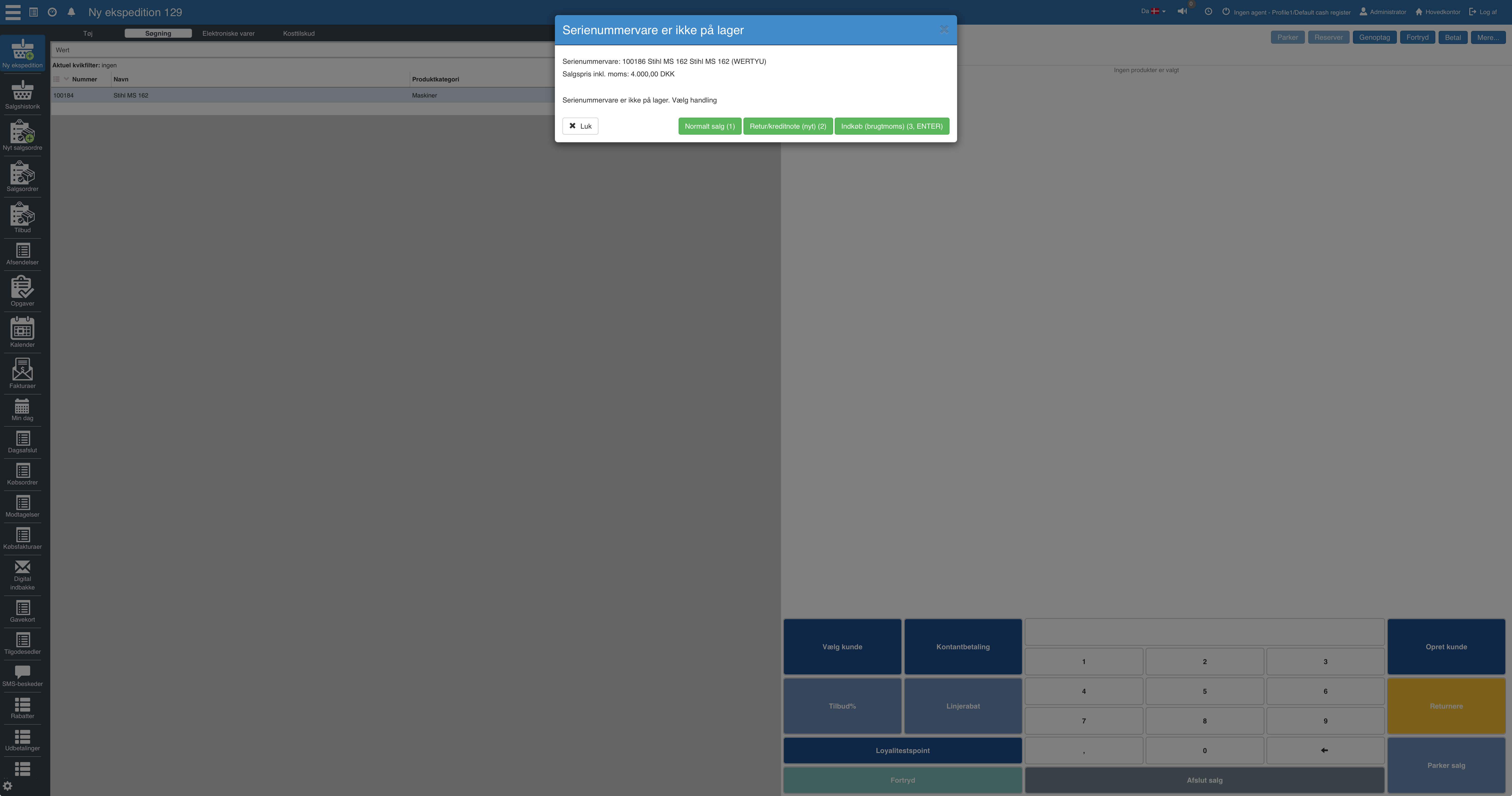
The register now has similar purchase options for serial items as the sales order (purchase used / return / std. VAT / used-goods VAT).
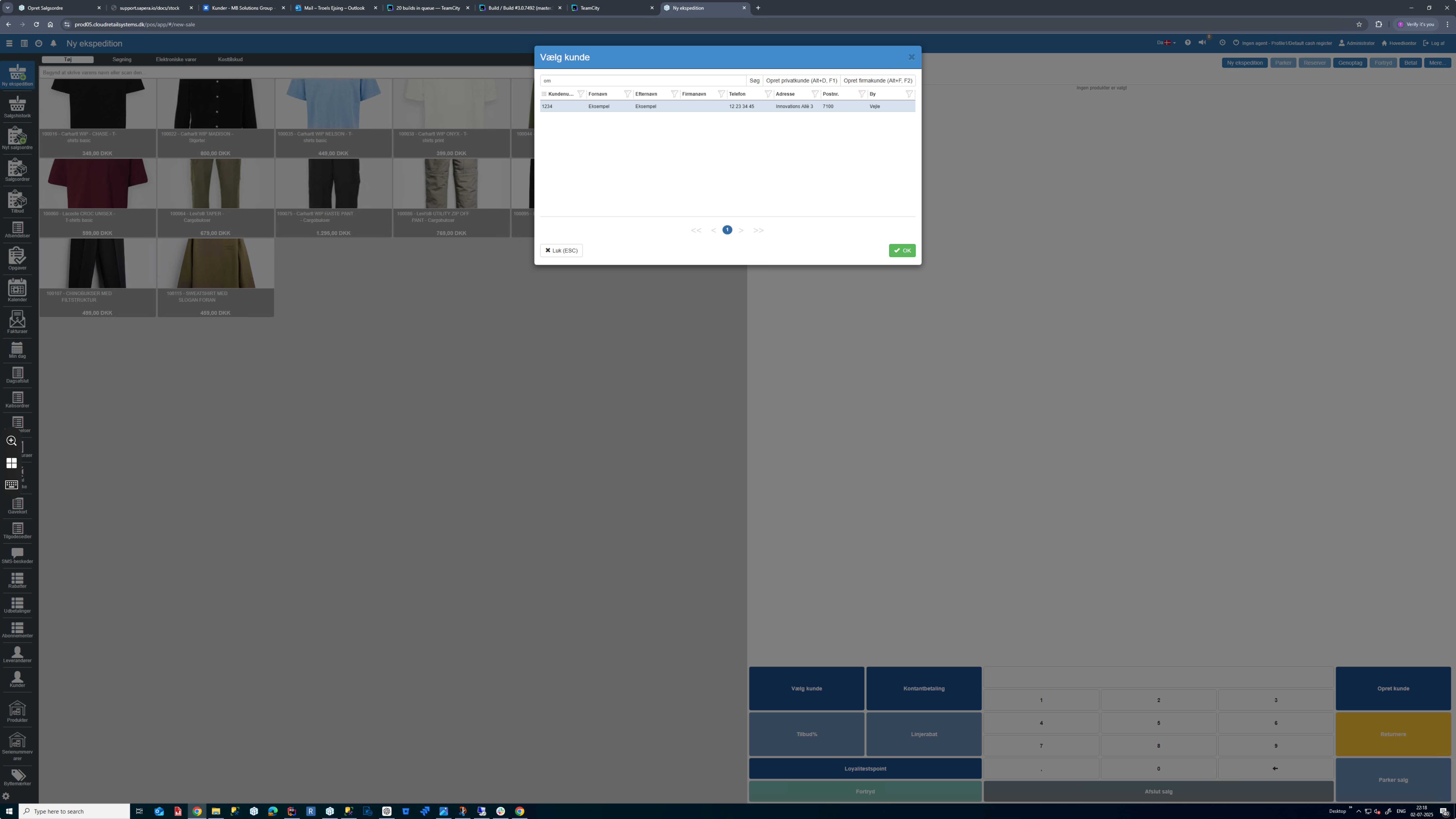
With a customer search with a unique match, the customer can be selected by pressing the “Enter” key.
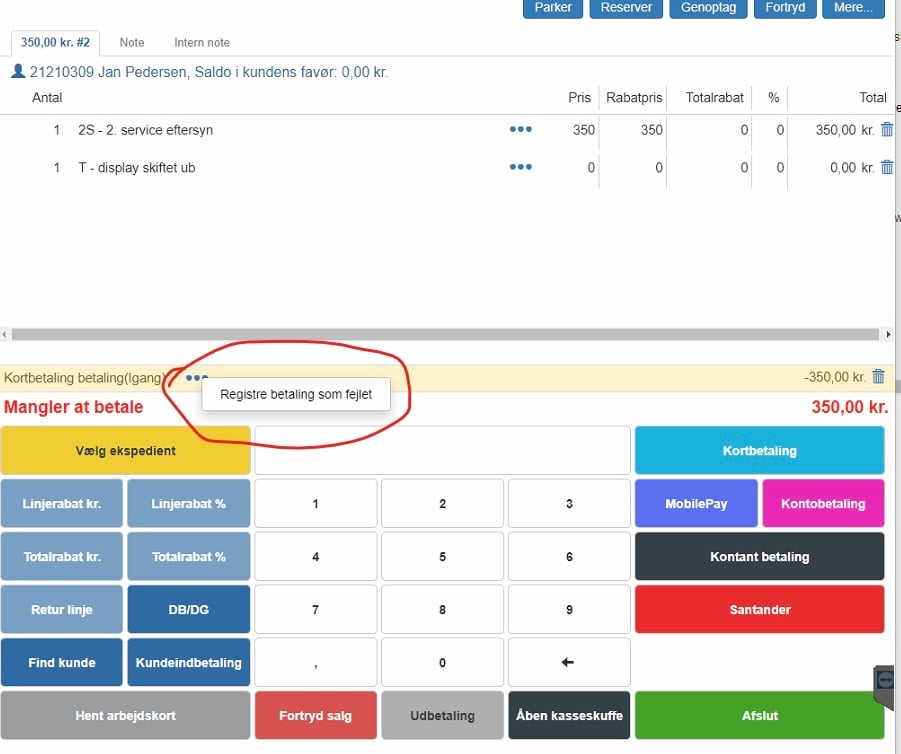
Registering a payment as failed did not work.
This is fixed.
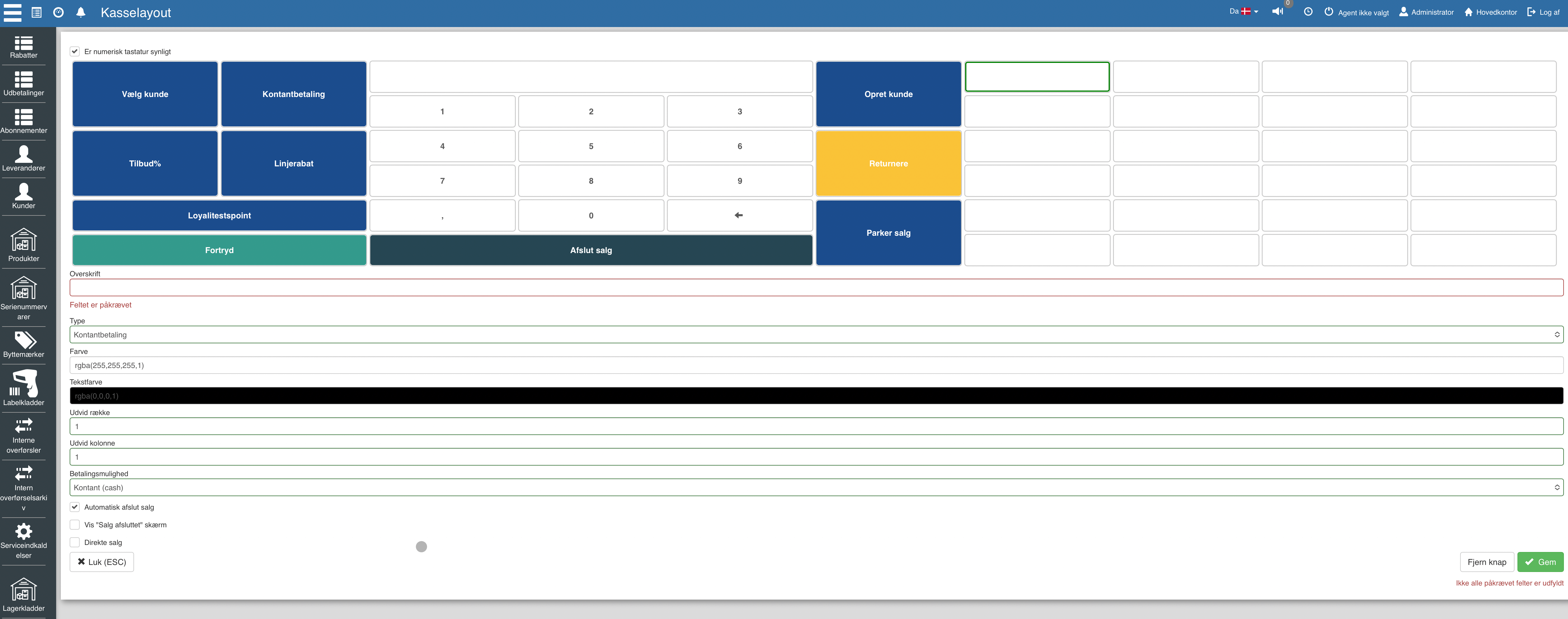
The “Show completed screen” checkbox is now only shown if “Automatically complete sale” is selected.
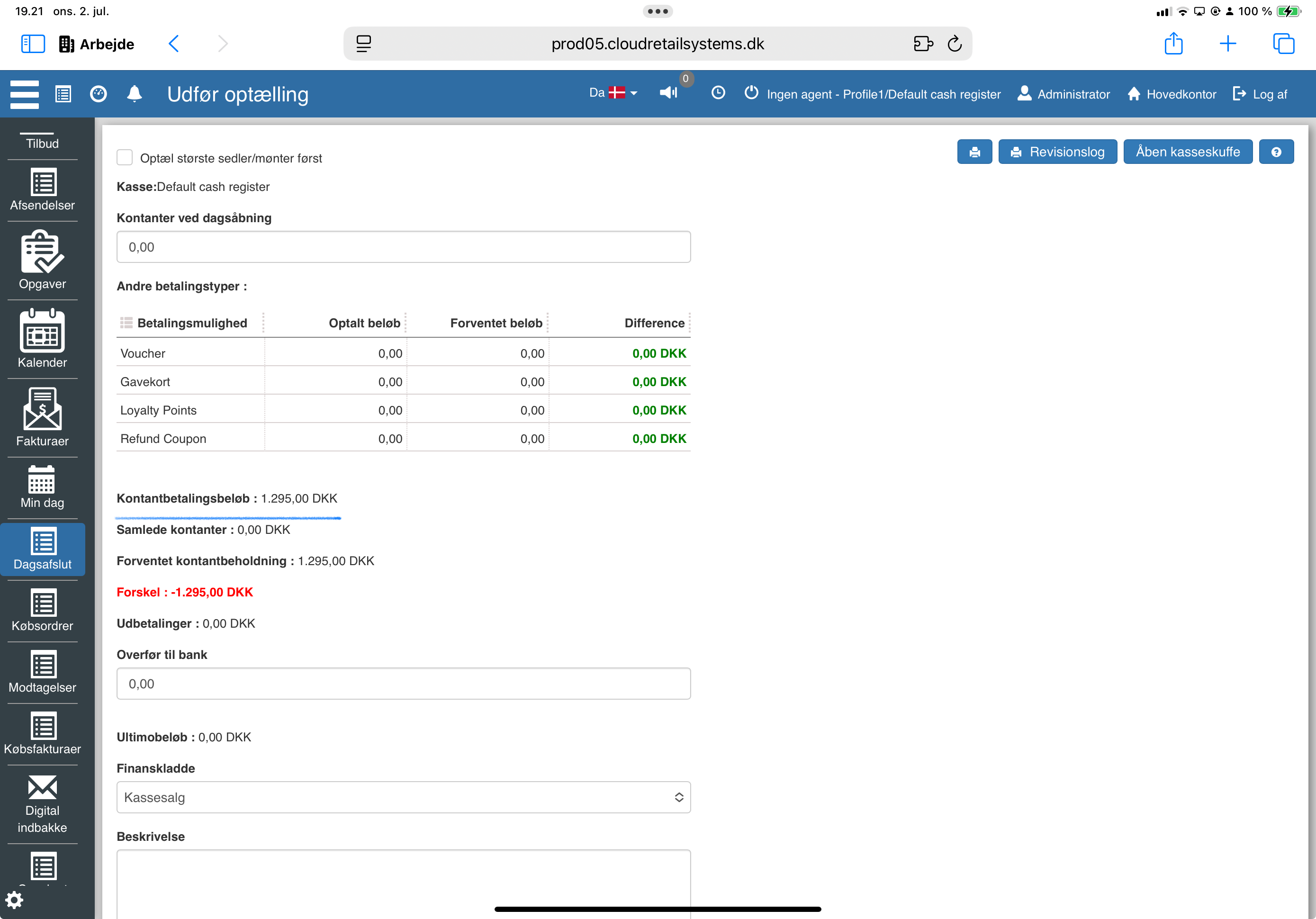
The amount is shown at the bottom of the end-of-day overview and sums all cash sales since the last end of day.
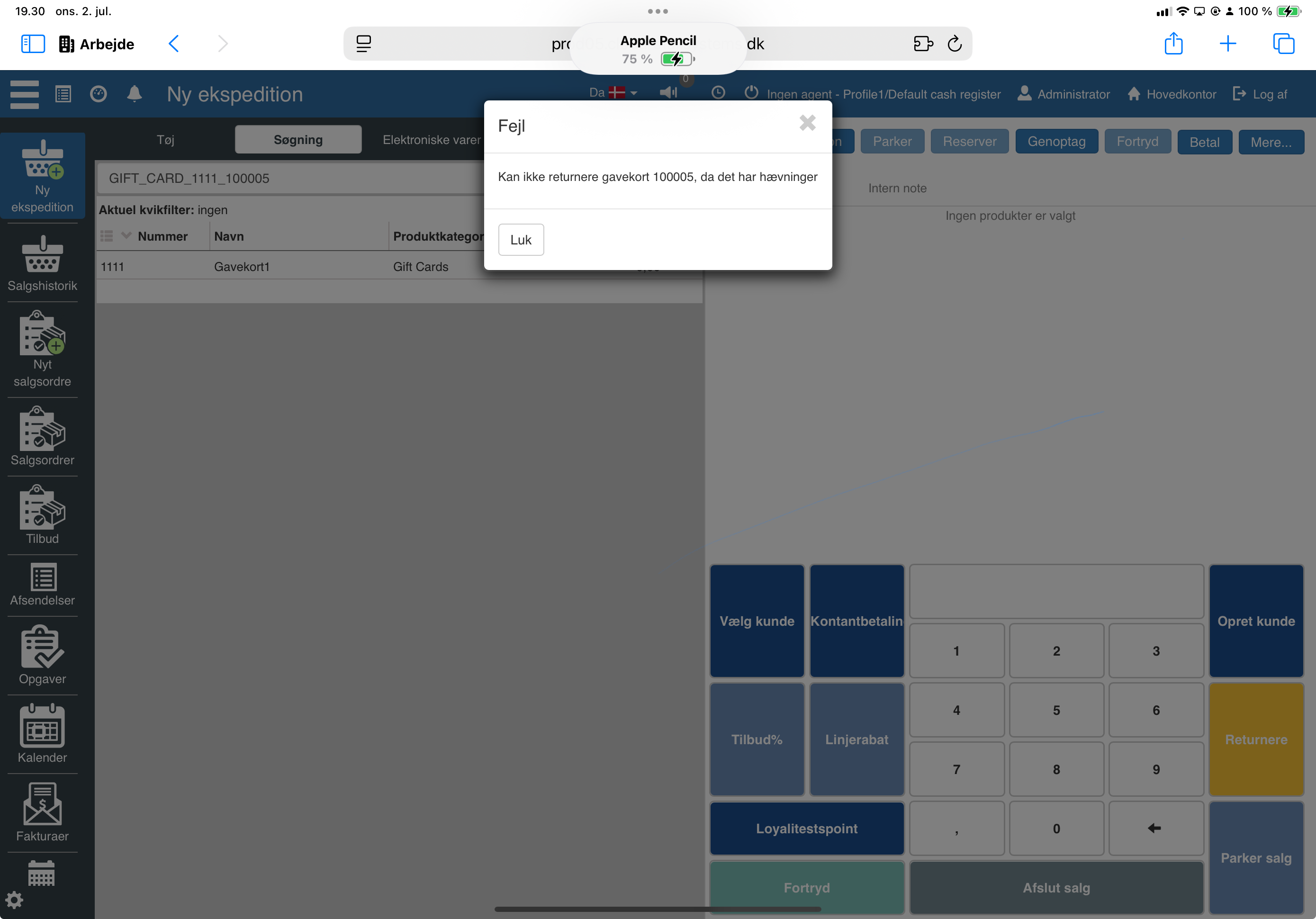
Prevents return of gift cards where withdrawals have already been made.
Sapera now supports Worldline Android terminals.
When a search finds a unique match on a serial number item, this dialog is shown.
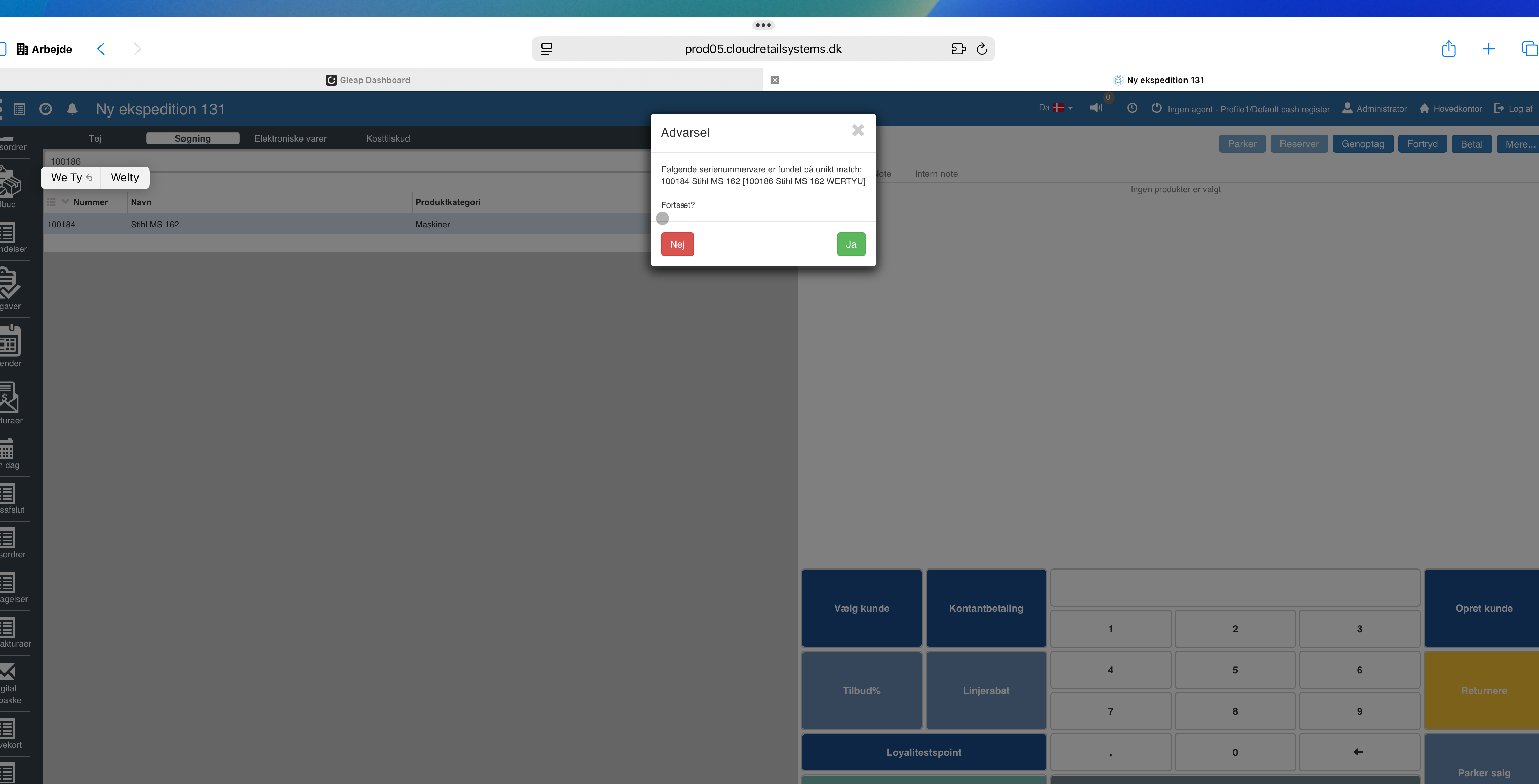
The dialog is now improved to show the serial number item's display name - before you could only see the base item's display name.

Reprint of a credit voucher can now be done from Sales history.
In addition, credit vouchers are now also printed on a sale if the receipt is deselected.
This version can be used to take pictures of receipts and send them to the posting journal. An update will soon follow where the receipts can be sent to the digital inbox.
This dropdown menu for selecting general tasks is now improved - so that more columns are shown - which makes it significantly easier to find the desired tasks.
If item number = EAN, then it was not the EAN info that was selected during label printing but rather the internal key. This is fixed so that EAN is always preferred.
The Financial setup screen now loads faster.
Files with the extension .txt are now supported
Memo fields now have less line spacing.
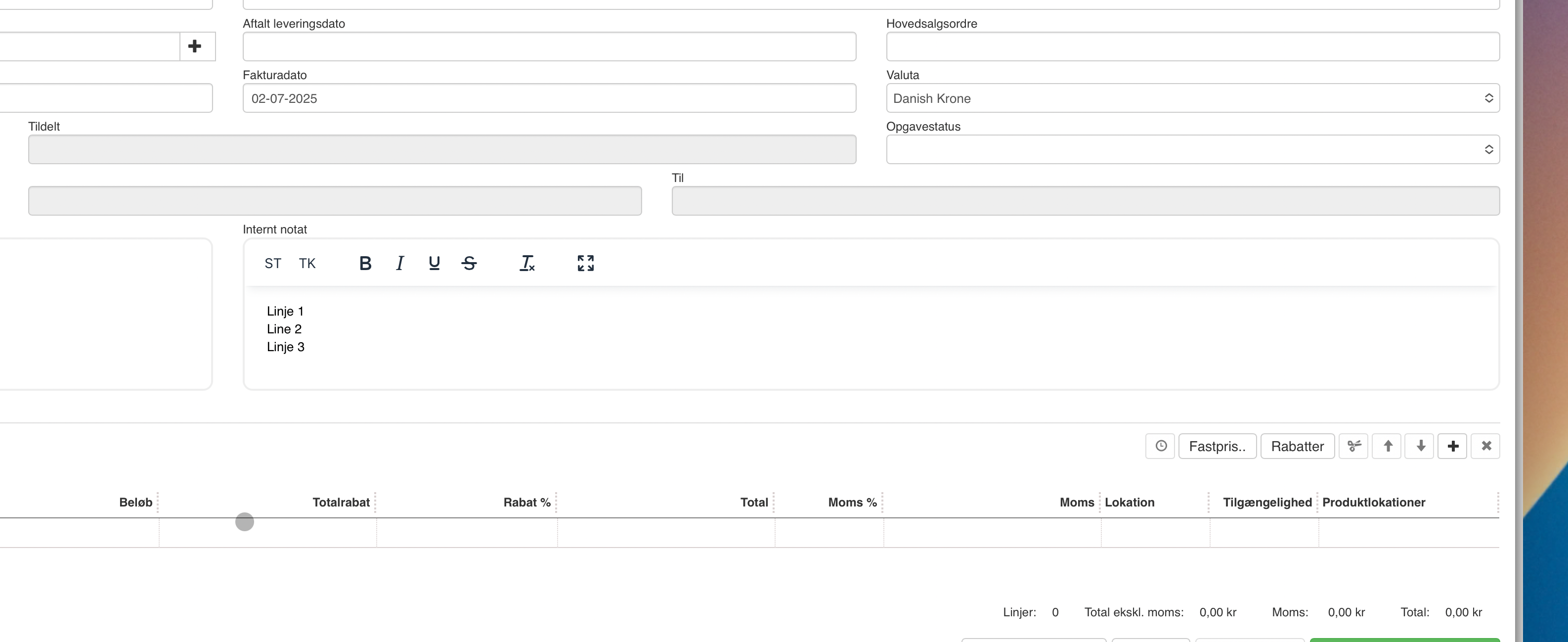
It does not make much sense to fetch e.g. the first 200 products when you click products. Now it can be set up per quick filter whether data should be fetched before searching.
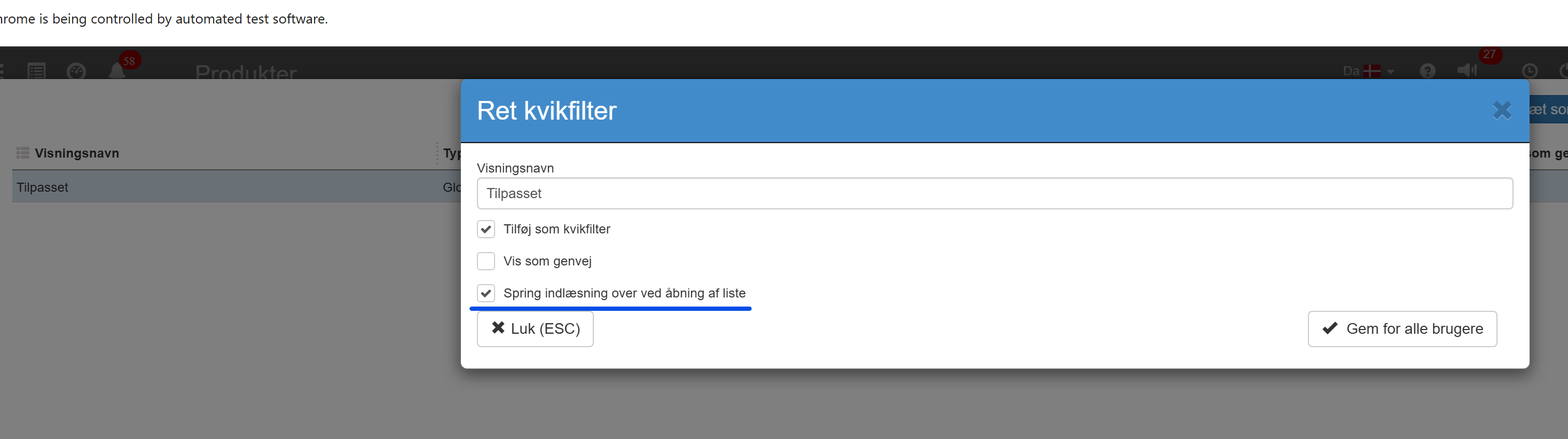
Several screens have been adjusted - so they match other screens better. E.g. ‘Edit customers’ and ‘Edit suppliers’ now have the same kind of toolbar as ‘Edit products’ and the same kind of buttons at the bottom of the screen.
The ESC (Close) button is no longer red, as “Close” does not represent a “dangerous” action.
Further fine-tuning of when Sapera can automatically fetch payment from e-pay - in connection with payment links sent from Sapera.
Minor fixes to the setup of subscriptions in Sapera.
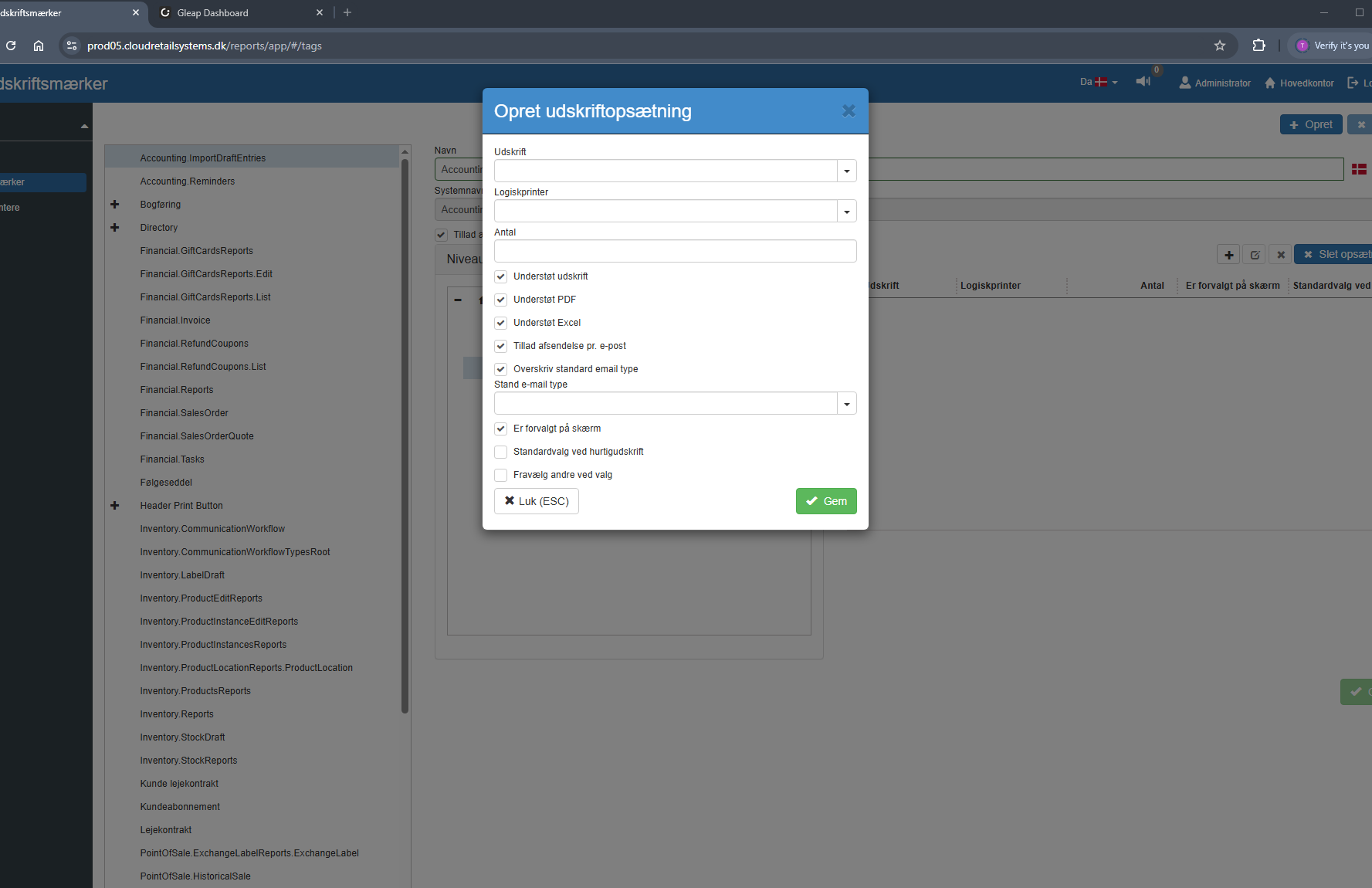
Option to select email type
On sales- and customer-related printouts you can set on the printout which email type should be preferred.
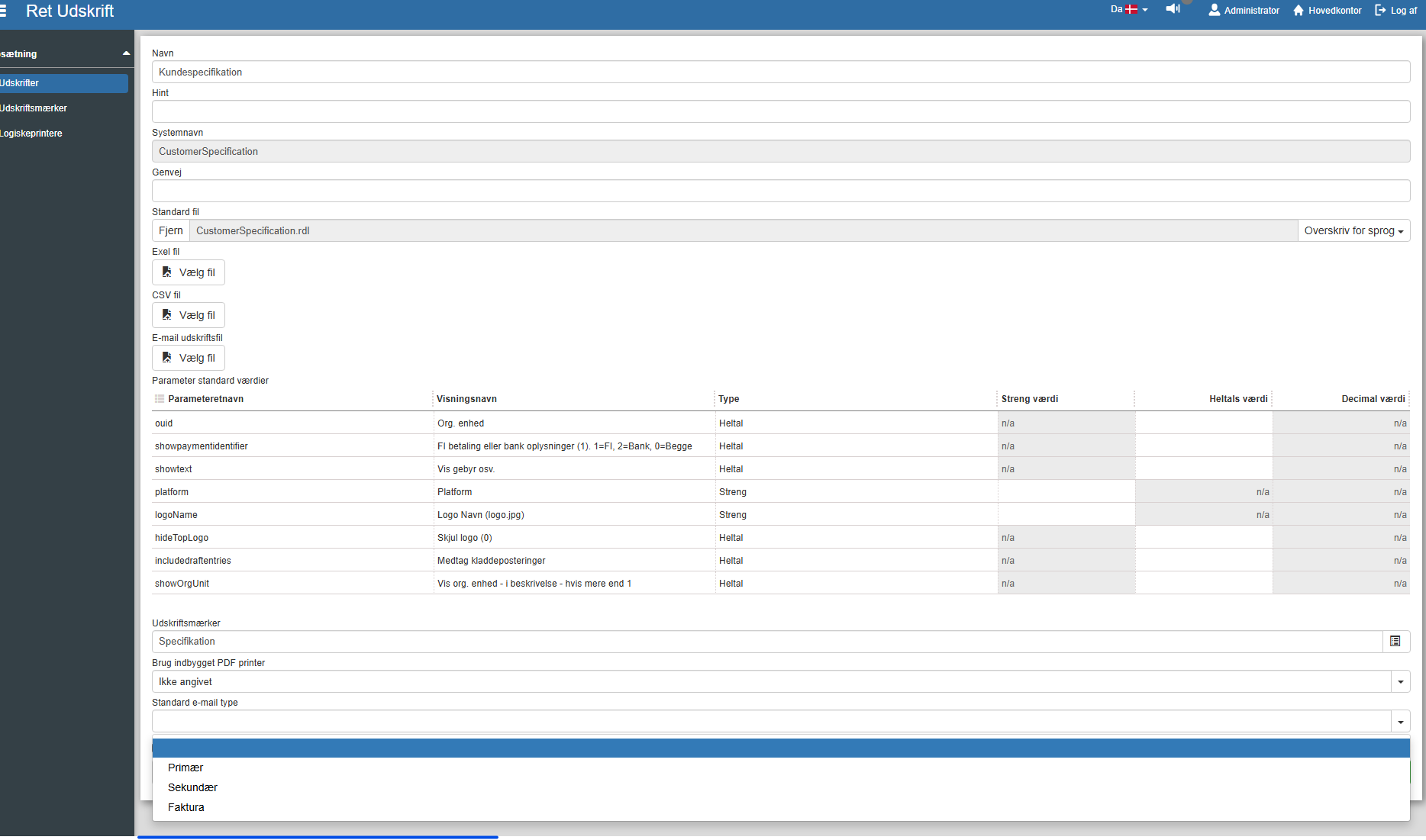
The same option is available in the printout setup under “Print tags”.
The FI number was not part of the description, even though it was available in the bank.
Fixes to Automatch.
Now supports webhooks, which provides faster updates from Aiia.
If you have questions about the changes, you are welcome to contact support.
Want to know more?
Read more in these related articles:
Login
In this guide we explain how to log in to your Sapera
