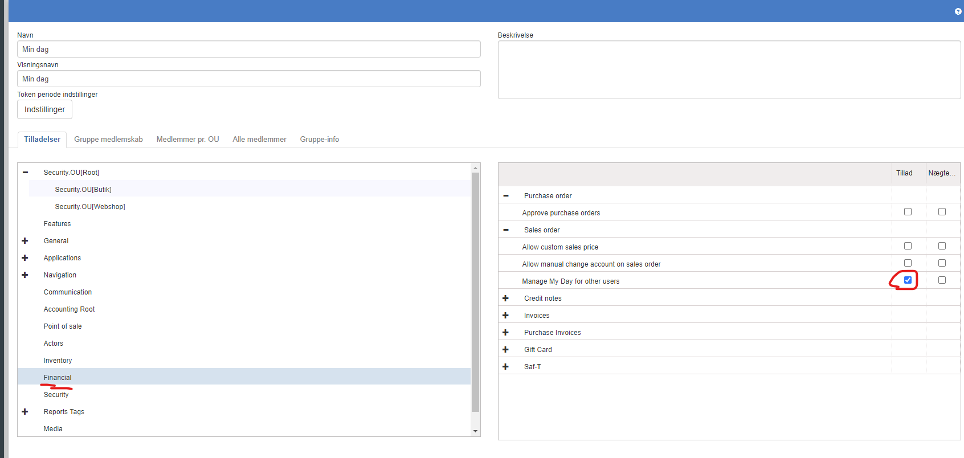
If the customer is to use "My Day" in Sapera, access must be given to the "My Day" menu item on the inventory group (Groups → Inventory management → Navigation → Financial navigation → My Day)
NOTE: access has been given so the Admin user can manage “My Day” for others.
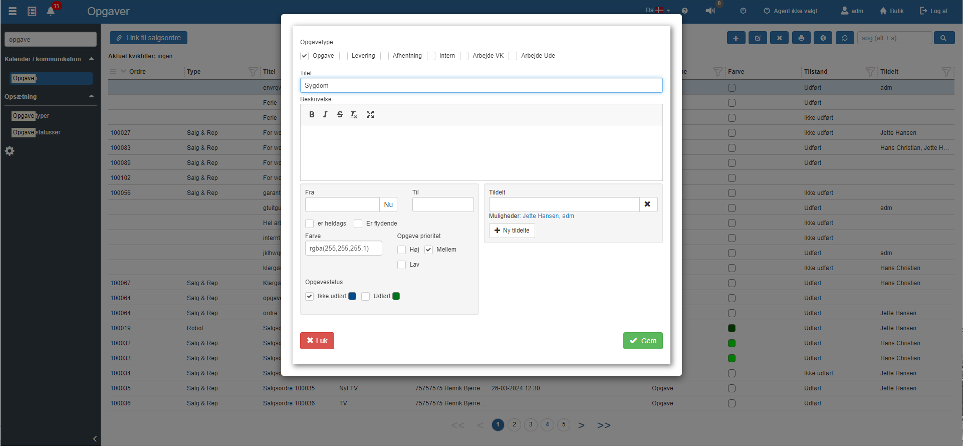
To create a task that is not in the template that has been made, go to “Tasks” and click “+”.
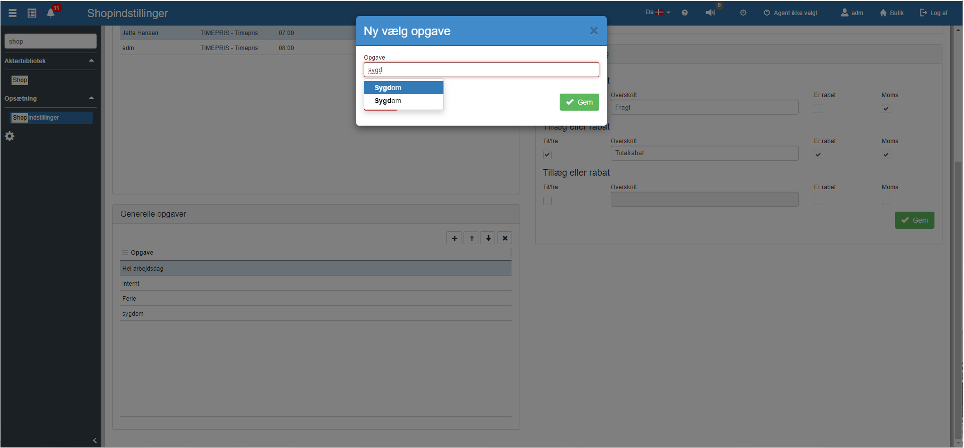
After that, go to “Shop settings” to add the task to “General tasks”. Here you choose among the tasks that have been created in “Tasks”.
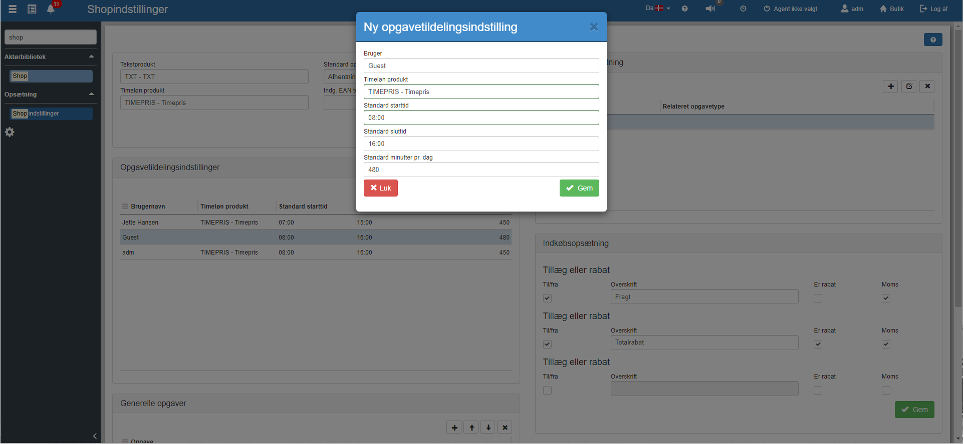
Click “+” to add a new user.
Here the fields must be filled in as follows:
User: The employee to be created.
Hourly wage product: The price added to a product after the user has worked on it. This price has been created in advance and must therefore be selected.
Default start time: When does the user's workday start.
Default end time: When does the user's workday end.
Default minutes per day: How many minutes the user is at work.
When the user has been created, click “Save”
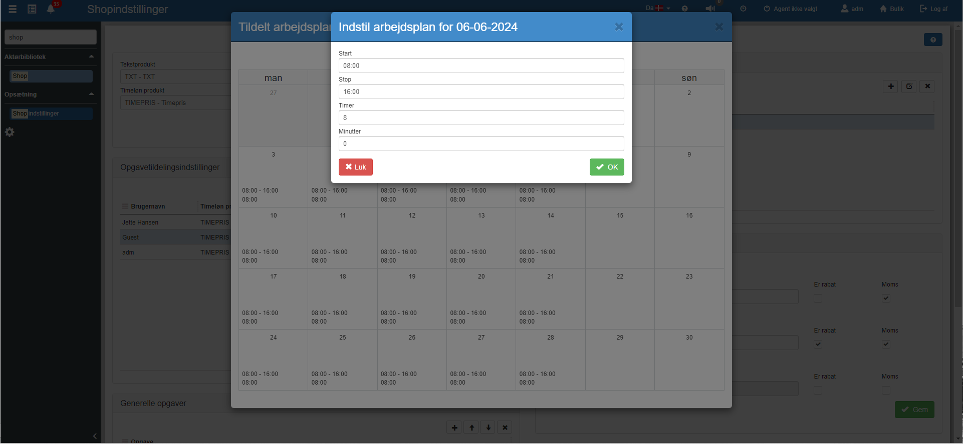
After that you can click the little calendar icon. Once inside the calendar, you can then right-click a selected day and change the “Work plan” or reset it.
This means you can set how many hours a person works on a particular date and also a particular weekday. So if the person has a day where they finish at 15:30 instead of 16:00, that must be entered there.
Want to know more?
Read more in these related articles:
Tasks and My Day
This article explains the available setting under the Tasks and My Day section in the Financial category.
Calendar (Task planner)
Complete guide to the Calendar screen in Shop Manager — day view, week view, filters, task cards, context menu, move mode, task editing dialog with all fields, recurrences, assignees, participants and session settings.
Task planner
Settings for the display and setup of the calendar (the task planner) in Sapera
