Call the customer and have them log in here: https://portal.vipps.no/login (same login as MobilePay POS).
Once the customer is logged in, navigate to the menu item “For developers”. Here we need these 4 pieces of information: the MSN number and the top 3 in “Show keys”. These must be copied over to yourself so the customer can use their PC again.
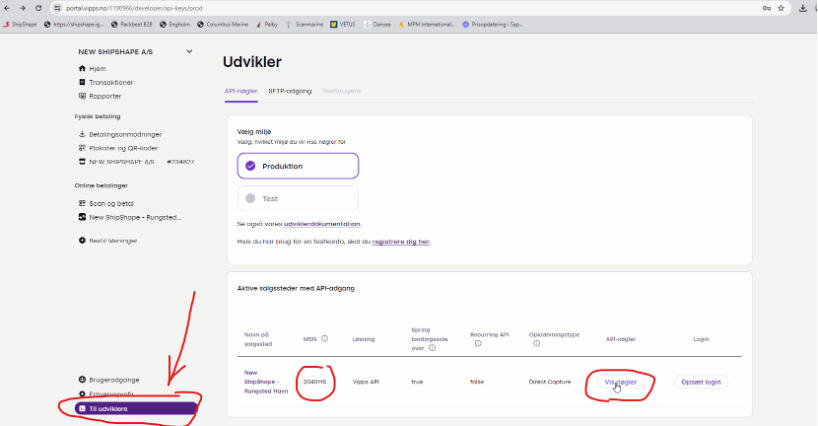
NOTE: the rest can be done without being connected to the customer's PC. However, the customer must be informed that agents must be restarted after this complete setup.
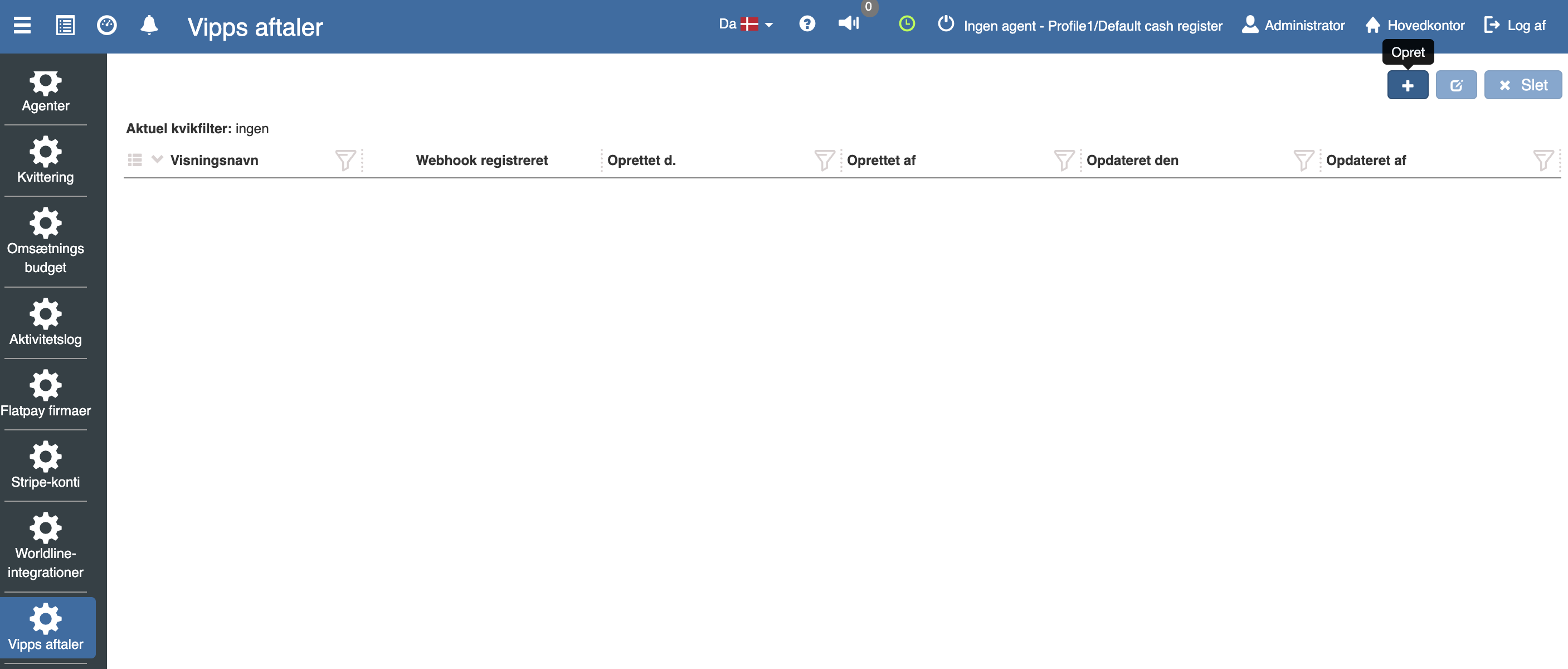
Open the customer's Sapera in POS. Go to “Vipps agreement” and click “+”. Fill in “Store name”, click “Set API keys”, enter the 3 items from “Show keys”, click “OK” and “OK”.
REMEMBER to then click “Register webhook”.
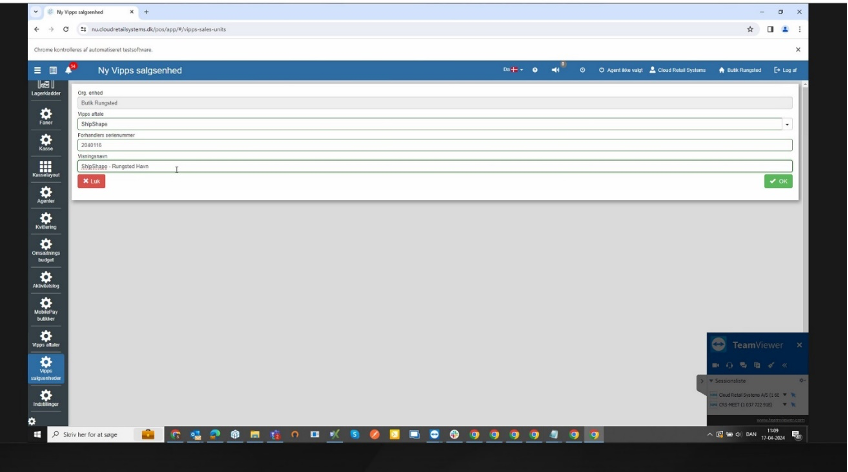
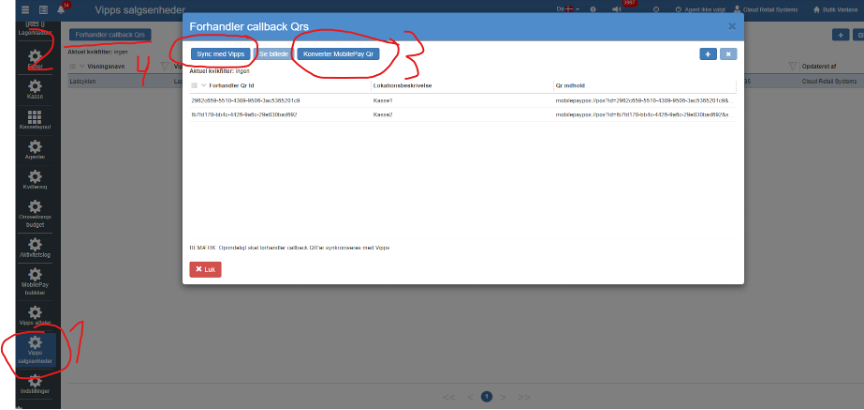
Go to “Vipps sales units” and select the store OU at the prompt.
Fill in the fields:
Vipps agreement → Select the agreement you have created
Merchant serial number → MSN number from the Vipps portal
Display name → Preferably the same store name as in the Vipps agreement
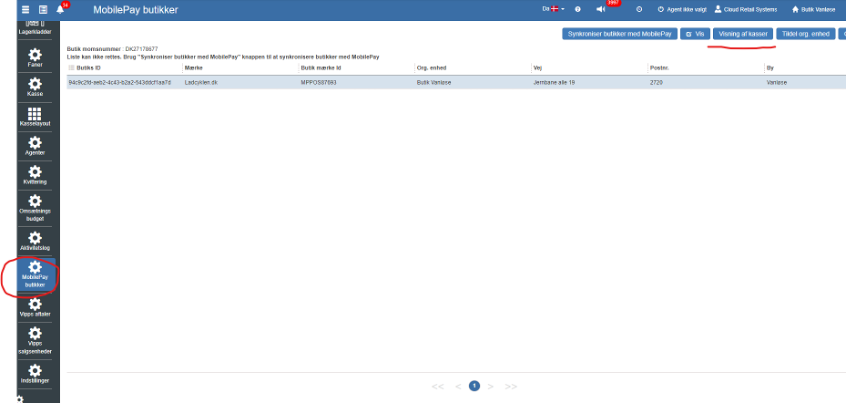
Go to “MobilePay stores”. Click “Display of registers”. Then copy the Beacon from all registers.
Go back to the “Vipps sales units” menu, click “Merchant callback QRs”.
Click “Convert MobilePay QR”.
Enter the Beacon you copied earlier, and the name of the register PC.
Click “OK”
REMEMBER to then click “Sync with Vipps”.
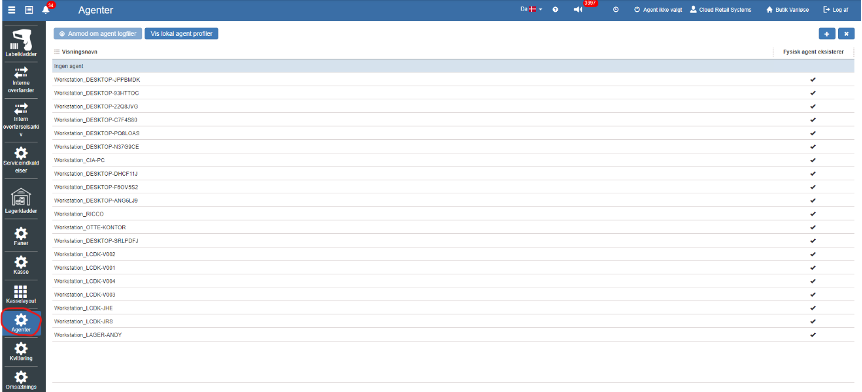
Adjust the agents that belong to the register in the “Agents” menu item at store level. Check the agents after the MobilePay field has been filled in.
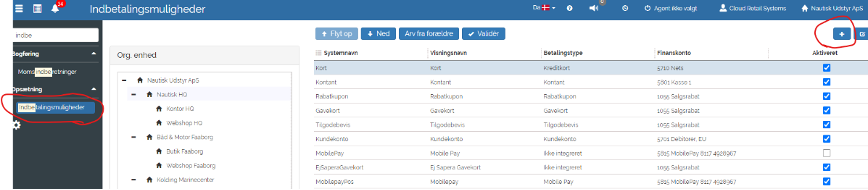
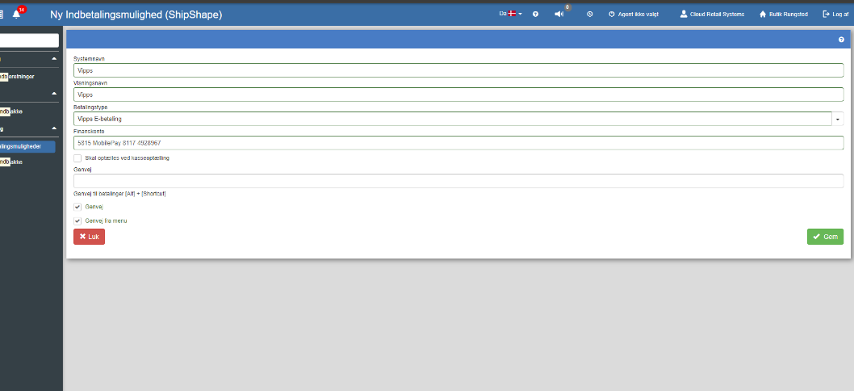
Create the payment method Vipps, if it does not already exist. It is created at all OU levels.
Adjust the MobilePay type in the register layout with the new payment method on all OUs.
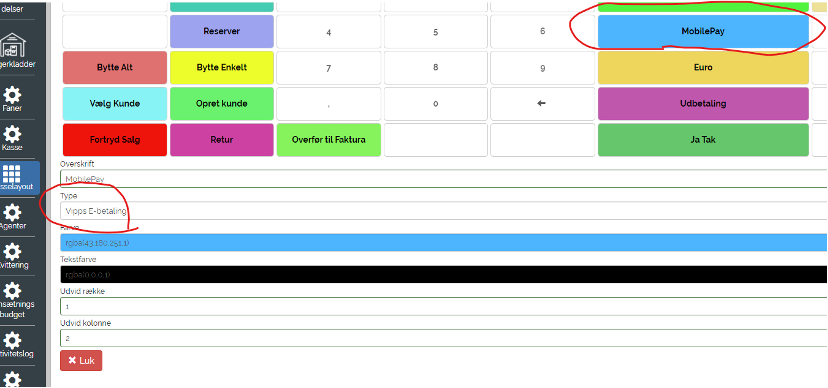
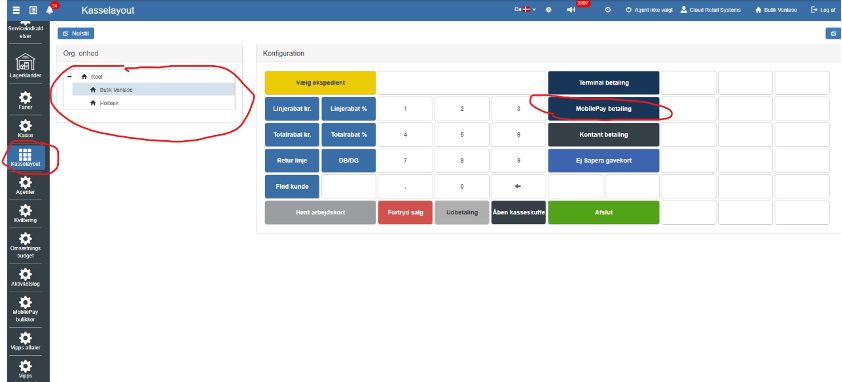
NOTE: the agent must be restarted on all registers before this setup works.
Want to know more?
Read more in these related articles:
Getting started with Vipps MobilePay POS
Getting started with Vipps MobilePay POS
Vipps MobilePay integration
This article reviews how Vipps payment is configured in Sapera via Application Builder, the Financial and POS apps, including setup of payment method, agreements, webhooks, sales units, QR codes and payment flow
Vipps E-Payment
Settings for Vipps E-Payment in the Pos — sales unit id and merchant callback QR, which are filled in connection with Vipps onboarding.
