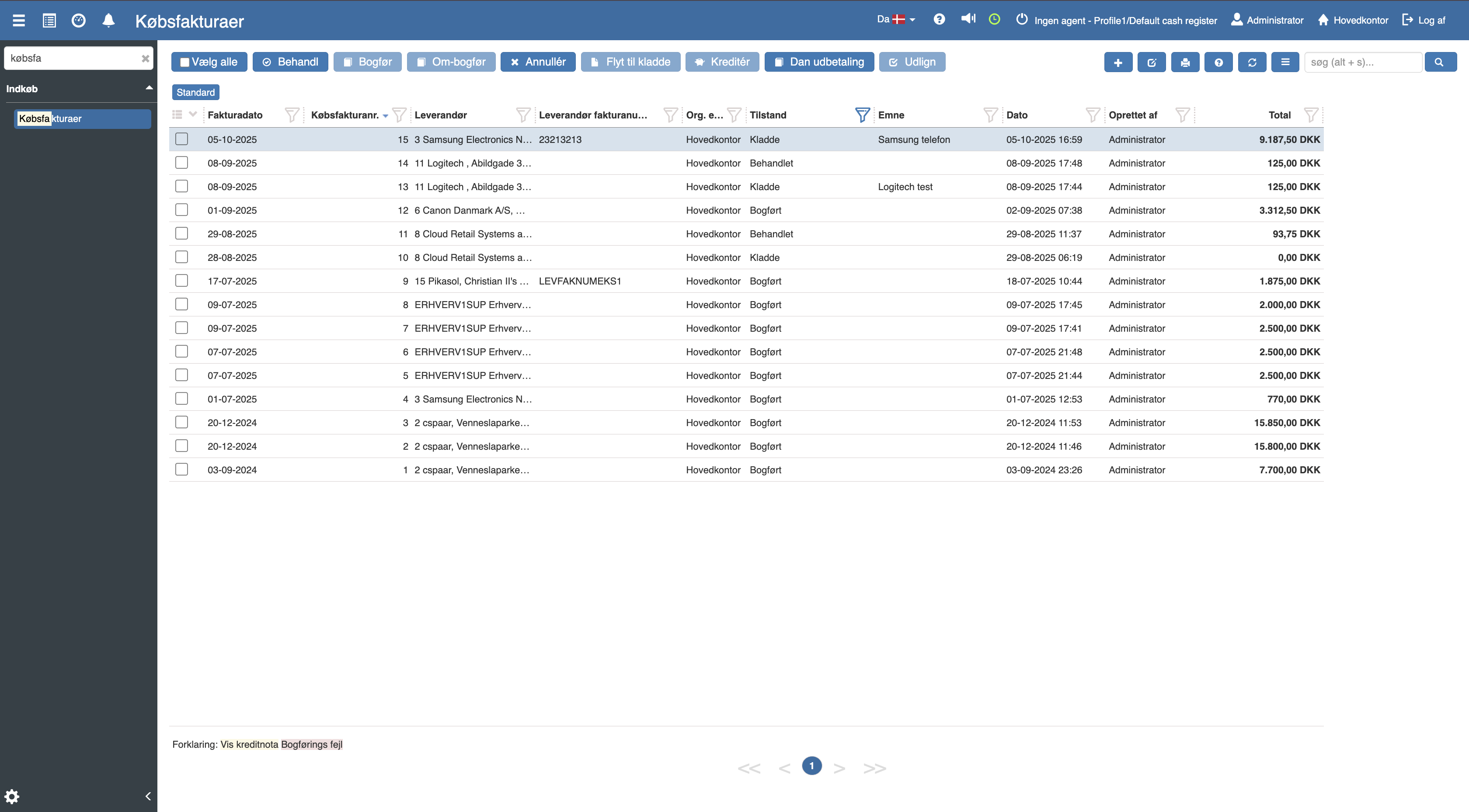
If you want to attach a document to a purchase invoice, this can easily be done by accessing “Financial” in the hamburger menu on the left side, after which you search for “Purchase invoices”.
The following menu will now open, where you have the option to select the relevant purchase invoice.
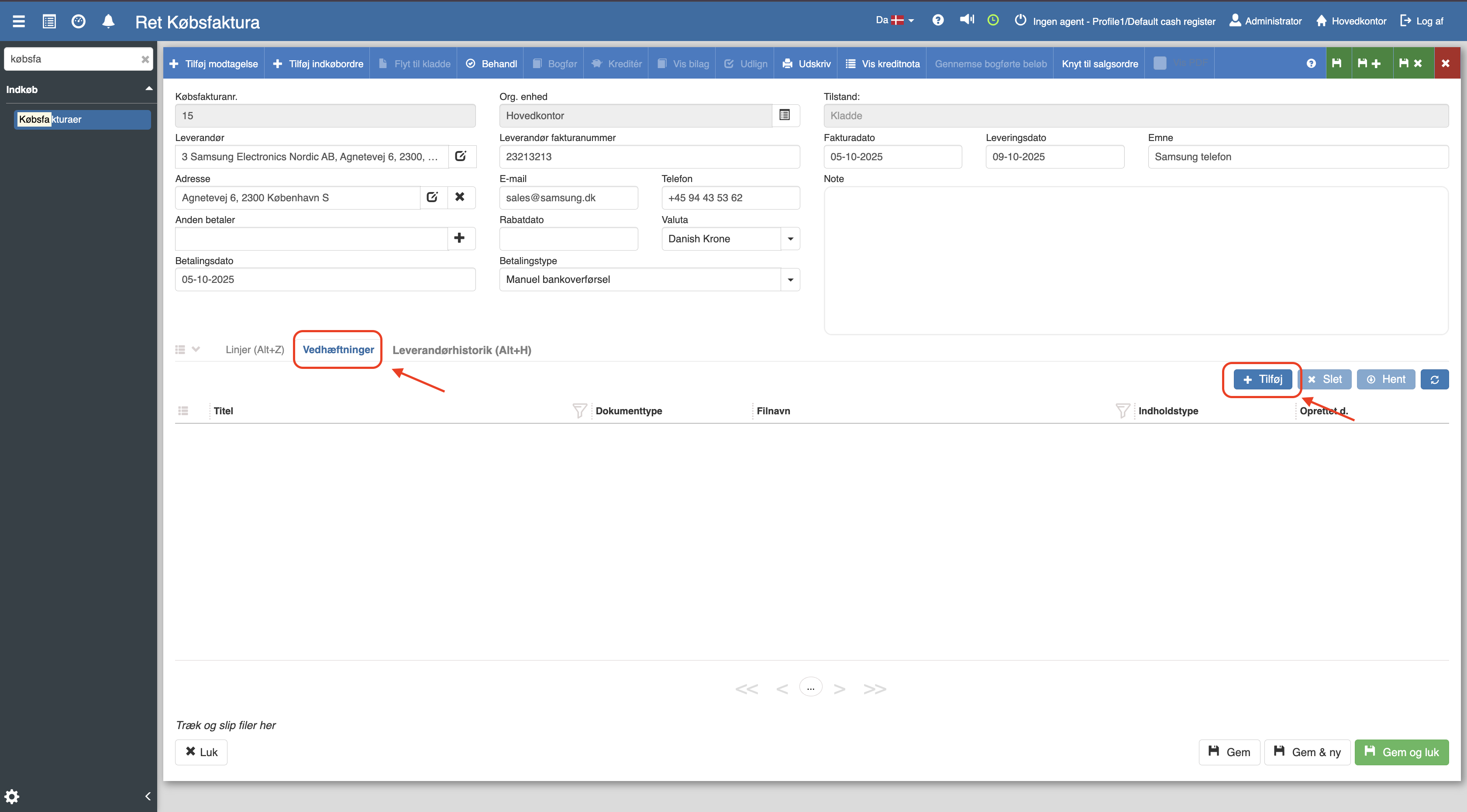
After you have found the correct purchase invoice, you click into it, after which you find the “attachments” button and then click the blue "+" icon.
The following menu will now open, where you have the option to create your attachment.
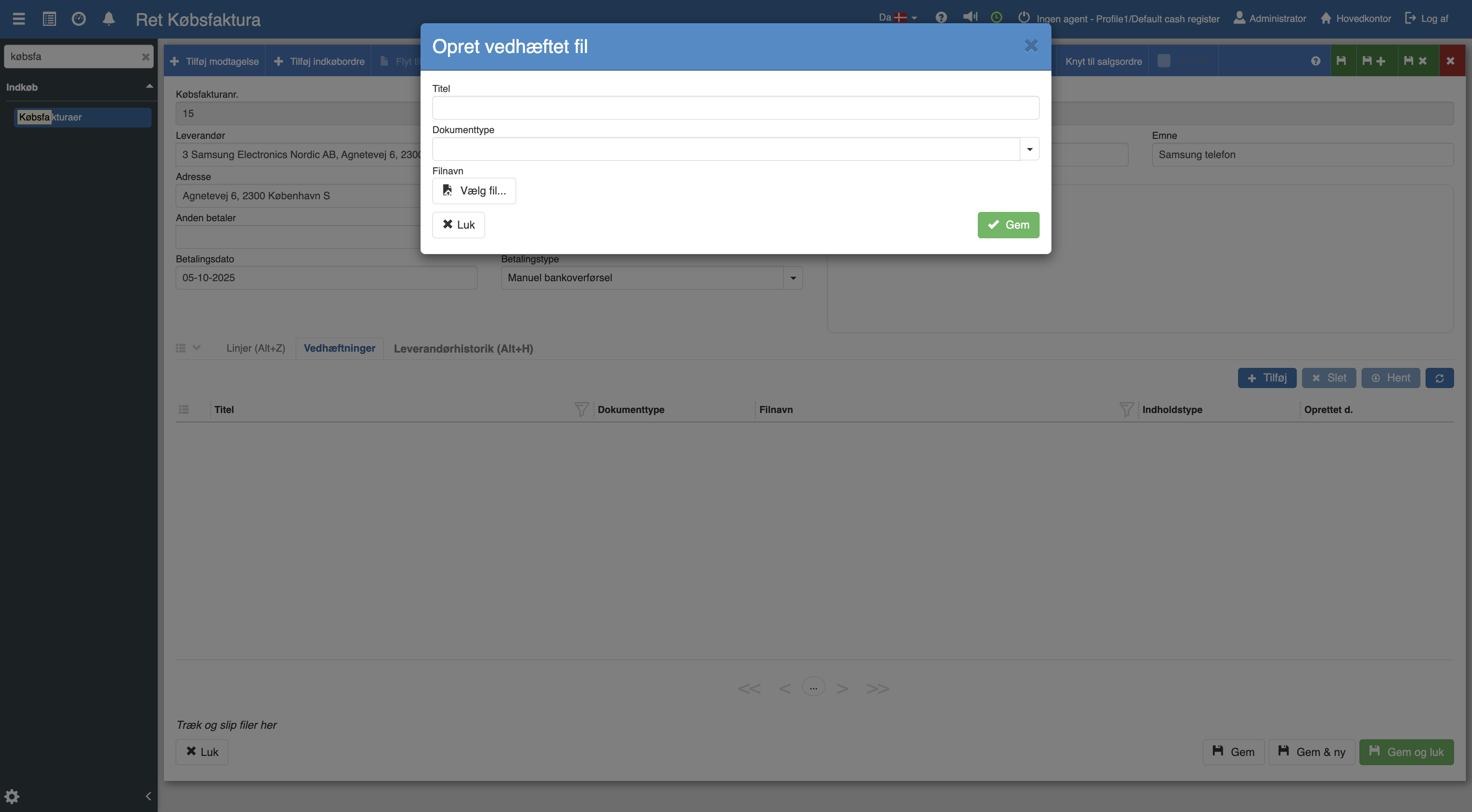
When you have filled in the fields, remember to click “Save”.
Want to know more?
Read more in these related articles:
Accounting - Uploading accounting documents
This article explains how you attach accounting documents to entries in the Chart of accounts
Purchase invoices
Complete guide to Purchase invoices in Financial: list view, creation, the document editor with all header fields, line grid, toolbar actions, the Lines/Attachments/Supplier history tabs and the state flow from draft to paid.
Creating a purchase invoice
In this quick guide we will walk through how to create a purchase invoice in Sapera.
