
The Sales history module serves as the central archive for all transactions made in the POS. From here it is possible to retrieve old receipts, see the status of parked sales or check the day's turnover.
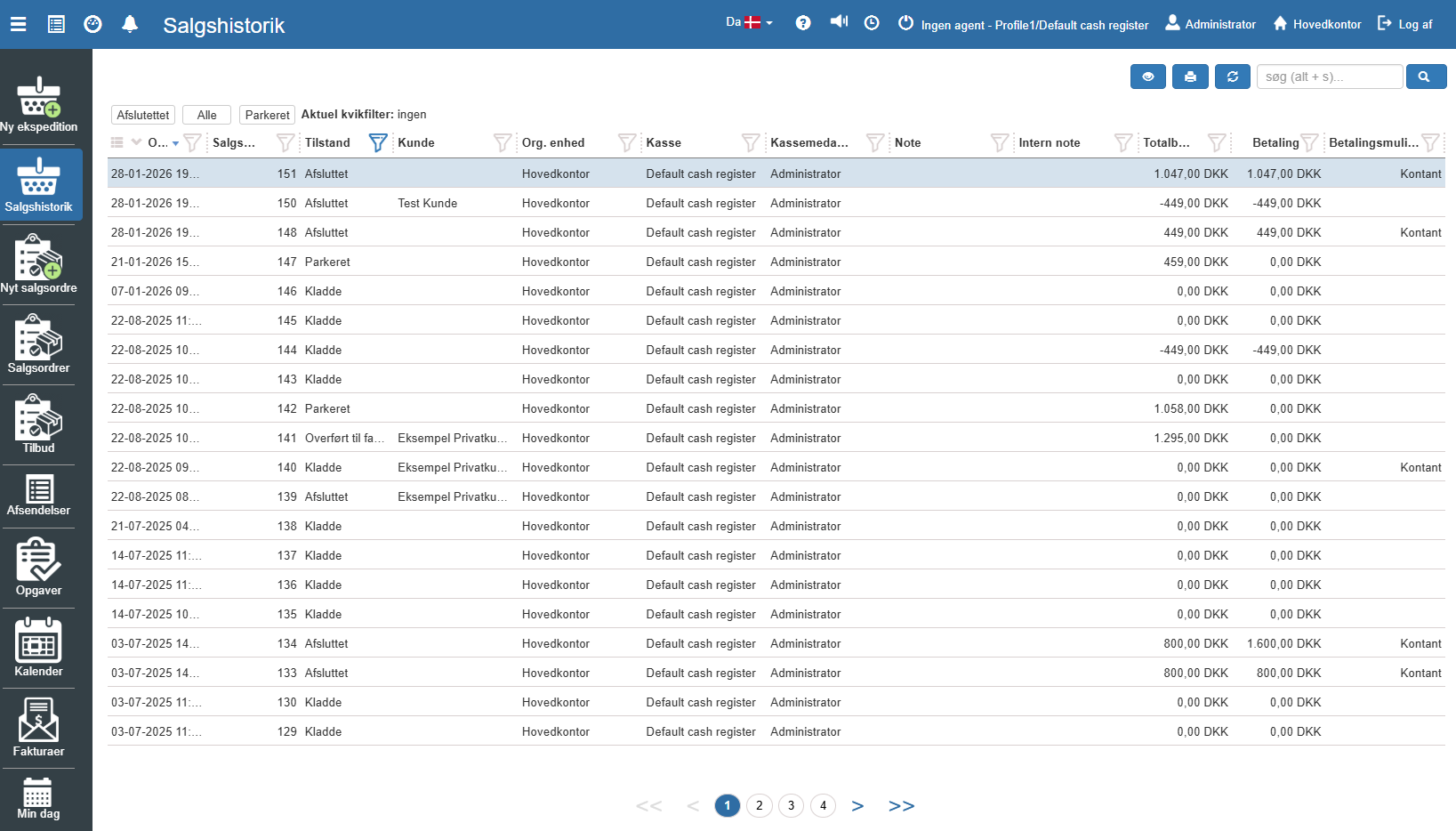
Search and filtering
To quickly locate a specific transaction, the system offers several search tools located at the top of the screen:
Scanning a physical receipt: If you have the customer's physical receipt at hand, you can scan the barcode directly in this screen. The system will immediately identify and open the relevant receipt on the screen.
Free-text search: In the search field in the top right (shortcut: Alt + s) you can search by, for example, receipt number, customer name or amount.
Quick filters: On the left side there are buttons for quick sorting of the view. Here you can choose between views such as Completed, All or Parked.
Refresh: The list can be refreshed manually by clicking the refresh icon (two arrows in a circle) next to the search field.
Transaction overview
The list gives a detailed overview of each individual transaction with the following key information:
State: Shows whether the sale is "Completed", "Parked", "Draft" or "Transferred to invoice".
Customer: Indicates which customer the sale is registered on (if selected).
Finances: The "Total amount" and "Payment" columns show the transaction's value and the amount received.
Payment method: The "Payment option" column shows whether payment was made with, for example, Cash or Card.
Viewing receipts and actions
By marking a line in the overview and using the icons in the top right, it is possible to work with the sale:
View receipt (Details): Click the "eye icon" or double-click to open a digital view of the receipt. This shows all item lines, totals and VAT specifications exactly as they appear on the customer's receipt.
Print: Click the "printer icon" to reprint the receipt or invoice.
Want to know more?
Read more in these related articles:
Product sales history
The Product sales history printout shows the individual product's sales over a selected period, split into invoice sales and POS sales.
Sales top list
This article explains how you create a sales top list printout in Sapera