
Line discount
To give a discount on a specific item, the item must first be registered in the transaction list.
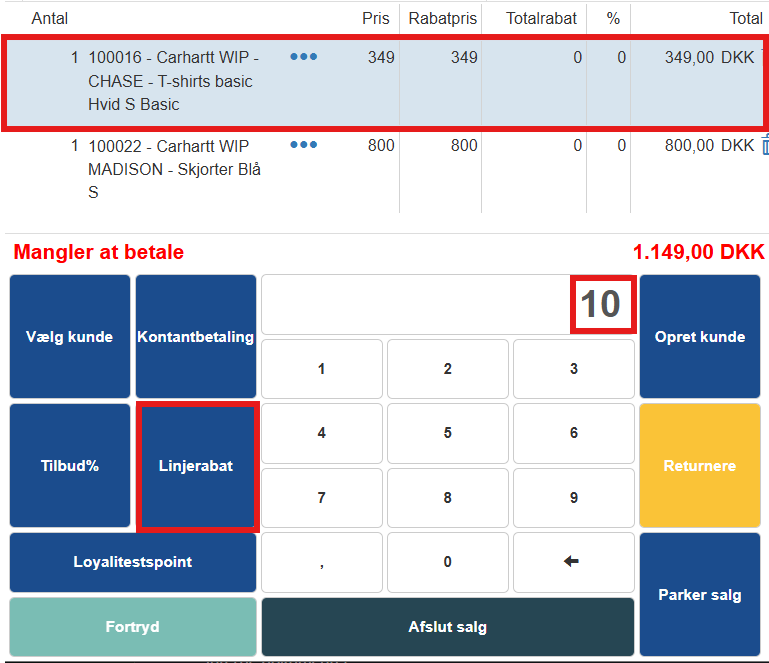
Selection: Click the item line in the list that is to be discounted.
Entry: Enter the desired discount (amount or percentage depending on the system configuration) via the numeric keypad and confirm.
Activation: Click the button Line discount in the function panel.
The discount will then appear directly on the line, and the item's total price is updated.
Percentage offer
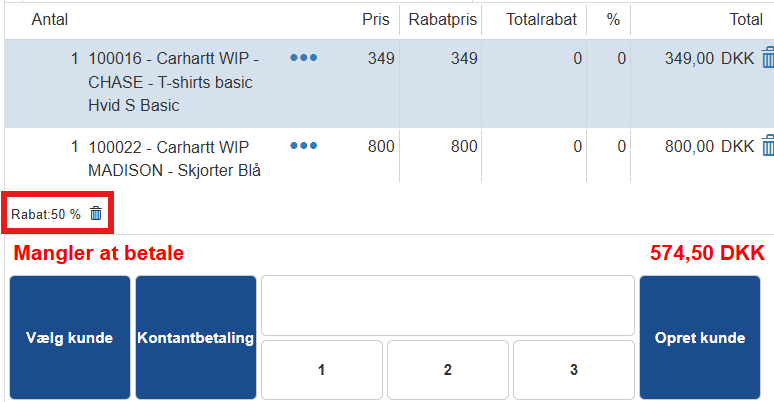
The button Offer% is typically used to give a percentage reduction, for example in connection with campaigns or staff purchases.
Make sure all items are entered.
Enter the percentage rate for the discount.
Click the button Offer%.
Changing the price
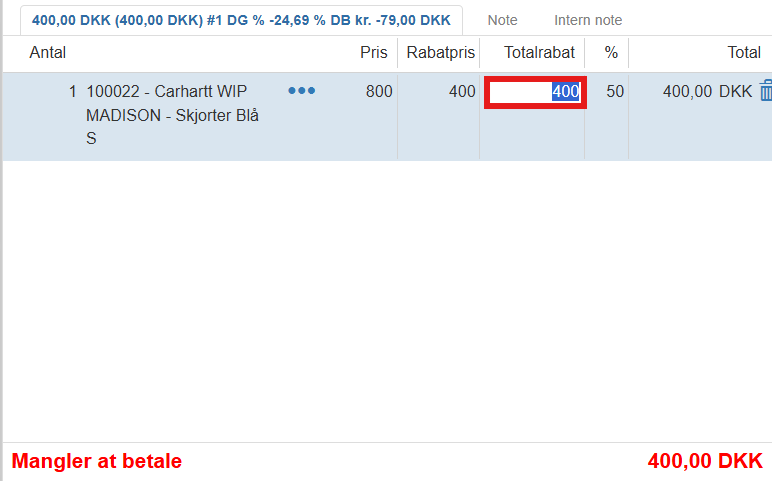
It is also possible to overwrite an item's price manually without registering it as a specific discount. This is often done for items with an open price. Price changes take effect immediately on the total amount on the right side.
Want to know more?
Read more in these related articles:
Discounts
Here is how you create and set up discounts in Sapera — incl. types, validity, product and customer restrictions, level control and automatic activation on sales.
Using discounts
Using discounts
New / edit discount
This article explains how discounts are set up, applied and handled dynamically in Sapera