
The “Pos layout” module makes it possible to tailor the appearance and functionality of the Pos terminal. Here you define the placement, size and function of the buttons employees use during a sale.
You find the module by going to Pos in the main menu and selecting Pos layout in the navigation list on the left.
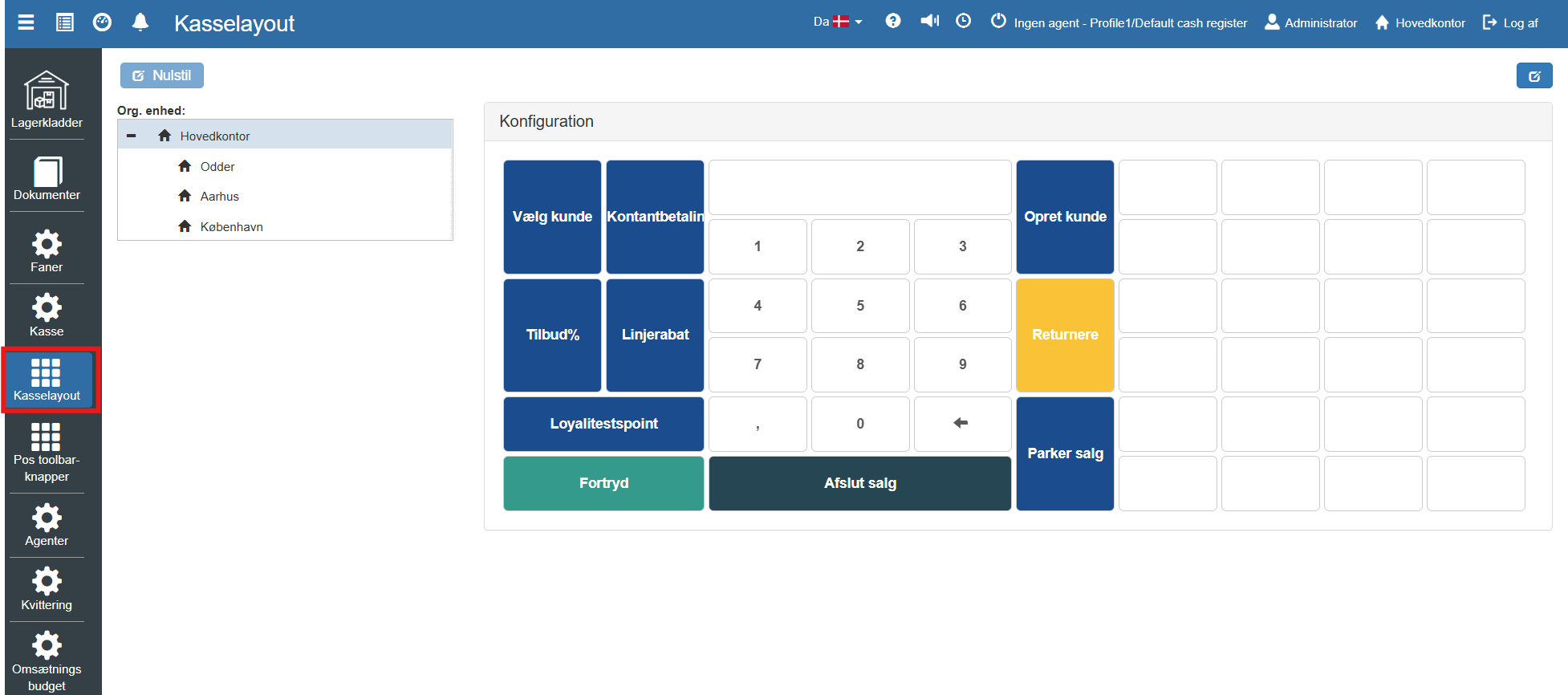
Choosing a layout
Start by selecting the relevant organizational unit (e.g. Head Office or a specific store) in the menu on the left. The current button setup will then be shown in the configuration window.
At the top you find the setting “Is numeric keypad visible”. If this is checked, the standard keypad (the numbers 0-9) is shown permanently in the center of the layout.
Creating and editing buttons
The grid represents the screen on the register. To change a button or create a new one, click directly on the desired square in the grid.
This opens the editing panel at the bottom, where the following is customized:
Heading: The text shown on the button (e.g. "Debit card" or "Large bag").
Type: Here the button's function is defined. You can choose from a wide range of system actions, including:
Payment: E.g. Cash payment, Card payment, MobilePay payment.
Sale: E.g. Park, Return of sale, Create customer, Select customer.
Finance: E.g. Line discount, Total discount (%), Expense.
System: E.g. Open cash drawer, Generate X-Report, Log off.
Colors:
Color: The background color of the button (can be used to color-code functions, e.g. blue for payment, yellow for returns).
Text color: The color of the text.
Size:
Expand row/column: Specify how many cells the button should span. For example, the "Finish sale" button can be made wider by increasing "Expand column".
Saving changes
When the button is configured, click “Save” at the bottom right. If you want to delete an existing button, select “Remove button”.
Want to know more?
Read more in these related articles:
Setting up Pos layout
This article explains how register configuration and Pos layout are customized for your organizational unit in Sapera
Tabs
This article walks through the setup of product tabs in the Pos, including selection of product sources, filtering and customization of the visual layout.
Managing registers
This article describes the creation and configuration of Pos terminals, including linking to finance journals and activating devices.