
A purchase order is used when you need to order new goods to your warehouse from a supplier. By creating it in Sapera you have a full overview of what has been ordered, when it is expected to be delivered, and at what price. Information about when the product is expected to be delivered can be seen from the sales order lines and the product card.
Navigation
You find the module by opening the main menu on the left, expanding the Purchasing section and clicking Purchase orders.
How to create a purchase order
Follow these steps to create your order:
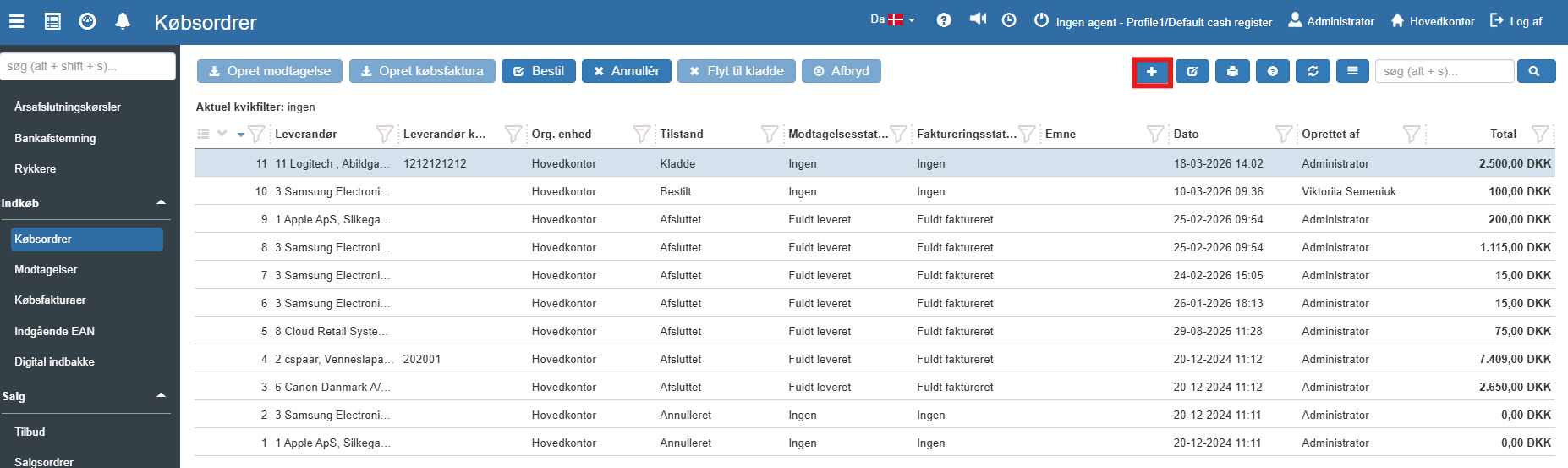
1. Go to the purchase orders overview and click the blue Create icon (+) in the top right corner:
2. The "Create Purchase Order" window now opens. Start by selecting your Supplier in the field on the left. This field is required, and when the supplier is selected, the system will automatically fill in contact details such as address and email from the supplier's master data.
3. Fill in the other relevant fields at the top, such as:
Order date: When the order is placed.
Currency: Select the correct currency for the transaction (e.g. Danish Krone).
Supplier purchase order number: If the supplier has provided a specific order number, it can be noted here.
4. Go to the Lines tab in the middle of the screen to add the goods you want to order. Here you enter item number, quantity and price.
5. When the order is filled in, click the green button Save and close at the bottom right.
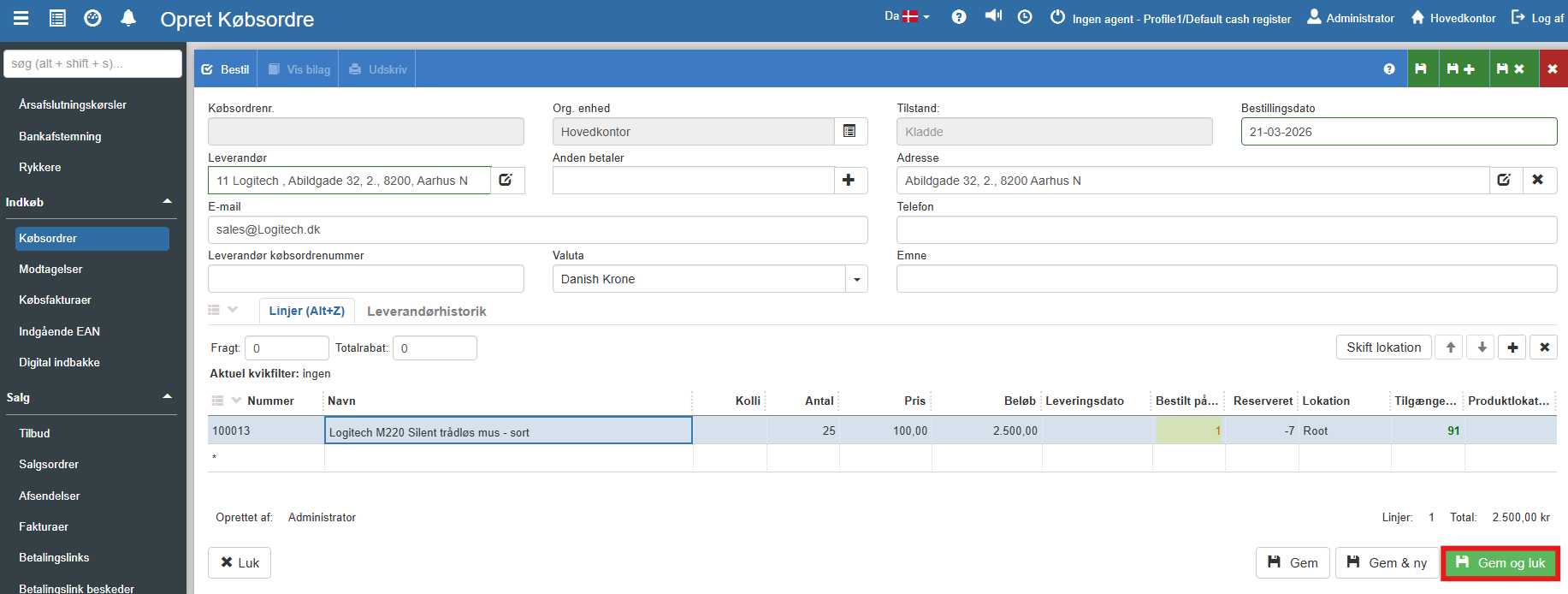
The order is now created in the system and will by default have the state "Draft". From there it can be processed and sent to the supplier (via the "Order" button in the overview).
For details about states, approval and supplier history, see the full article.
Purchase orders
This article explains how purchase orders are created and managed in Sapera.