
When you have received goods at your warehouse and registered the receipt in Sapera, you will subsequently receive an invoice from your supplier. By creating the purchase invoice directly from the "receipt", you ensure that the invoice matches the goods that were actually delivered, and you avoid entering the item lines manually.
How to create the invoice from a receipt
Follow these steps when you have the supplier's invoice in front of you and need to match it with the system's goods receipt:
1. Go to the purchase invoices overview and click the blue Create icon (+) in the top menu.
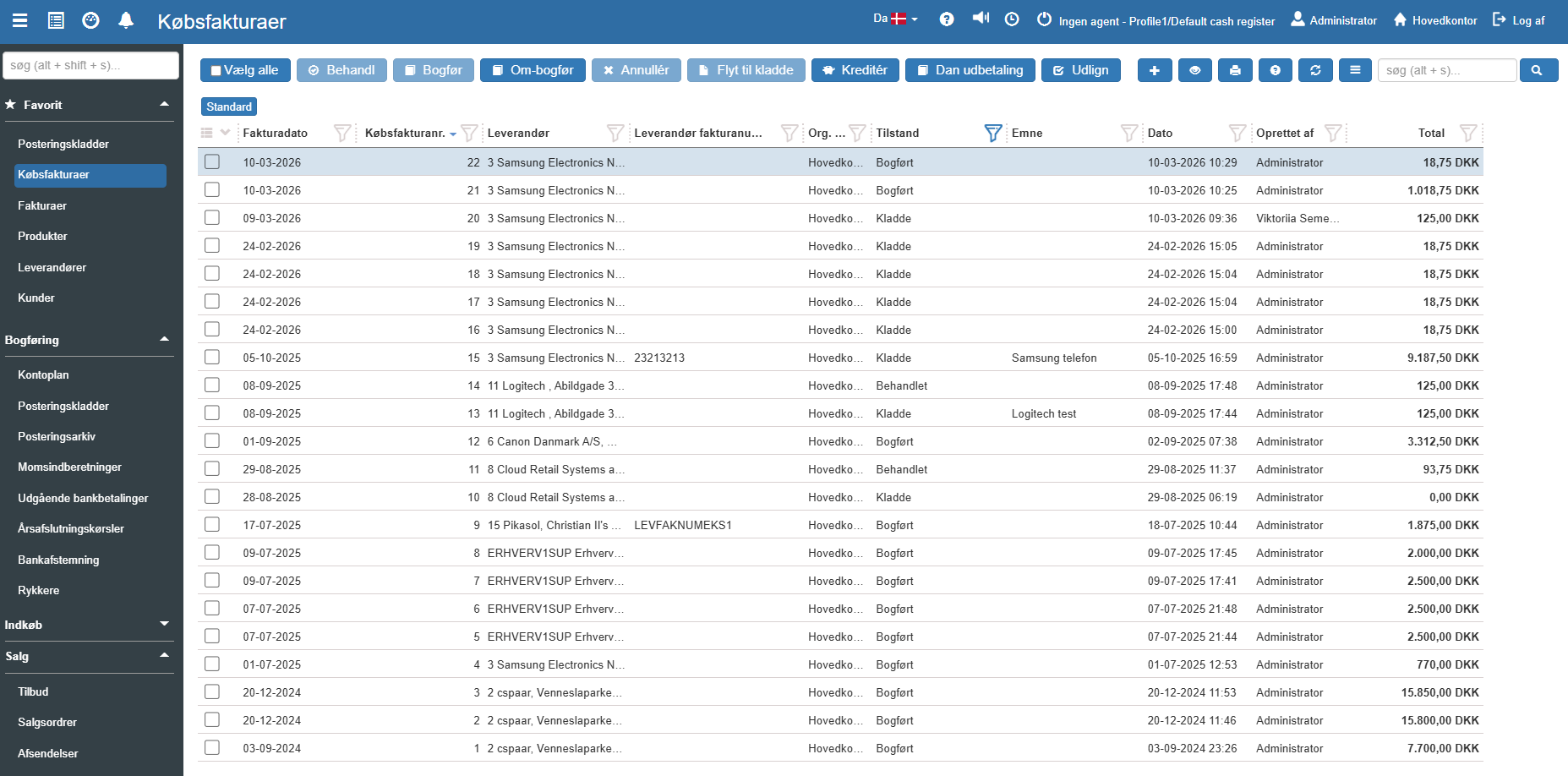
2. A pop-up window opens. Click the From receipt tab.
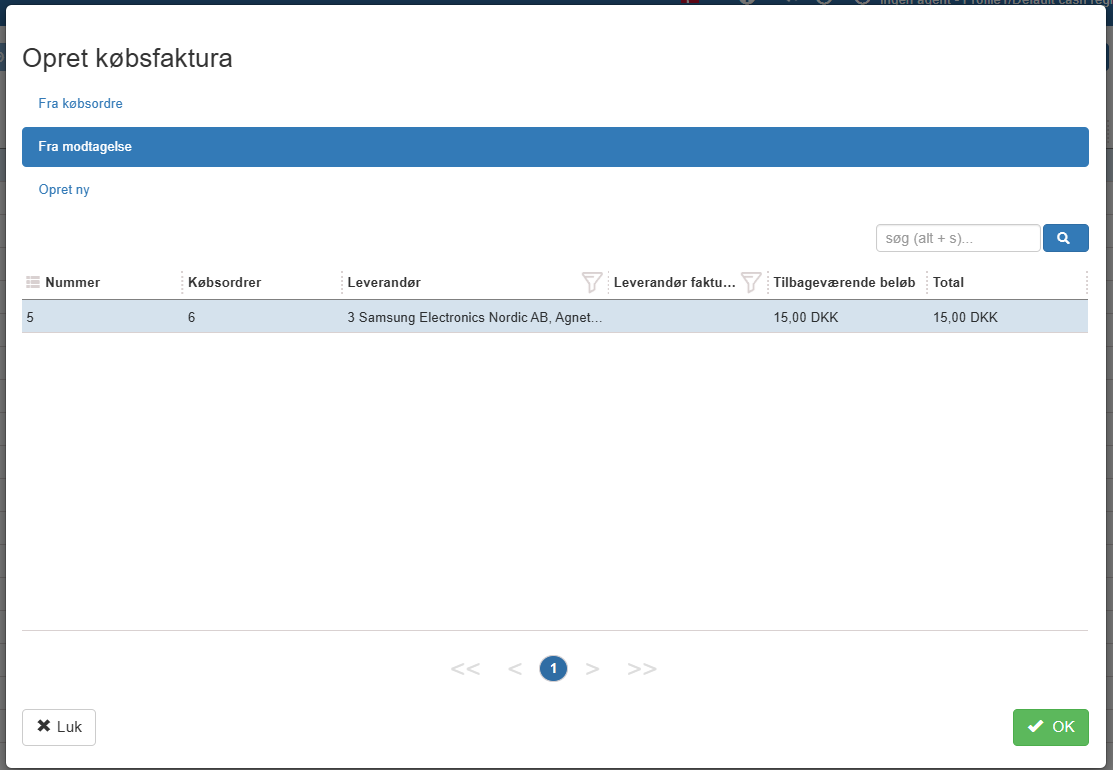
3. The system now shows a list of the goods receipts that have not yet been invoiced.
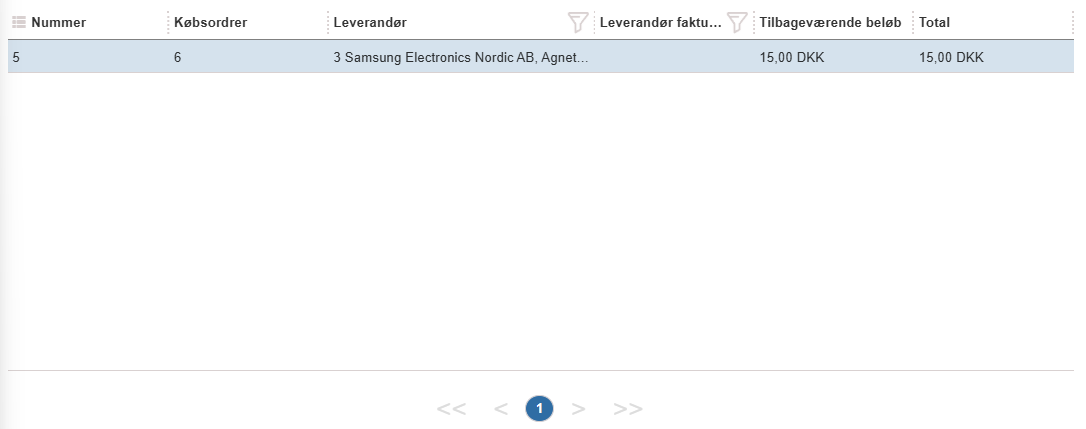
4. Search for and select the receipt(s) that match the physical invoice you received from the supplier.
5. Click the green button OK at the bottom right.
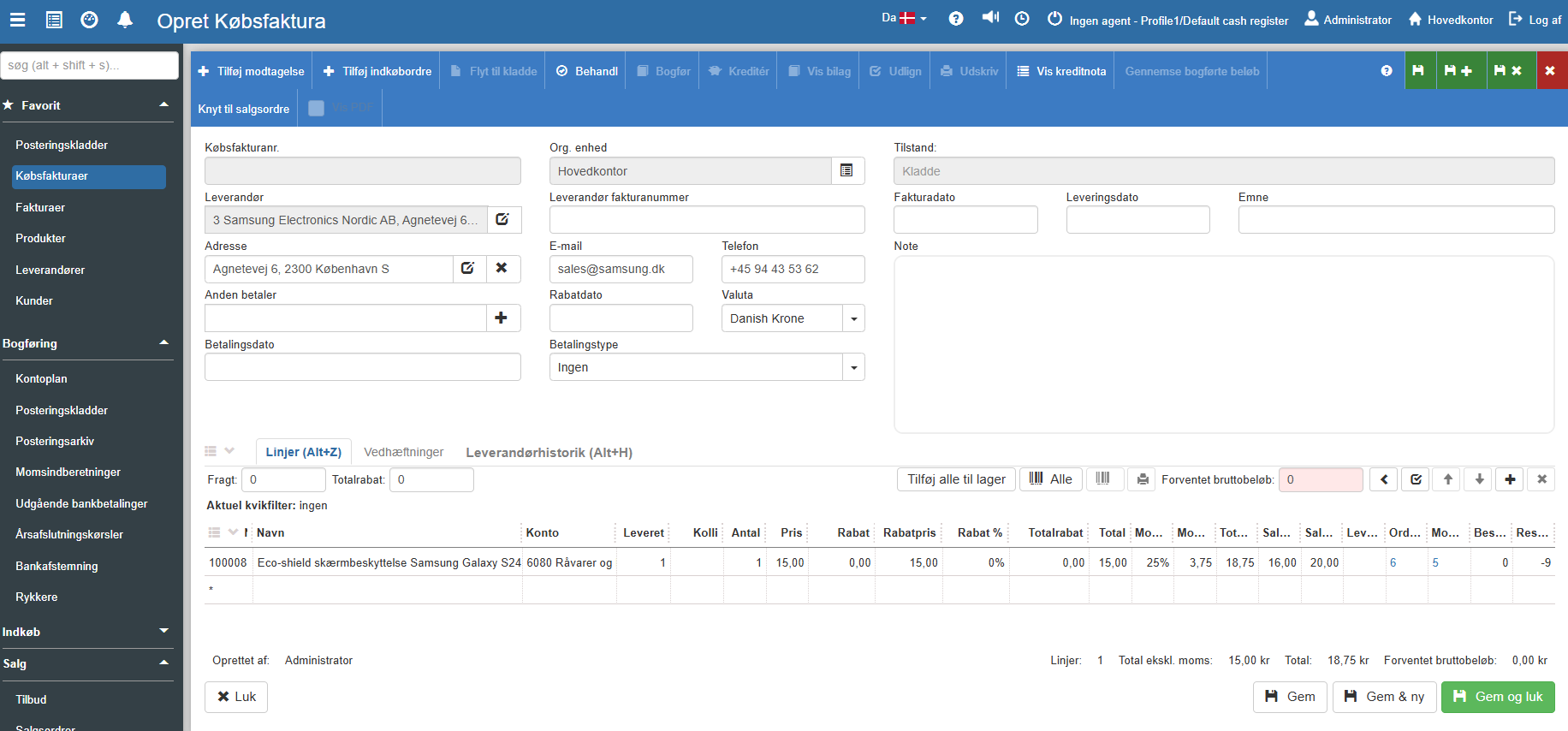
6. Sapera now creates a new purchase invoice as a draft and automatically transfers the supplier as well as all the received item lines, quantities and prices to the invoice:
Fill in the last details and post
Although the item lines are fetched automatically, you must complete the invoice header:
1. Enter the invoice number stated on the supplier's physical invoice in the Supplier invoice number field (this is important for posting).
2. Check that Invoice date and Delivery date match.
3. Verify that the total amount at the bottom of the screen matches the supplier's invoice.
4. Finish by clicking Save and close to save it as a draft, or click Post in the top menu to lock and post the invoice in your accounts.
Want to know more? For an in-depth walkthrough of fields, handling of payments, crediting and advanced features, you can read the full article on purchase invoices below:
Purchase invoices
This article explains how to handle and create purchase invoices in Sapera