
Situations may arise where you need to withdraw an order or cancel a planned goods receipt.
Note:
A purchase order or a receipt can ONLY be cancelled while it is in the "Draft" state. If the order or receipt is already active (e.g. "Ordered" or "Completed"), you will not be able to cancel it directly.
How to cancel
Follow these steps to cancel the entry (the process is exactly the same for both purchase orders and receipts):
Open the overview for either Purchase Orders or Receipts.
Search for the specific entry you want to cancel. Be sure to check the "State" column to confirm that it really is set to Draft.
Select the row by clicking on it.
Click the Cancel button in the blue top menu.
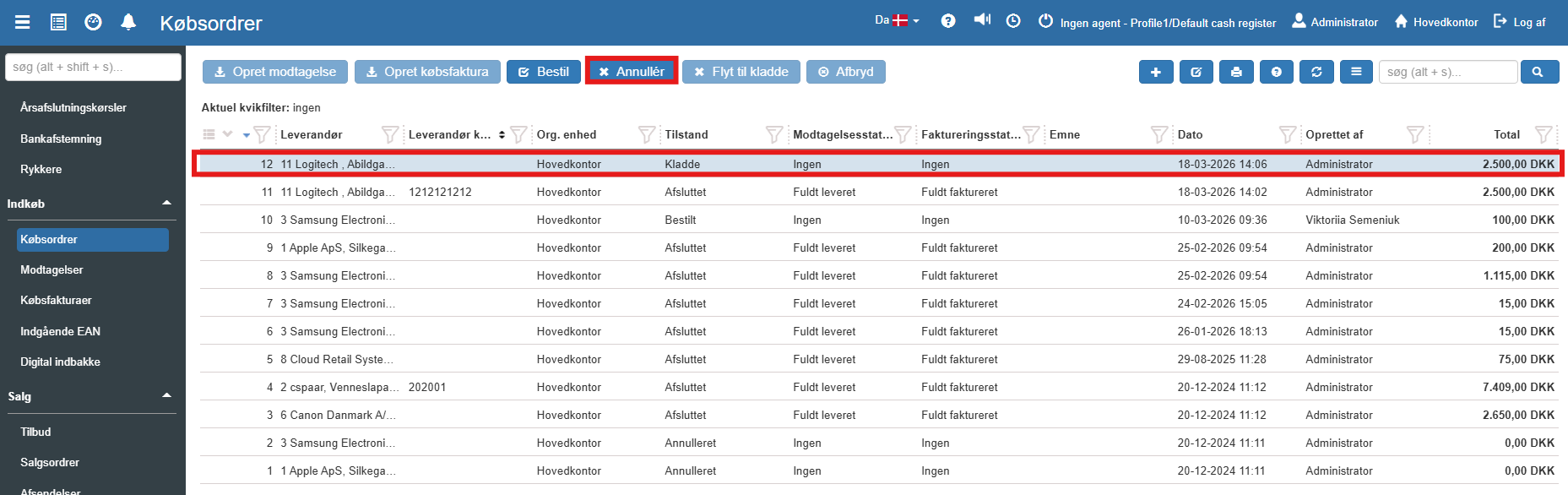
The entry's state will now change to "Cancelled", and it will no longer be included in your active purchases or expected stock movements.
Tip:
If your purchase order is mistakenly already set to "Ordered", you can select it and click the Move to draft button in the top menu. Once it is back as a draft, you will be able to click Cancel.
Purchase Orders
This article explains how purchase orders are created and managed in Sapera.
Receipts
This article explains how to register and handle receipts from suppliers in Sapera