When you create and manage products in Sapera, much of the logic builds on a smart "inheritance principle" from product categories. This means you don't have to set up each individual product manually, but can control rule sets for entire groups of items at once.
If a specific product needs to deviate from the standard, you can always override it with individual settings.
It is essential to understand the difference between the two primary ways settings are handled:
Inherit from product category (Default): The product automatically takes on all the settings and rules defined for the category it is placed in. This saves an enormous amount of time during creation.
Individual product settings: You can opt out of inheritance on specific points and give a product its own unique settings that deviate from the category's.
To change the rule set for a specific product, do the following:
Open the main menu (Financial) and go to Product -> Products:
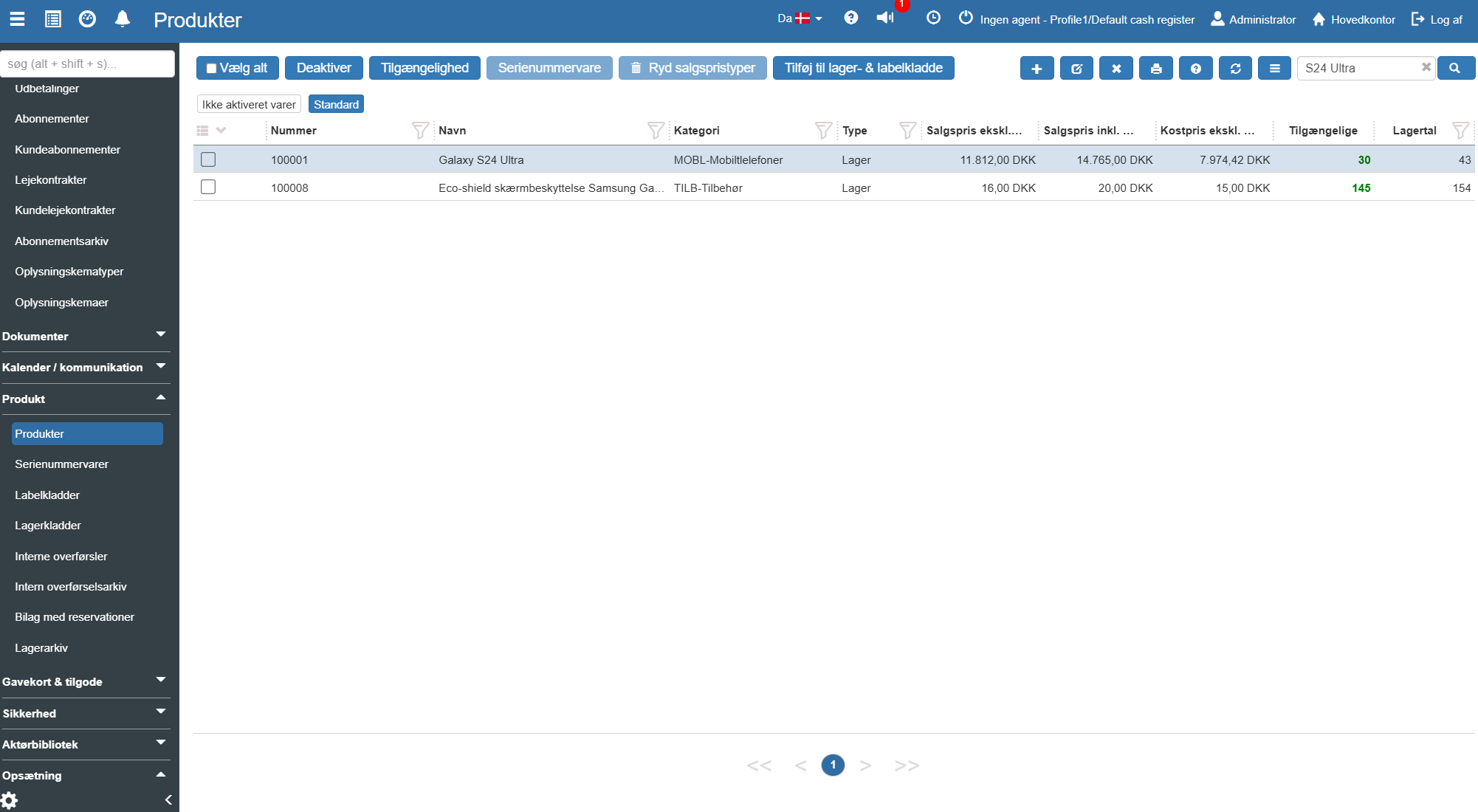
Search for and open the product you want to change:
Click the Settings button at the top of the screen:
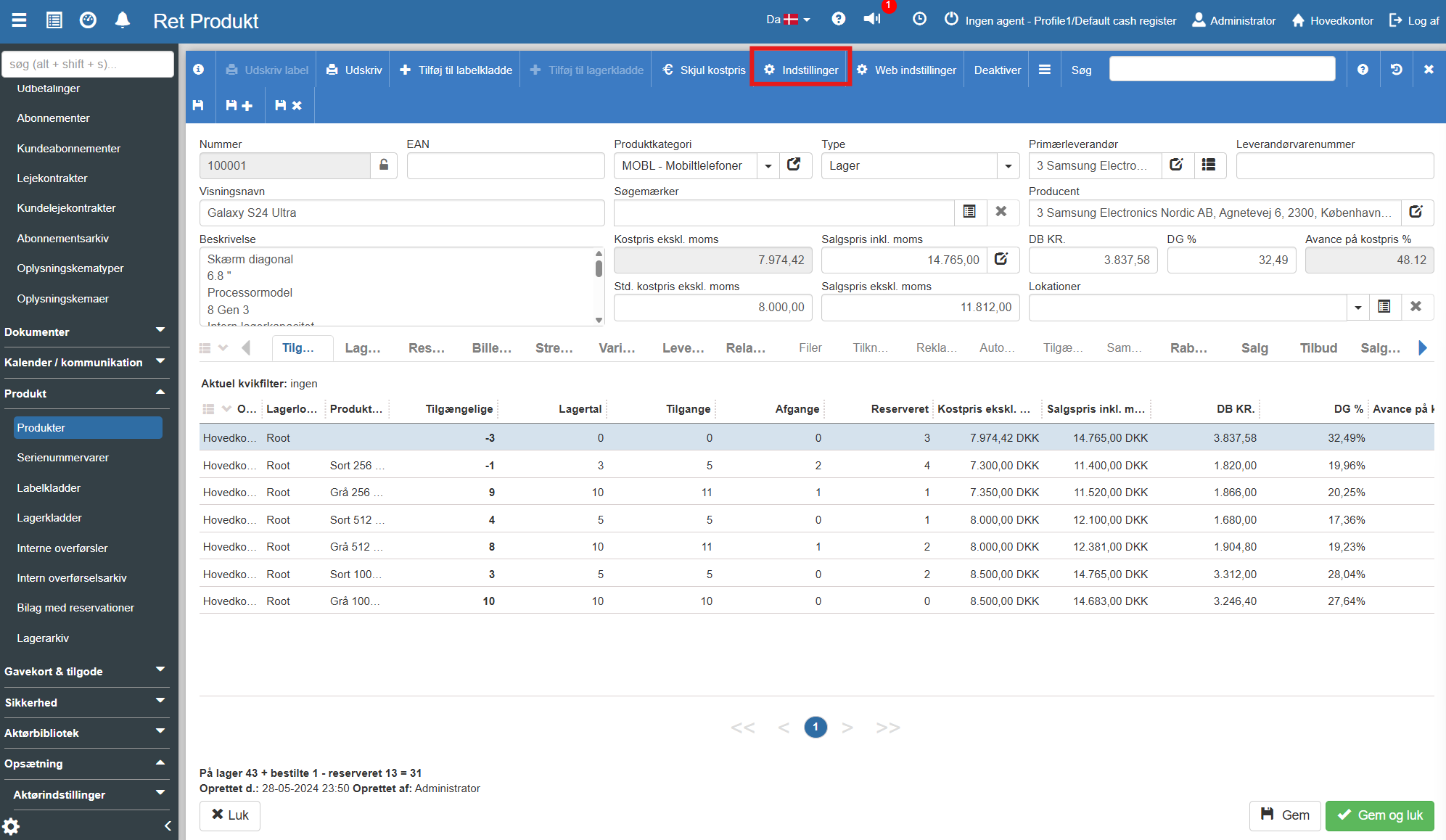
You are now presented with the "Edit product settings menu", where you can enable or disable specific functions:
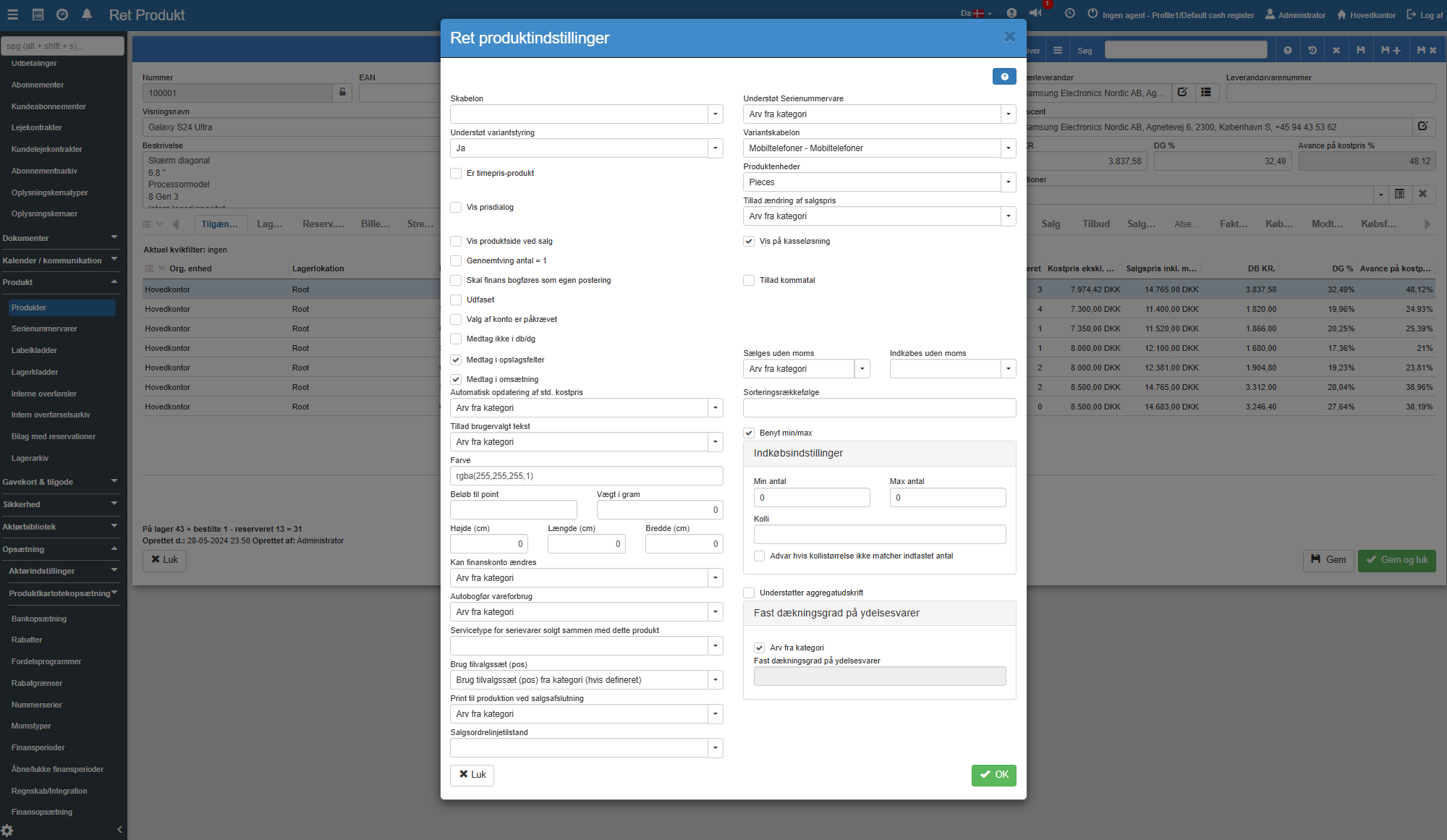
The menu gives you control over many aspects of the product. Here is an overview of the most commonly used fields (many of these are set to "Inherit from category" by default):
Finance and Posting:
Auto-post cost of goods: Controls whether Sapera should automatically generate cost-of-goods postings on stock and consumption accounts when the product is sold.
Automatic cost price update: If the item is sold before it is in stock, Sapera can automatically adjust the original cost price to the actual purchase price when the item arrives. We recommend using this.
VAT settings: Determines whether the product can be sold or purchased without VAT (e.g. for export).
Post finance as a separate posting: Forces the system to create a separate posting in the accounts for this particular product on a sale.
Sales and Handling:
Allow change of sales price: Determines whether the user may overwrite the price manually at the point of sale or on an invoice.
Allow decimals: Makes it possible to sell the product in decimals (e.g. 1.5 metres or 0.75 litres).
Show on POS: Determines whether the product can be sold in the physical store via the POS system, or only via sales orders and invoices.
Allow user-defined text: Allows employees to edit the product text directly on the sale.
Enforce quantity = 1: The product can only be sold individually (e.g. deposits, warranty certificates or expensive unique equipment).
Stock and Purchasing:
Phased out: If marked, the product cannot be reordered. It disappears from the POS system as soon as the stock balance reaches 0. You can also specify which item replaces the phased-out item – when sold, it will then use the new item.
Use min/max: Here you can enable monitoring of your stock balance. Enter minimum and maximum quantities so the system can warn you to reorder or prevent overstocking.
Purchase settings (Pack size): Defines how many units typically come in one box when purchasing. The system can warn you if your ordered quantity does not divide evenly by the specified pack size.
Want to know more?
This guide summarises the primary product settings and categories. If you want to dive deeper into the options in Sapera's product catalogue, you can read our other related articles here:
Products
This article explains how to create and configure a new product in Sapera
Product settings
This article explains how to configure individual product settings in Sapera
