The Related products function in Sapera lets you link specific items together. This is an incredibly powerful tool both for increasing upselling (e.g. by suggesting a cover when the customer buys a phone) and for automating processes (e.g. by automatically adding a deposit line when you sell a particular soft drink).
To create a relation between two items, open the primary product (the main product):
Go to the main menu and select Product -> Products.
Open an existing product or create a new one.
Scroll down below the general product information (such as description and prices) and find the row of tabs:
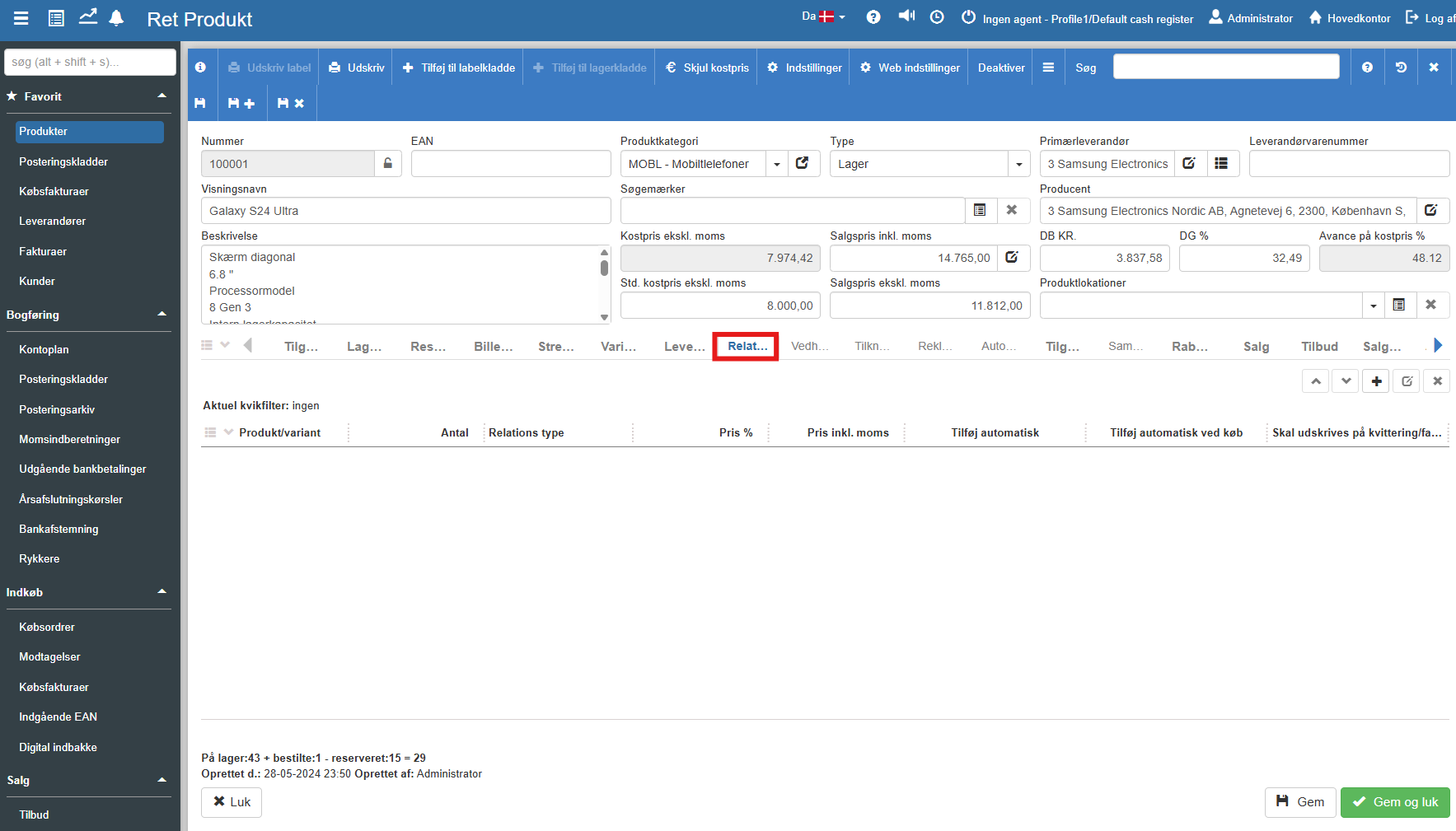
Click the Related products tab.
Here you get an overview of the items already linked to the main product.
To link a new item to the main product, do the following:
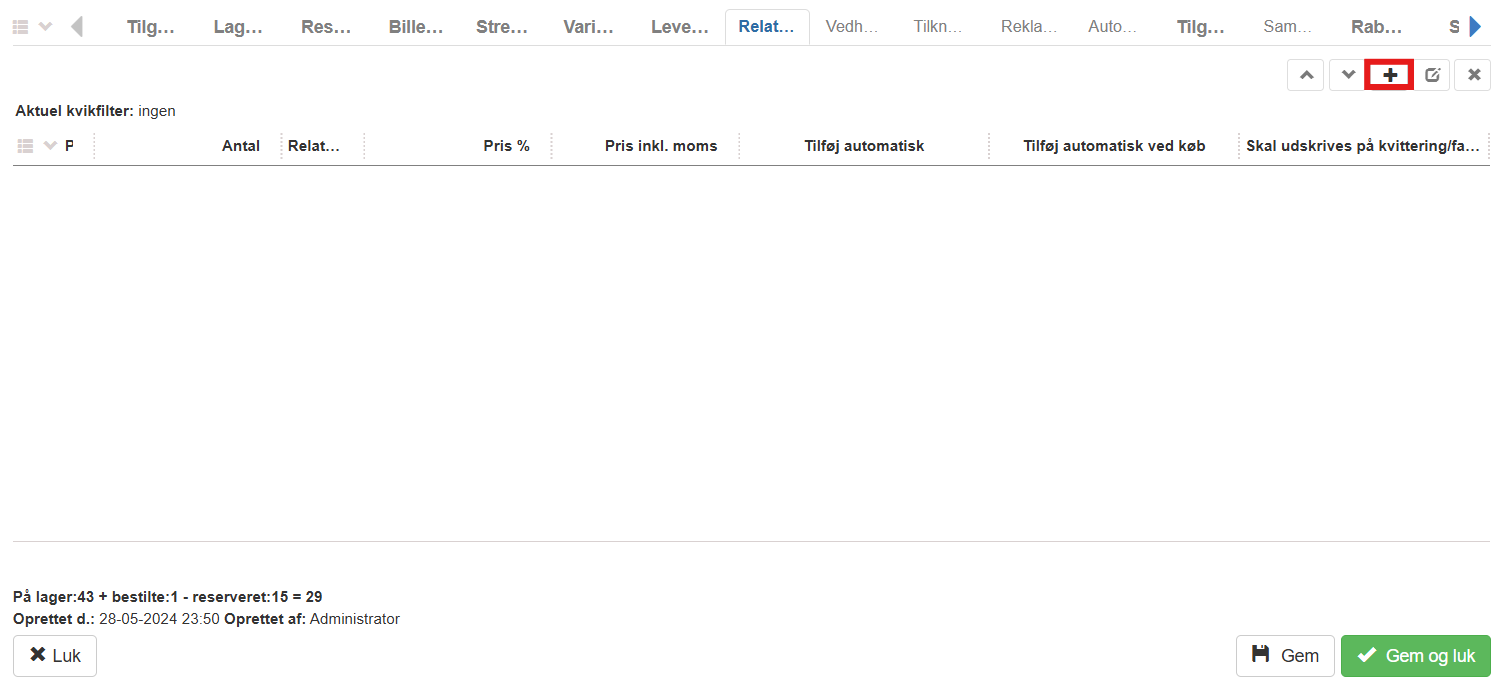
On the Related products tab, click + (the Plus icon) on the right side of the screen:
The "New related product" dialog box now opens:
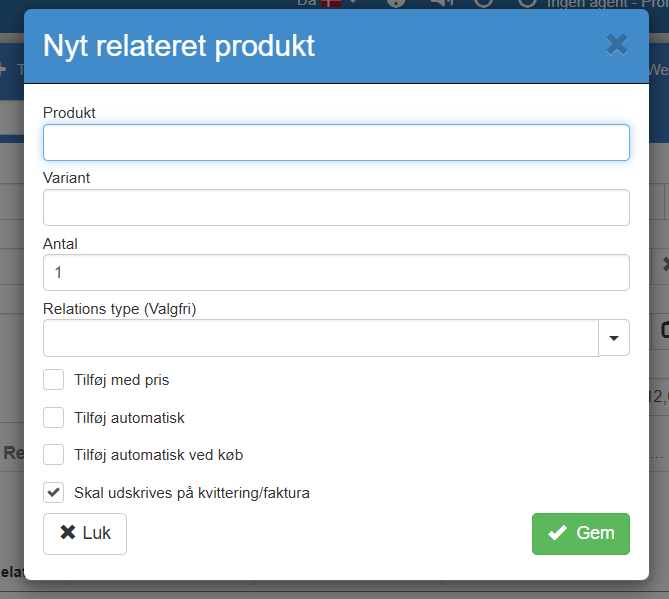
Fill in the fields and set the desired options.
Finish by clicking the green Save button:
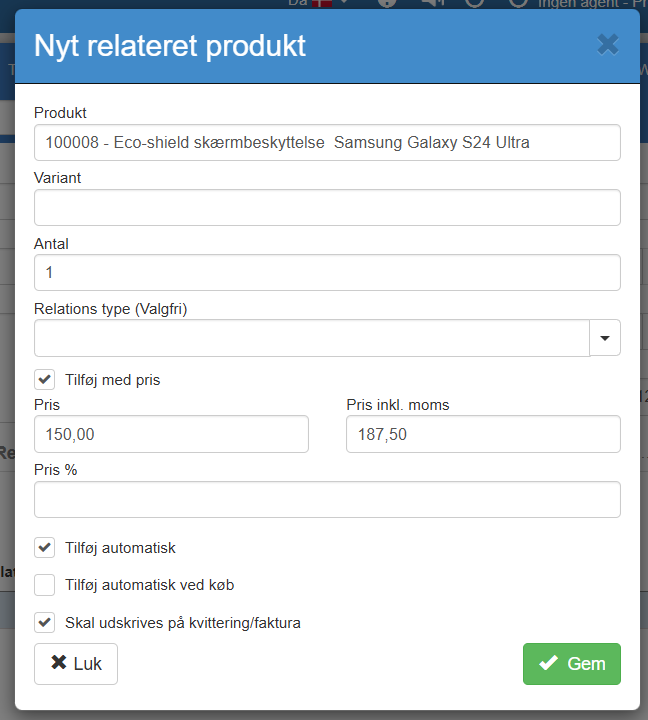
When you create the relation in the dialog box, you have the following options for controlling how the related product should behave:
Product: Here you search for and select the item to be linked to the main product (e.g. "Deposit C" or "Leather cover").
Variant: If the selected product comes in several variants (e.g. colours or sizes), you can select a specific variant here.
Quantity: Specifies how many units of the related product should be suggested or added per main product (e.g. 1 pc).
Relation type (Optional): Here you can categorise the relation (e.g. as "Accessory", "Alternative item" or "Upselling"). Note: The options here are defined under the "Product relation types" module in the setup.
Automation and behaviour at the POS/orders:
Add with price: If this is marked, you can let the related product come along at a specific price or percentage when it is sold together with the main product.
Add automatically: If you tick this, the related product will automatically be added to the basket on the sale as soon as the main product is scanned at the POS. This is ideal for mandatory add-ons such as deposits, environmental fees or certificates.
Add automatically on purchase: Works like the above, but instead applies when you create a purchase order with your supplier (e.g. if the supplier always adds a specific packaging fee to this item).
Print on receipt/invoice: Determines whether the related product should appear as its own, visible item line on the customer's receipt or invoice.
Once the item is saved, it will appear in the overview under the tab, and the rule set takes effect immediately.
A related product's quantity can optionally follow the main product's quantity automatically.
The price for “Add with price” can be entered with up to 3 decimals.
Want to know more?
This article covers how to attach related items on the product card itself. If you want to know more about related modules, you can read on here:
Product settings
This article explains how to configure individual product settings in Sapera
