Note: We recommend using automatic VAT reporting. Click here to read more.
If you want to report VAT manually, you do it from this menu item.
This function is used to:
1. Generate the VAT statement printout which forms the basis for manual entry at the tax authorities.
2. After the report has been submitted to the tax authorities, Sapera needs to know that the report has been made. This allows Sapera to keep track of which entries have been reported.
This is done as follows.
1. From Financial -> Chart of accounts -> Report VAT
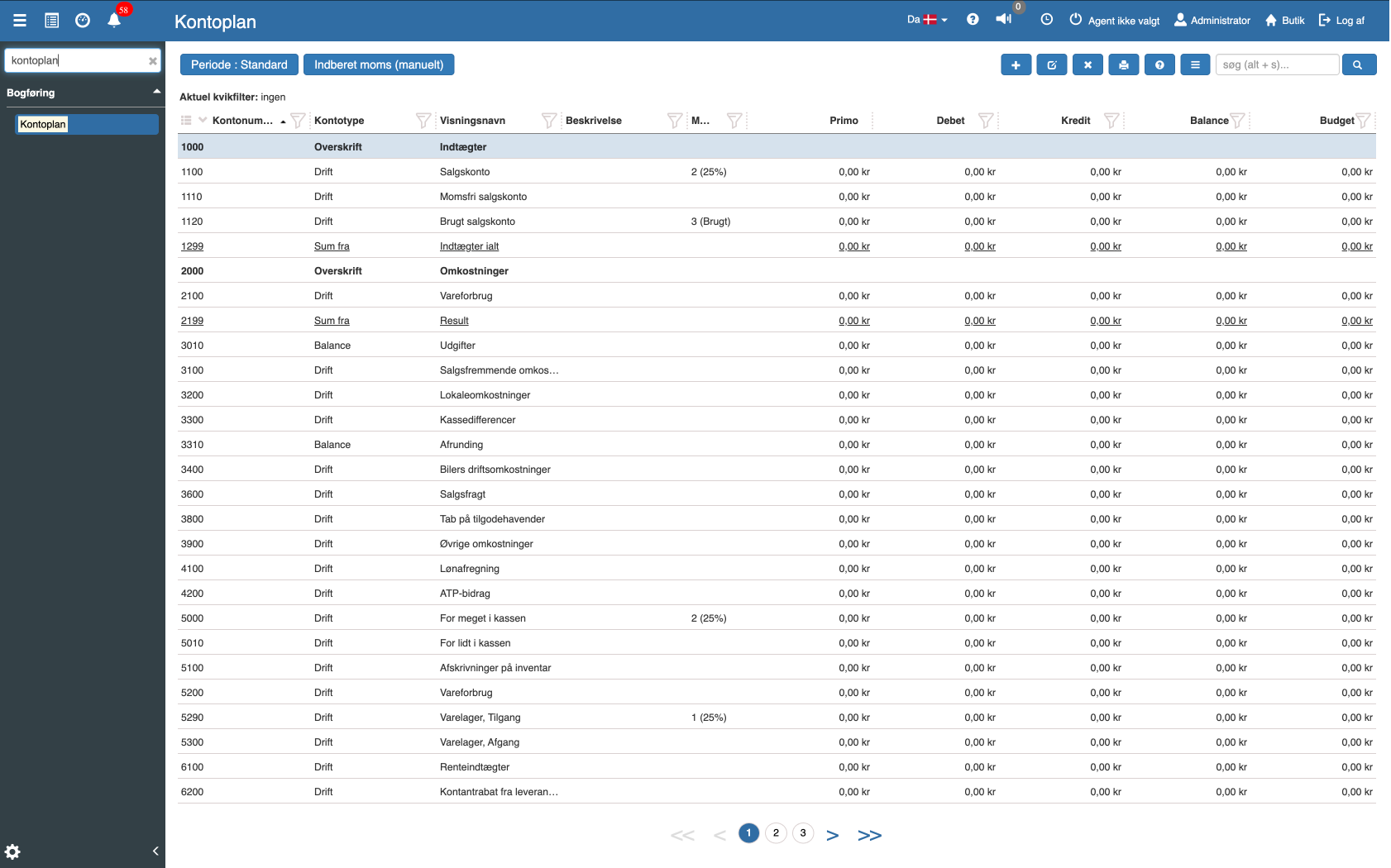
2. The following dialog then appears
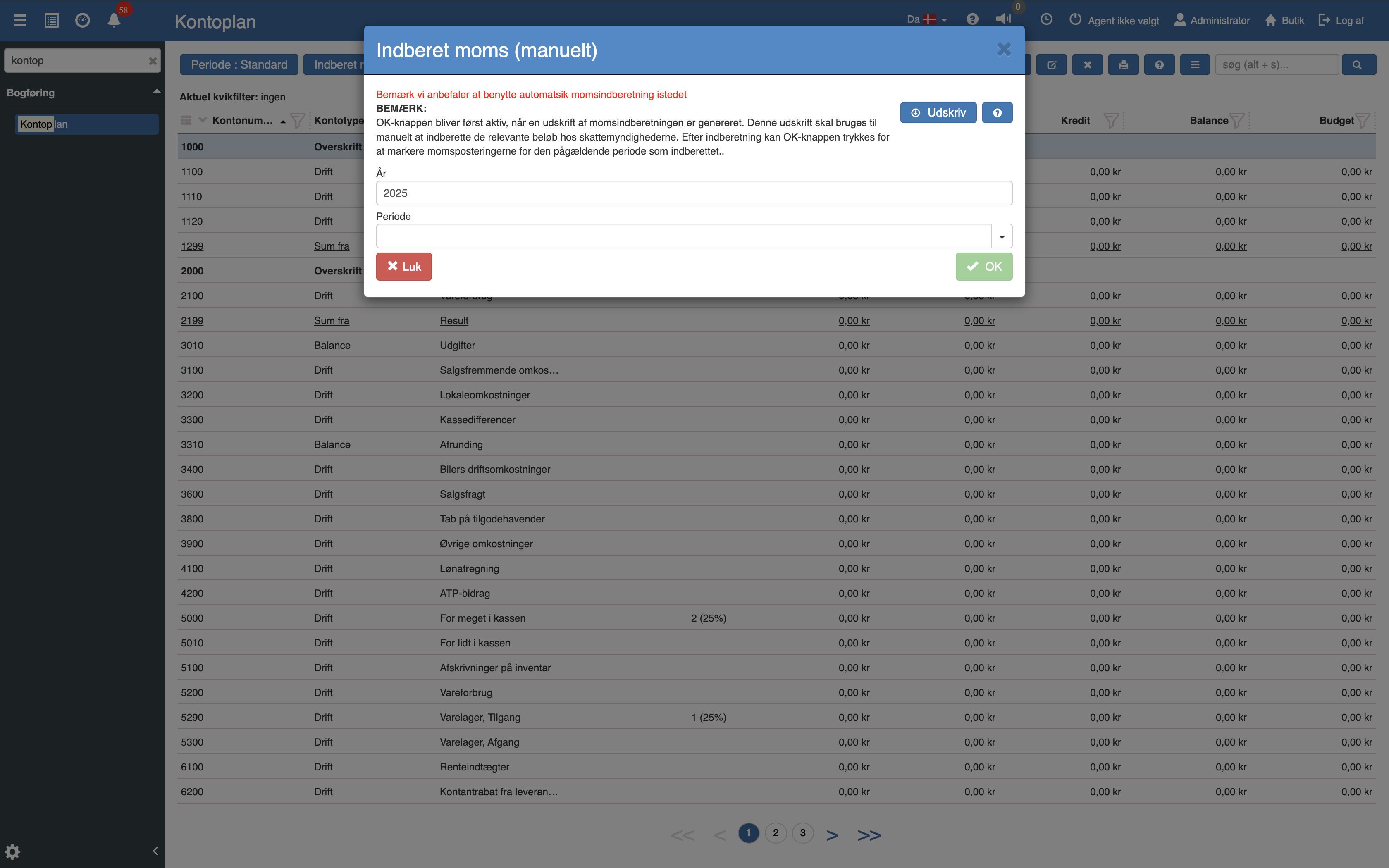
Note! You cannot click "OK" before the VAT statement has been printed.
3. Clicking VAT statement opens the print dialog
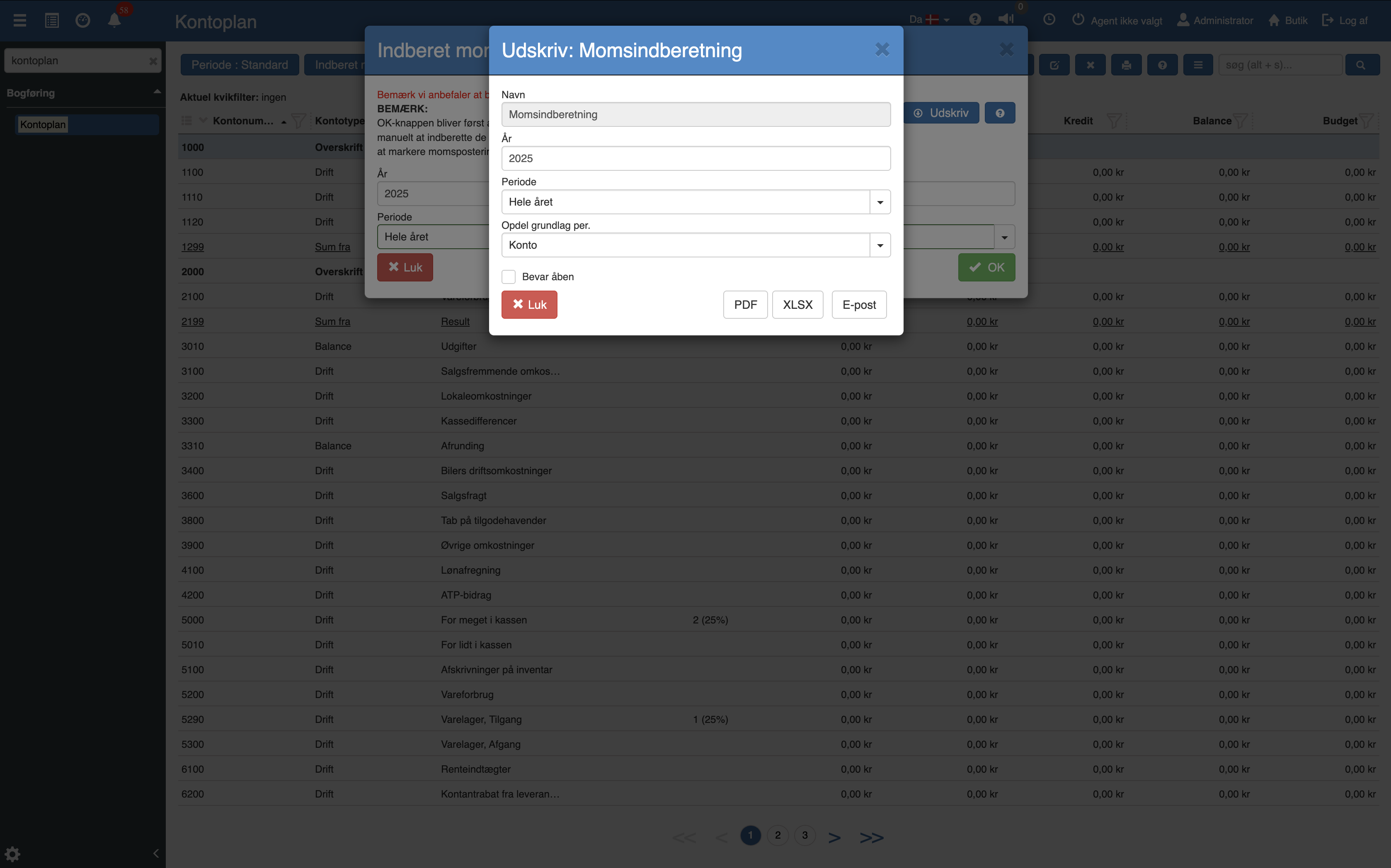
As a rule, the selected parameters should not be changed.
The printout will, for example, look like this. The demo data is limited in this example, however.
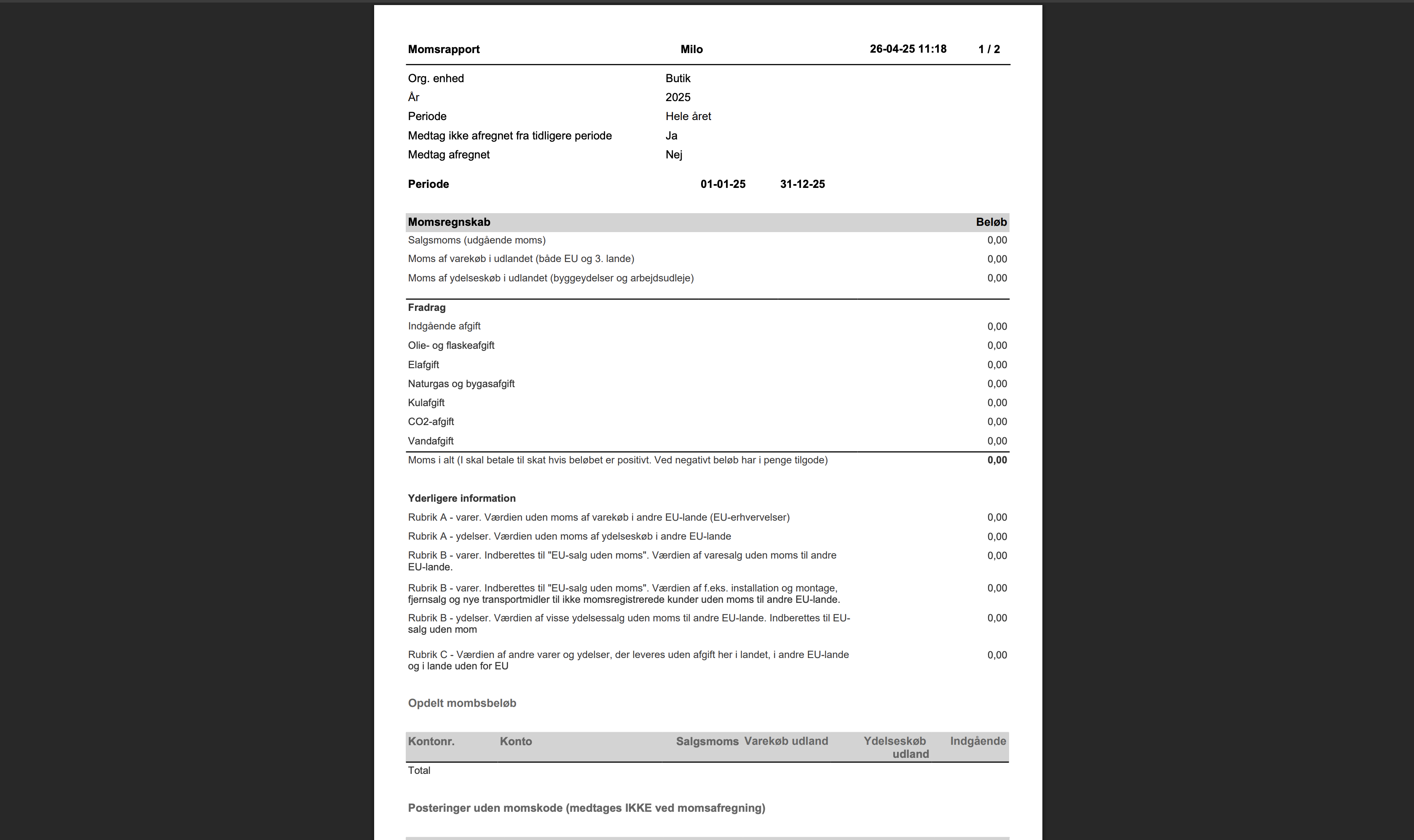
These figures are entered on the tax authorities' website.
4. Finally, click "OK" in the Report VAT window, after which the entries covered by the reported printout are marked as reported.
When the VAT has been paid, remember to register the payment in the usual way in an entry journal.
Entries such as the registration of paid VAT are direct entries on the VAT account, without a VAT code. These are not included in the VAT statement.
For VAT accounts > "Show entries" you can see which entries have been settled. The "VAT settled" column is used for this, and it also supports various filtering options.
Want to know more?
Read more in these related articles:
VAT reporting - automatic
This article explains how VAT reporting is performed automatically via the tax authorities' API in Sapera
VAT reporting
How to work with VAT reporting in Sapera — including automatic and manual reporting, the VAT statement report and the VAT calendar.
VAT statement
This article explains how to generate a VAT statement report in Sapera
