Discounts are assigned based on various criteria, such as quantity conditions, the products covered by the discount, whether discounts can be combined with other discounts, or whether the discount can only be given if no other discounts have already been assigned.
Discounts are calculated dynamically when products are added to the basket (in the cash register), added to a sales order, or added to an invoice. Discounts can be set to be given manually or calculated automatically.
Discounts differ from price types, as price types are predefined, and if the price type is active for the product, the sales price will definitely be affected by the price type. Discounts, on the other hand, are only given if all discount criteria are met. Price types are ideal for campaigns, reduced prices on webshops, etc.
Discounts are useful for establishing a set of rules for when the discount can be given, but they cannot be used in connection with webshop integration. Reduced prices in webshops are controlled by price types.
See price types.
1. From Financial, go to "Setup".
2. Navigate to "Discounts".
3. You are now on the "Discounts" tab, where an overview of your discounts in Sapera is visible.
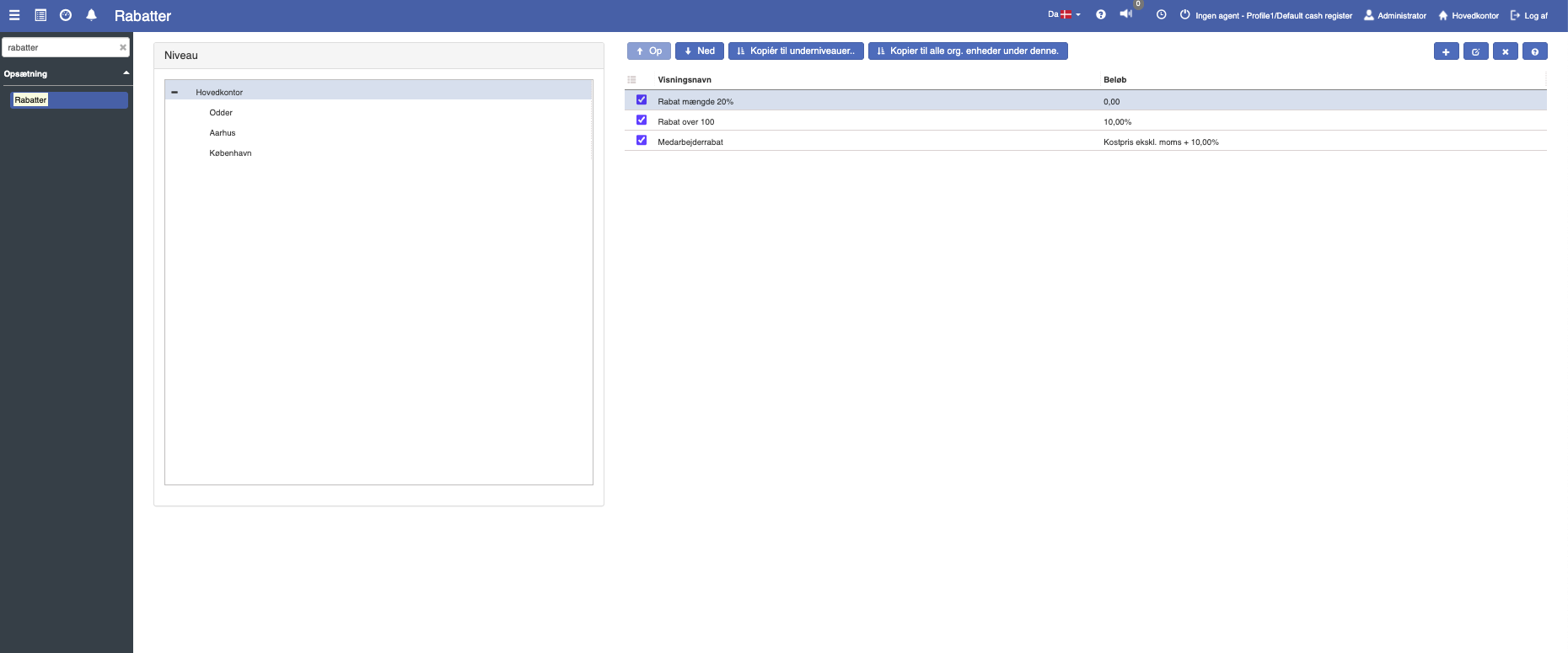
Under "Discounts" there is the option to create and edit discounts.
If you want to create a new discount, this can easily be done by clicking the blue "+" icon at the top right.
The following menu will now open, where you have the option to create a new discount:
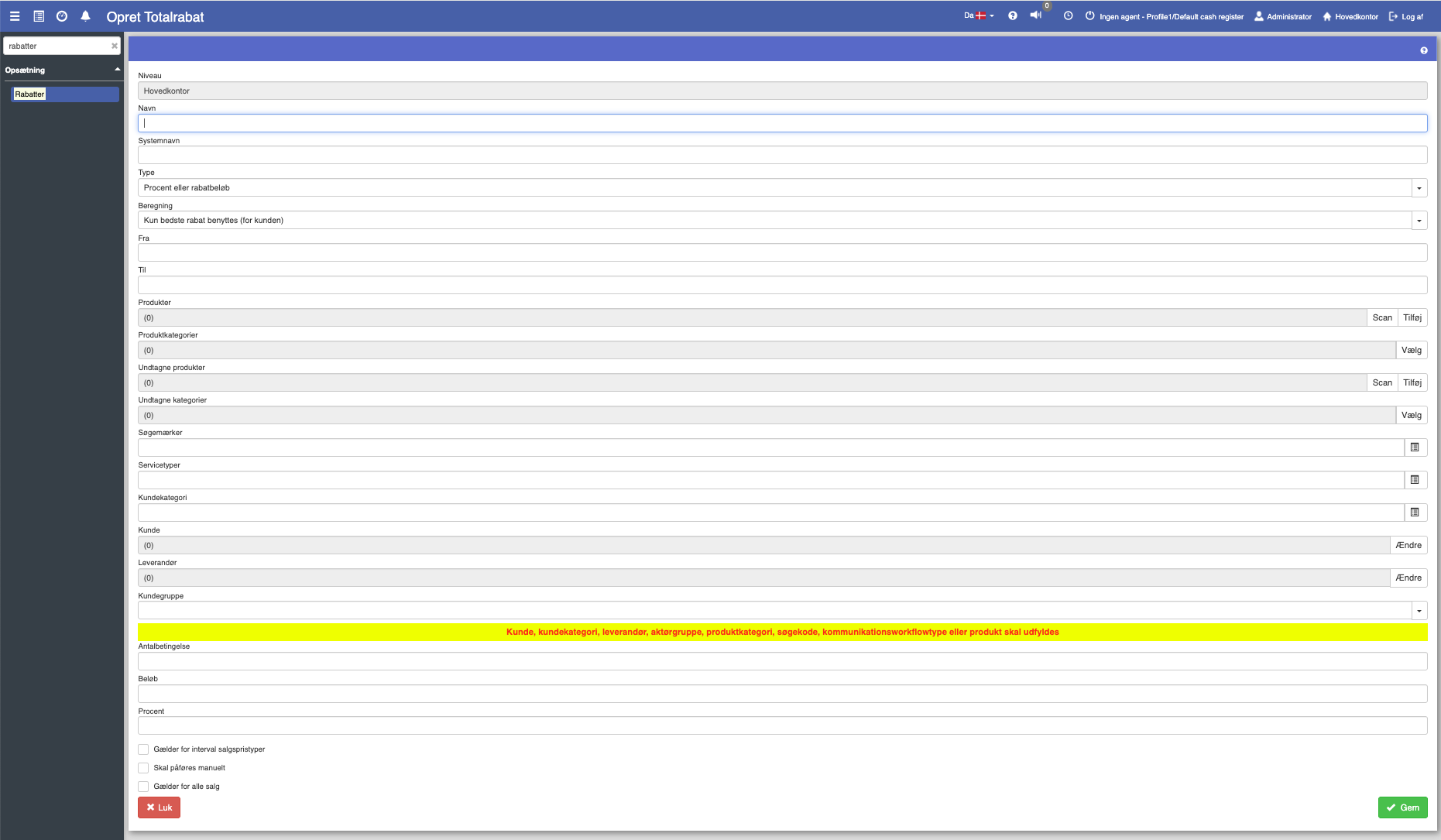
Fill in the fields and finish with "Save".
If you want to edit an already existing discount, you can click the "Edit" button.
Level: This shows the level this discount is defined on. Note that discounts can be inherited down to underlying org. units.
Name: The discount's display name
System name: The discount's internal name (code). Cannot be changed after creation.
Type: This specifies how the price of the product or products matching the given criteria should be set.
Options:
Percentage or discount amount: This type is used when products should be sold with a price reduction, for example DKK 10 (discount amount) or with a specific percentage reduction, for example 10% off.
Percentage or discount amount (multiple lines): As above, but other products in the basket/order/invoice are also evaluated.
Example of the difference between the two:
Assume you have a discount that applies to products A, B, C, and D, and that the quantity condition is set to 2.
Percentage or discount amount:
If product A and product B are in the basket with 1 unit each, it will not trigger a discount, since the quantity condition is not met.
If product A is in the basket with 2 units and product B is in the basket with 1 unit, it will trigger a discount for product A, since the quantity condition is met.
Percentage or discount amount (multiple lines):
If item A and item B are in the basket with 1 unit each, it will trigger a discount, since the total quantity condition is met.
Percentage or fixed amount based on cost price: Here the new sales price is not calculated from the normal price, but from the cost price. This makes it possible to create a discount that sells at cost price + 10%.
The cost price used depends on the product setting (or product category) - Automatic update of cost price. If automatic update of cost price is true, the cost price will be the average cost price of the products in stock. If automatic update of cost price is false, the cost price will be the cost price specified on the product card.
Products with fixed amount: The products that meet the discount criteria will be sold at a fixed amount per unit. For example, everything in a certain category can be set to be sold for DKK 10.
X products for Y products' price: This type is used if, for example, you want to sell 4 products at the price of 3 products. In that case, it will be the 3 most expensive products that are taken into account. So it is the cheapest product(s) that are given away.
Calculation: Used to specify whether the discount can be combined with other discounts, or whether it is exclusive and cannot be combined with other discounts.
Options:
Several discounts can be combined: If more than one discount meets the criteria, the customer will benefit from all the discounts. They will be applied in prioritised order. Note that two discounts that both give 10% are NOT the same as 20%. Because DKK 100 minus 10% minus 10% is not the same as DKK 100 minus 20% (81 vs. 80).
Only the best discount is used (for the customer): If several discounts meet the criteria, only the most advantageous discount will be applied to the customer's benefit.
From and to: These fields are used to specify a particular time period in which the discount is valid. It helps define the start and end date of the discount period.
Products: If the discount should only apply to specific products, they can be selected here. You can either use the "Scan" button, which opens a single input window that allows you to scan the items you want to add.
The scan window can also be used to enter the products manually. Alternatively, you can press "Add", which will open the standard product search dialog that supports all filters and columns described in the product overview.
Products can also be added directly to a discount from the 'Edit Product' function or from the product overview. In these cases, it is actually the list of 'Products' under the discount that is updated.
Product categories: Product categories: If you want to apply the discount to all products in one or more product categories, these categories must be specified here.
Excluded products: If you want the discount to apply to a specific product category with the exception of certain products, exceptions can be specified here.
Excluded categories: If you want the discount to apply to a specific customer category with the exception of products from certain categories, exceptions can be specified here.
Search tags: If the discount should cover all products marked with one or more specific search tags, these must be specified here.
Service types: If the discount should exclusively apply to serial-number-based items associated with particular serial types, these types can be specified here.
Customer categories: If the discount should be assigned to all customers belonging to a specific customer category, these categories can be specified here. This could be customer categories such as VIP members, club members, etc.
Customers: If the discount should apply to specific customers, these are specified here.
Suppliers: If the discount should cover products linked to specific suppliers, these suppliers must be specified here. All associated manufacturers and suppliers are included. Not only the product's primary supplier.
Want to know more?
Read more in these related articles:
Discounts
How to create and set up discounts in Sapera — incl. types, validity, product and customer restrictions, level control, and automatic activation on sales.
Using discounts
Using discounts
Discount limits
Learn how to create and manage discount limits in Sapera. Discount limits set maximum discount amounts or discount percentages per user or user group at each organisational level, and apply automatically on sales in the cash register, on sales order lines, and on invoice lines.
