
What is an internal transfer draft?
An internal transfer draft is used to register and document transfers of goods between different organizational units in Sapera, for example between two stores or stock locations. The drafts make it possible to follow the movement of goods internally within the organization and ensure that inventories are updated correctly in both places.
How do I create an internal transfer draft?
1. From Financial access "Product" -> "Internal transfer draft".
2. Click the blue button with the plus symbol at the top.
3. Fill in the fields.
4. Click "Save".
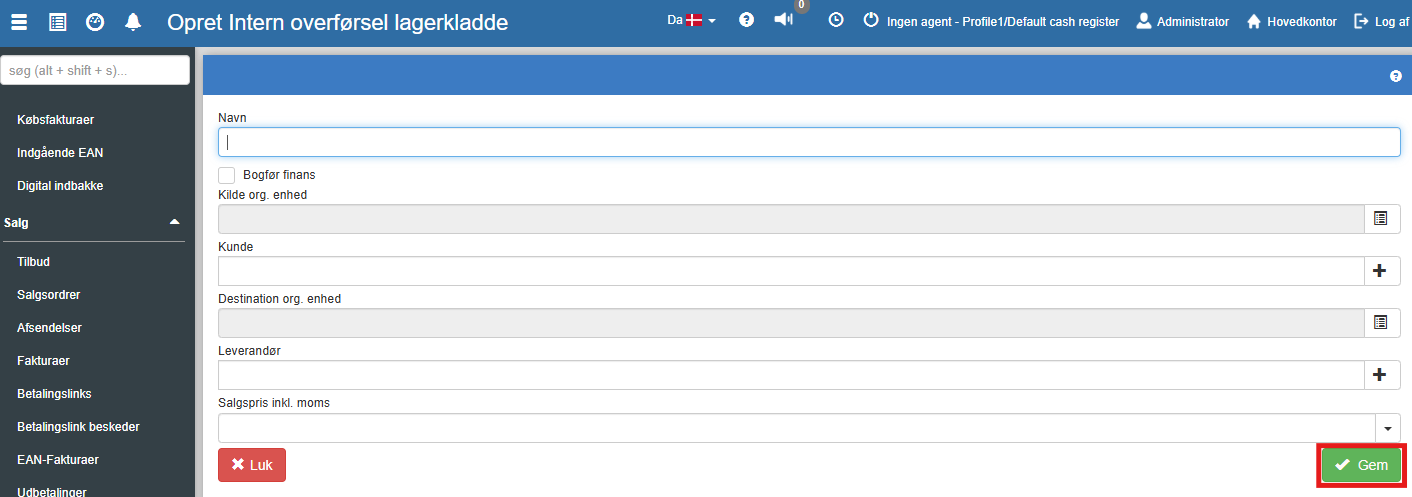
Description of fields
Name:
Here you specify the name of the draft for the internal transfer. An example of naming could be: "Moving an item from the Aarhus department to the Copenhagen department."
Source org. unit:
Here you specify the organizational unit the internal transfer originates from. This is specified by clicking the icon on the same line. For example, "Aarhus C Department" can be selected here
Customer:
Here you specify the customer on the internal transfer.
Destination org. unit:
Here you specify the organizational unit where the internal transfer is to end. The organizational unit is specified by clicking the icon on the same line. For example, "Copenhagen K Department" can be selected here
Supplier:
Here you specify the supplier associated with the internal transfer.
Sales price incl. VAT:
Here you specify the sales price incl. VAT.
Want to know more?
Read more in these related articles:
Internal transfer archive
The internal transfer archive shows all processed internal stock transfers between organizational units. Here you can search and filter across transfers, see details about entries, stock vouchers and accounting vouchers, and navigate to the associated product page or serial number item card.
All stock transfer lines
Overview of all individual lines from internal stock transfers with filtering, details and context menu.
Stock drafts
Stock drafts are used to register and post stock movements in Sapera — deliveries, adjustments, reconciliations and much more. This article describes how to create and edit drafts, what the individual fields mean, and how to work with entries.