On sales order lines you have the option to select a line state. This line state can provide information about the product line, e.g. that the sale cannot be carried out before the item has been ordered. Line states can also be used to easily mark the lines you want to partially invoice. You can create the line states you need in your company yourself.
1. From Financial access "Setup".
2. Navigate to "Sales order line states".
3. You are now on the "Sales order line states" tab, where an overview of your sales order line states in Sapera is visible.
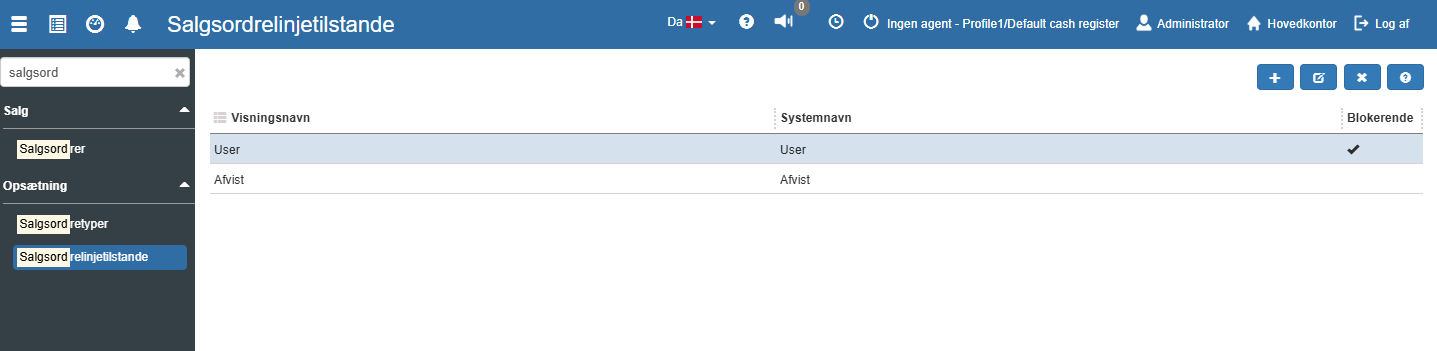
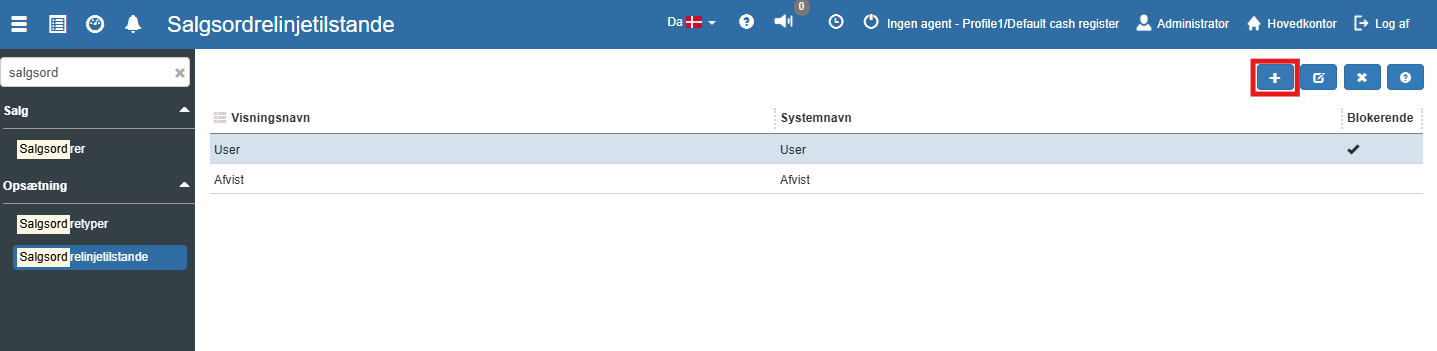
1. Click the blue plus button in the top right corner.
2. Specify "Display name" and "System name".
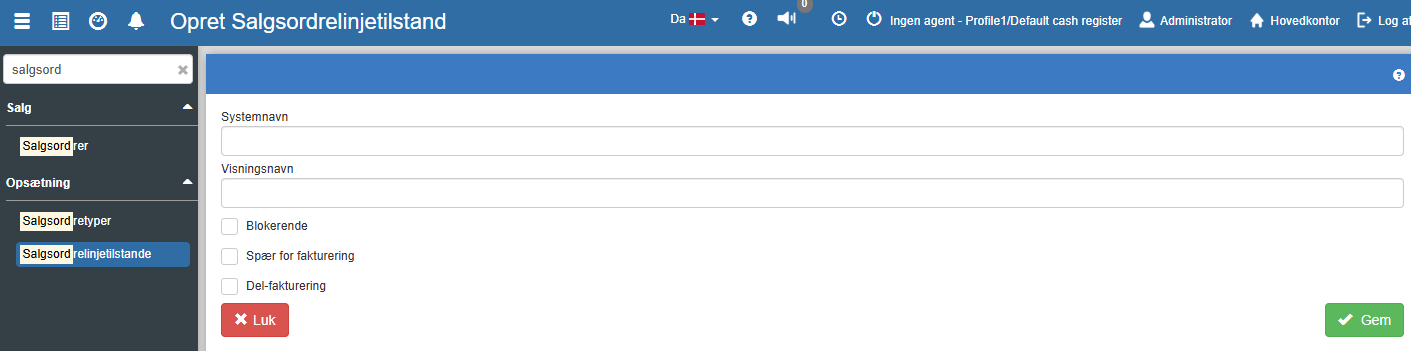
3. Blocking: Shows whether the line state is blocking or not.
If a sales order has a line with a blocking line state, the calendar overview containing tasks linked to this sales order will be marked with a red symbol in the top right corner of the task card. The delivery status will also be “Not ready”.
4. Block for invoicing: If a line has a line state marked as 'Block for invoicing', the sales order cannot be invoiced.
5. Partial invoicing: If a sales order line has the line state "Partial invoicing", there will be a "Partial invoicing" button at the top of the sales order. This button will create an invoice, but only with the lines marked for partial invoicing.
Want to know more?
Read more in these related articles:
Order line states
Here you define the states you can set on individual order lines in a sales order. The states are used to mark the status of lines, control the invoicing queue and calculate the order's readiness level.
Sales order settings
A walkthrough of all settings under Setup → Settings → Financial → Sales Order in Financial. Controls the invoicing flow, stock locations, operator selection, automation, digital signature and much more.
Sales orders
A complete guide to sales orders in Financial: list view, creation, all header fields, lines, the tabs at the bottom, actions and the state machine from draft to invoicing.
