If you want to create a new customer contract or make changes to an existing customer contract, you can click the “New” or “Edit” button in the top right. This opens the following menu:
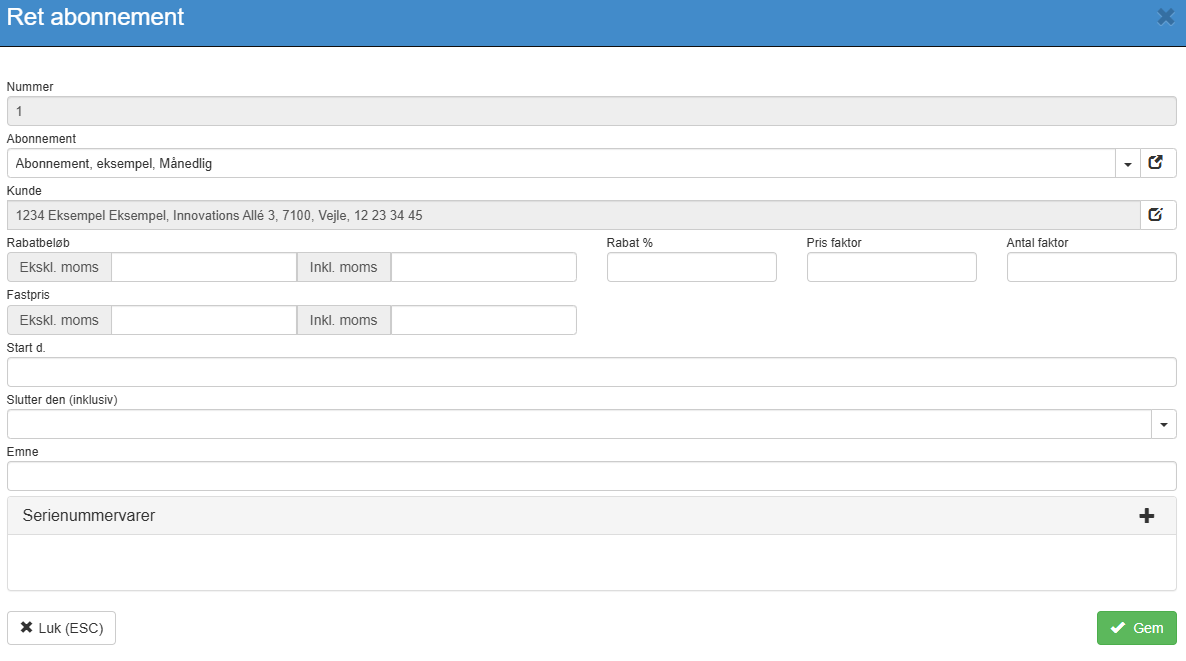
Fill in the fields and finish with “Save”.
Subscription:
Pre-filled with the current subscription.
Customer:
Can only be selected when creating a new customer contract. Here you select the customer the subscription should be assigned to.
Discount amount:
Fill this in if a specific discount amount should be given to this customer on each charge.
Discount %:
Fill this in if a specific discount percentage should be given to this customer on each charge.
Start date:
The start date on which this subscription should take effect for the customer.
Serial number item:
This subscription can be linked to one of the customer's serial number items.
As a result, the sales order for this serial number item will show the linked subscription. See also pre-code above.
Fixed price: Locks the customer's price for this subscription to a specific amount (excl. VAT) per billing instead of the subscription's standard price. The difference between the standard price and the fixed price is the customer's discount. Only one of the fields Discount amount, Discount % and Fixed price can be filled in.
Price factor: Multiplied onto the price when the customer's price should be scaled relative to the standard price (e.g. 1.5 for one and a half times the price).
Quantity factor: Multiplied onto the quantity when the customer should be billed for a multiple of the service (e.g. 2 for double quantity). Only one of the fields Price factor and Quantity factor can be filled in.
Ends on (inclusive): The last date the subscription should be billed for the customer. Leave blank for an ongoing subscription.
Include full period: Determines whether the full period between the start and end date is included when the subscription is run. Typically used for time-limited contracts.
Want to know more?
Read more in these related articles:
Customer subscriptions
How to create, edit and run customer subscriptions in Financial. The article covers the list, the editing dialog, the history popup and the batch-run dialog.
New / edit subscription
This article walks through how to access and create or edit subscriptions in Sapera
Subscriptions
Create and manage subscription templates in Sapera. Define the period, invoicing method, item lines and settings used by customer subscription contracts during automatic invoicing.
