1. From Financial, go to "Sales".
2. Navigate to "Subscriptions".
3. You are now on the "Subscriptions" tab, where an overview of your subscriptions in Sapera is visible.
To create a new subscription or make changes to an existing one, click the "New" or "Edit" button in the top right:

This opens the following menu:
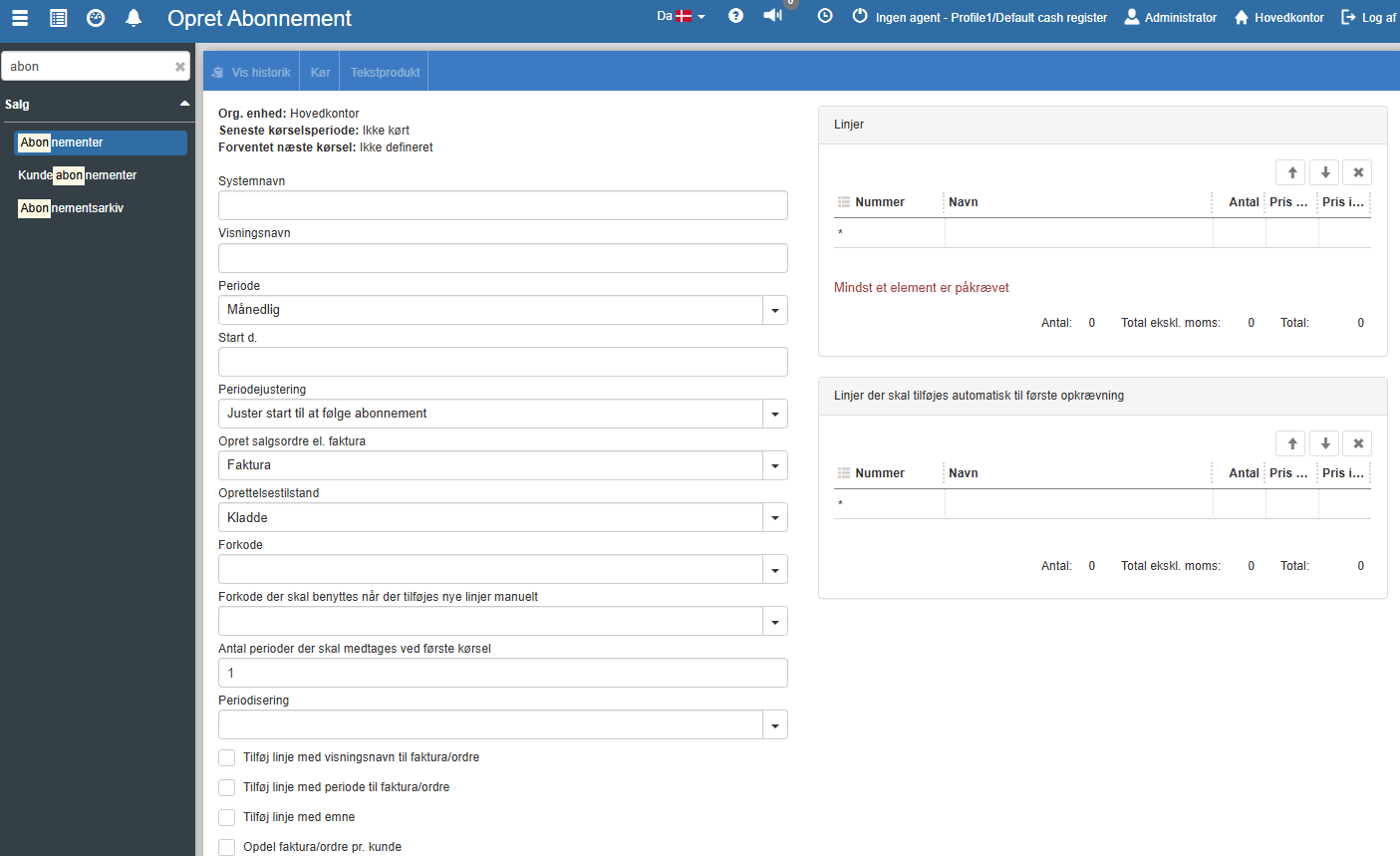

Fill in the fields and finish with "Save".
System name:
The subscription's system name.
Display name:
The subscription's display name.
Period:
Period specifies the frequency at which the subscription is to be charged.
The following recurring frequencies are supported:
Daily
Weekly
Every other week
Monthly
Every other month
Quarterly
Semi-annually
Annually
Start date:
Here you specify from which date this subscription can be used. This is not the start date of the individual customer's contract, but solely the date from which this subscription can be assigned to customer contracts.
Create sales order or invoice:
This indicates whether an invoice or a sales order should be generated during the subscription run. Normally the invoice is selected by default for subscription runs. However, if the subscription involves the purchase of a service that requires labour hours – such as the annual servicing of a machine – it may be appropriate to create a sales order (which is then invoiced manually after the work has been carried out).
Creation state:
For invoicing, the creation state will be "Draft".
For a sales order, you can choose between the following states:
Draft: The sales order is in draft state and is therefore not shown in the calendar.
Started: The sales order is in started state and is ready for scheduling (e.g. from the calendar module).
Bulk invoicing: The sales order is ready for bulk invoicing. See more in the section on bulk invoicing.
Pre-code:
A serial number item can be linked to a customer contract. If a sales order is created for a serial number item that is linked to a subscription with predefined pre-codes, the sales order will apply the same pre-codes to the lines. This may, for example, be relevant in connection with a service agreement where the customer should not pay for the repair. Read more about pre-codes.
Add line with display name to invoice/sales order:
Adds a line with the display name to the invoice or sales order. The line will have the type 'Text product'. To add or change the text product, click the "Text product" button in the menu.
Add line with period to invoice/sales order:
If this field is checked, a text line with the period for the current charge will be added.
Split invoice/order per customer:
If 'Split invoice/order per customer' is checked, subscription contracts for the same period for a customer will be combined into a single invoice/order.
Information filter:
The following fields show the status of the most recent run of this subscription.
Org. unit:
The organizational unit where the most recent run was performed. See the section on organizational units.
Current period:
Here the most recent period this subscription has been charged for is shown.
Next run:
Here the next period this subscription will be charged for is shown.
Product lines:
Here the products to be charged are added. The price is filled in automatically from the product card, but the price can be changed by manually entering a different price.
Customer contracts:
From here you can assign the subscription to customers. This can also be done from the screen for creating or editing a customer.
See more here customer contracts
Want to know more?
Read more in these related articles:
Subscriptions
Create and manage subscription templates in Sapera. Define the period, invoicing method, line items and settings used by customer subscription contracts during automatic invoicing.
Customer subscriptions
How to create, edit and run customer subscriptions in Financial. The article covers the list, the edit dialog, the history popup and the batch-run dialog.
New / edit customer contract (subscription)
This article explains how to create and edit customer contracts in Sapera
