
When a sales order has been fully processed and has reached the state "Started" and “Work done”, you do not need to navigate to the finance or Pos module to register the payment. You have the option to do it directly from the order itself, which saves time and keeps the process together.
How to pay a sales order
Follow these steps to complete a payment:
1. Search for and open the desired sales order (the order must have the state "Invoiced").
2. Important: Make sure you have selected an Agent in the top menu. If no active agent is selected on your user, you will not be able to make the payment.
3. Click the Pay button in the top menu on the sales order.
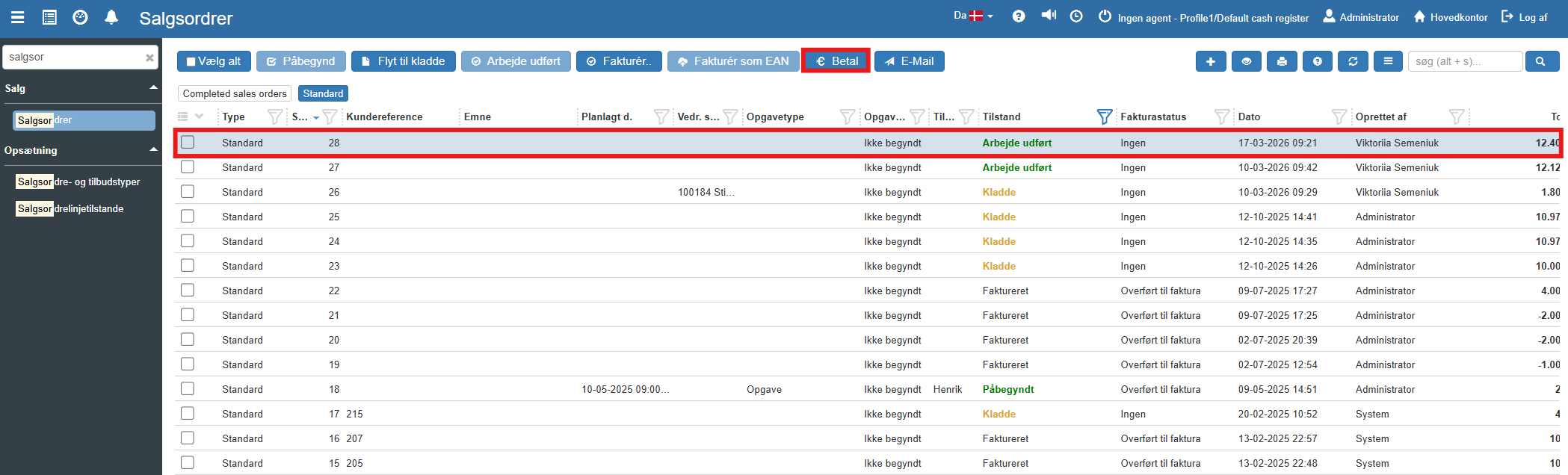
4. The payment window now opens. At the top you can see the outstanding amount under "Missing payment":
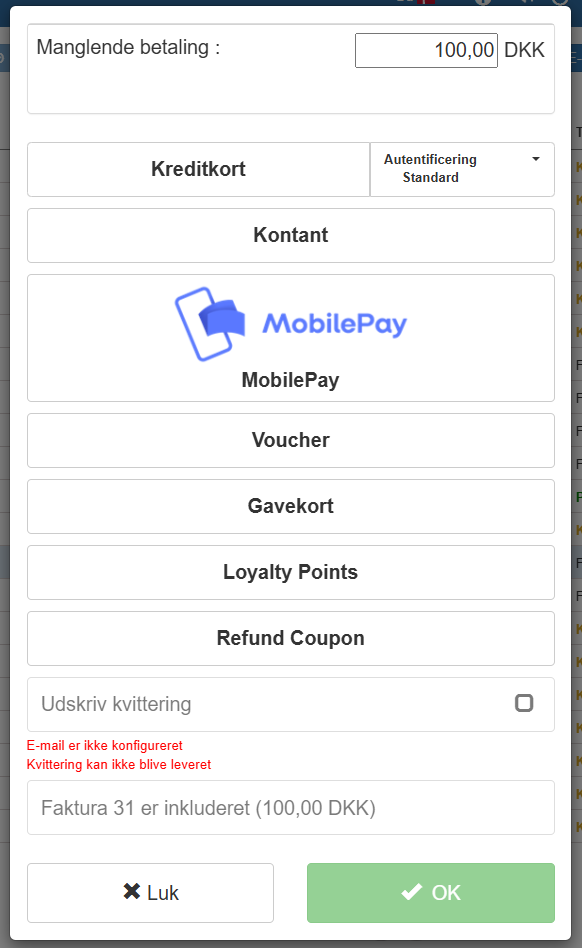
5. Select the desired payment method among the options (e.g. Credit card, Cash, MobilePay, Gift card and more).
6. At the bottom you can check Print receipt, if the customer wants this.
7. Click the green button OK to approve the payment.
Note on receipts: For the system to deliver the receipt electronically, it requires that email sending is configured correctly. If this is not set up, the system will show a red warning: "Email is not configured. Receipt cannot be delivered".
Confirmation of payment
Once you have clicked OK, the system processes the payment.
When it has gone through, a confirmation box with the text Payment completed is shown. This box summarizes the invoice number, the invoice amount and the amount received:
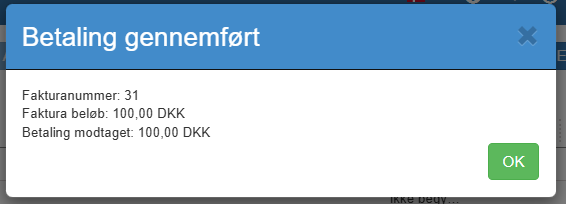
Click OK to close the box. The linked invoice will now automatically have changed state to "Paid".
Sales orders
This article explains how sales orders are created and handled in Sapera