
How do I create a new customer contract?
To create a new customer contract in Sapera, you must first open an existing rental contract:
1. Double-click an existing rental contract. This opens the editing view for the rental contract:
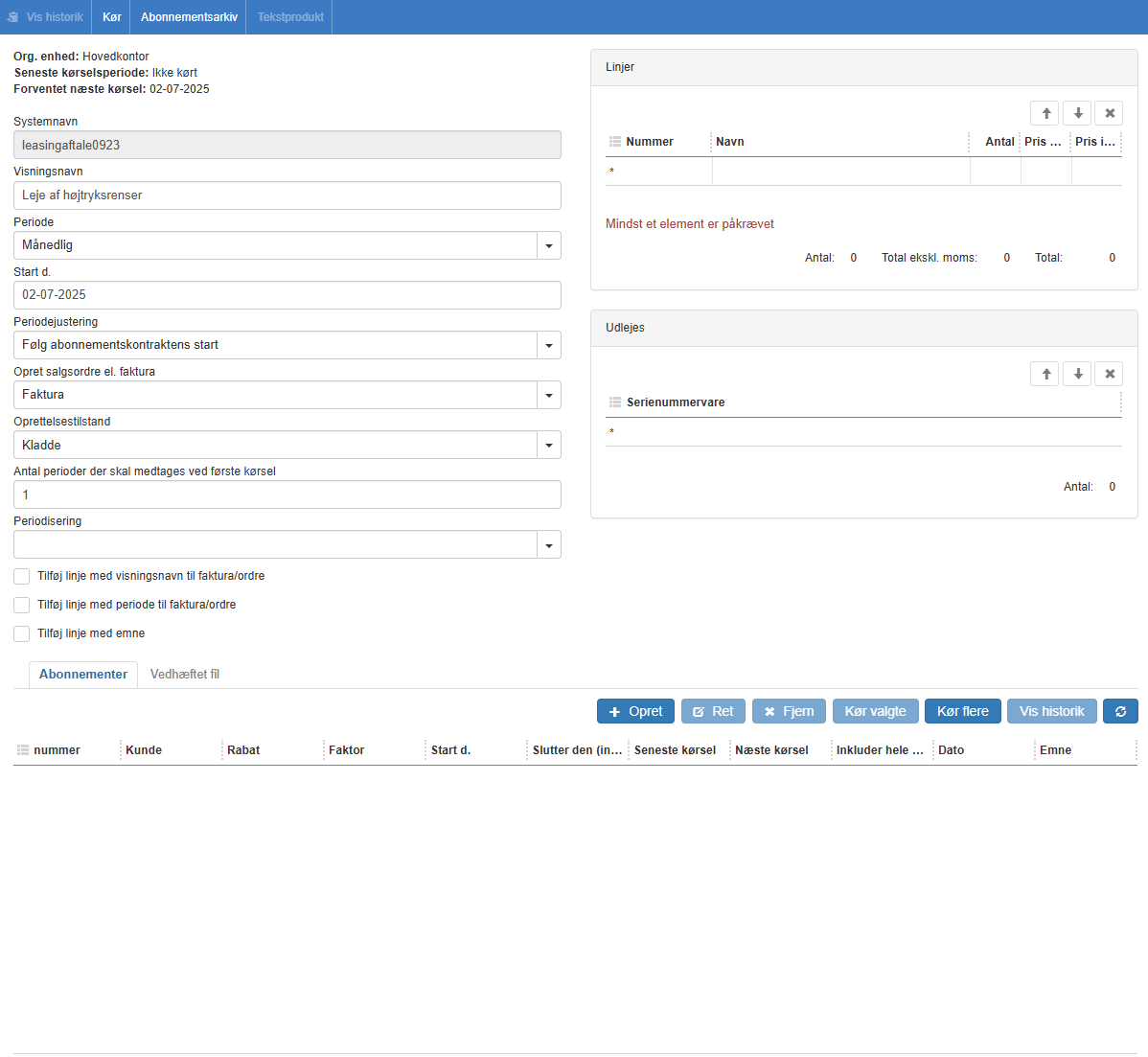
2. Navigate to the bottom of the view. Here you will find the section where you can either edit an existing customer contract or create a new one:
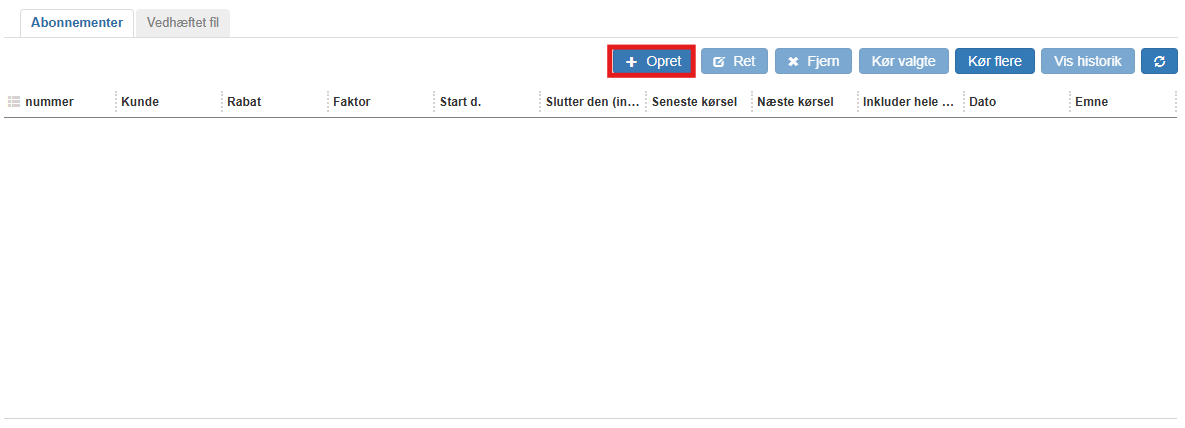
3. Click the "Create" button. When you choose to create a customer contract, a new form opens:
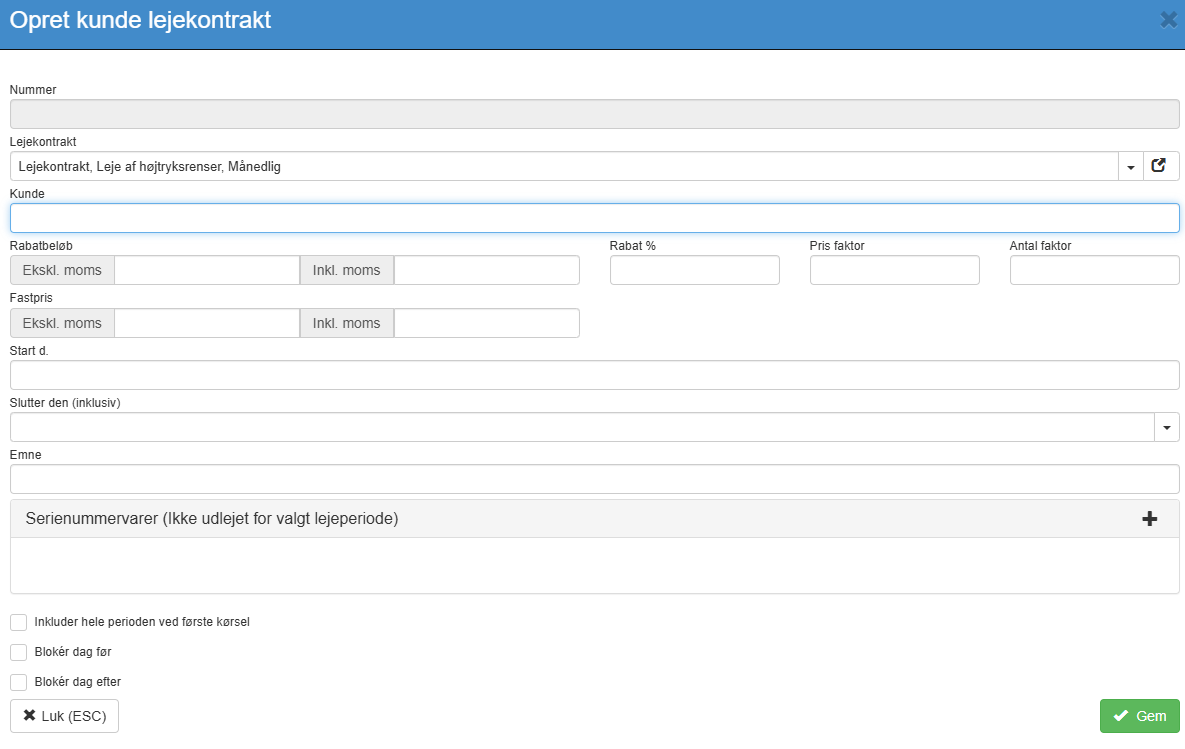
4. Fill in the fields in the form and finish with “Save”
Description of fields
Rental contract: Pre-filled with the current subscription.
Customer: Can only be selected when creating a new customer contract. Here you select the customer the rental contract should be assigned to.
Discount amount: Fill this in if a specific discount amount should be given to this customer on each charge.
Discount %: Fill this in if a specific discount percentage should be given to this customer on each charge.
Start date: The start date on which this rental contract should take effect for the customer.
Serial number item: The serial number item to be rented out.
Want to know more?
Read more in these related articles:
New / edit rental contract
This article walks through how to create and edit rental contracts in Sapera
Rental contracts
Create and manage rental contracts in Sapera. A rental contract is the template that drives periodic charging of rented product instances and serial number items. Read about the overview, editing, running charges, history, run log and attachments.
Customer rental contract
Customer-facing printout of a rental contract that generates a contract document with the contract's number based on the selected invoice or sales order.