
Start by opening “Financial” in the menu in the top left corner.
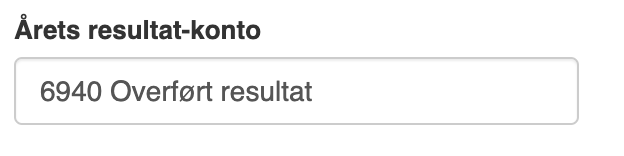
First you must make sure you have set up a “Profit/loss for the year account”, which you do under “Setup” → “Financial setup” or by searching for “Financial setup” by clicking the search field in the top left corner.

NOTE: if you cannot find “Financial setup”, it is because you lack permissions for it. In that case you can contact support to gain access.
Scroll to the bottom and enter an account in “Profit/loss for the year account” if the field is empty.
Finish the financial setup by clicking “Save”
Then navigate to “Year-end closing runs” by clicking “Accounting” → “Year-end closing runs” or by searching for “Year-end closing runs” by clicking the search field in the top left corner.
NOTE: if you cannot find “Year-end closing runs”, it is because you lack permissions for it. In that case you can contact support to gain access.
Click “Execute”
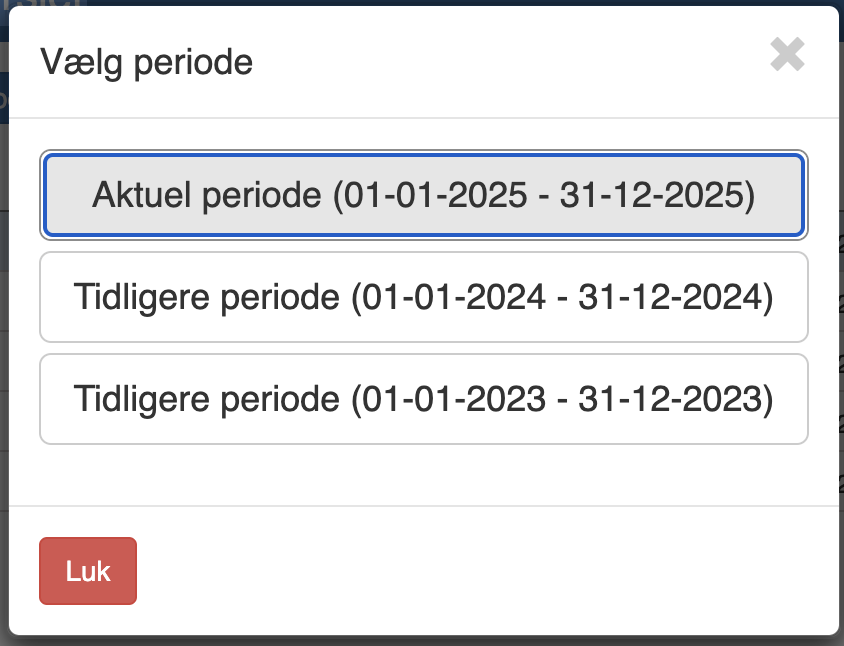
Select the period you want to perform the year-end closing for.
It is a good idea to check the entries before performing the year-end closing. This is done by clicking “Show journal entries”
If everything is as it should be, you can click “Post entries”
Want to know more?
Read more in these related articles:
Year-end closings
Walkthrough of the Year-end closing runs screen in Sapera – how to perform a year-end closing, what the columns in the list show, and what to do about errors and the warning dialogs.
Year-end closing entries
View and print the entries a year-end closing run has generated — profit/loss and opening entries split by Closing (Opening/Closing).
VAT reporting
How to work with VAT reporting in Sapera — including automatic and manual reporting, the VAT statement report and the VAT calendar.