Search tags in Sapera are a feature that makes it possible to categorise and organise products based on specific labels or tags, which can be used to improve search functionality and navigation in the system. These tags can be related to product fields, brands, categories, or other characteristics that make it easier to find and filter relevant items.
Search tags can be used to build a hierarchy of tags, where parent tags can have child tags. For example, a search tag such as "Webshop categories" can contain subcategories such as "Trousers" and further down to specific tags such as "Grey slim trousers". This makes it possible to build a structured and detailed search experience tailored to the company's needs.
In addition, search tags can help improve the user experience in the webshop by offering customers faster and more targeted searches. For example, a customer searching for "Samsung Galaxy" can quickly navigate to products tagged with this specific search tag.
The feature is mainly used as part of the product catalogue setup and can be adapted to different organisational needs by creating, editing, and structuring the tags in the system.
1. From Financial, go to "Setup".
2. Navigate to "Product catalogue setup" -> "Search tags".
3. You are now on the "Search tags" tab, where an overview of your search tags in Sapera is visible.
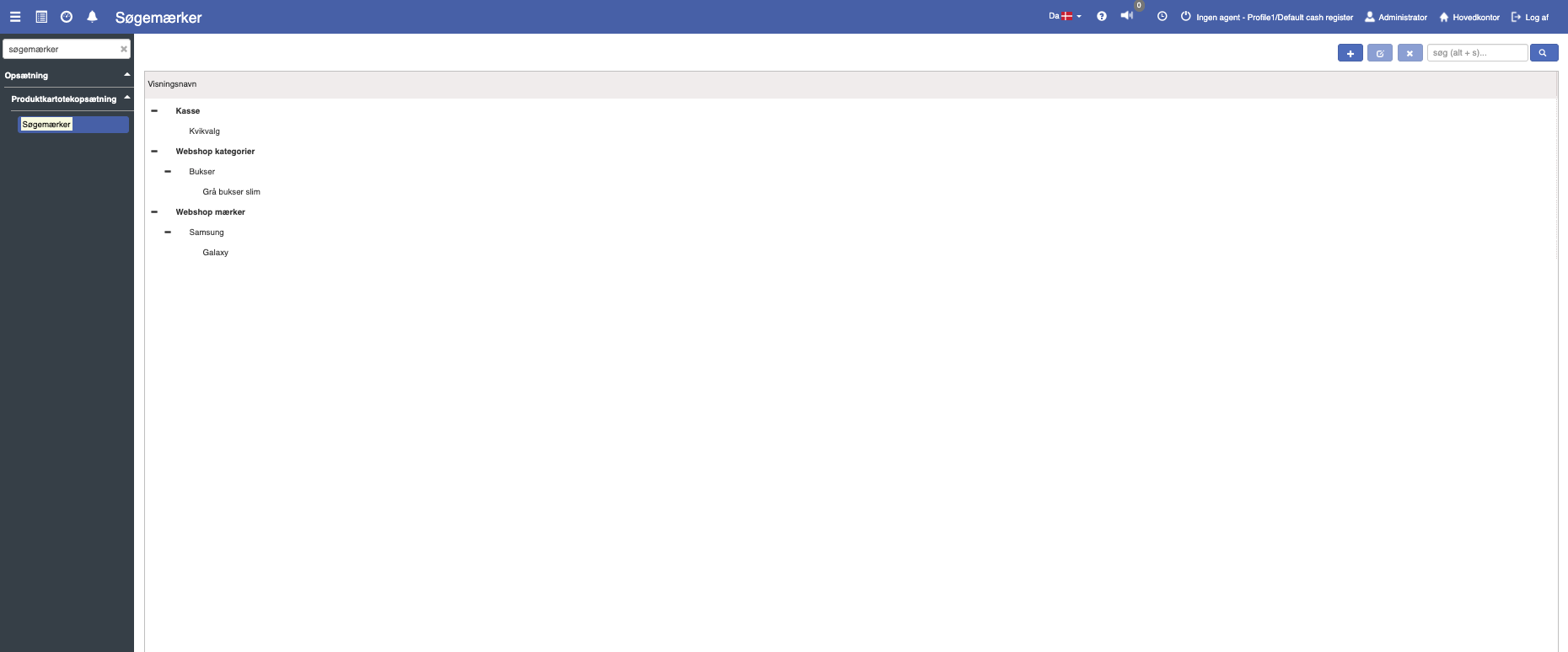
If you want to create a new search tag, this can easily be done by clicking the blue "+" icon at the top right.
The following menu will now open, where you have the option to create a new search tag:

Fill in the fields and finish with "Save".
If you want to create a new search tag under an existing parent category, you must first select the desired parent category.
Then click the blue "+" icon at the top right to create the new search tag. The following menu will now open:
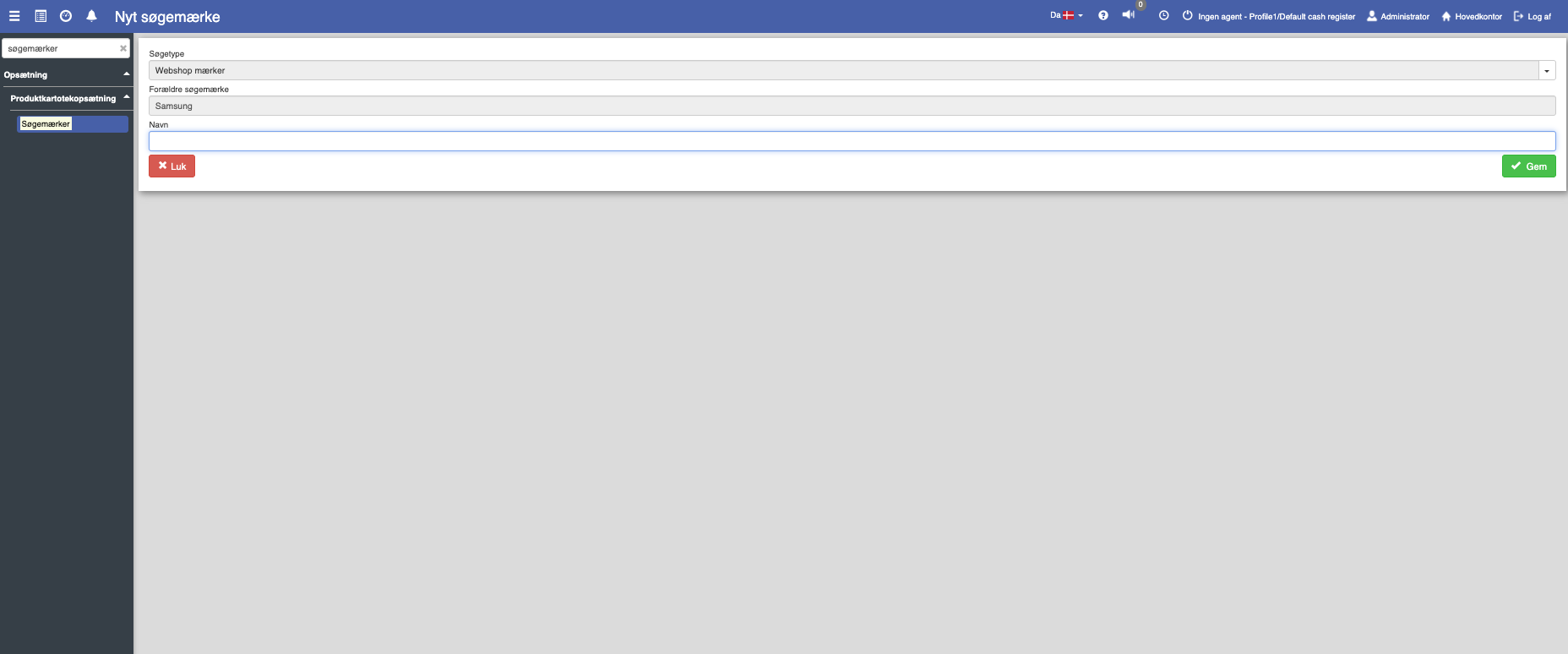
Fill in the fields and finish with "Save".
Search type:
This field determines which type of search tag is created. The search type defines the category or group the search tag belongs to, and is used to organise and filter search tags. Examples of search types could be "Cash register", "Webshop brands", or "Webshop categories". Select an appropriate search type from the dropdown menu to ensure correct classification.
Name:
This field is used to specify the name of the search tag. The name should be descriptive and easily recognisable, so that it is simple to identify the search tag during use or searching. The name will be visible in the system and can be used to connect the search tag with specific products, categories, or brands.
Want to know more?
Read more in these related articles:
Create search tags
Create search tags
Search types
This article explains how to create and use search types for organising product searches in Sapera
