
If an order is created in another module (e.g. via the administration or a webshop), it can be retrieved in the POS to complete the transaction.
Accessing the function
To access the order list, use the extended menu:
Click the button “More...” in the top right of the POS screen.
Select the item “Retrieve sales order” in the menu.
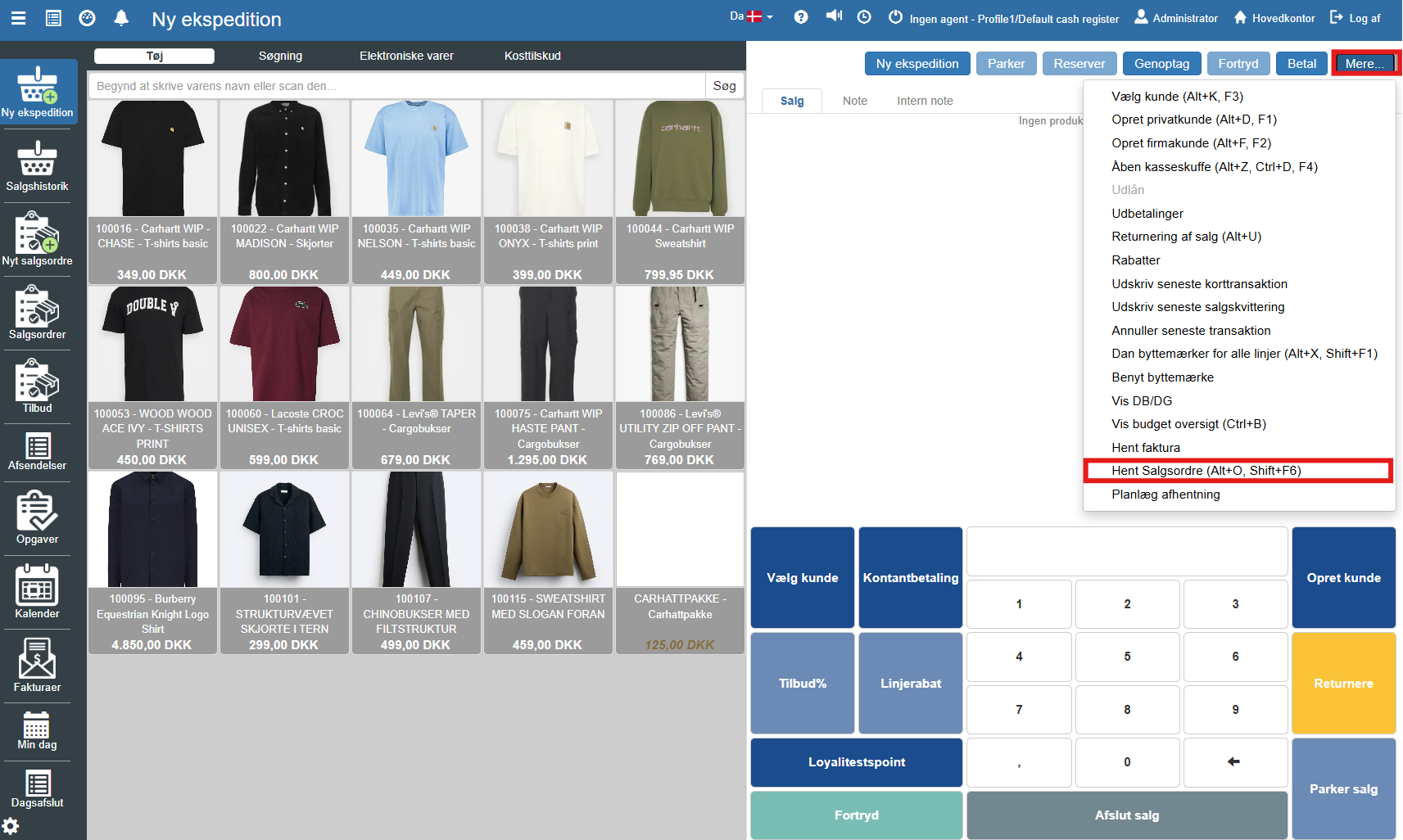
Selecting and activating an order
An overview of open sales orders will now be displayed on the screen.
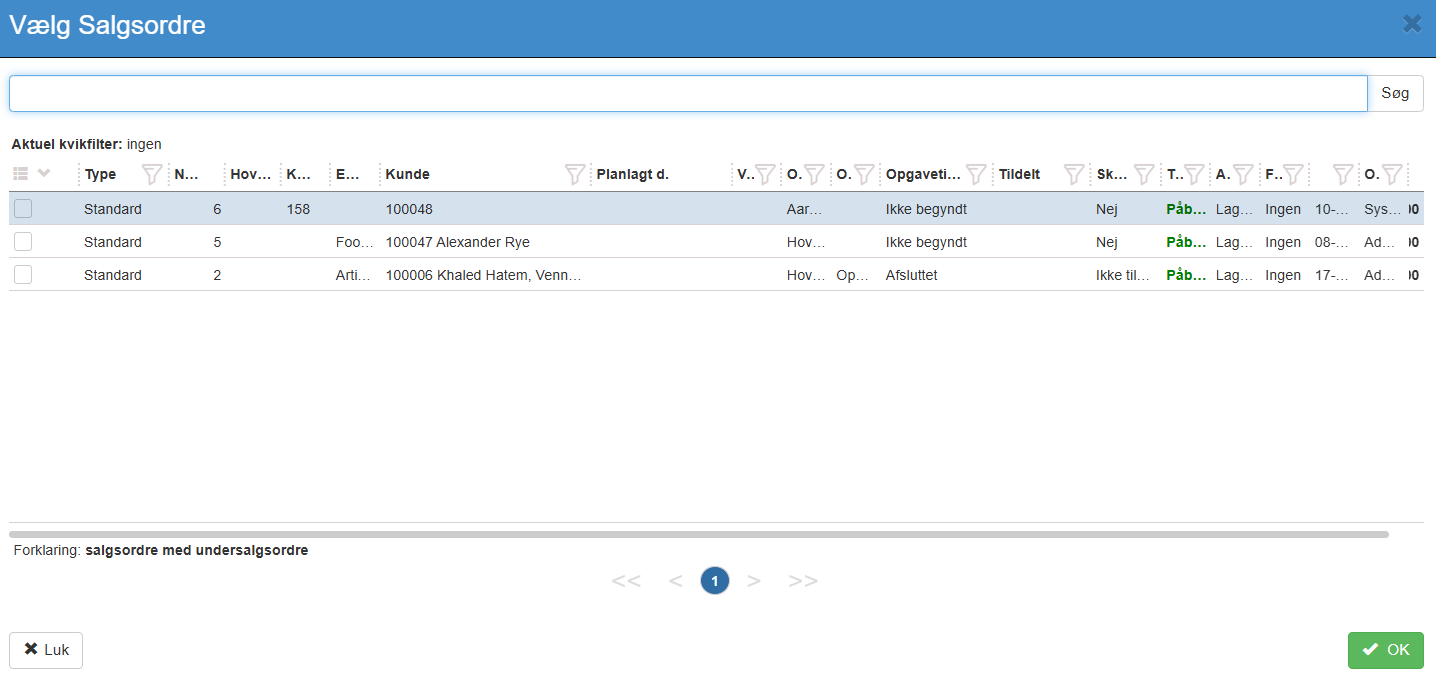
Search: Find the relevant order in the list. You can search by order number or customer name to narrow the view.
Selection: Mark the desired order in the overview.
Transfer: Click the button OK.
Note: If a customer is selected - only invoices for the relevant customer are shown.
The order's item lines and the associated customer are now transferred automatically to the POS sales list. From here the payment can be completed as in a normal sale, or additional items can be added to the cart before completion.
Want to know more?
Read more in these related articles:
Sales orders
Complete guide to sales orders in Financial: list view, creation, all header fields, lines, the tabs at the bottom, actions and the state machine from draft to invoicing.
Conversion to invoice
This article walks through the process of transferring a started POS sale to an invoice, including selecting a customer and completing the order.