
In Sapera, suppliers are managed centrally to ensure easy and structured handling of all the company's business partners. The feature gives a clear overview of contact details and balances, which makes it easy to handle purchase invoices and orders.
How do I access suppliers?
You find the module by following these steps:
Open the main menu (Financial) and expand Actor library.
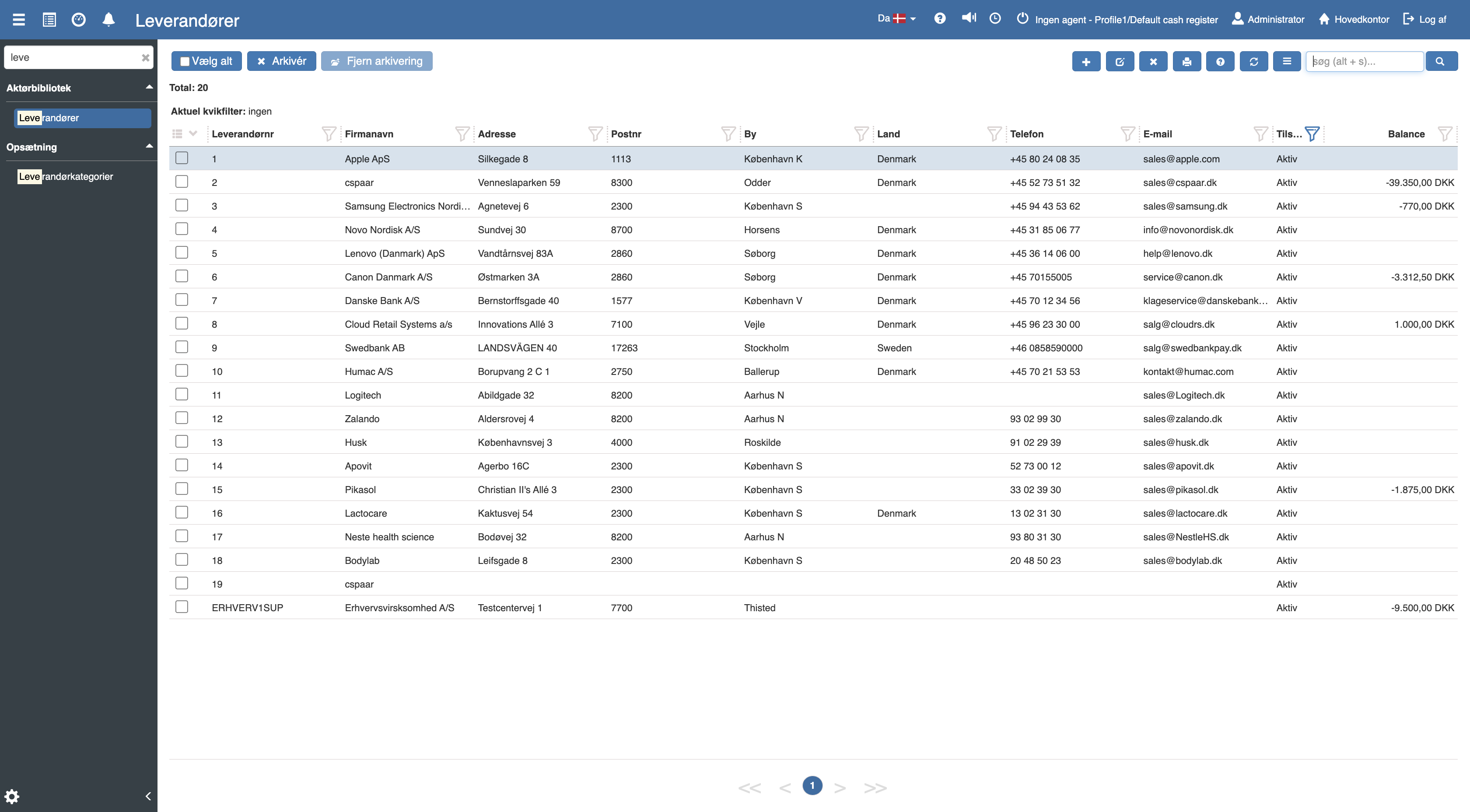
Click Suppliers. You are now on the overview of your registered suppliers, where you can filter, sort and archive them as needed.
How to create a supplier
If you want to add a new business partner, this is done quickly from the overview:
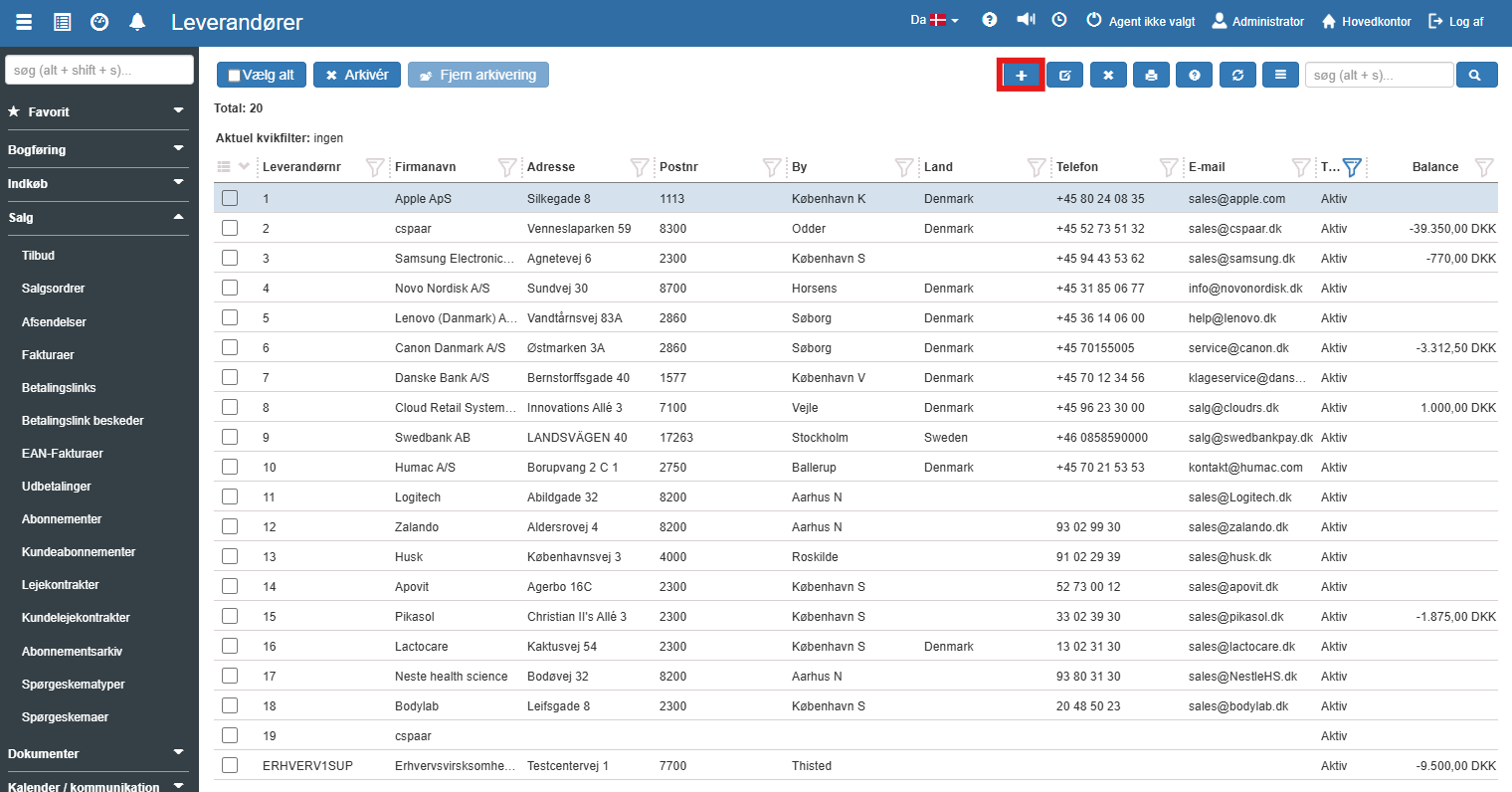
Click the blue Create icon (+) in the top right corner:
A new menu opens. Fill in the relevant fields (such as VAT number, company name, bank details and category):
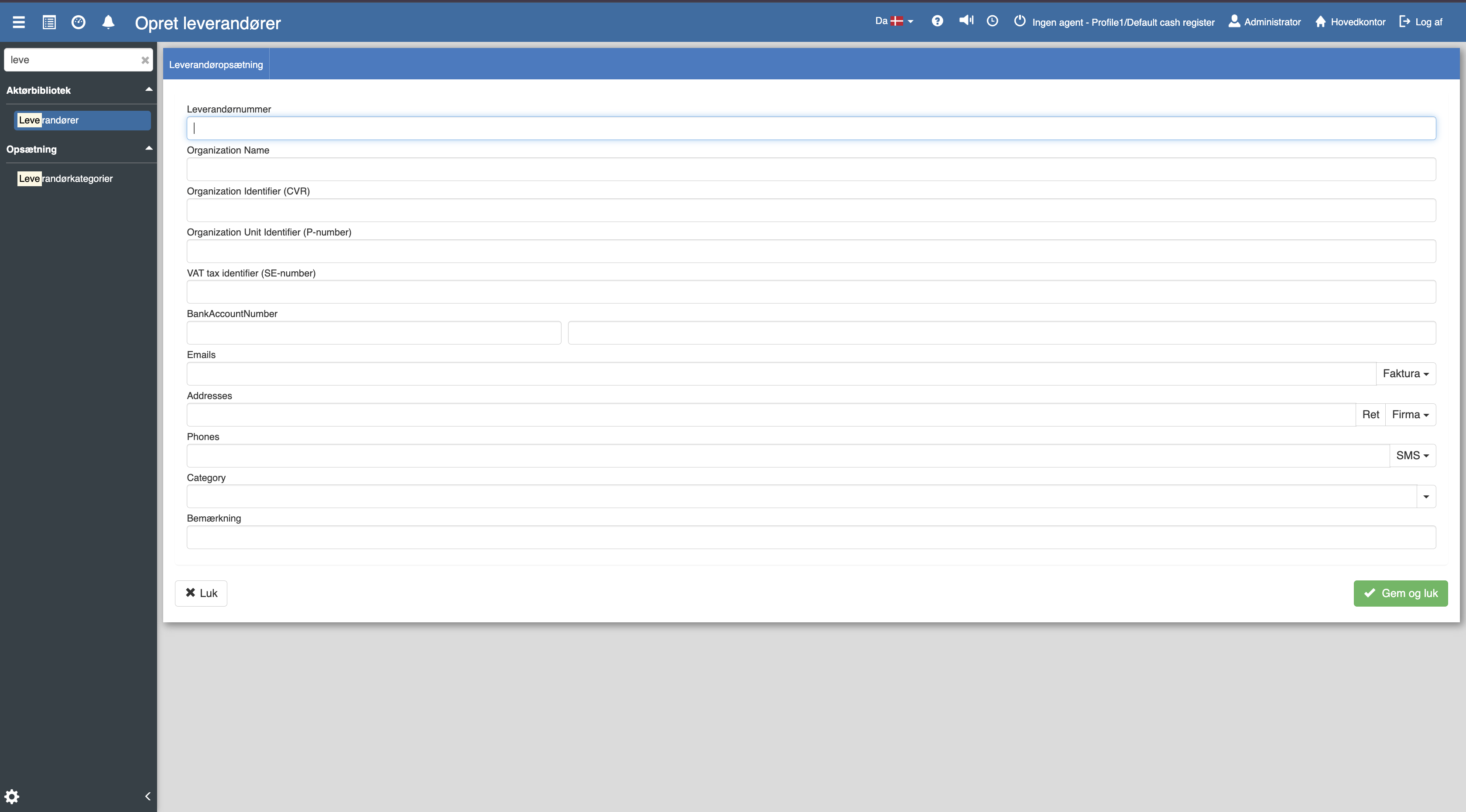
Finish the creation by clicking Save and close.
Deletion vs. archiving
Note that once entries have been posted on a supplier, the supplier can no longer be deleted from the system due to legal requirements for accounting history. If you no longer want to use a supplier, you should instead select it in the overview and use the Archive function.
Want to know more?
For an in-depth walkthrough of all data fields, financial relations and setup of rule sets, you can read the full articles here:
Suppliers
This article explains how to create and manage suppliers in Sapera.
Supplier categories
This article explains how supplier categories are set up and used in Sapera