
When a customer changes address, gets a new phone number, or a specific note needs to be added to their profile, you can easily update the details in the customer register.
How to edit a customer
To change an existing customer's details, follow these steps:
Open the main menu (Financial) and expand Actor library.
Click Customers to open the overview
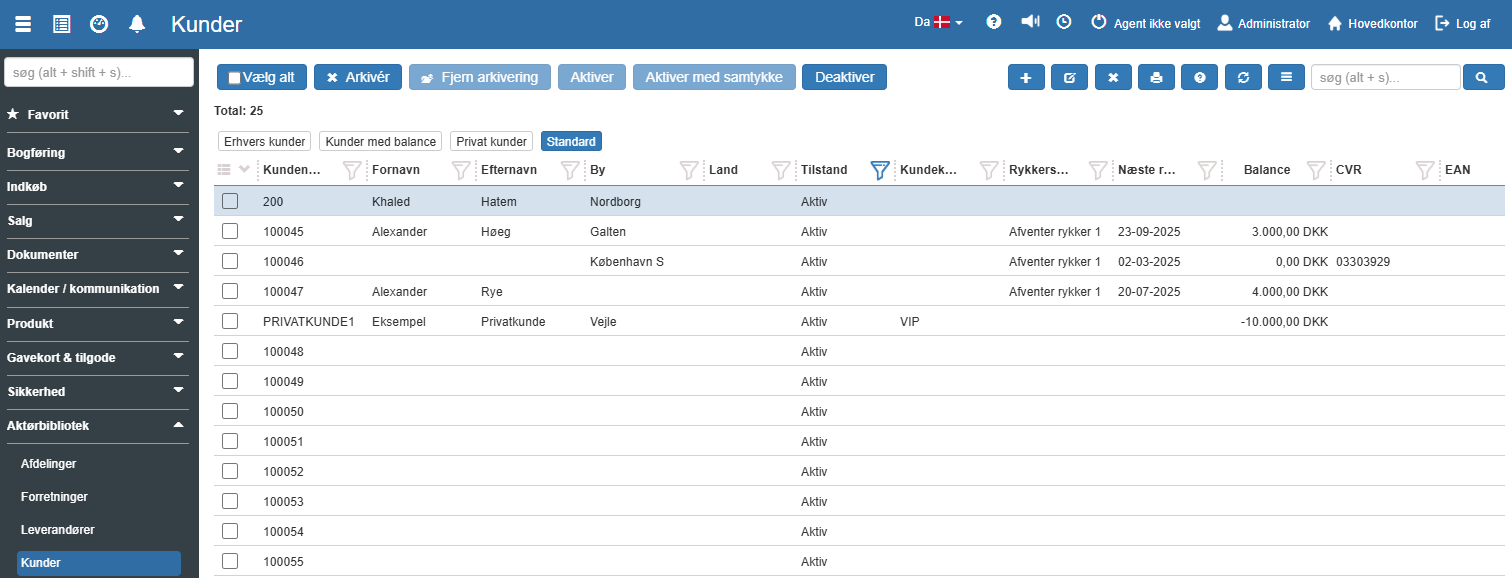
Search for the customer you want to edit, and select the line in the overview.
Click the edit icon (the pencil) in the top menu (or double-click directly on the customer).
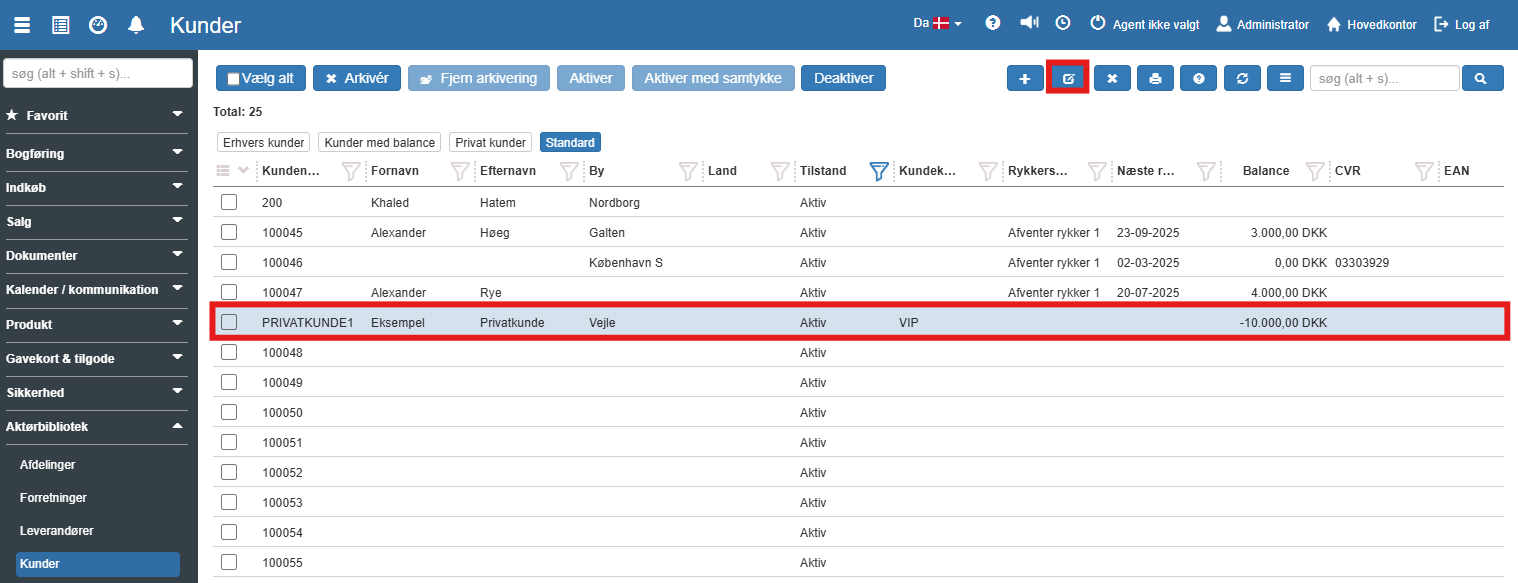
A window with the customer's details opens. Make the desired changes in the fields:
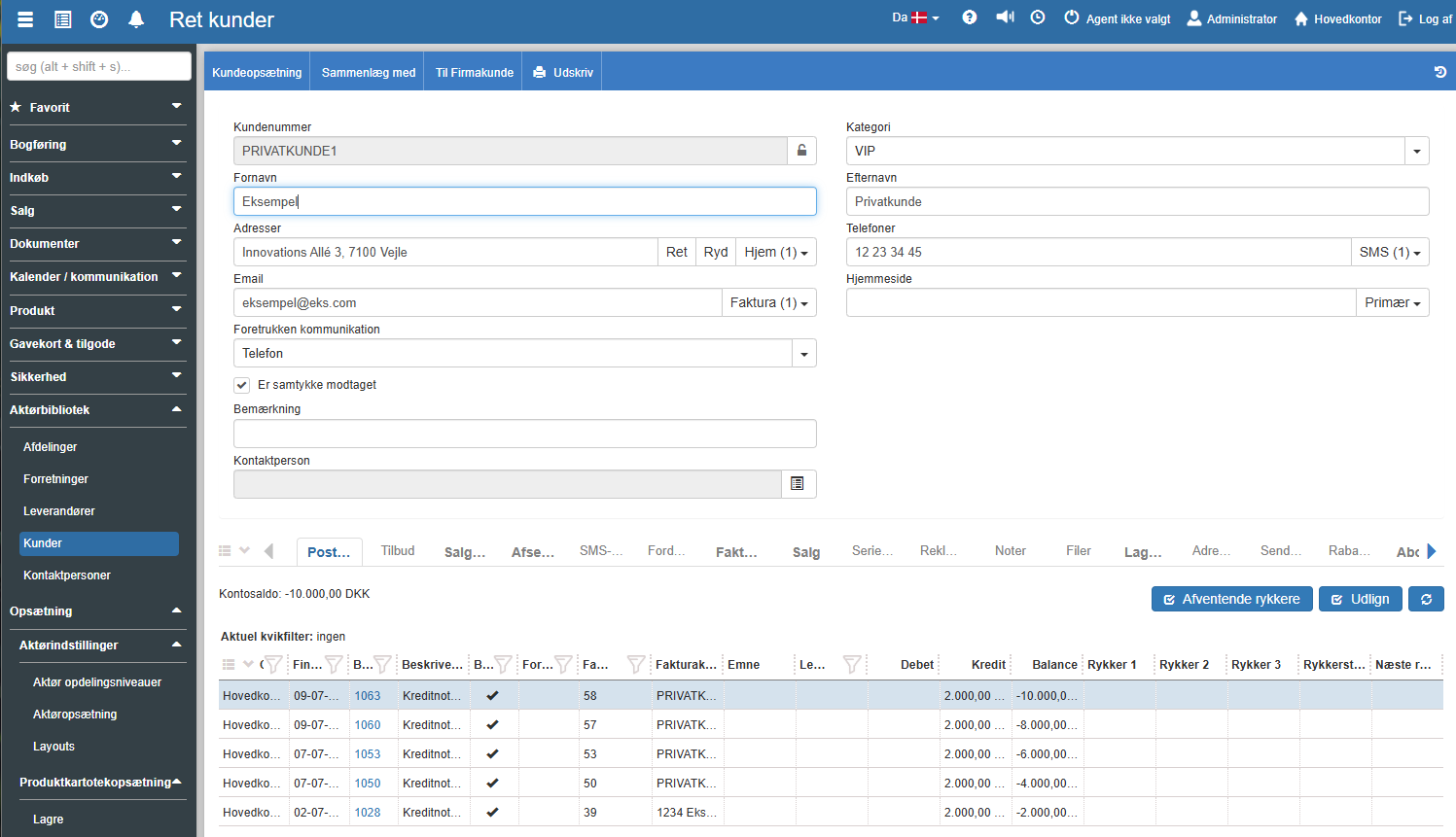
Finish by clicking the Save button. The new details are now updated on the customer.
Note on changing the customer number
The customer number serves as the customer's unique identification in Sapera.
It is technically possible to change the customer number in the "Customer number" field under the customer's master data, but it is generally not recommended if sales orders, invoices or posted transactions have already been created on the customer. Changing an active customer number can cause confusion in your sales history and lead to errors in any external integrations (e.g. webshops or accounting programs) that reference the original number.
Create task from the customer
From Edit customer you can create a task directly and see an overview of the customer's related tasks.
Want to know more?
Read more in these related articles:
Deactivate or archive a customer
This article explains the difference between deactivating and archiving a customer in Sapera, as well as how to perform the actions.
Customer setup
In this quick guide we walk through how to access the customer setup in Sapera, as well as what the different settings and fields mean for the individual customer.