1. From the hamburger menu in the top left corner of Sapera, open "Shop Manager"
2. Go to "Stock journals".

3. Now open the desired journal of the write-down type by double-clicking it.
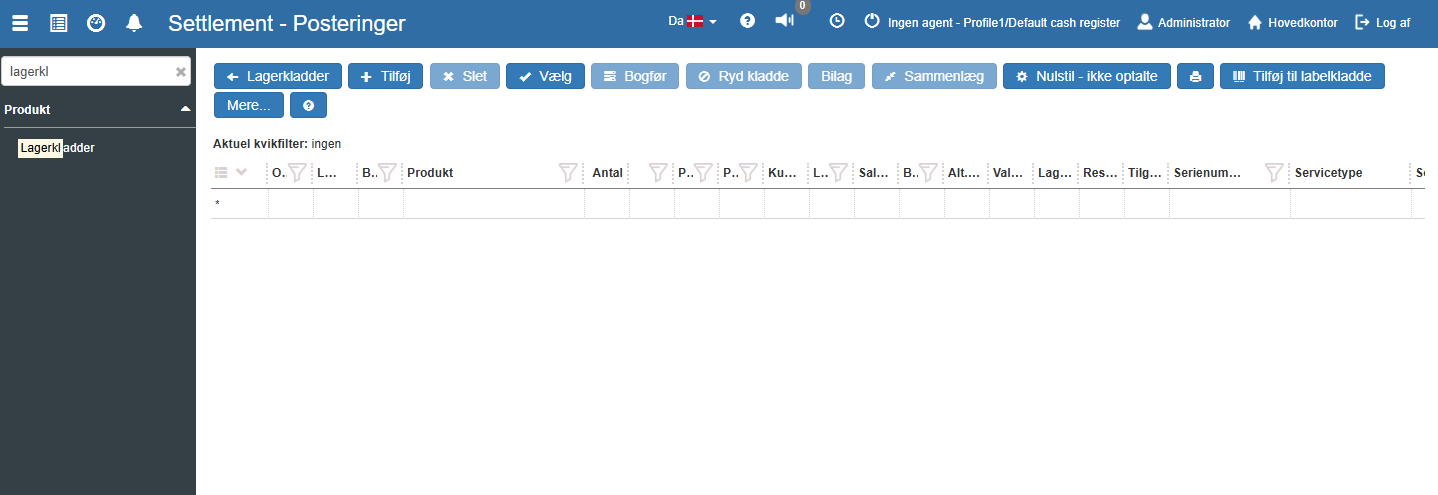
There are far fewer buttons on a journal of the write-down type than on other journals. For the write-down journal you only need to select the products to be written down and the percentage to write down by. To add products to the journal, click the blue button "+ Add" at the top left:

This opens a dialog for selecting the products you want to write down:
From this dialog you can use column filters to choose which products to write down. In the field "Availability" you specify the date to use as the cut-off date. If, for example, you want to write down products that have been in stock since 1/1 2021 using the FIFO principle, enter 1/1 2021 in the availability field.
In the stock journal of the write-down type there are additional functions:
Delete: Delete the selected row.
Post: Post this write-down journal. The actual write-down of the stock takes place when posting.
Write-down %: Opens a dialog where you enter the desired write-down percentage.

Note: It is possible to enter a negative amount in order to increase the value of the stock. This is, however, a rare function and is only used in special cases, for example for goods that increase in value
You can search and filter by product description when selecting items for the write-down journal, and it is easier to write down a single serial-number item.
Want to know more?
Read more in these related articles:
Stock journals
Stock journals are used to record and post stock movements in Sapera — deliveries, adjustments, reconciliations and much more. This article describes how to create and edit journals, what the individual fields mean, and how to work with entries.
Stock journal entries
How to use the entry list in a stock journal in Shop Manager: add, edit and post stock movements, use the More menu, and understand all the columns in the grid.
