It is now possible, directly from the APP, to send an SMS or email when a sales order has been completed (Work done state).

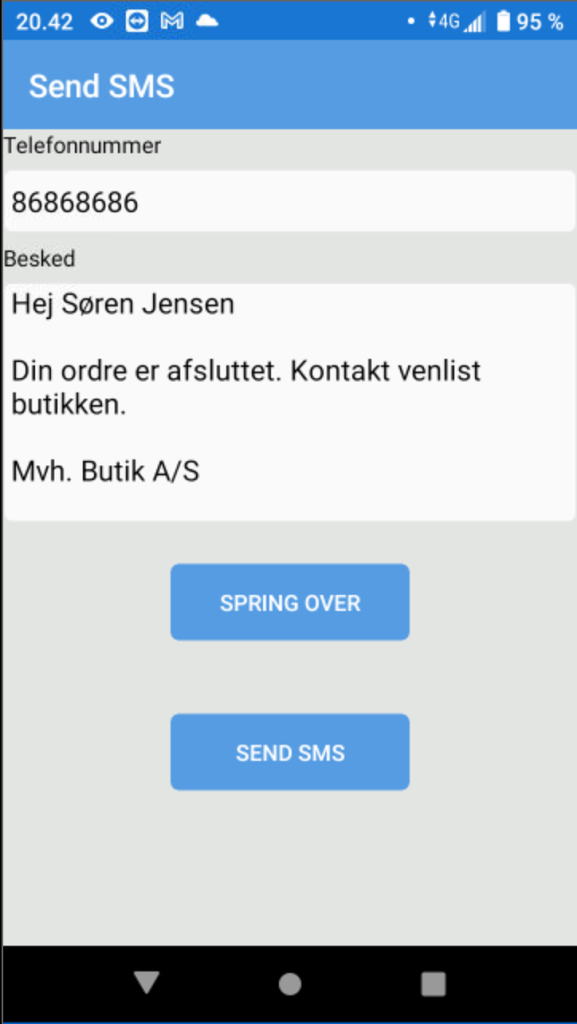
This requires setup of the sales order type in Sapera

From the APP you can now create receipts. Either one based on a purchase order, or an empty receipt.

On the receipt itself you can scan the items you have received.
If the line concerns multiple serial-number items you can “swipe right” on the line to bring up the dialog for registering the serial items themselves.
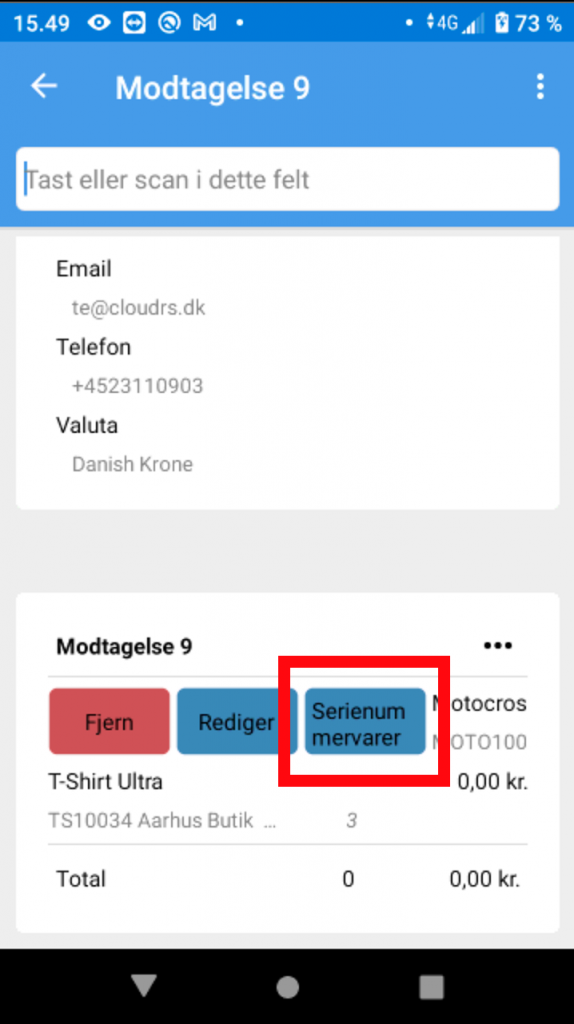
This will open a journal window from which the received serial-number items can be scanned or keyed in.

Clicking the Plus icon lets you search for already created serial items.
When scanning, the serial number is by default set to the same as the barcode. You can change this by swiping and tapping “Open”
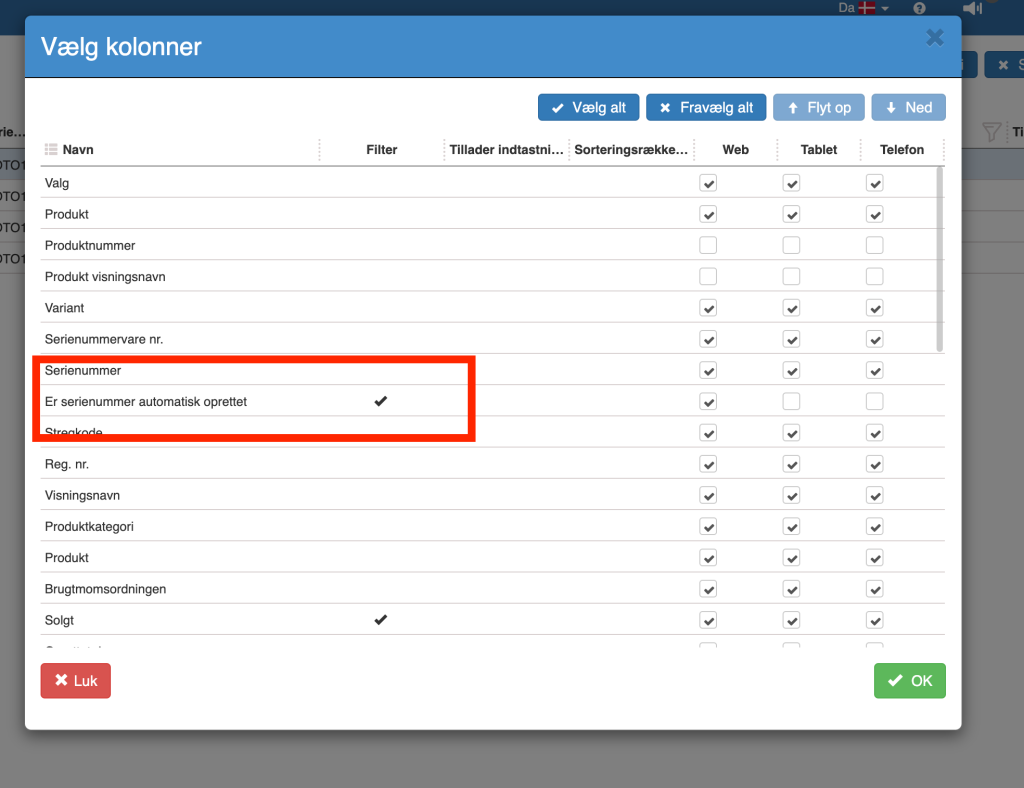
If you later want to fill in serial numbers for serial items where the serial number was filled in automatically, this can optionally be done from Sapera by selecting the column filter “Is serial number created automatically”
To this view, information has now been added about which org. unit and at which location (e.g. shelf) the item is located.
When you scan an item into the count journal on the APP, it will now show the current stock count and reservation count.

It is now possible to filter sales orders on order type.

We have made fixes in our app!
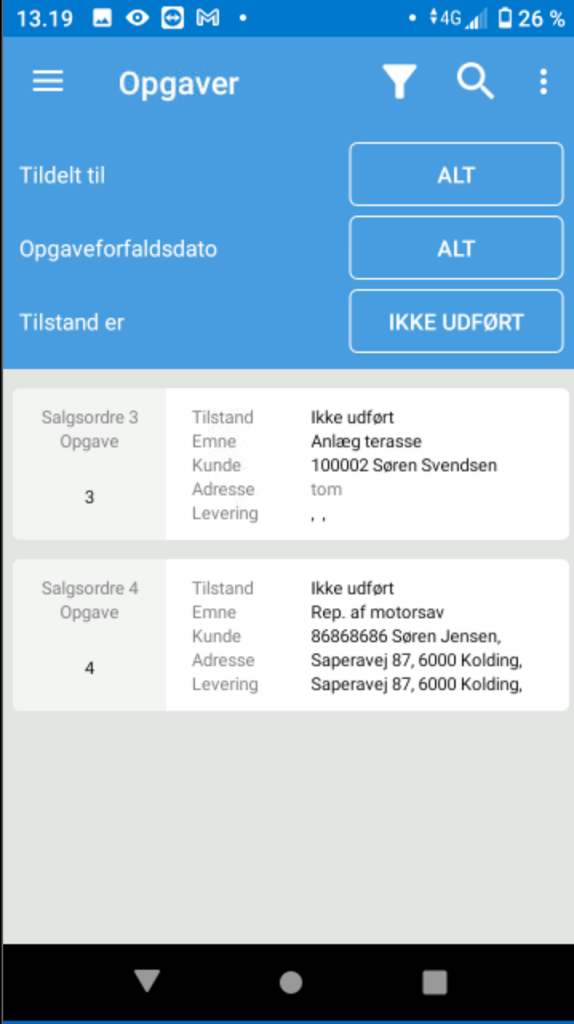
We have made it so you can now create tasks and assign them to yourself. At the same time we have improved the layout for tasks and made the module clearer.
You can use the filter to show all – and then left “swipe” to get the option to assign the task to yourself.

Want to know more?
Read more in these related articles:
Sapera - October 2023
A review of the newest features, changes and improvements in Sapera from October 2023
Sapera - April 2023
Here you find the most important news and improvements in the Sapera version for April 2023.
