The “Tabs” module is used to define and organize the menu items shown at the top of the Pos screen (the product catalog). These tabs act as shortcuts to specific product groups, search functions or bestsellers.
You find the module by going to “Pos” in the main menu and selecting “Tabs” in the navigation list on the left.
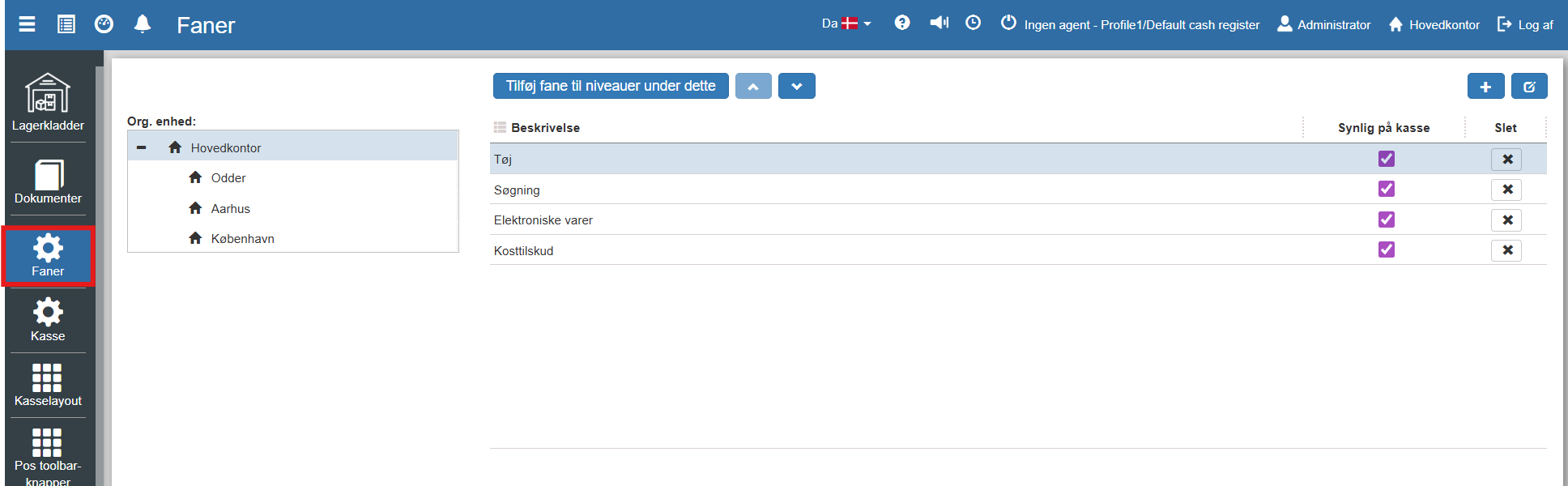
When the module is opened, a list of the existing tabs for the selected organizational unit (e.g. Head Office) is shown. Here you have the option to:
Manage visibility: Use the "Visible on Pos" column to enable or disable the tab directly.
Edit/Delete: Use the icons on the right to change settings or remove a tab.
Sort: The order of the tabs in the list reflects the order in the Pos.
To add a new tab, click the create icon (+) in the top right corner. The following menu will now open:
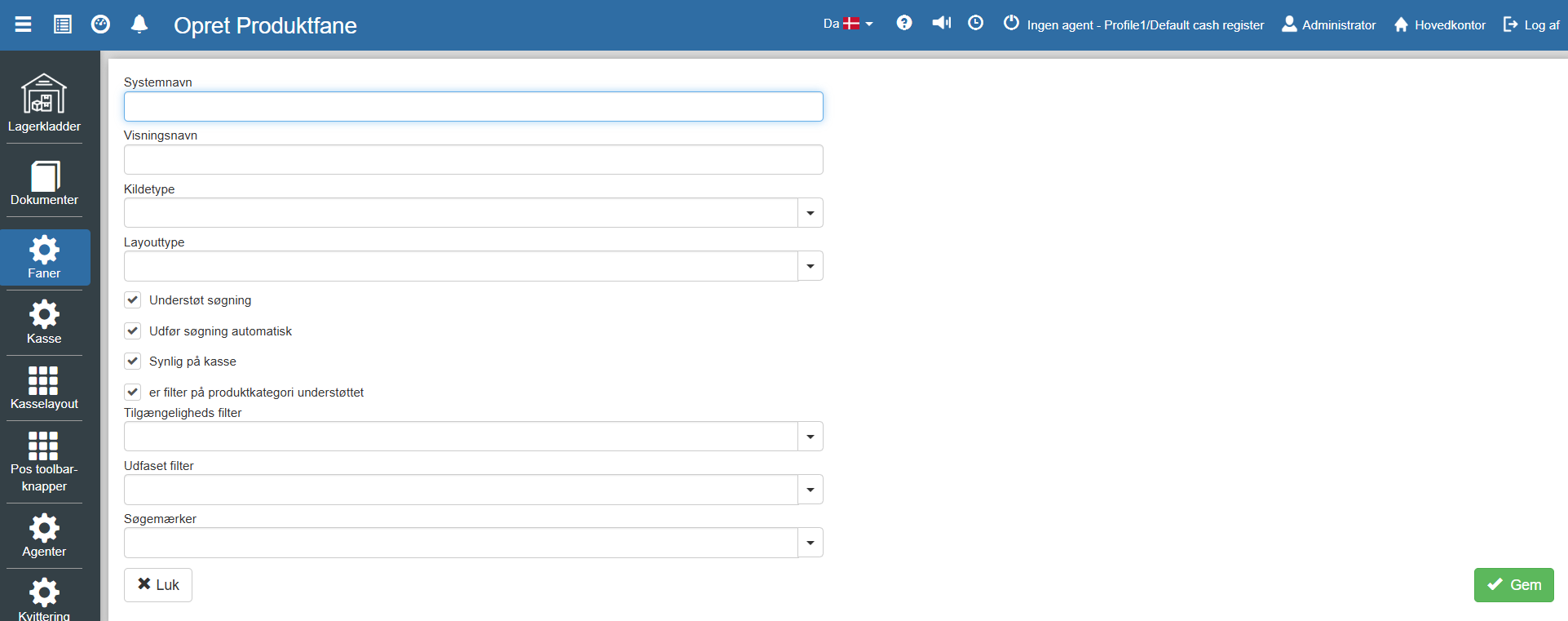
In the creation window, the tab's properties must be defined. The key settings are:
Basic information
System name: Internal designation for the tab.
Display name: The name the cashier sees on the button in the Pos (e.g. "Clothing" or "News").
Settings for content and appearance
Source type: Determines which products the tab should contain. The options are:
Global: Shows the entire product catalog.
Product category: Limits the display to a specific product group.
Bestsellers: Automatically shows the best-selling products.
Custom / Folders: Allows manual structuring.
Layout type: Defines the presentation of the products:
Tiles: Default view with images (optimized for touch).
Table / Inline table: List view with more details.
Text only: Simple view without images.
Product icon size: Only shown when the layout type is "Tiles". Here you choose the size of the product icons on the tab — Small or Large.
Filters and functions To control exactly which products are shown, filters can be set up:
Availability filter: Filter on stock status (None, Yes, No, Both).
Discontinued filter: Control the display of discontinued products.
Search tags: Limit the tab to products with specific search tags. Select one or more search tags so the tab only shows products tagged with them.
In addition, you can check Support search if the tab should include a search field, or Perform search automatically if the results should be shown immediately.
Finish by clicking “Save”.
Want to know more?
Read more in these related articles:
Setting up tabs for the Pos screen
This article explains how to add and configure tabs in the Pos module
Pos layout
This article walks through the customization of the Pos terminal's user interface, including setup of buttons, color codes and functionality.
