Below is a guide on how to give a discount on multiple products at once. Here you can also give the discount as a percentage and in intervals.
Start by going to “Financial” in the menu in the top left corner.
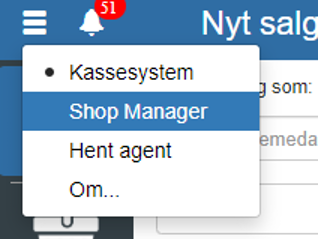
Then go to “Setup” → “Product catalog setup” → “Sales price types”
You can also find “Sales price types” by clicking the search field in the top left corner.
Then click “+” in the top right corner.
Fill in the name of your price type.
Select “Interval” under “Type”.
If you want the price to appear on the webshop, you must tick “As discount”
Click “+” in the bottom right corner to choose when the discount should start from.
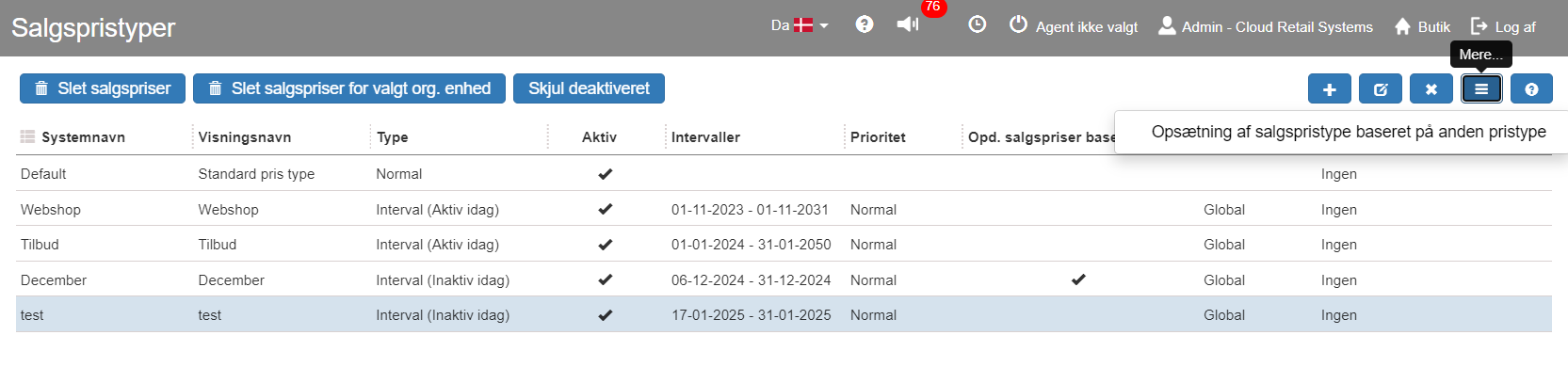
Once you have filled in the sales price interval and clicked “Save”, you can see the new price type on the front page. Select it and click “More”, which is the 3 lines in the top right corner, and then select “Setup of sales price type based on another price type”
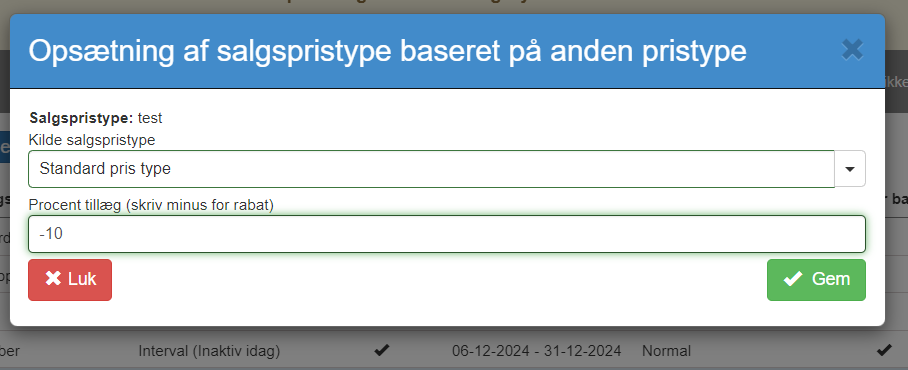
Here you must select “Standard price type” and enter the desired discount.
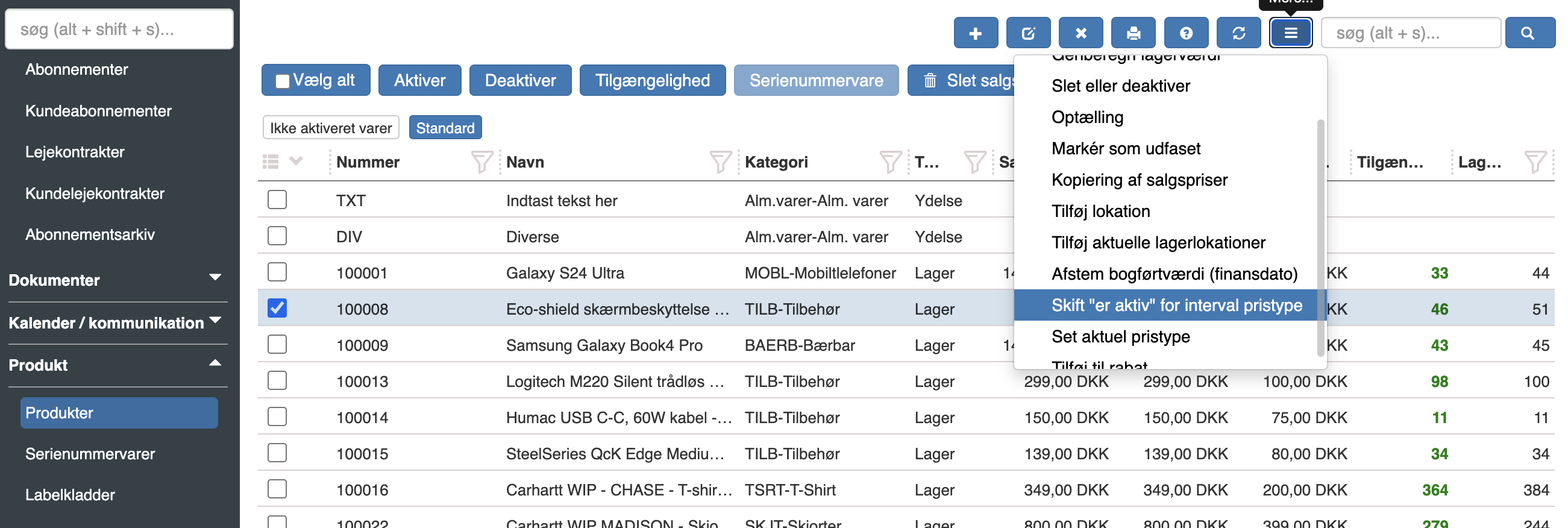
Go to “Product” → “Products” on the left side.
Select the desired products and press the “More” button → “Change “is active” for interval price type”
Here fill in “Sales price type”, “Stock org. unit” and “Scope”
When you press “Save”, you can see the products change to the new price.
Want to know more?
Read more in these related articles:
Sales price types
How to create, edit and manage sales price types in Sapera, including Normal and Interval types, overwrite rules, source sales price type setup and Clear sales prices.
Sales price types
In this quick guide we will go through how to create a sales price type in Sapera.
New / edit discount
This article explains how discounts are set up, assigned and handled dynamically in Sapera
