
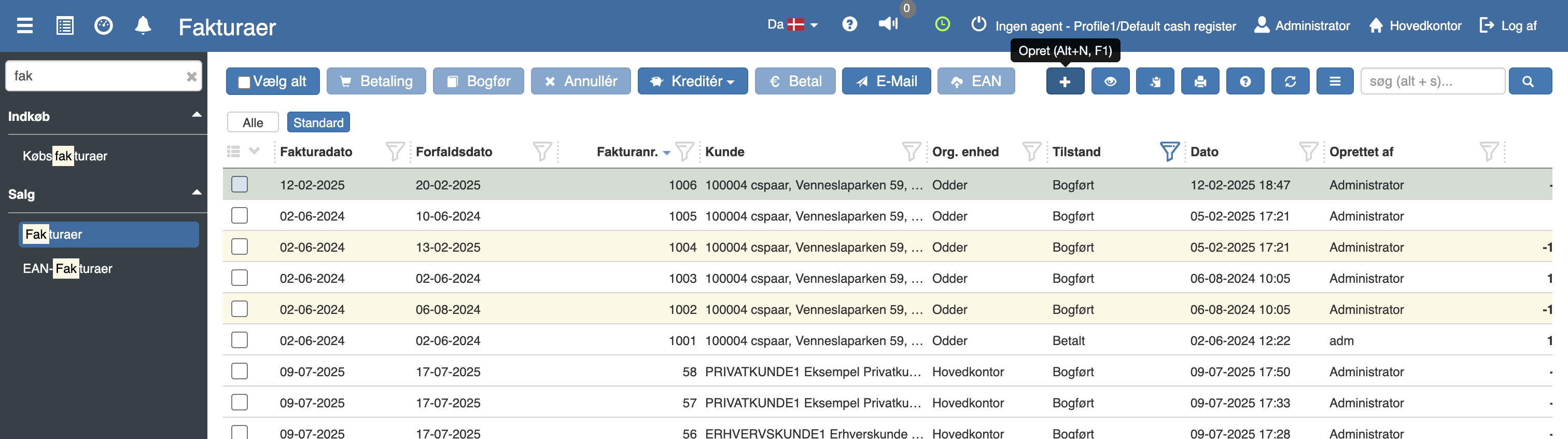
In “Financial” → “Sales” → “Invoices” all your invoices are listed.
To create a new invoice, click “+”
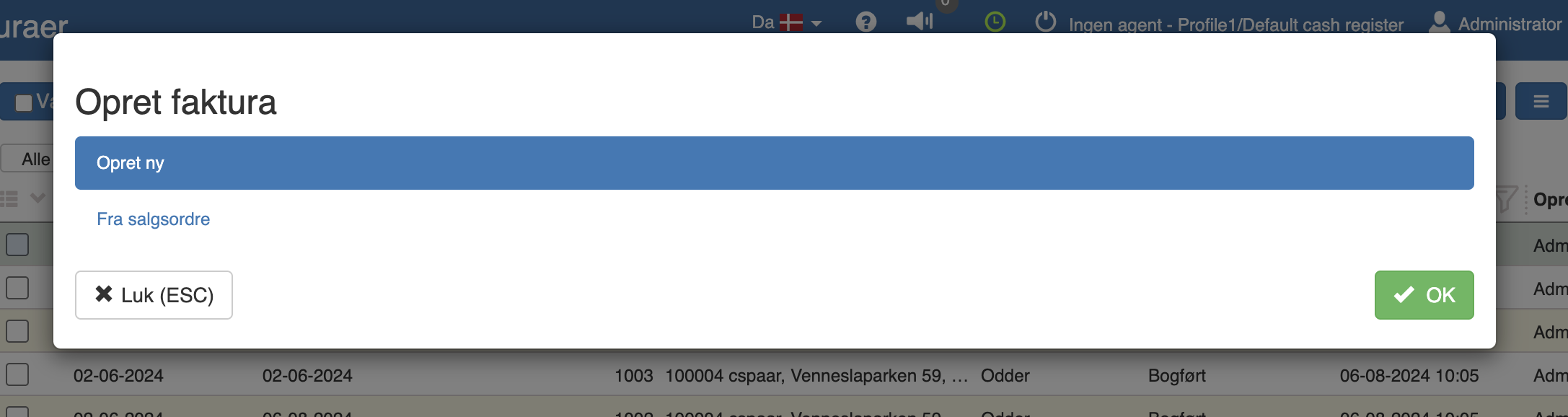
Here you can choose to create a completely new one or take one from a sales order.
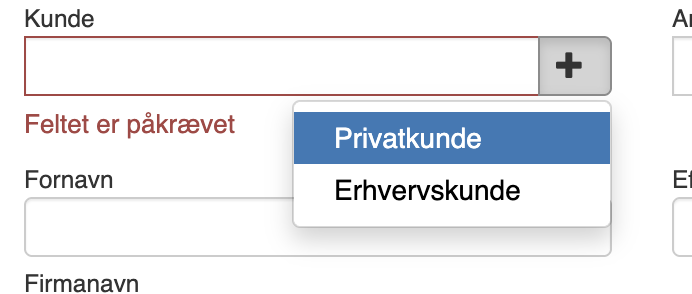
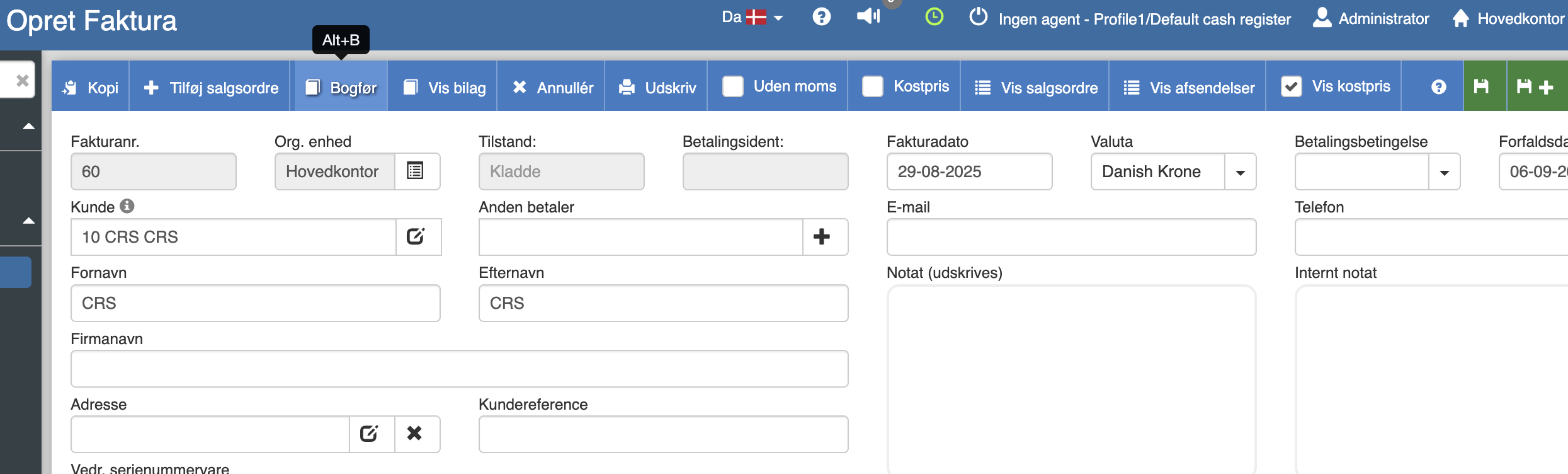
When you want to create a completely new one, you must first fill in the customer.
If the customer does not appear, you can choose to create it by clicking “+” and selecting either “Private customer” or “Business customer”
Here you fill in all information about the customer and finish by clicking “Save and close”

After that, you can fill in the rest of the fields on the invoice (as needed).
Once it is filled in, you can start filling in items on the item lines. You can search for the item by starting to type either the item number or name in the corresponding fields.
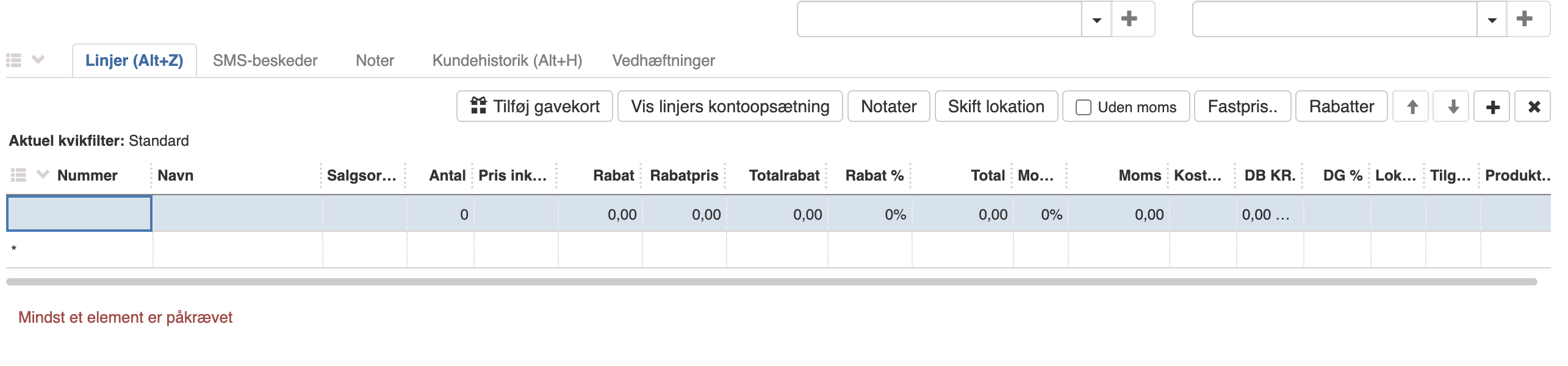
When you have filled in the items, click “Save”, and then you can post it by clicking “Post”
The invoice will now be listed under “Invoices”, and here you can choose whether to credit it, pay it or send it by e-mail.

Want to know more?
Read more in these related articles:
Creating an invoice
In this guide we will go through how to create an invoice in Sapera.
Invoices
Complete review of the invoice overview and the invoice editor in Financial: fields, invoice lines, all actions, state flow and the tabs at the bottom.
Transfer sale to invoice
Transfer sale to invoice