
How do I add tabs?
Go to "Pos" in the hamburger menu and find "Tabs" in the navigation on the left
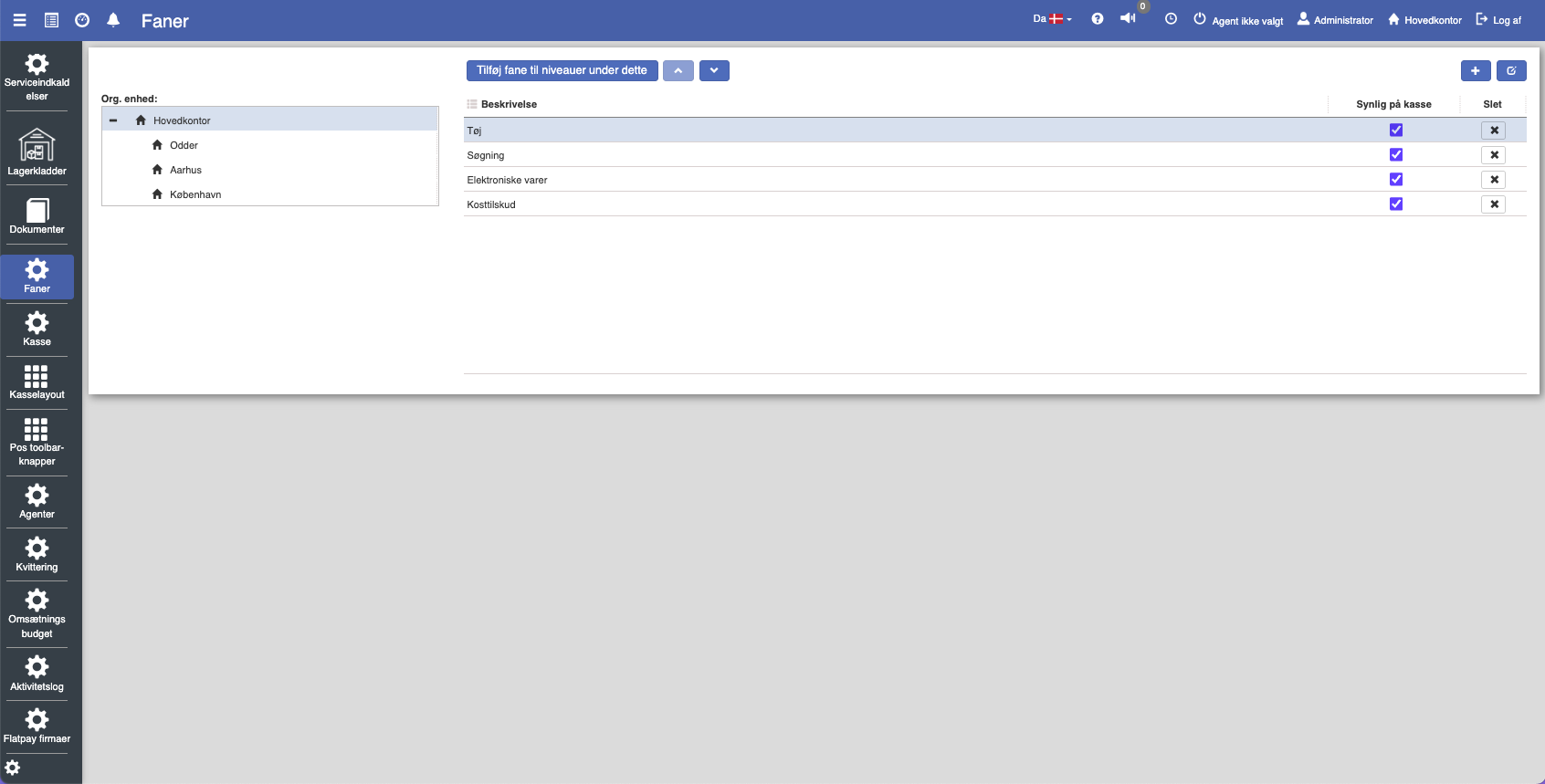
Tabs help you navigate through your products and are shown on the Pos page. Tabs show your different product categories.
You can change tabs so they fit the specific organizational units.
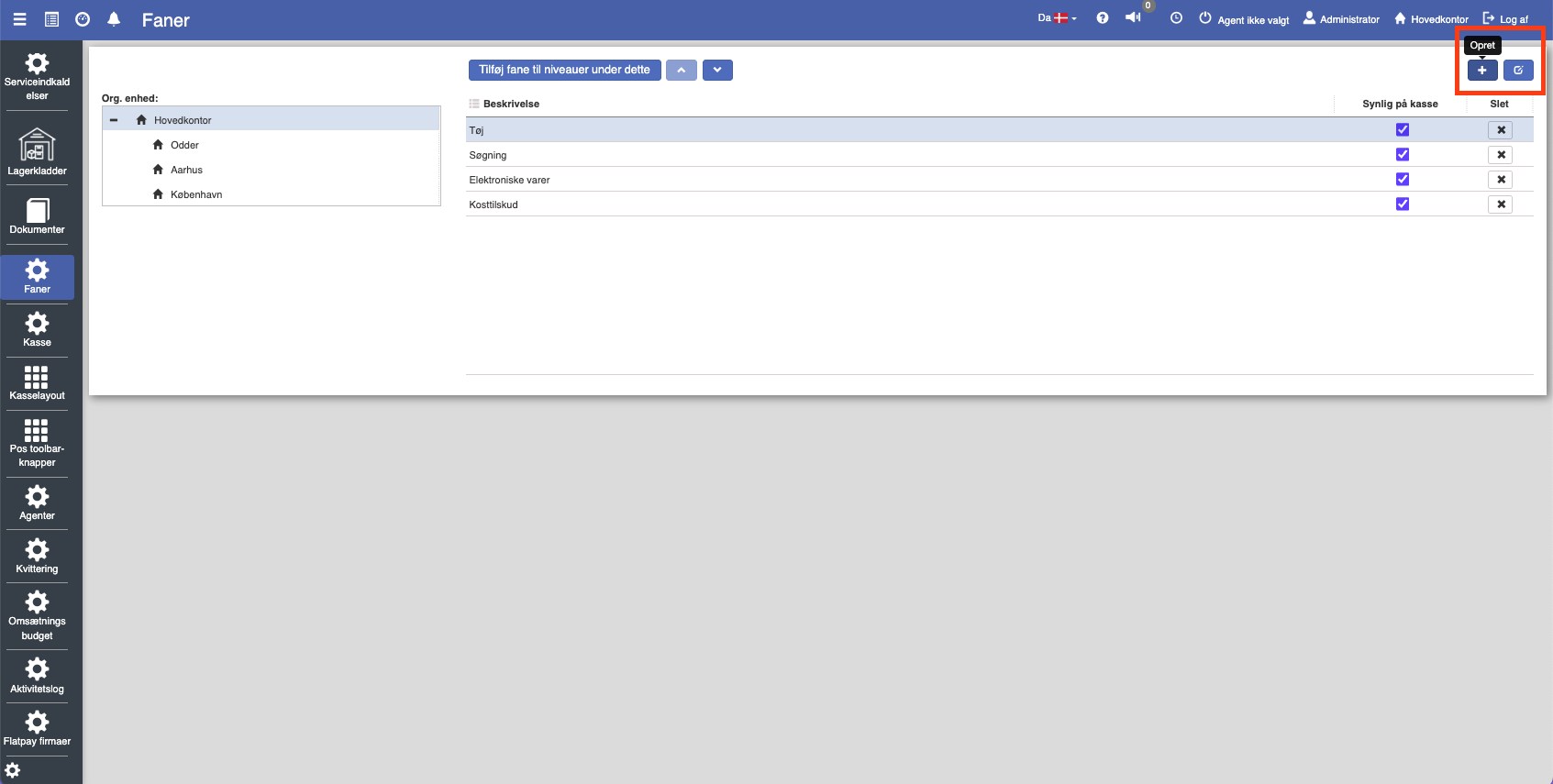
To add a new tab, click the plus icon:
Editing tabs
There are several fields you can adjust on tabs:
Once you have selected the organizational unit, you can configure it by clicking the blue "Edit" button.
You can choose whether the keypad should be enabled or not. To do this, check or uncheck "Is numeric keypad visible".
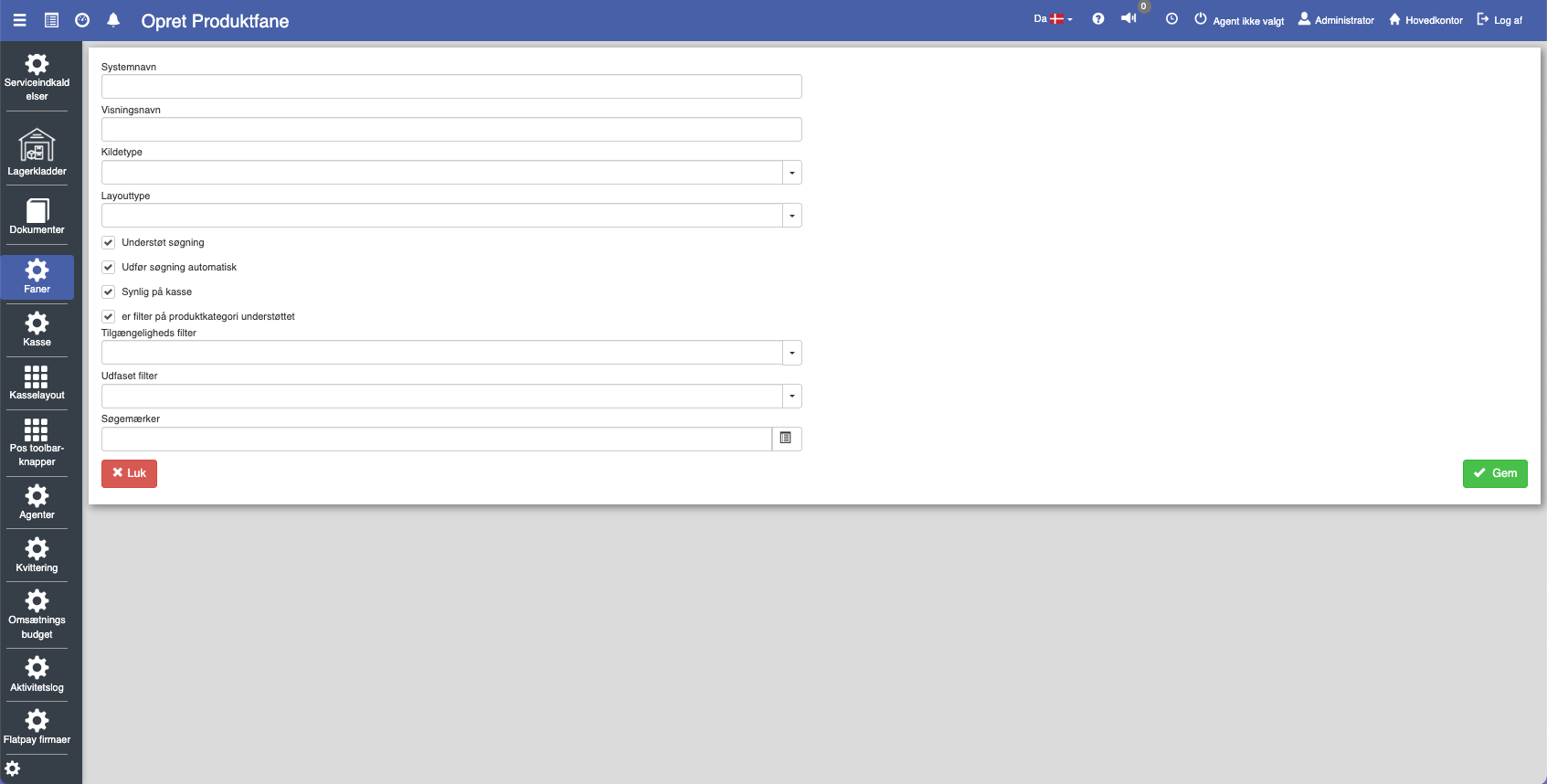
System name: Here you can change the system name
Layout type: You can choose between table, tiles, inline table, and text only
Source type: Global, product category, bestsellers, and custom
Display name: Here you can write the display name for the tab
Product icon size: Large/small
Want to know more?
Read more in these related articles:
Pos layout
This article explains the customization of the Pos terminal's user interface, including setup of buttons, color codes, and functionality.
POS user interface
Settings for touch operation and appearance in Pos, including touch-optimized user interface, side menu, logos on sales orders, and loading animation.
Setting up the Pos layout
This article explains how the Pos configuration and Pos layout are customized for your organizational unit in Sapera