
To change your own or your colleague's password, follow these steps:
1. From "Financial", go to "Security" and then "Users".
2. Select the user whose password you want to change and click "Edit".
3. Click "Change password".
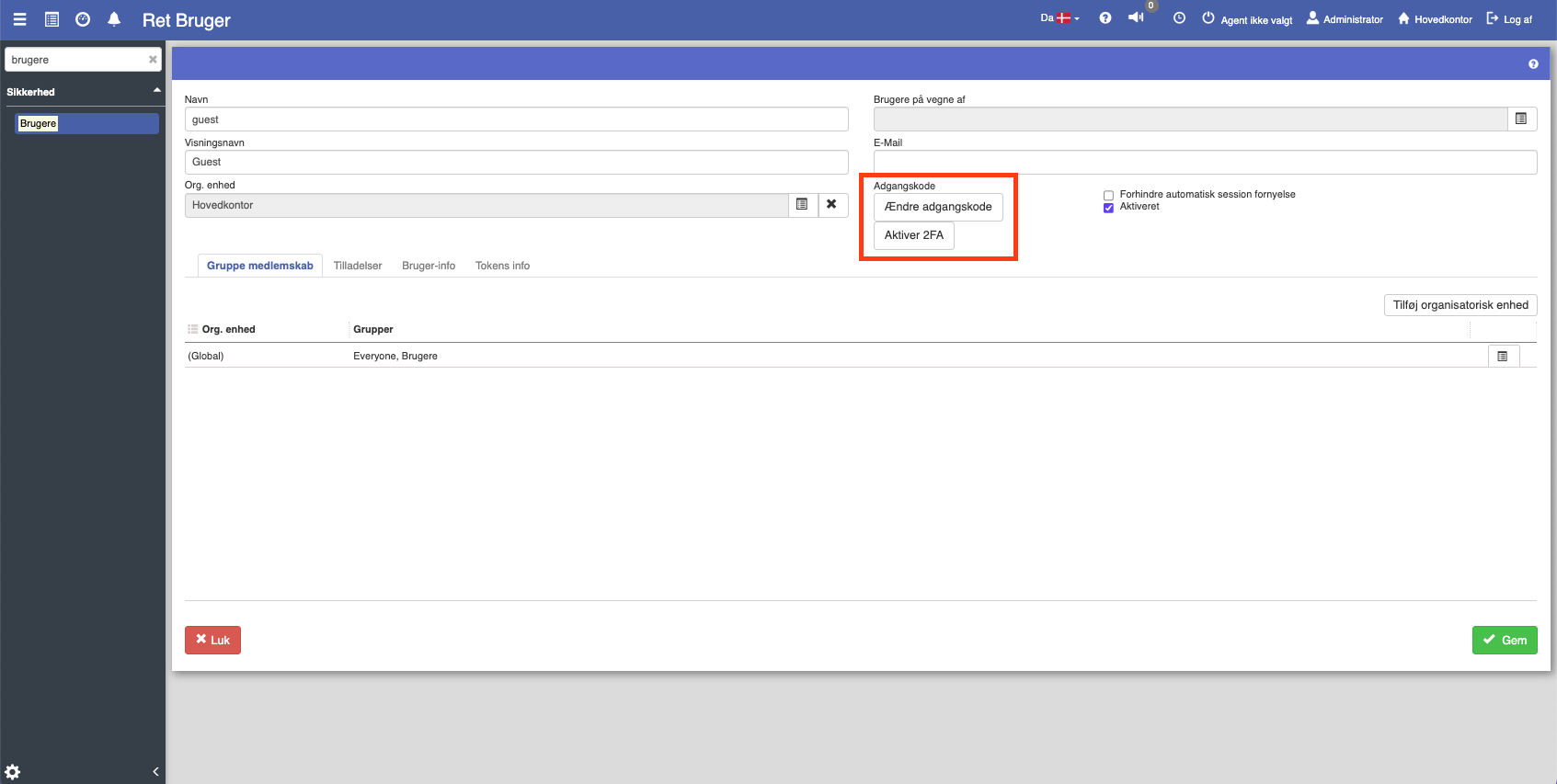
Only administrative users have access to change passwords on other users in Sapera.
4. Enter your own password (must be an administrator).
5. Now fill in the new password and confirm it by repeating it in the "Repeat password" field.
Note: The password must be at least 3 characters long and contain at least one uppercase and one lowercase letter and one number.
6. Click "Save".
7. Finish by clicking "Save" again.
Want to know more?
Read more in these related articles:
Login security
Get an overview of login attempts, control which IP addresses may log in, and choose which login security method your store should use.
Login and access
How to log in to Sapera.