
Start by opening “Financial” in the menu in the top left corner.
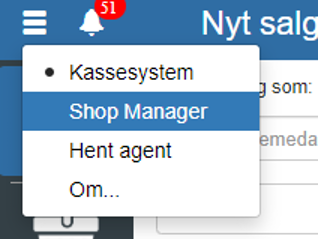
Then click “Setup” and select “Customer category”
You can also search for “Customer category” by clicking the search field in the top left corner.
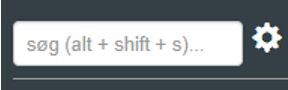
NOTE: if you cannot find “Customer category”, it is because you lack access to it. In that case you can contact support to gain access.
Click “+”
In a customer category you can fill in the following:
System name (does not support “æøå“ and spaces)
Display name
Selection of Financial account
Extra VAT type
Payment terms
Currency
Without VAT
Support EAN invoicing
Support email invoicing
Support invoice printing
Use cost price
Is customer reference required
Is contact person required
Is requisitioner required
REMEMBER to finish by clicking “Save”
Want to know more?
Read more in these related articles:
Accounting - Creating a supplier category
This article explains how to create and configure supplier categories in Sapera
Customer categories
Create and edit customer categories (debtor categories) in Sapera. Customer categories bundle shared payment terms, financial accounts, credit limits and invoicing rules that are automatically inherited by customers in the category.
Supplier setup
This article explains how to access and change the supplier setup for a specific supplier