VAT reporting in Sapera allows businesses to report VAT directly to the tax authorities via the tax authorities' API. This function automates the process and ensures that VAT reporting is carried out correctly and quickly. With Sapera, businesses can easily manage their VAT statements and get an overview of their accounting data.
When you create a VAT report, the system automatically selects the expected accounting period and year. These can, however, be adjusted, for example if errors from a previous period need to be corrected. Before the report is sent, you can use the Print button to get a printout of the data basis and check the contents. After confirming the report, a detailed overview is shown that corresponds to the fields from the tax authorities' manual reporting form.
1. From Financial, go to "Accounting".
2. Navigate to "VAT reporting".
3. You are now on the "VAT reporting" tab, where an overview of your VAT reports in Sapera is visible.
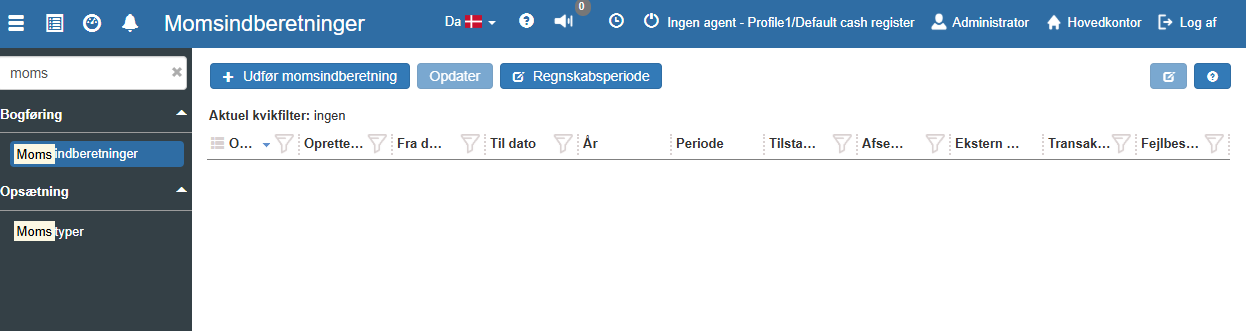
If you want to create a new VAT report, this can easily be done by clicking the blue "+ Perform VAT report" button in the top left:
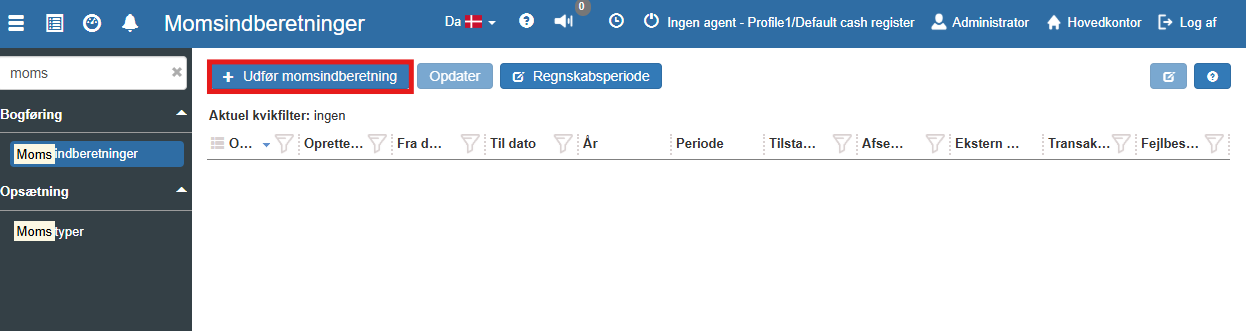
Perform VAT report is used to create the VAT report itself - which, upon completion, is sent directly to the tax authorities through the tax authorities' VAT API.
The expected period and year are selected automatically. This can, however, be changed if you want to send a correction for a previous period.
The Print button allows you to see the data basis itself as a printout before the report is created. Clicking "OK" opens the following menu:
The printout shown on the right side corresponds to the fields that can be entered during manual reporting on the tax authorities' website.
Corrected text with corrections:
By scrolling a little further down in the printout, you can find a section "Entries without VAT code" (NOT included in VAT settlement)":
It is important to check this part of the printout. If manual entries have been made on the VAT account that should result in VAT settlement, they will appear here. Entries that are manual and made to register payments are of course expected. If you find an entry in this section that should have had a VAT code, it can be corrected by going to entries under the VAT account and changing the VAT type from the overview.
If everything is set up correctly, and you use the Sapera invoice/purchase invoice module, no unwanted entries will appear here. This is only possible if the setup is incorrect, or if incorrect manual entries have been made directly on VAT accounts.
After reporting, you can open the report to see payment information - and download the receipt from the tax authorities.
Clicking Receipt downloads the receipt from the tax authorities.
Under VAT reporting you also have the option to use the following functions, which are described below.
Refresh:
The Refresh button reloads the page - with fresh data. E.g. if the status has changed at the tax authorities.
Accounting period:
Accounting period shows your financial year - as registered with the tax authorities.
Created on:
Date of creation of the VAT report
Created by:
The user who created the VAT report.
From date:
The from date of the VAT report.
To date:
The to date of the VAT report.
Year:
Year of the VAT report.
Period:
The period of the VAT report - e.g. 1st quarter.
Status:
The status at the tax authorities. It can be either "Sent", "Approved" - or "Error". In case of error, see Error message.
Sent on:
Date of sending.
Transaction ID:
ID for this transaction at the tax authorities.
Error message:
In case of error, an error description is shown here.
Want to know more?
Read more in these related articles:
VAT types
How to create, edit and validate VAT types in Sapera. The article reviews all three sections (VAT, Used-goods VAT and EU VAT / Reverse charge types), the exclusivity rule, the Clear button per section, the Validate function and the deletion flow.
Accounting - Creating VAT types
This article explains how VAT types are set up in Sapera
Report VAT (manually)
This article explains how VAT is reported manually in Sapera.
