
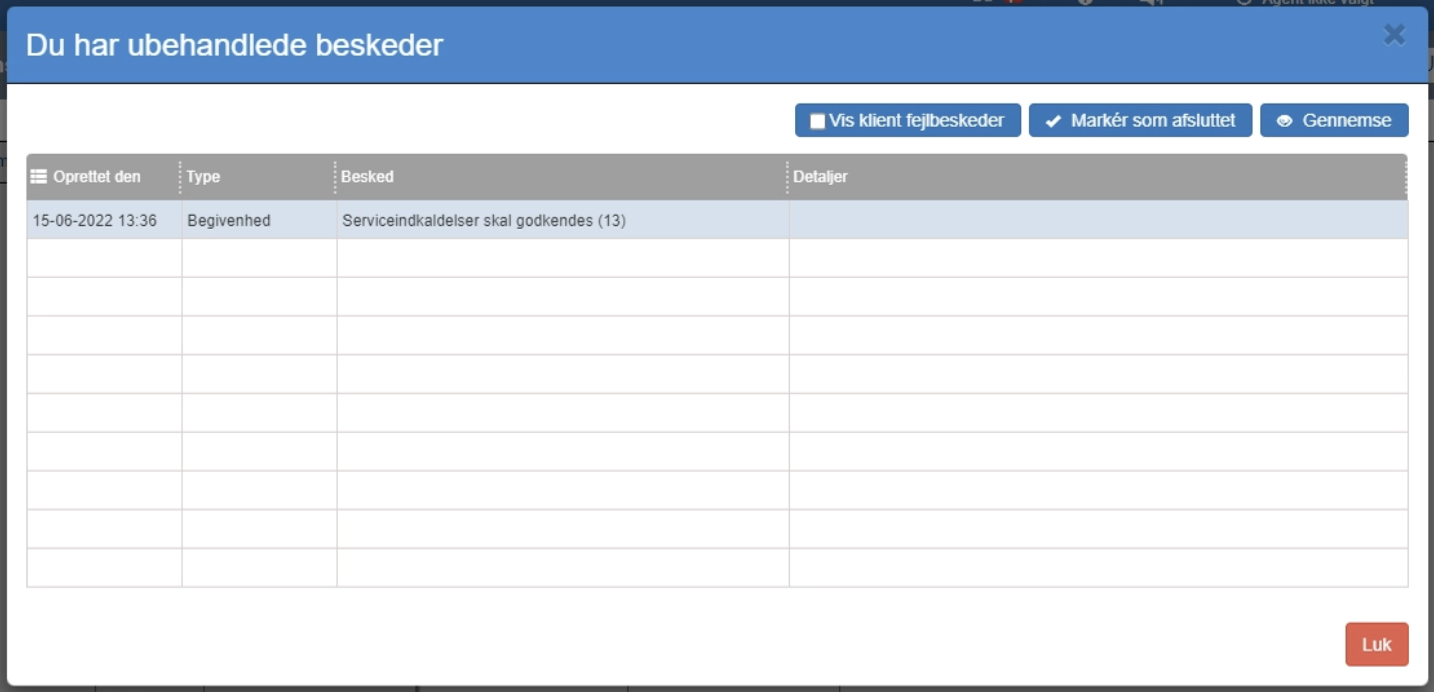
Find your unprocessed messages under “Financial” → “Calendar/communication” → “Calendar”.
Click “Review”.
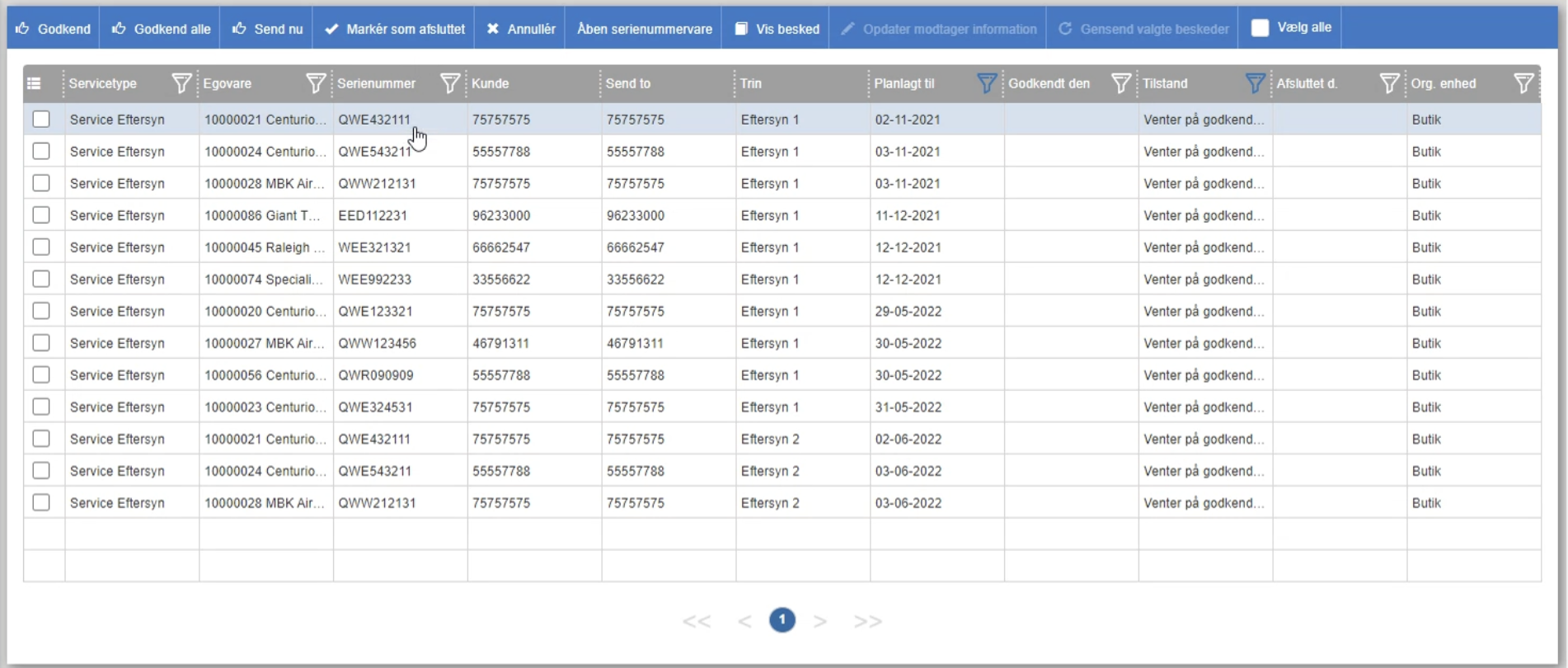
In here you can see an overview of all the units that are due for inspection.
You can then choose to click into them individually for a closer look, or you can approve either individual ones or all of them, after which the customers will receive a message that their unit is being called in for a service inspection.
Want to know more?
Read more in these related articles:
Service notifications
Complete overview of planned and historical service notifications. Approve, send and error-handle messages to customers about upcoming service needs. Configure service types with steps, communication templates and execution plans.
Service card
Service card for a serial number item with master data and planned service steps with dates and prices. Started from the item or a service notification via the printer icon.
Settings for service notifications
Review of the settings under Communication workflow settings in the Inventory module. Here the time window for automatic sending of service notification messages to customers is configured.