Product locations are a central feature in the product catalog setup that makes it possible to organize and prioritize where products are placed within an organization. These locations can represent physical places such as stores, warehouses or departments, as well as virtual locations for administration or specific product-related processes.
Using product locations, you can give each location a display name, link them to specific organizational units and add notes for additional information. The feature also makes it possible to assign a priority to each location, such as "High" or "Normal", which can be useful if an organization wants to define a ranked approach to product handling or inventory management.
Product locations contribute to better structuring of product data and help ensure that product handling is carried out efficiently and in accordance with the company's needs and inventory practices. The feature also enables flexibility, as it is easy to add, edit or prioritize locations based on changing needs.
1. From Financial, go to "Setup".
2. Navigate to "Product catalog setup" -> "Product locations".
3. You are now on the "Product locations" tab, where an overview of your product locations in Sapera is visible.

If you want to create a new product location, this can easily be done by clicking the blue "+" icon in the top right.
The following menu will now open, where you have the option to create a new product location:
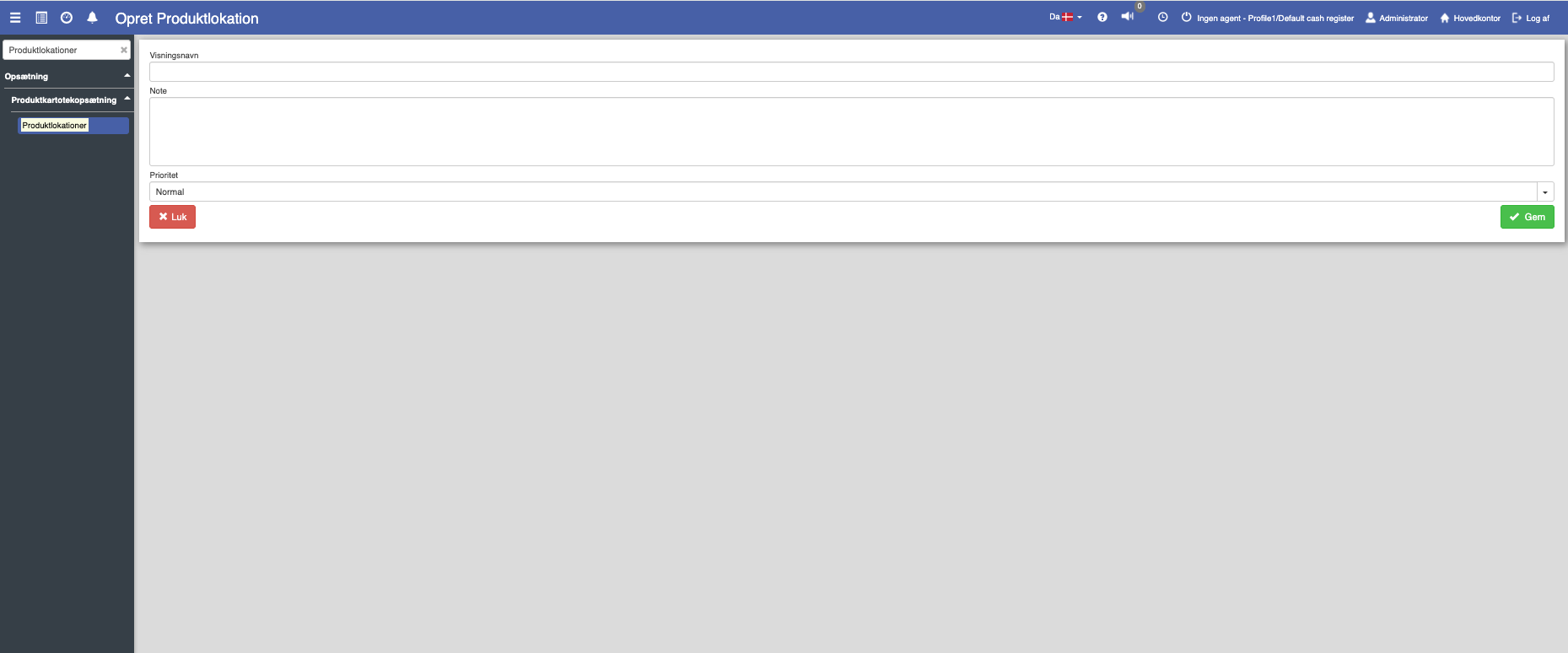
Fill in the fields and finish with "Save".
Display name:
This field specifies the location's name as it will be shown in the system. It should be clear and precise, so it is easy to identify the location, e.g. "Copenhagen", "Aarhus" or "Main warehouse".
Note:
In this field, additional information about the location can be added. Notes can be used to describe the location's purpose, special instructions or other relevant information that may be useful for users.
Priority:
The priority determines the location's importance in the system. The options include "Lowest", "Low", "Normal", "High" or "Highest".
Want to know more?
Read more in these related articles:
Product location
Print a label with a barcode for a product location, so the location can be scanned in the warehouse.
Warehouses
This article explains how to create and use warehouses to manage inventory locations in Sapera
