
How do I create a stock value printout compared to posted?
1. From Financial, go to "Product" → "Products".
The printout can also be accessed from other places, including through the top print menu.
2. From the Products page, you can click the printer icon in the top right corner.
3. Select the printout "Stock value compared to posted"
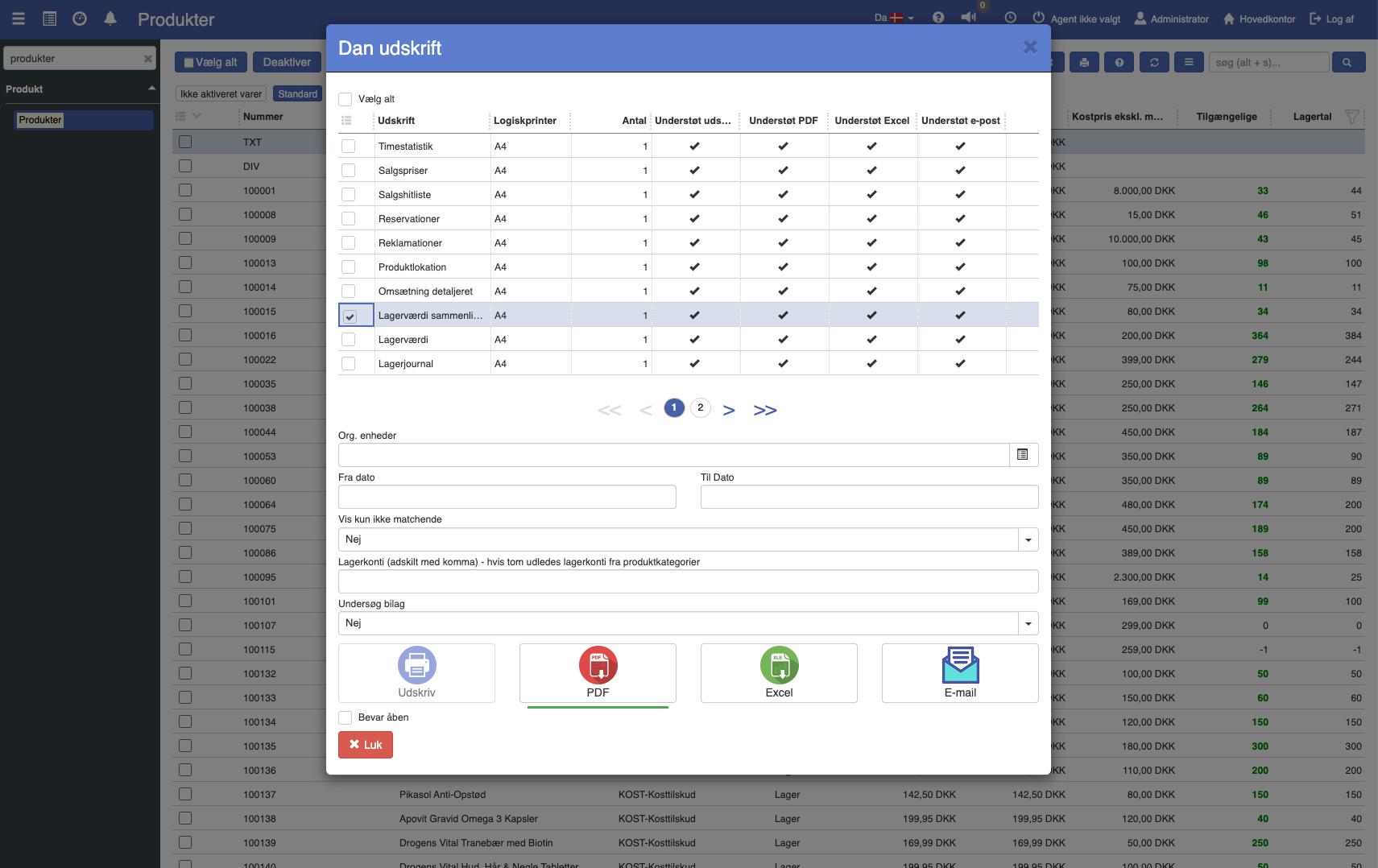
4. Fill in the fields (the fields are described below)
5. Click the print format you want to print in.
Parameters
Options:
From / to date: The date range for the printout.
Show only unmatched: Choose between "Yes" and "No". Yes means the printout only shows the entries where the stock value and the posted value do not match. No means the printout shows all entries, regardless of whether they match or not.
Stock accounts: Separated by comma - if empty, stock accounts are derived from product categories. Here you can specify specific stock accounts that the printout should compare with the posted value. If the field is left empty, the stock accounts are taken automatically from the product categories associated with the items.
Settings support can configure
Beyond the filters shown in the print dialog, the printout has a setting that can be turned on/off by support per company. If you want it changed, contact support and refer to the setting below. The technical name is shown in parentheses.
Show FIFO stock value (shosfifostockvalue)
Want to know more?
Read more in these related articles:
Stock value
How to print a stock value statement in Sapera: find the report, understand each criterion, build your groupings, and understand the columns in the result.
Stock journal
This article explains how to create a stock journal printout in Sapera
Stock archive
A complete walkthrough of the Stock archive screen in Financial: columns, filters, actions, the posting-operation dialog with tabs, aggregated/detailed view, context menu, popups, and permissions.