
You can use quick filters in “Pos” → “Products”
Here you first set the filters as you want by clicking the funnel next to the various categories.
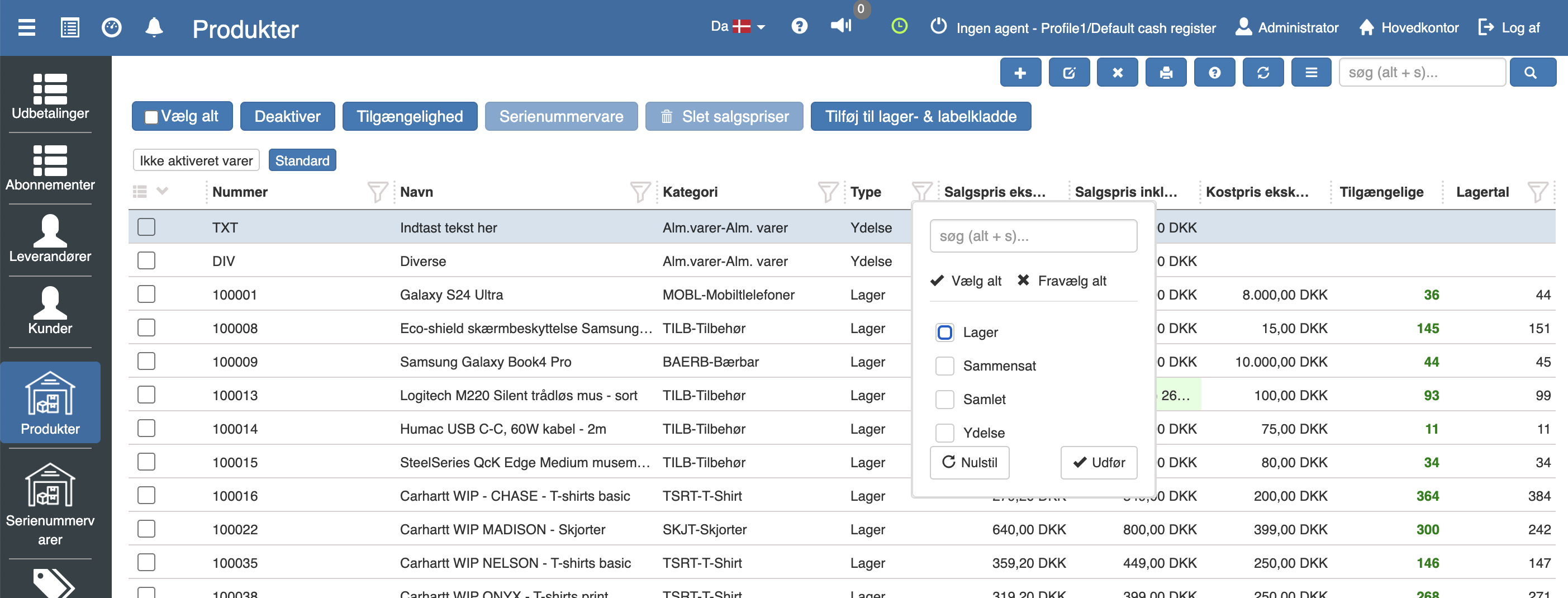
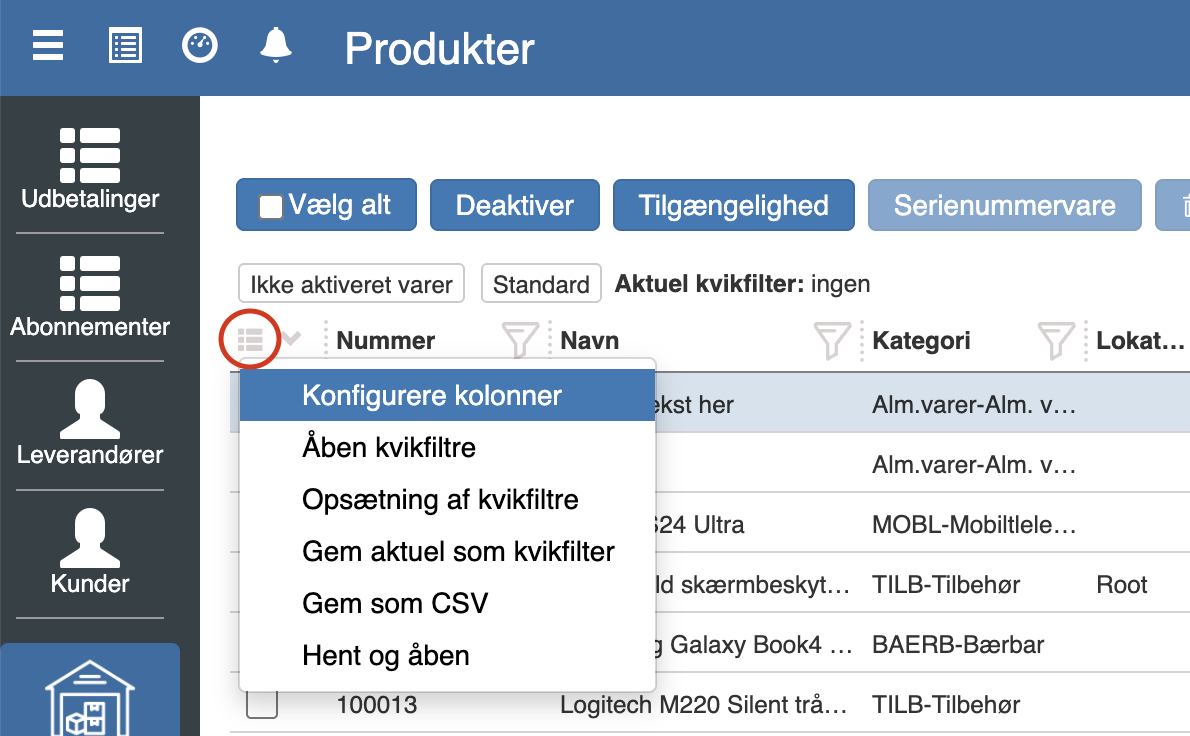
Then click the three lines next to “Number” and select “Configure columns”.
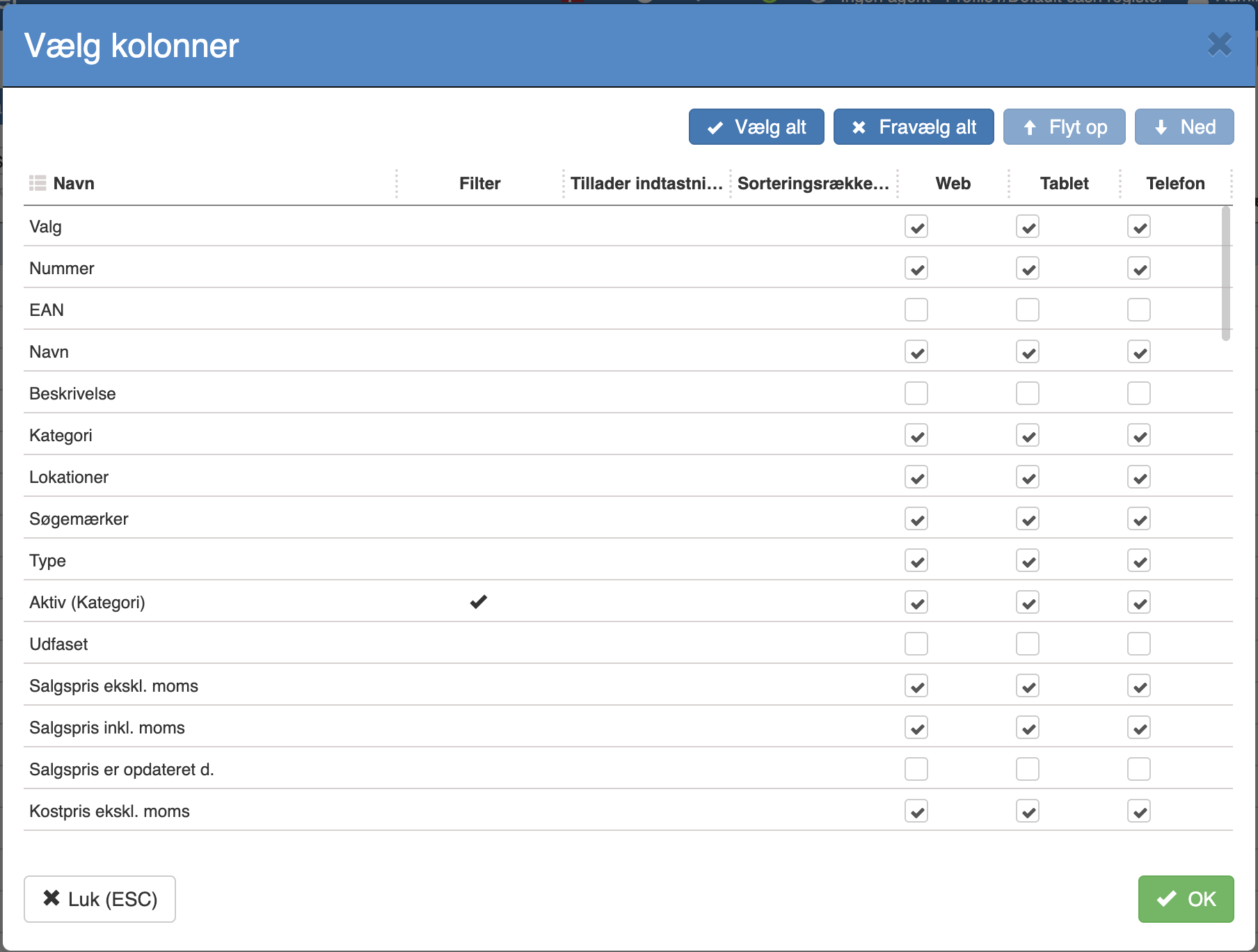
Now select which columns you want in your quick filter and then click “OK”.
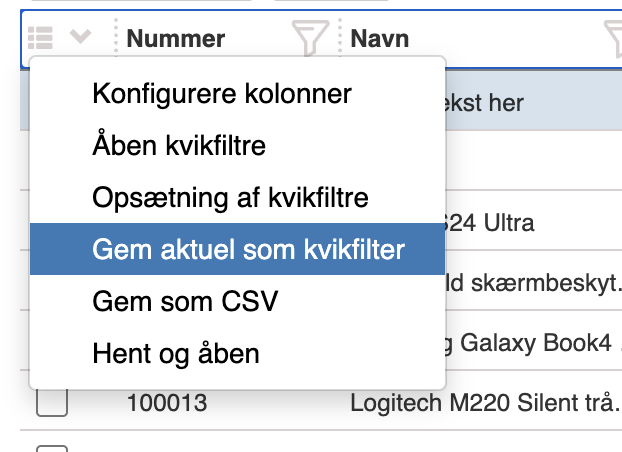
Once you have selected your desired columns, click the three lines again and select “Save current as quick filter”.
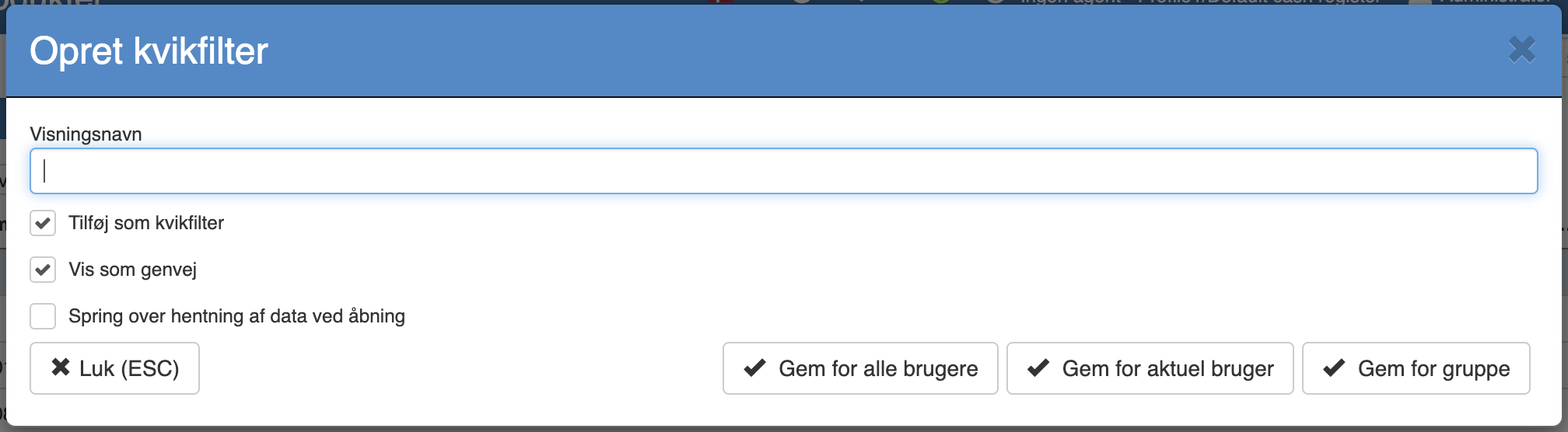
Give your quick filter a suitable name and then select which users should be able to use this filter
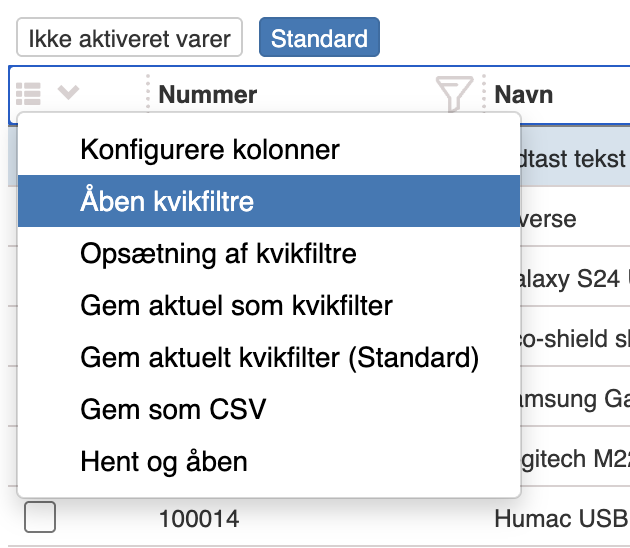
When you need to use your quick filter, click the three lines and select “Open quick filters”.
Then select the filter you want to use and click “OK”.
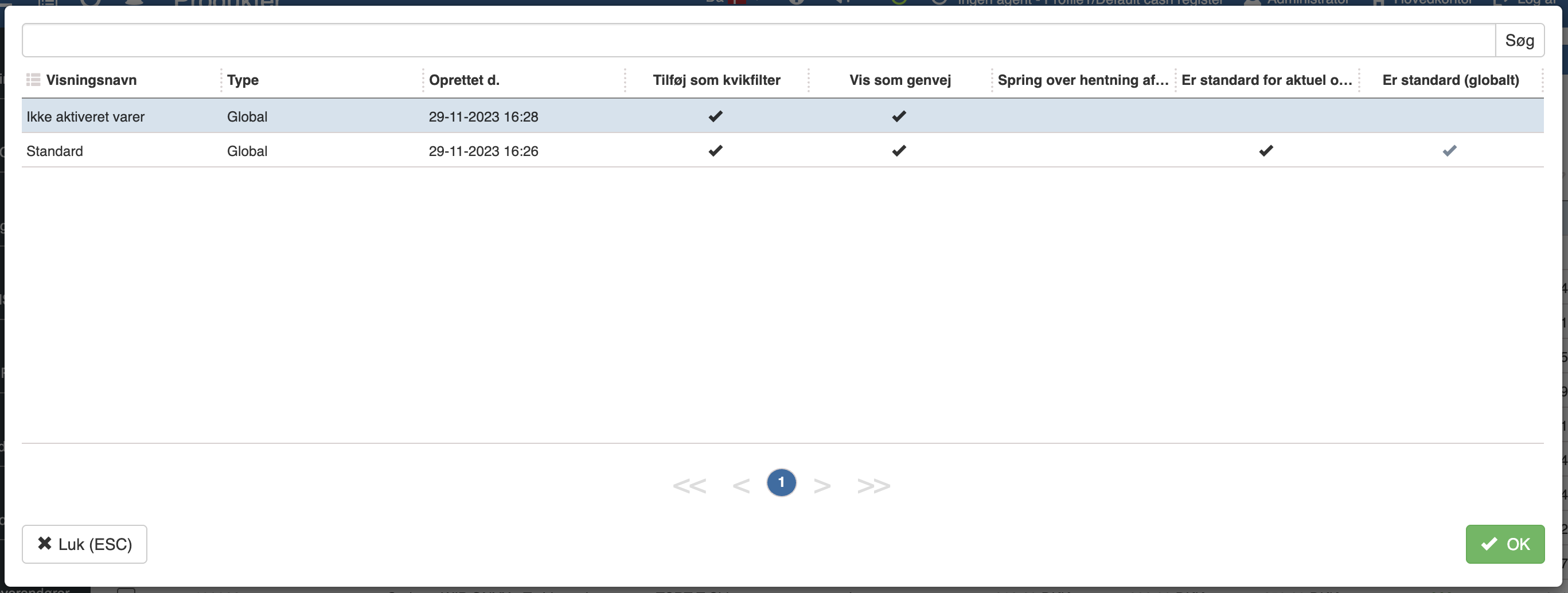
You can create as many quick filters as you want.
Want to know more?
Read more in these related articles:
Quick filters
This article reviews how to set up, customize and save quick filters to tailor overviews in Sapera
Quick filters and lists
Tailor and save filters on the overviews in Sapera.
How to search in lists
How to use the search field in lists in Sapera: free-text search, search with multiple words, and how a leading plus sign targets the search to one specific field (document number on document lists, product name on product lists). Also explains sorting and column filters.