1. From Financial, go to "Product" → "Products".
2. From the Products page, you can click the printer icon in the top right corner.
3. Select the printout "Stock journal"
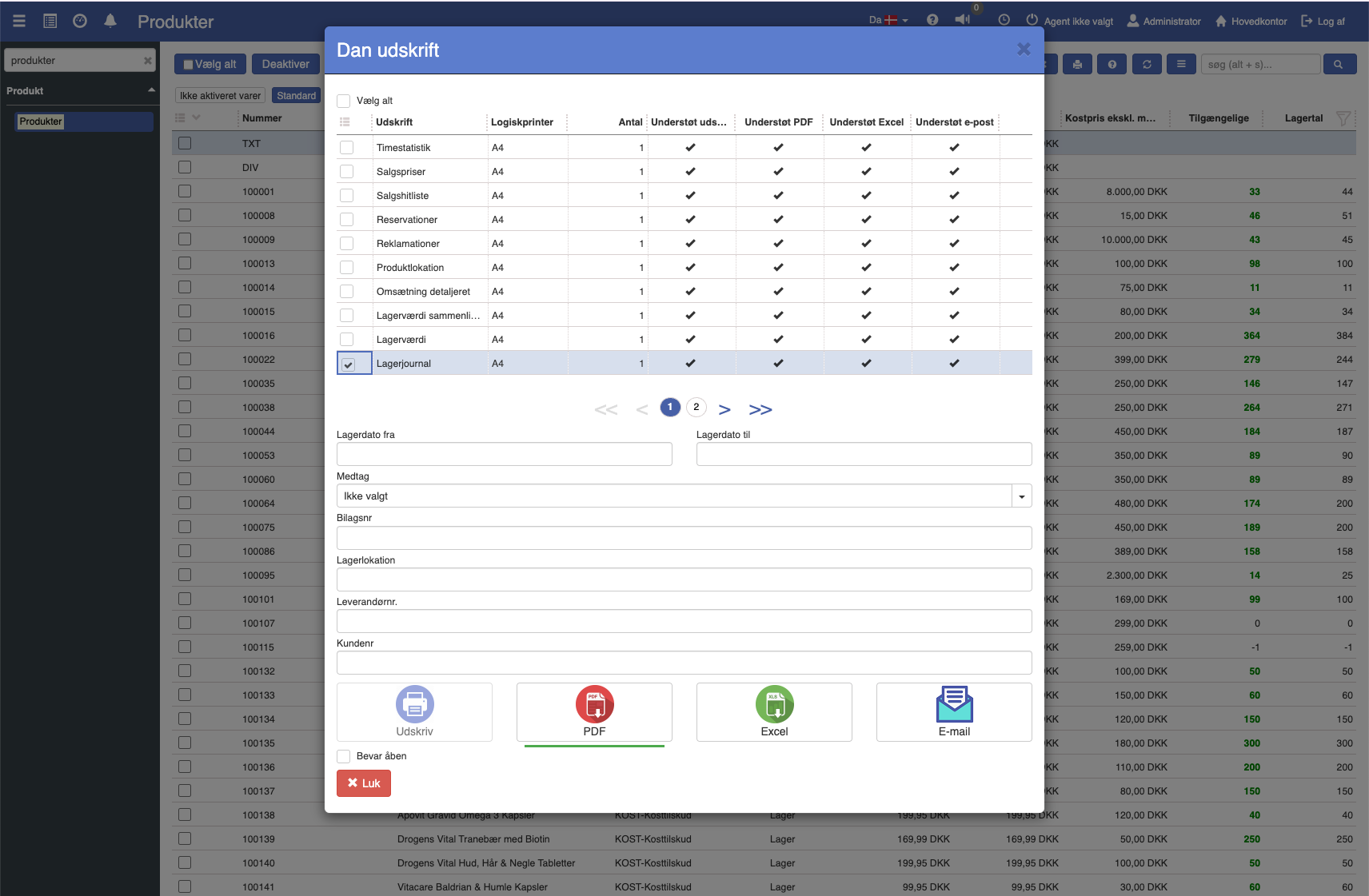
4. Fill in the fields (the fields are described below)
5. Click the print format you want to print in.
Options:
From / to stock date: The date range for the stock journal printout.
Include: Depending on which data you want the printout to include, you can choose between "All", "Inbound", "Outbound", "Outbound/Inbound", "Reservations", "Status", or "not selected".
All: The stock journal will include all available data.
Inbound: The stock journal will only show inbound items, that is, when items have been registered into stock.
Outbound: The stock journal will only show outbound items, that is, when items have been registered out of stock.
Outbound/Inbound: The stock journal will only show movements where both outbound and inbound items have been registered.
Reservations: The stock journal will only show registrations where items are reserved but not necessarily removed from stock.
Status: The stock journal will only show status changes in the stock, for example when a stock count or adjustment is made.
Not selected: The stock journal will not filter on this parameter.
Voucher number: Here you can specify a specific voucher number, so the printout only shows the stock transactions associated with this voucher.
Stock location: Here you can specify a stock location, so the printout only shows transactions from this location.
Supplier no.: Here you can specify a supplier number, so the printout only shows transactions associated with the selected supplier.
Customer no.: The stock journal printout will include stock transactions for the customer whose customer number you have specified.
This printout has no special setup options beyond the choices shown in the print dialog. If you have specific wishes for its appearance, you are welcome to contact support.
Want to know more?
Read more in these related articles:
Stock archive
A complete walkthrough of the Stock archive screen in Financial: columns, filters, actions, the posting-operation dialog with tabs, aggregated/detailed view, context menu, popups, and permissions.
Stock value
How to print a stock value statement in Sapera: find the report, understand each criterion, build your groupings, and understand the columns in the result.
Stock value compared to posted
Stock value compared to posted
