Start by going to “Financial” in the menu in the top left corner.
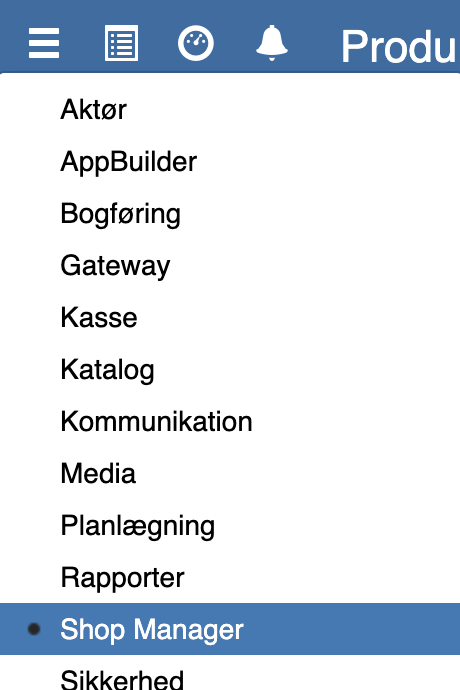
Then go to “Setup” → “Product catalog setup” → “Search tags”
You can also find “Search tags” by clicking the search field in the top left corner.
In here you can see the search tags that have been created. If you want to create a new one, mark the category it should be placed under and click “+”
Fill in the name of the new search tag here and click “Save”
If you want to edit an existing search tag, mark the desired search tag and click “Edit”

If you want submenus/subcategories, mark the search tag you want a new search tag under and click “+”. After you have filled in its name, you can see that the new search tag is placed under the selected one.
Once you have created the search tags, you must also add them as webshop categories.
Go to “WebShop” in the menu in the top left corner.
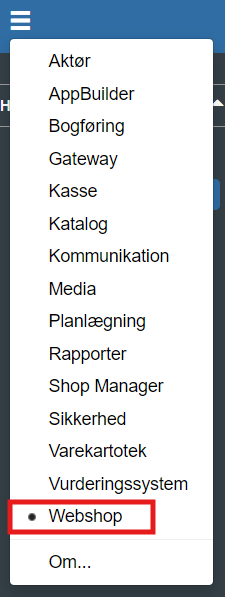
Then select “Webshop categories” on the left side.
Here you must create the categories in the same way as you did with the search tags. You must be positioned on the category the new category should be placed under.
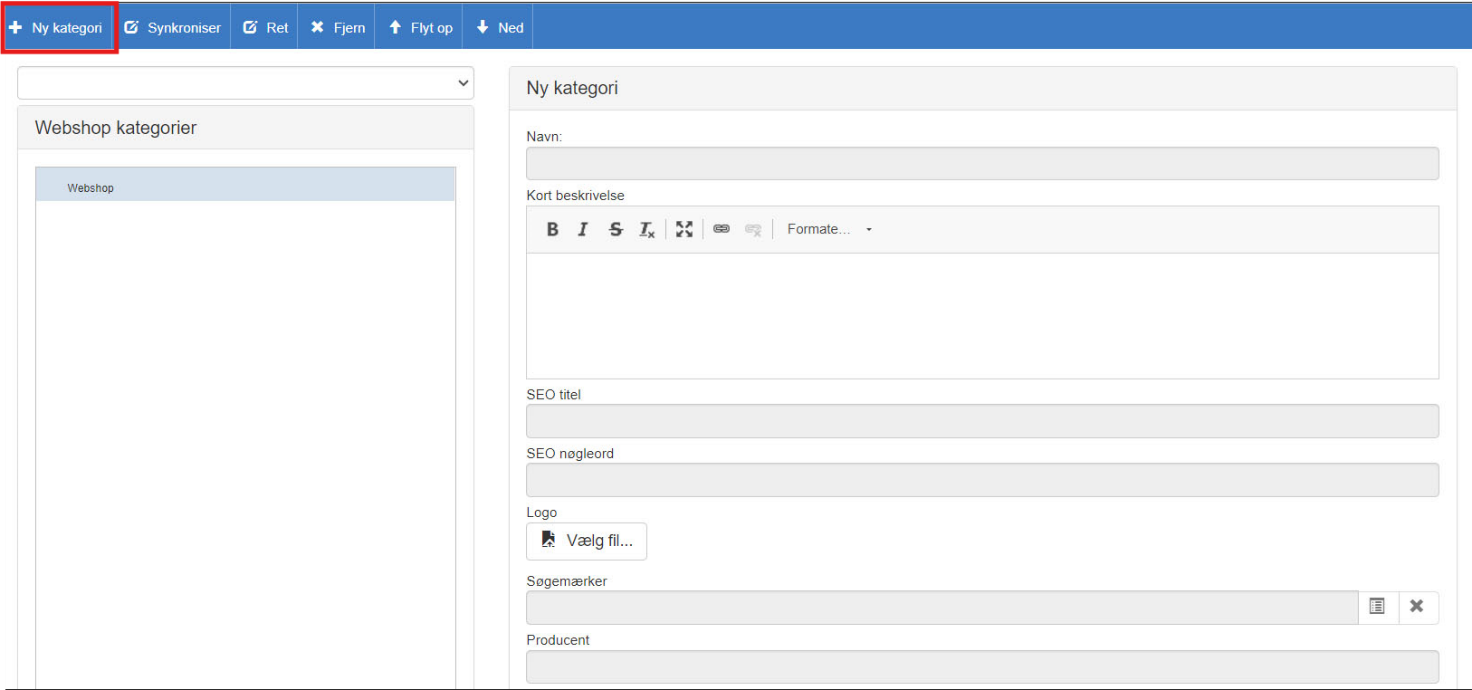
Name the categories so they match the search tags, and the same with the subcategories.
REMEMBER to press “Save”
Once both search tags and webshop categories are created, it will take a few minutes before they can be found in WordPress.
If they have not appeared within 5 minutes, click “Synchronize” inside “Webshop categories”. This can also be done if you remove/delete or edit a search tag/category and it is not displayed.
If you have created a new search tag and a new webshop category, you must go in and add it manually in WordPress.
Find “Appearance” → “Menus” in the menu on the left side.

Here you can see which menu is selected. It is important to select the primary menu.
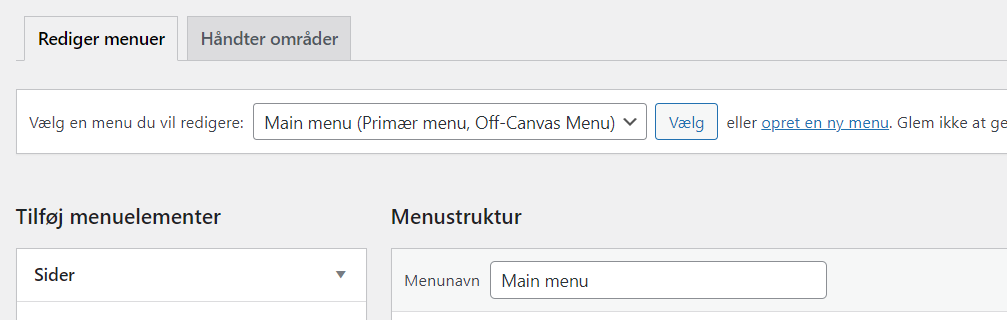
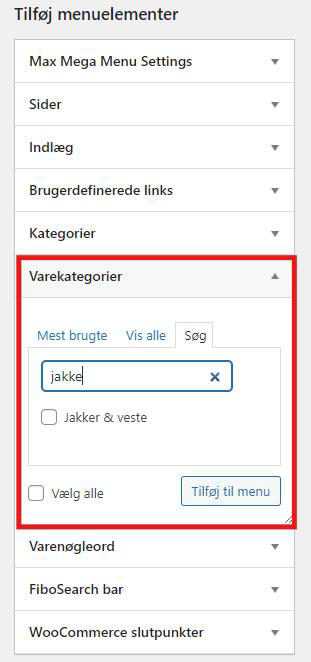
Under “Menu structure” you can see the menu items that have already been created. To add the new menu item, go to “Product categories” and select your search tag/category, then click “Add to menu”. You can now find your search tag at the bottom of the menu structure.
You can now move the search tag so it is positioned correctly in the menu - move it slightly to the right so it becomes a subcategory.
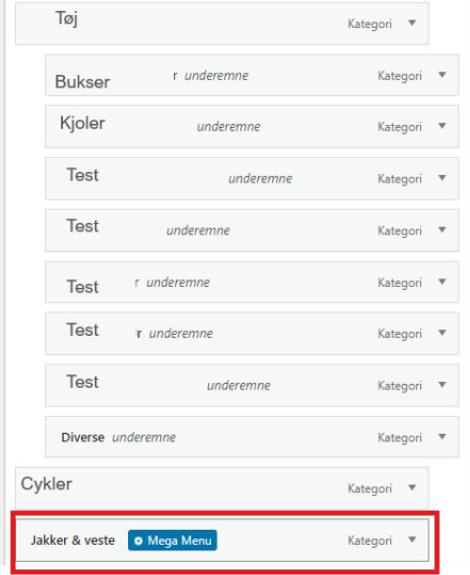
The indented categories are only visible as a drop-down menu under the main category.
REMEMBER to finish by clicking “Save”
Want to know more?
Read more in these related articles:
Search tags
This article explains how to create and use search tags to improve searching and product filtering in Sapera
Add products to a stock journal
How to find and transfer products to a stock journal, with or without the current stock quantity filled in.
Accounting - Card issuers
Accounting - Card issuers
